Help Documents
- Overview
- Hardware requirements
- Operating Systems
- Supported file systems
- Supported storage devices
- Install and uninstall
- Edition comparison
- File zip
- File sync
- Filters
- Check disk image
- Check file image
- Mount backup point
- Full backup
- Incremental backup
- Differential backup
- Edit backup
- Delete backup
- Delete image
- File sync
- Move/resize
- Create partition
- Format
- Partition recovery
- Surface test
- Align partition
- Change Volume Label
- Change Serial Number
- Change Cluster Size
- Check File System
- Rebuild MBR
- Wipe data
- More
More menu
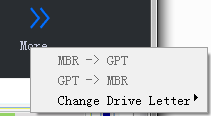
Click on "More" button on the Disk Management page, and application will show this menu.
- MBR -> GPT - Click on 'MBR -> GPT' menu, application will convert the selected disk to GPT disk.
- GPT -> MBR - Click on 'GPT -> MBR' menu, application will convert the selected disk to MBR disk.
- Change Drive Letter - This function will change the drive letter of the selected partition.
- Wipe data - Wipes data on the selected disk or partition.
- Align partition - Aligns the selected partition or partitions.
- Set volume read-only / Remove volume read-only - Makes the selected volume read-only or restores read and write access.
- Set volume online - Brings the selected volume online.
- Change Volume Label - Changes the label of the selected volume.
- Change Serial Number - Changes the serial number of the selected volume.
- Change Cluster Size - Changes the cluster size of the selected volume.
- Change Partition Type - Changes the type of the selected partition.
- Check File System - Checks the selected volume's file system and repairs detected errors.
- Set disk read-only / Remove disk read-only - Makes the selected disk read-only or restores read and write access.
- Set disk offline / Set disk online - Takes the selected disk offline or brings it online.
- Rebuild MBR - Rebuilds the MBR on the selected MBR disk.
Related Articles
- How to Convert GPT to MBR (Without Data Loss) with 3 GPT to MBR Converter
- How to Convert Logical Partition to Primary Partition
- Three Ways to Convert MBR to GPT Disk on Windows 10
- How to Convert MBR to GPT in Windows 11/10/8/7
- How to Convert MBR to GPT or GPT to MBR Without Losing Data in Windows 10
- How to protect your valuable data with continuous data backup software