How to Copy Linux Directory and Contents
If you want to copy a directory or its contents to another location on Linux, there are multiple methods to achieve this. You can use the built-in `cp` command with the `-r` option to recursively copy files and directories. For more efficient copying, especially when dealing with large files or remote transfers, you can use `rsync` for incremental synchronization. The `scp` command is ideal for secure copying to remote hosts, and `tar` can be used to create compressed archives of directories for transfer. Each method offers different levels of complexity and efficiency, allowing you to choose the best approach for your specific needs.
| Workable Solutions | Step-by-step Troubleshooting |
|---|---|
| Copy Directories/Contents on Linux |
Fix 1. Copy Directories on Linux...Full steps Fix 2. Copy Directory Content on Linux...Full steps |
| Copy Directories to Remote Hosts |
Fix 1. Use SCP Command...Full steps Fix 2. Use the rsync Command...Full steps |
| Recover Deleted Directory in Linux | Launch Deep Data Recovery...Full steps |
To copy directories or content on Linux, you can use the `cp` command. The basic syntax for copying a directory is `cp -r source destination`, where `source` is the directory you want to copy and `destination` is the location where you want to copy it to. The `-r` option stands for recursive, which allows you to copy the entire directory and its contents. For example, to copy the `/home/user/documents` directory to `/home/user/backup`, you would use the command `cp -r /home/user/documents /home/user/backup`.
Copying files is best done using the command line, especially in Linux. Commands like "cp" and "rsync" can be used to achieve this, offering different options for copying files.
Both the `cp` and `rsync` commands can be used to copy files and directories on Linux. The `cp` command is simpler and suitable for local copies, while `rsync` is more efficient for large transfers and supports remote synchronization.
This tutorial will guide you through the process of copying directories and folders on a Linux system, providing you with a complete understanding of how to easily accomplish this task.
How to Copy Directories/Contents on Linux
To copy a directory and its contents on Linux, you can use the `cp` command with the `-r` option. The `-r` option stands for "recursive," which means it will copy the directory and all its contents, including subdirectories and files. For example, to copy the contents of the `/home/user/Documents` directory to `/home/user/Documents_backup`, you would use the command: `cp -r /home/user/Documents /home/user/Documents_backup`.
1. Copy Directories on Linux
To copy directories on Linux, you can use the "cp" command followed by the source directory and the destination directory. For example, to copy the "Documents" directory to the "Backup" directory, you would use the command "cp -r /home/user/Documents /home/user/Backup". The "-r" option stands for recursive, which means it will copy the directory and all its contents. You can also use the "rsync" command, which is more efficient and can be used for incremental backups.
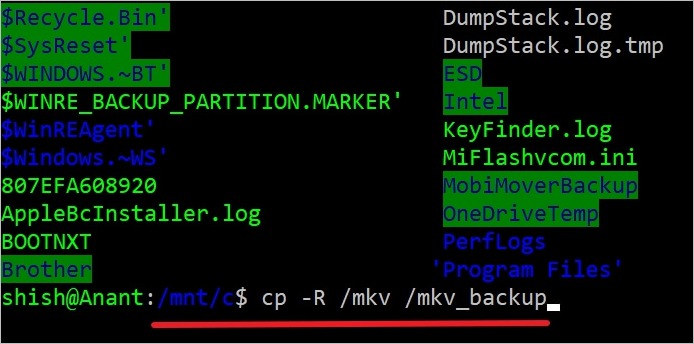
Step 1. To copy a Linux directory, use the `cp` command with the `-R` option, specifying both the source and destination directories you want to copy.
$ cp -R
Step 2.Imagine you want to copy the `/Mkv` directory into a backup folder named `/mkv_backup`, but you're aware that the `/mkv_backup` folder already exists at the root of your filesystem.
To copy the /mkv directory to the backup folder, use the command: `cp -r /mkv/* /backup`
$ cp -R /mkv /mkv_backup
Step 3.Once done, the /mkv folder will be successfully copied into the /mkv_backup folder on Linux, completing the folder copy operation.
To copy multiple directories in one go, use the following format: `cp -r dir1/ dir2/ dir3/ destination/`. Replace `dir1`, `dir2`, `dir3` with the actual directory names you want to copy, and `destination` with the desired destination directory.
$ cp -R...
All source folders will be copied to a single destination folder, making them accessible from there.
2. Copy Directory Content on Linux
You can also copy directory content on Linux by using the `cp` command with the wildcard character, similar to copying directories, but with the addition of copying all files within the directory.
Step 1.To copy directory content on Linux, use the `cp` command with the `-R` option and the wildcard character `*` to include all files and subdirectories. For example, `cp -R /path/to/source/* /path/to/destination/` will copy all files and subdirectories from the source directory to the destination directory.
$ cp -R /*
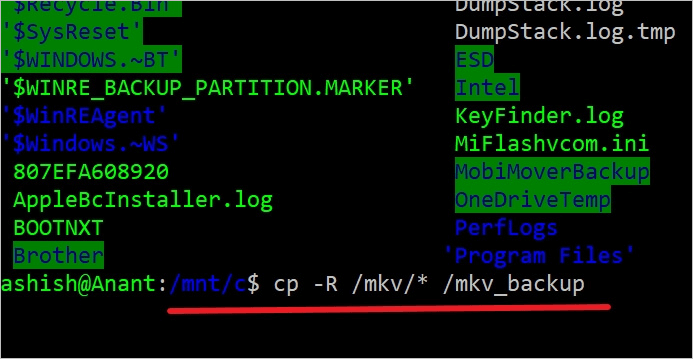
Step 2.To copy content from the /mkv directory to the /mkv_backup folder, use the following command with caution.
$ cp -R /mkv/* /mkv_backup
Step 3. After backing up your data, you can use the "ls" command to list the content of the backup folder, which shows you the list of files copied into the backup directory.
$ ls -l /mkv_backup
How to Copy Directories to Remote Hosts
To copy directories to a remote host, you can't use the regular CP command because it only works on a single system. Instead, you can use the SCP (Secure Copy) or RSYNC (Remote Sync) command, which are designed to work over a network and can copy files between two different machines. These commands allow you to transfer directories to a remote host.
Method 1. Use SCP Command to Copy Directories
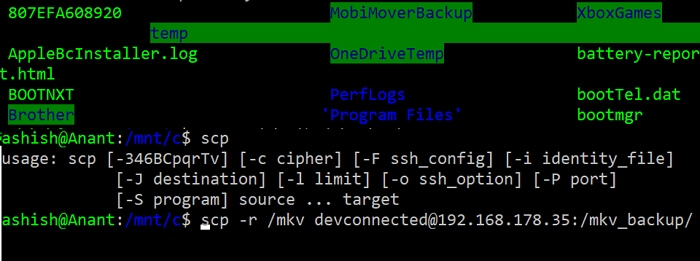
To copy a directory on Linux to a remote location, you can use the SCP command with the -r option for recursive. The command format is: `scp -r /path/to/source/directory user@remote-server:/path/to/destination/directory`. This will copy the entire directory and all its contents to the specified remote location. Simply replace `/path/to/source/directory` with the actual path of the directory you want to copy, and `/path/to/destination/directory` with the desired path on the remote server.
$ scp -r @:
You can copy the /mkv directory to a backup server located at 192.168.1.36 in the /mkv_backup folder by running the following command:
$ scp -r /mkv devconnected@192.168.1.36:/mkv_backup/
To copy the directory to your server's custom directory, you can use a Bash parameter substitution, such as `cp -r /path/to/original/directory /path/to/custom/directory`. This command will recursively copy the entire directory and its contents to the custom directory. Make sure to replace `/path/to/original/directory` and `/path/to/custom/directory` with the actual paths to the original directory and your server's custom directory.
$ scp -r /etc devconnected@192.168.1.36:/mkv_backup/mkv_$(date +%F)
Method 2. Use the rsync Command to Copy Directories
To use rsync to copy directories to a remote location, you will need to specify the source folder and the remote destination. This can be done using the rsync command, which allows you to copy directories and their contents to a remote server or location.
If the rsync utility is unavailable on the server, To install the rsync tool, you can use the command `sudo apt-get install rsync` in the terminal, which requires sudo privileges. This command will install the rsync tool on your system.
$ sudo apt-get install rsync
$ sudo yum install rsync
To synchronize files between two directories, you'll need to use the RSYNC command with the -r option for recursive and the -a option for all. The final command will look like this: `rsync -ra /source/directory /destination/directory`. This command will recursively copy all files and directories from the source directory to the destination directory, preserving permissions, ownership, and timestamps.
$ rsync -ar @:
Let's understand it using a real-world example:
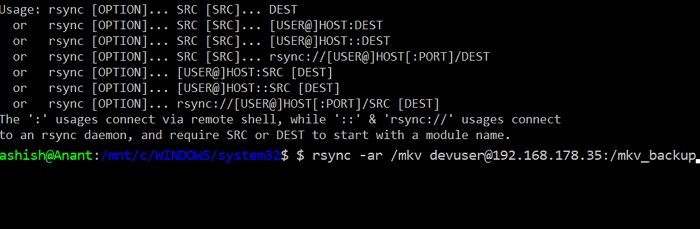
Source: Copy the /mkv folder to the backup server with IP address 192.168.1.16.
Destination: Copy the above directory to the remote server's backup folder /mkv_backup.
Assuming the user name is devuser, execute the following command:
$ rsync -ar /mkv devconnected@192.168.1.36:/mkv_backup
You can choose to copy the content of the /mkv/ directory, and then append a wild character to it.
$ rsync -ar /mkv/* devconnected@192.168.1.36:/mkv_backup/
To complete the process, you can append the current date to the backup directory name. The command is:
$ rsync -ar /mkv/* devconnected@192.168.1.36:/mkv_backup/etc_$(date +%F)
How to Recover Deleted Directory in Linux with Software
Losing important files on Linux can be frustrating, especially if they're deleted permanently. However, copying directories or other content on the system is relatively straightforward.
If you're experiencing the frustration of losing directories, files, and folders in Linux, restoring them is the best option. Fortunately, with the increasing demand for data recovery tools in recent years, there are now numerous service providers that can help you recover your lost data.
Deep Data Recovery is a reliable data recovery option that supports Linux platforms, allowing users to recover lost files on various distributions such as MX Linux, Manjaro, Linux Mint, Ubuntu, and Debian.
Users can use this tool to recover deleted files on their Windows PC without issues, and it is a straightforward, easy-to-use, and affordable data recovery wizard that takes just a few seconds to accomplish the process.
The tool is compatible with Mac and Windows, but can also read the Linux directory structure, allowing you to recover deleted files on Linux by connecting the drive to either a Windows or Mac computer and using the software.
If you are eager to know about this tool more, here we are, with the leading functions and highlights that will make things much more apparent to you.
- 1. Deleted Data Recovery
- 2. Flexible Scanning Modes
- 3. Preview Before Recovery
- 4. Free Remote Assistance
Follow these steps to use Deep Data Recovery to recover your data:
Note: Linux Recovery is a new feature in Deep Data Recovery, available in the latest version. To access it, you can contact our online customer service to obtain the installation package.
Step 1. Install and Launch Deep Data Recovery on your Windows PC. Choose "Linux Recovery" on the left panel.
Step 2.This software automatically detects your IP and Port, and you only need to input your user name and password. If the detected IP address or Port is incorrect, you can manually correct it before clicking "Connect Now".

Note: You can choose different search modes based on where and why the data was lost.
Step 3. After connecting to the Linux device, Qiling recovery software will scan the disk to find lost and deleted files, and then allow you to filter the results by file type.

Step 4.To recover lost files in Linux, you can preview the scanned files first, then select the target data and click the "Recover" button to restore the lost files.

Final Words
Working on Linux is different from Windows and macOS, requiring unique commands to perform tasks. The guide has introduced four methods for copying directories and contents from one location to another on Linux.
Related Articles
- Zoom Meeting Disappeared for No Reason? Fix It and Recover Zoom Meetings Now
- Fix Unspecified Error When Copying File or Folder on Windows 10
- How to Burn ISO to DVD on Windows 10/11 (Step-by-Step Tutorial)
- Open/Boot Command Prompt at Boot in Windows 10 (4 Ways)
- Repair Not Working SanDisk Memory Card without Losing Data
SanDisk memory cards, such as micro SD cards, SDHC, SDXC, and XQD cards, may stop working properly on Android phones, digital cameras, or PCs, making them undetectable, unreadable, or inaccessible. - A Simple Way to Repair Adobe PDF Files |PDF Repair Full Guide
To repair a corrupted or damaged PDF, you can use an online tool or Deep Data Recovery, which can help fix broken Adobe files on a PC or online.
Products
Articles & Tutorials
- Data Recovery
- Data Backup
- File Recovery
- File Backup
- System Backup and Restore
- Disk and Partition Clone
- Technical articles
- Mobile articles
- Disk Master Help
- Windows Data Recovery Tutorials
- Windows Secure Delete Tutorials
- Windows Partition Management Tutorials
- Windows File Backup and Restore Tutorials
- Windows System Backup and Restore Tutorials
- Windows Disk Backup and Restore Tutorials
- Windows Clone Tutorials