Open/Boot Command Prompt at Boot in Windows 10 (4 Ways)
Overview - How to Boot to Command Prompt in Windows 10
A Command Prompt is an entry point for typing computer commands, allowing you to perform tasks on your computer without using the Windows graphical interface. To access it, you can use one of the two methods available in Windows 10.
| Workable Solutions | Step-by-step Troubleshooting |
|---|---|
| 1-Windows 10 Can't Boot |
Fix 1. Boot to Windows 10 Command Prompt with Installation Media...Full steps Fix 2. Boot to Command Prompt Windows 10 from Advanced Startup Options...Full steps |
| 2-Windows 10 Can Boot |
Fix 1. Start Command Prompt Using Search...Full steps Fix 2. Open/Boot Windows 10 Command Prompt from the Settings...Full steps |
Part 1. How to Open Command Prompt If Windows 10 Can't Boot
If you're unable to boot into Windows 10 and repair errors, you can either create an installation media or turn off the PC three times. This will allow you to access the Windows Recovery Environment and attempt to repair the issues. Alternatively, you can create installation media, such as a USB drive or CD/DVD, to reinstall Windows 10.
Way 1. Boot to Windows 10 Command Prompt with Installation Media
If your computer won't boot, you can use the Windows 10 Installation Media to open Command Prompt. Alternatively, you can use the Windows 10 Media Creation Tool to access the BIOS settings, even if Windows 10 itself won't start.
Step 1. Create Windows 10 Installation Media
Requirements:
- A PC with a stable internet connection for the download.
- To create a bootable USB drive or DVD, you'll need a USB flash drive with at least 8 GB of space or a blank DVD. This will serve as the medium to install a new operating system, such as Windows, on your computer.
- When trying to burn a DVD from an ISO file, if you're told the disc image file is too large, you'll need to use dual-layer (DL) DVD media instead.
To create a Windows 11/10 media creation tool, follow this guide.
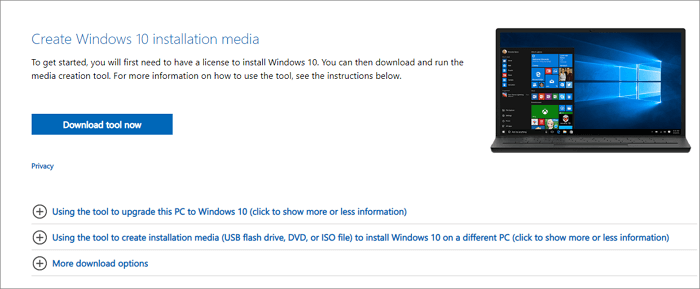
Step 2. Boot into the BIOS in Windows 10
- Insert the Windows 10 installation media into your PC and boot the PC from it.
- To enter your computer's BIOS settings, you typically need to press a specific key on your keyboard as your computer is starting up. The required key can vary depending on your computer model, but common ones include F2, Del, Esc, or sometimes F1, F5, or F10.
- To make your computer boot from a USB drive, go to the "Boot" pane, and move your USB drive to the top of the boot list. This will allow your computer to prioritize booting from the USB drive over its internal hard drive.
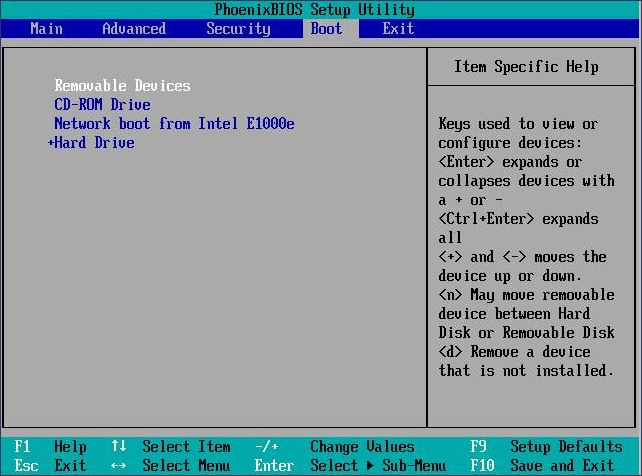
Step 4. Boot to Windows 10 Setup Interface
- Press F10 to save your settings and exit the BIOS.
- Set the language, time, and keyboard, then click "Next".
- Click "Repair your computer" at the bottom left.
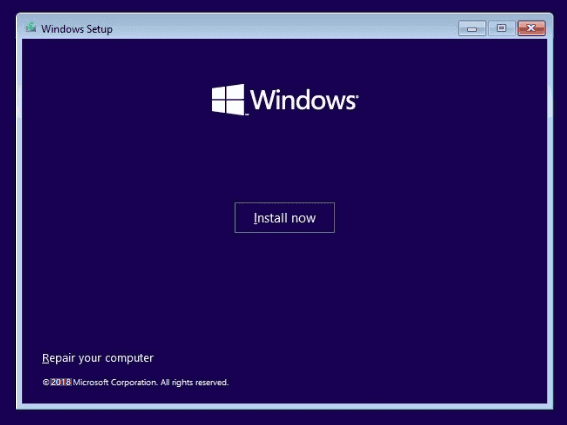
Step 5. Boot to Command Prompt in Windows 10
- Click "Troubleshoot > Advanced Options > Command Prompt"
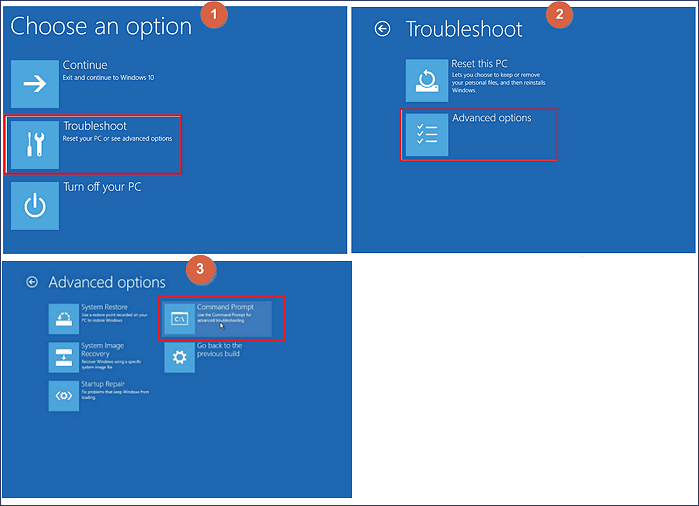
To repair Windows 10 using the Command Prompt, follow these steps: Open the Command Prompt as an administrator, type the command "sfc /scannow" and press Enter to scan and replace corrupted system files, type "DISM /Online /Cleanup-Image /RestoreHealth" and press Enter to scan and repair the system image, and type "chkdsk /f" and press Enter to check and repair disk errors.
To repair Windows 10 with SFC:
- To go to the C: drive of your computer, simply type "C:" and press Enter on the command window. This will take you to the C: drive.
- Tip
- Because your computer is started with bootable media, the System Reserved partition of your hard drive is temporarily marked as C: and therefore the C: drive that you see from within Windows 10 is marked as D: drive, which is a temporary modification.
- Type sfc /scannow and press Enter.
If you're experiencing Windows 10 boot problems, such as issues with the Master Boot Record (MBR), you can try to fix them by running specific commands. To do this, you'll need to open the Command Prompt as an administrator and type in the necessary commands to repair the MBR.
- bootrec /fixmbr
- bootrec /fixboot
- bootrec /rebuildbcd
Way 2. Boot to Command Prompt in Windows 10 from Advanced Startup Options
If your PC won't start properly and you see a blue screen or a blank desktop, you can try to open Command Prompt in Advanced Startup Options. To do this, you'll need to restart your PC and repeatedly press a specific key (like F2, F12, or Del) until you see the Advanced Startup Options menu. From there, you can select Command Prompt and use it to troubleshoot and fix your PC issues.
Step 1. Enter the Windows 10 recovery environment.
Turn your computer on and off three times, turning it off when you see the Windows logo, and after the third time, Windows 10 should boot into diagnostics mode.
Step 2. When the recovery screen appears, click "Advanced options > Troubleshoot > Advanced options > Command Prompt".
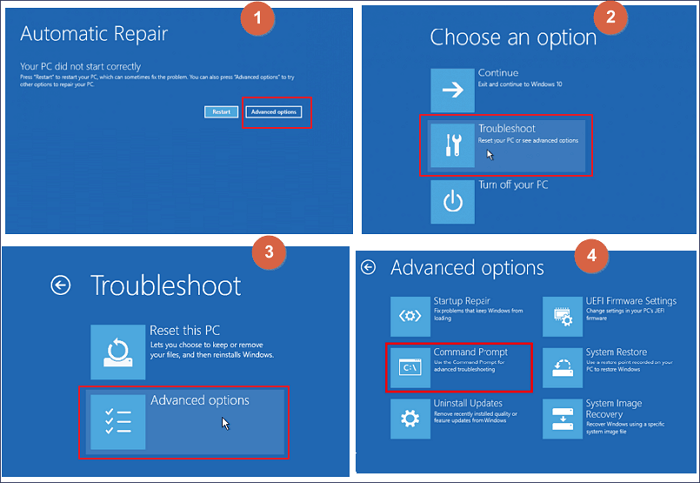
The Command Prompt is launched, and you can start using it immediately.
Part 2. How to Start Command Prompt If Windows 10 Can Boot
To make things easier, ensure your Windows computer or laptop is running smoothly. You can search for Command Prompt or access it from the Settings. Alternatively, you can follow these detailed steps: search for Command Prompt or enter Command Prompt from Settings.
Fix 1. Start Command Prompt Using Search
This solution is the most recommended one for its easiness.
Step 1. Go to Start and type cmd into the search box.
Step 2. Right-click Command Prompt and select "Run as administrator" from the list.
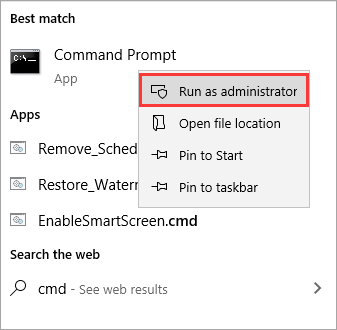
You should enter into the Command Prompt window now.
Fix 2. Start Windows 10 Command Prompt from Settings
Step 1. To access the recovery settings, click on "Start" and then select "Settings". From the Settings window, choose "Update & Security", and then select "Recovery".
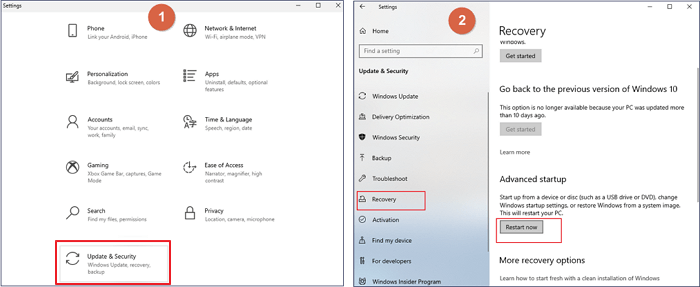
Step 2. To restart your Windows 10 computer, click "Restart now" under Advanced startup. This will immediately restart your computer.
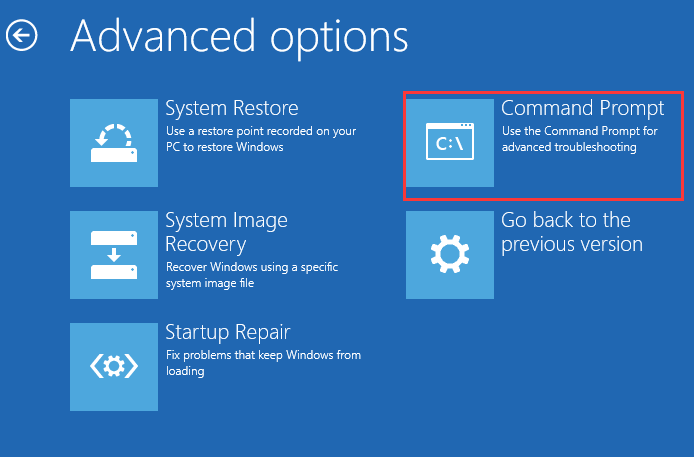
Step 3. When you encounter the "Choose an option" screen, select "Troubleshoot > Advanced options".
Step 4. To access the Command Prompt, you can click on the "Start" button, then select "All apps," and finally click on "Windows System" and then "Command Prompt". Alternatively, you can type "cmd" in the search bar and press Enter to open the Command Prompt window. Once you're in the Command Prompt window, you can start typing commands to interact with your computer.
Extra Tip: How to Recover Command Prompt Deleted Files
When using cleanup commands like "clean" or "format" in the Command Prompt, data on the drive can be permanently deleted without backup. To recover deleted files, the best option is to use Deep Data Recovery, a hard disk data recovery software that can recover files accidentally deleted after formatting, using the Command Prompt, or by pressing Shift-Delete.
Download this all-in-one data recovery software to recover lost data from your PC or laptop. It can restore deleted files, photos, videos, and other digital content.
Step 1. Run Deep Data Recovery and select file types, then click "Fast Scan" to initiate the process.

Note: You can choose different search modes based on where and why the data was lost.
Step 2. Choose the drive where you lost files and start scanning. This software allows you to recover lost data from various devices, including HDD, SSD, USB drives, SD cards, pen drives, cameras, and more.

Step 3. You can browse the full scan results and choose the file type you need by clicking on the file type filter, with Qiling data recovery software supporting over 1000 file types including photos, videos, documents, emails, audio files, and more.

Step 4. To preview and recover files, select the desired files, click "Recover", and then choose a storage location to save the recovered data.
Conclusion
If your PC can't boot, refer to Part 1, but if it can start normally, refer to Part 2. this post provides provided 4 ways to boot Windows 10 from Command Prompt. If you have data loss problems, consider using Qiling data recovery software for help.
Related Articles
- How to Recover Deleted Files/Photos on Phone from Hide it Pro
- Getting Word Runtime Error 53? Here Is How to Fix Run-Time Error
- How to Copy Linux Directory and Contents
- How to Recover Deleted Call Recordings on Android [2022 Guide]
- A Complete Guide to Recover Data from Broken RAID 0, 1, 5, 10 [SOLVED]
You can recover data from a broken RAID Array without removing the drive, thanks to Qiling NAS data recovery software. Simply download and install the software, then let it scan and recover data from RAID 0, 1, 5, 10 configurations with just a few clicks. - Recover Data from Encrypted SD Card
You can decrypt an encrypted SD card with a password using two methods: either by accessing the password in the source device or by entering it on a new phone. If you've forgotten the password, third-party software can help you recover it.
Products
Articles & Tutorials
- Data Recovery
- Data Backup
- File Recovery
- File Backup
- System Backup and Restore
- Disk and Partition Clone
- Technical articles
- Mobile articles
- Disk Master Help
- Windows Data Recovery Tutorials
- Windows Secure Delete Tutorials
- Windows Partition Management Tutorials
- Windows File Backup and Restore Tutorials
- Windows System Backup and Restore Tutorials
- Windows Disk Backup and Restore Tutorials
- Windows Clone Tutorials