How to Delete Files, Folders, and Directories in Linux Using Command
Learning the Linux command line is a must-have skill for all Linux users and system administrators. It allows for simple tasks like creating, deleting, browsing, and transferring files to be completed using the command line interface.
Familiarity with core Linux commands is essential for server administration, especially since Linux is a popular operating system for virtual server hosting. This article shows you how to delete a file in Linux using the Terminal command line.
How to Delete a File in the Linux Terminal
Before proceeding with file deletion in Linux, keep in mind the following tips:
- Be cautious when using certain commands, particularly those that involve regular expressions or search patterns with the "Find" command, as they can lead to unintended deletion of data, files, or systems.
- It's always a good idea to keep a current copy of vital data and device files, such as documents, pictures, and software updates, to ensure you have access to them in case of a hardware or software failure. This can be done through cloud storage services like Google Drive or Dropbox, or by backing up your files to an external hard drive.
- Run these commands with extreme care, especially if you're using root (super-user privileges) and Sudo, as they can potentially cause damage to your system if not executed correctly.
1. Delete a Single File Using rm Command
The most frequently used command for deleting files from your computer is the rm function, which allows you to remove one or more files at the same time.
rm {file-name}
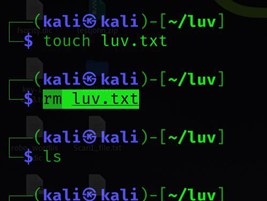
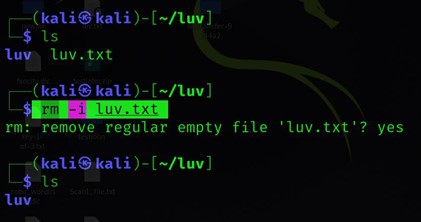
Step 1.When using the command "rm" to delete files, write-protected files will prompt for confirmation before deletion, whereas regular files will be deleted without prompting. The "-i" flag can be used to force "rm" to prompt for confirmation before deleting any file.
rm -i {file-name}
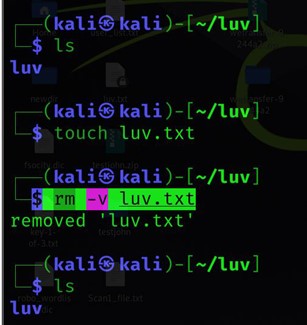
Step 2. The rm command removes files from the system without displaying any notifications, but using it with the -v flag allows you to view what it's doing.
rm -v {file-name}
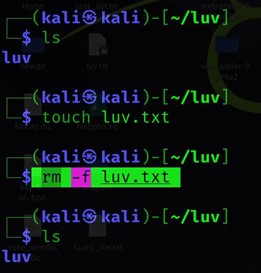
Step 3.Using the -f flag to delete write-protected files without first requesting an explanation is not recommended.
rm -f {file-name}
2. Remove Files by Employing unlink
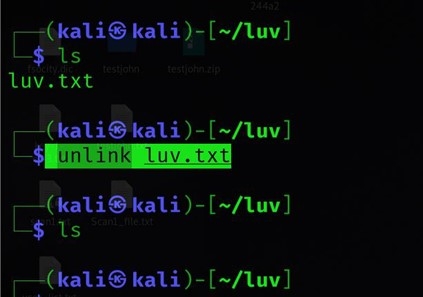
Here is how you can deploy the "unlink" command when deleting a file permanently using Linux. The "unlink" command is used to delete a file permanently, it is the equivalent of the "rm" command.
$ unlink {file-name}
How to Remove Folders and Directories in Linux with Command Lines
The rmdir and rm commands in Linux allow you to remove or delete folders, with rmdir only removing empty directories and rm removing directories with their contents recursively.
Step 1.To completely delete non-empty folders and all of the files contained inside them, use the `rm` command with the `-r` (recursive) option. This will remove the folder and all of its contents in one step.
rm -d dirname
Step 2. If you try to delete a directory or file that is write-protected, you will be prompted to confirm your action. This is to prevent accidental deletion of important data.
rmdir dirname
Step 3. You can delete non-empty folders and all of the files within them without being prompted by using the `rm` command with the `-r` (recursive) and `-f` (forceful) arguments. The command would be `rm -rf /path/to/folder`, replacing `/path/to/folder` with the actual path to the folder you want to delete.
rm -r dirname
Step 4. To delete multiple directories at once, use the `rm -r` command followed by a space and the directory names you want to delete, separated by a space. For example: `rm -r dir1 dir2 dir3` would delete the directories named `dir1`, `dir2`, and `dir3`.
rm -rf dirname
Step 5. You can use normal expansions to match multiple directories in the same way you use a wildcard (*) to match multiple files.
rm -r dirname1 dirname2 dirname3
Important to Remember: When the `rmdir` command is used to remove directories that are not empty, it will stop processing and return an error message "Directory not empty" instead of attempting to remove the remaining directories. This means that if you have a list of directories to delete and one of them contains files, the entire process will be halted. In such cases, using the `rm` command with the `-r` option would be a more effective approach, as it will continue to process and delete the remaining directories even if one of them is not empty.
The `rmdir` command would typically return an error message and not perform any further actions if it encountered a directory that couldn't be removed. However, you can use the `--ignore-fail-on-non-empty` option to force it to continue processing other directories while ignoring the errors caused by the non-empty directories. This way, the command will not stop executing due to these specific issues.
How to Recover Deleted Files, Folders, and Directories in Linux
Deleting files in Linux can be risky, and it's easy to accidentally delete important files. If you've lost files due to a command gone wrong, you can try recovering them using a tool like Deep Data Recovery. This may require expert help, but it's a good option to consider if you want to restore your lost game data.
Deep Data Recovery makes it easy to recover deleted files or data on Linux, including MX Linux, Manjaro, Linux Mint, Ubuntu, Debian, and more, allowing users to effortlessly recover lost data from a Linux computer running on a Windows PC.
Note: Linux Recovery is a new feature of Deep Data Recovery, included in the latest version, which can be installed by contacting online customer service.
Step 1.To start the recovery process, install and launch Deep Data Recovery on your Windows PC. Once launched, navigate to the left panel and select "Linux Recovery" to begin the recovery process.

Note: You can choose different search modes based on where and why the data was lost.
Step 2.This software automatically detects your IP and Port, and you'll need to input your user name and password to proceed. If the detected IP address or Port is incorrect, you can manually correct it before clicking "Connect Now".

Step 3. After connecting to your Linux device, Qiling recovery software will start scanning the disk to find all lost and deleted files. Once the scan is complete, you can click "Filter" > "Type" to specify the types of lost files you want to recover.

Step 4.To recover lost files in Linux, you can first preview the scanned files, then select the target data, and finally click the "Recover" button to restore the lost files.
Main Features of the Deep Data Recovery:
- Data recovery software can recover data from a variety of storage devices, including hard disks, solid-state drives (SSDs), Secure Digital (SD) cards, flash drives, and USB devices. This software can restore deleted files, recover data from corrupted or damaged storage media, and even pull data back from devices that have been formatted or wiped.
- After recovering data, the software can also repair corrupted files, including documents, videos, and photos, to make them usable again.
- Preview restored files before recovery
Conclusion
The rm, rmdir, and unlink Linux commands are essential for deleting files and folders from the command line. You should be familiar with these commands and able to properly use them to delete files and folders after reading through this How to Delete a File in Linux guide.
The Deep Data Recovery software can be used to recover accidentally deleted data from various Linux distributions, including Ubuntu, Fedora, Debian, and Slackware, making it a valuable tool in case of data loss.
Related Articles
- How to Convert Raw to NTFS in Windows 10 Without Data Loss
- Get Data Back for NTFS | Best NTFS Data Recovery Software to Get Data Back
- Recover Data from Corrupted Hard Drive
- Free Download | Undelete Files with Windows Undelete Software
- Ultimate Guide on SD Card Recovery in 2022
SD cards are widely used due to their high data transmission speed and hot-swappable features, but this also leads to data loss issues. - SD Card and Disk Video Recovery Free: Recover Deleted Videos from SD Card
To recover deleted video from an SD card, simply connect the card to your computer and use a video recovery software to restore the deleted files.
Products
Articles & Tutorials
- Data Recovery
- Data Backup
- File Recovery
- File Backup
- System Backup and Restore
- Disk and Partition Clone
- Technical articles
- Mobile articles
- Disk Master Help
- Windows Data Recovery Tutorials
- Windows Secure Delete Tutorials
- Windows Partition Management Tutorials
- Windows File Backup and Restore Tutorials
- Windows System Backup and Restore Tutorials
- Windows Disk Backup and Restore Tutorials
- Windows Clone Tutorials