Zoom Meeting Disappeared for No Reason? Fix It and Recover Zoom Meetings Now
Zoom Meeting application provides great convenience for users who need to conduct meetings or webinars over the network, but some users also experience errors on the application.
The common Zoom error "Zoom meeting disappeared" can be frustrating, but it's easily fixable. If your Zoom meeting has vanished from the screen or meeting list, don't worry, we've can help. By following the solutions outlined on this page, you should be able to resolve the issue and get your Zoom meetings back on track.
- Zoom Meetings Disappeared, Help!
- Get Back on Zoom Meeting, Restoring Disappeared Zoom Meetings
- Why Did My Zoom Meeting Disappear and How to Avoid This Error
Error: Zoom Meetings Disappeared, Help!
If your Zoom meetings have disappeared, first check if you're experiencing one of the symptoms associated with the Zoom Meeting application.
Symptoms:
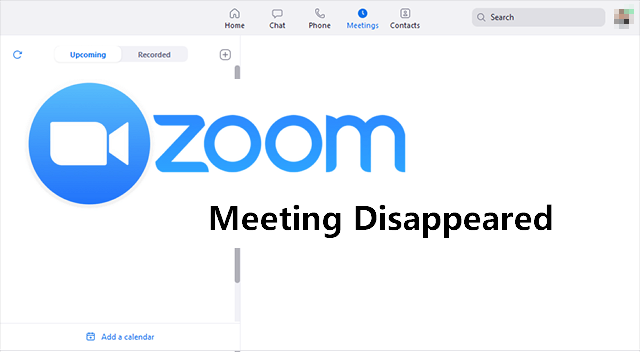
- Meetings disappeared from the Meetings list
- Meetings disappears from Upcoming Meetings
- Zoom meeting disappeared from the screen
- Zoom meeting not showing up in my calendar
- Zoom meeting not showing up in application
- Zoom meeting recording disappeared
- Zoom meeting recordings not showing up on local PC
How to Get Back on Zoom Meeting, Restoring Disappeared Zoom Meetings (3+ Solutions)
You don't need to know the exact causes of the Zoom meeting disappeared error. Just follow the respective solutions one by one and you should be able to get the Zoom meeting to show up successfully.
Quick Fixes for Zoom Meeting Disappeared in the App:
Here are some quick tips to fix the issue:
- Quit Zoom Meeting application and re-sign in.
- Uninstall and reinstall the Zoom Meeting application, and log in.
- Check if the meeting is expired.
- Recreate a new Zoom meeting.
If nothing works here, move on and follow the solutions below for help.
Zoom Official Solution 1 - Check Exact Error and Turn to Zoom Support Team
Applies to: Fix Zoom meeting disappeared from the screen, meeting list, or calendar.
Some Zoom Meeting users reported that their meetings directly disappeared from the Zoom application or Meetings List without reason. To resolve this issue, the Zoom Meeting support team suggests following their official solution.
Step 1. To troubleshoot the issue, open the Zoom application and check if an error notification appears.
If yes, take a screenshot of the error and jump to Step 3.
Step 2. Open the Zoom Meeting application, start a meeting or webinar, and check if an error message appears on the screen. This will help identify if the issue is related to the application itself or not.
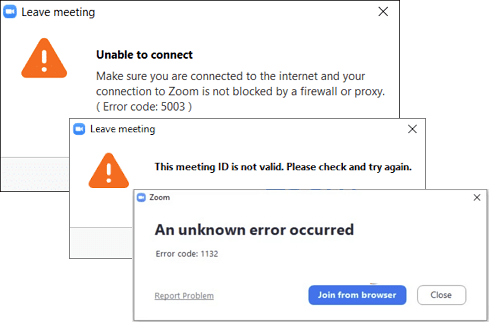
If you encounter an error message, take a screenshot of it. Then, continue with the next step, which is to provide more details about the error message, such as the exact text or any relevant context. This will help me better understand the issue and provide a more accurate solution.
If you encounter an error in a Zoom Meeting, there will usually be an error code in the error message. Take note of the error code, as it may be helpful in troubleshooting the issue.
Step 3. Contact the Zoom Meeting support team and provide the screenshots of error messages or show the exact error code to the IT team so they can assist you in resolving the issue. This will help them identify the problem and provide a solution more efficiently.
Official Solution 2 - Restore Disappeared Zoom Meeting that Was Deleted in The Application
If your Zoom meeting has disappeared or is missing, it's likely due to accidental deletion. To fix this, you can try checking your Zoom meeting history, calendar, or app settings to see if the meeting was moved or deleted by mistake. You can also try searching for the meeting name or ID to locate it.
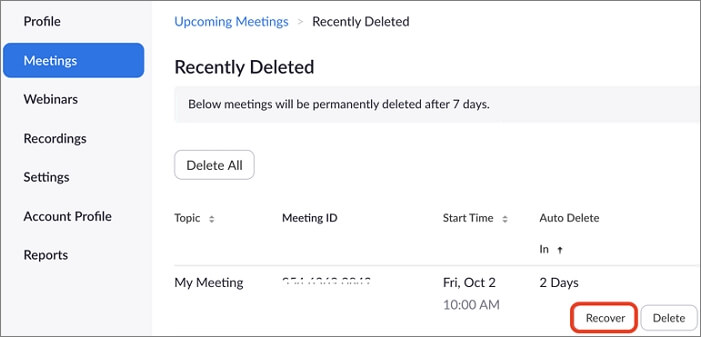
If the Zoom meeting disappeared in the application was caused by accidental deletion, you can directly restore it from Zoom's deleted meeting list. Follow the steps below to recover a deleted Zoom recording or meeting from its Recycle Bin:
Step 1. To launch the Zoom Meeting app, log in with your account, and click on either "Meetings" or "Webinar".
Step 2. Click Recently Deleted and find the deleted items.

Step 3. Select the desired meeting and click Recover.
- Notice:
- Zoom Meetings will keep deleted meetings or webinars for one week.
- You can recover the deleted meeting and resume it via the previous link at any time.
If items are removed from the Zoom Meeting app and are a week past their expiration date, they will be permanently deleted and cannot be recovered.
You May Also Like:
How to Recover Deleted Zoom Recordings?
Some Zoom users may be unclear about where to find their recordings and how to recover deleted Zoom meeting videos. If you're experiencing this issue, you can find assistance by following a provided link.
Qiling Solution - Recover Zoom Meetings Disappeared on Local PC
Applies to: Find disappeared or missing Zoom meetings from a local computer.
If you've lost Zoom meeting recordings, stop using the Zoom meeting drive or folder and don't save any new files to the location. This can help prevent further data loss and potential conflicts. Try to recall your last backup or restore from a previous backup if available.
Then, apply reliable file recovery software to recover missing or disappeared Zoom meeting recordings from your local computer.
1st, check the location of Zoom meeting on a local drive
Zoom recordings are typically saved in the default path, which varies depending on the operating system being used. On Windows, the default path is usually C:\Users\[username]\Documents\Zoom recordings.
- C:\Users\PC\Documents\Zoom
- C:\Users\PC\AppData\Roaming\Zoom\
2nd, Scan and recover Zoom meeting that disappeared on a computer drive
Step 1. Launch Deep Data Recovery. Select the desired file types and click "Fast Scan" to initiate the recovery process.

Note: You can choose different search modes based on where and why the data was lost.
Step 2. You can try scanning the location or device where the videos were lost or deleted to see if they can be recovered.

Step 3. After scanning, select "Videos" in the left panel, then choose "Lost" or "All" to find the desired videos, and preview them by selecting the found videos and clicking "Preview".

Step 4. Select the video files you want to restore and click "Recover" to save them to a secure location.
Why Did My Zoom Meeting Disappear and How to Avoid This Error
The disappearance of Zoom meetings and screen recordings can be attributed to various reasons. Possible causes include technical issues, such as connectivity problems or software glitches, which can lead to lost recordings. Additionally, user errors, like accidentally deleting the recording or closing the meeting without saving, can also result in lost recordings. Furthermore, issues with the Zoom app itself, like updates or configuration problems, can also cause meetings and recordings to disappear.
- Zoom Meeting application crash, or malfunctioning.
- Removed or deleted Zoom meeting from the Meeting List.
- Zoom Meeting page disappears.
- Deleted or removed meetings or webinars from local computer.
To avoid or prevent Zoom meetings from disappearing, follow these tips:
- Update Zoom Meeting application regularly.
- Update Windows, macOS, iOS, or Android operating system timely.
- Log in and sign out Zoom properly.
- Operate with Zoom meetings and the app carefully.
Zoom Meeting Disappeared Error Is Fixable, Get Rid of It with Proper Solutions Now
If you're experiencing issues with Zoom meetings disappearing, there are solutions available to help resolve the problem. Online, in the Zoom app, and on a local computer, you can try troubleshooting methods to get your meetings back.
- If you're experiencing an error on Zoom, and you're not sure what's causing it, follow Solution 1 to identify the exact issue, and then reach out to the Zoom support team for assistance.
- If you accidentally deleted a Zoom meeting, you can try to recover it by going to the "Trash" folder in the Zoom app, where deleted items are stored. From there, you can select the meeting you want to recover and click "Restore" to bring it back.
- If the Zoom meeting disappeared or was removed from your local computer, you can try using reliable file recovery software to help you recover the deleted meeting.
FAQs of Zoom Meeting Application
Here are some common questions asked by many Zoom users:
1. Do recorded Zoom meetings expire?
The answer is Yes and No.
When you schedule a Zoom meeting, it will automatically record and expire after a set period of time. This is a security feature to prevent unauthorized access to the meeting recording. If you set a schedule date for your meeting, the recording will be deleted after that date, and you won't be able to access it.
If you download a recorded meeting from Zoom to your local computer, it will not expire and can be saved on your PC as long as you want.
2. Where did my Zoom recording go?
- For a licensed user, Zoom recordings are saved either locally on a computer or in the Zoom cloud, depending on the user's preferences.
- For a free user, you can start a local recording of Zoom meetings and save the file on a local PC.
- To find a Zoom recording in Zoom cloud, log in to your Zoom account, select Recordings, and then Cloud Recordings.
- To find a Zoom recording on a computer, search for "Zoom" in the computer's documents folder, then click on the "Zoom Meeting" folder to locate the recordings.
3. Can you access old Zoom meetings?
- Click on Meetings in the Zoom client.
- Click the Recorded option.
Recorded list all previous meetings that you recorded to the cloud or your computer. You can also see the path of the meeting.

Related Articles
- Sticky Notes Not Available Error in Windows 11, 10, 8, 7 Without Losing Data
- Fix Page_Fault_In_Nonpaged_Area Error
- Locked Out Of Windows 10? We Got It! [Solved]
- How to Convert/Change RAW File System to NTFS Without Data Loss
- GIMP Recover Last Session: Recover Unsaved/Deleted/Lost GIMP Photos or Files
Did you accidentally delete or format GIMP files on your PC, or lose unsaved GIMP photos due to a crash or virus attack. - [Fixed] Google Chrome Not Downloading Files
The “Google Chrome is not downloading files” error can be frustrating, but fortunately, there are several fixes available. This page will delve into the reasons behind Chrome's refusal to download files and provide corresponding troubleshooting steps to help resolve the issue.
Products
Articles & Tutorials
- Data Recovery
- Data Backup
- File Recovery
- File Backup
- System Backup and Restore
- Disk and Partition Clone
- Technical articles
- Mobile articles
- Disk Master Help
- Windows Data Recovery Tutorials
- Windows Secure Delete Tutorials
- Windows Partition Management Tutorials
- Windows File Backup and Restore Tutorials
- Windows System Backup and Restore Tutorials
- Windows Disk Backup and Restore Tutorials
- Windows Clone Tutorials