Locked Out Of Windows 10? We Got It! [Solved]
Windows 10 prioritizes user privacy, offering various lock options to safeguard accounts. At startup, it prompts for the administrator's user password.
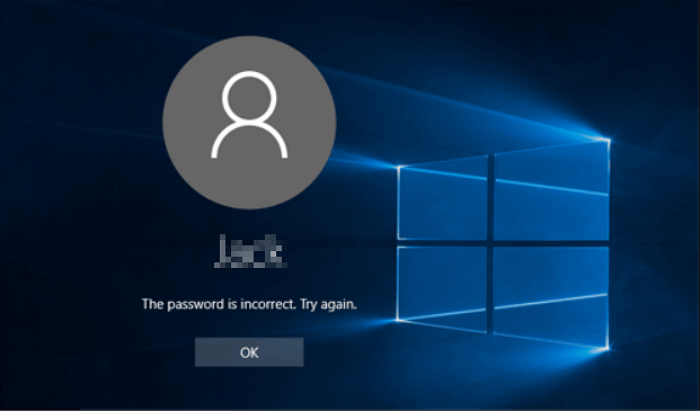
Locked Out of Windows 10 Login Screen, What to Do?
If you're locked out of Windows 10, you can try pressing and holding the Windows logo key and the R key to open the Run dialog box, then type "net user" and press Enter to see a list of user accounts, including the Administrator account. You can then press and hold the Windows logo key and the E key to open File Explorer, navigate to the Users folder, and rename the folder of the locked-out user account to a temporary name. Finally, press and hold the Windows logo key and the R key again to open the Run dialog box, type "net user" again, and press Enter to see the list of user accounts. You should now see the Administrator account, which you can use to access Windows 10. If this doesn't work, you can try booting into Safe Mode by pressing and holding the Shift key while restarting your computer, then follow the prompts to access the Administrator account. If you're still having trouble, you can try resetting Windows 10 to its default settings by going to Settings > Update & Security > Recovery > Reset this PC. Be sure to back up any important files and data before doing so.
| Workable Solutions | Step-by-step Troubleshooting |
|---|---|
| 1. Log In with Another Account | On the login screen, log in with another administrator account..Full steps |
| 2. Reset the Microsoft Account | Use another computer and go to https://account.live.com/password/reset...Full steps |
| 3. Run Windows 10 Installation Media | Download Windows 10 installation media. Create a USB installation media...Full steps |
Before You Start - Export/Restore Data in Windows 10
Among the provided methods, the third may result in data loss. To avoid this risk, it's recommended to restore/export data without booting into Windows 10.
Deep Data Recovery Bootable Media allows you to create a WinPE bootable disk for data recovery, enabling you to boot your computer and access the Windows Pre-installation Environment (WinPE) from a USB disk, and recover data using the software's capabilities.
- Rescue data from formatted, corrupted, or deleted partitions.
- Retrieve hard drive data without OS.
- Get back deleted files by pressing "shift + Delete" or emptying the Recycle Bin.
To complete the data recovery process, you need to prepare these things in advance.
- Another healthy Windows computer
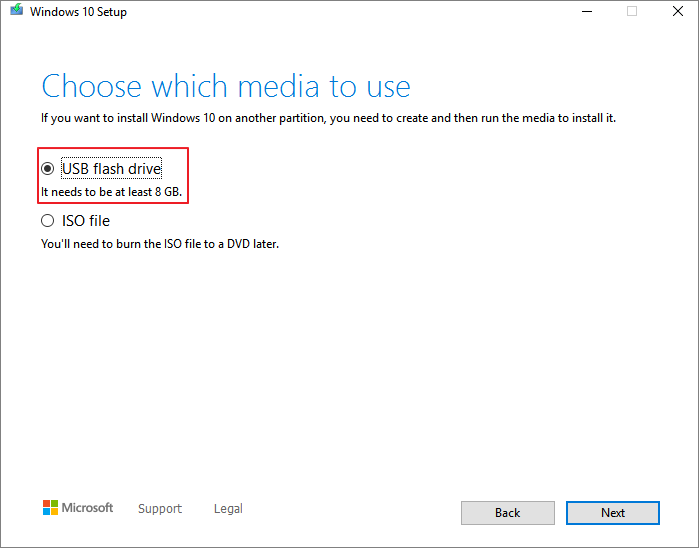
- An empty USB with over 8GB capacity
- Download and install Deep Data Recovery with Bootable Media on the new PC.
If you're unable to enter Windows due to a corrupted system, you can recover your data without booting the OS. First, create a bootable USB drive or CD/DVD with a Linux distribution, such as Ubuntu or Fedora.
Step 1. Create a bootable disk
To prepare the USB, first copy any important data to another device to avoid losing it. Then, use Deep Data Recovery WinPE Edition to create a bootable disk on the USB, which will erase any existing data on the device.
Connect a USB drive to your PC, then launch the Deep Data Recovery WinPE Edition software. Next, select the USB drive and click "Create" to create a bootable disk.
Step 2. Boot from the bootable USB
Connect the bootable disk to the PC that won't boot, and change the computer's boot sequence in the BIOS. Typically, this works by restarting the computer and pressing F2 at the same time to enter the BIOS.
To boot your PC from a device other than the hard drive, press F10 to save and exit the BIOS settings. From there, you can select to boot from a removable device, such as a USB drive, or a CD/DVD drive. Make sure the device is inserted and set to boot from it.

Note: You can choose different search modes based on where and why the data was lost.
Step 3. Recover data from a hard drive that won't boot
When you boot from a USB, you can run Deep Data Recovery from the WinPE bootable disk, then select the drive you want to scan to find all your lost files.
Click "Scan" to start the scanning process.

After scanning, you can preview all recoverable files, select the targeted files, and click the "Recover" button to restore your files. It's recommended to save all recovered data to another place to avoid data overwriting. This allows you to recover data from the computer or laptop.

If you're locked out of your Windows 10 account, there are several methods to try and fix the issue. The approach varies depending on how you set up your account, but one of the methods below should work. You can try using one of the available fixes to regain access to your account.
Method 1. Log In with Another Account in Windows 10
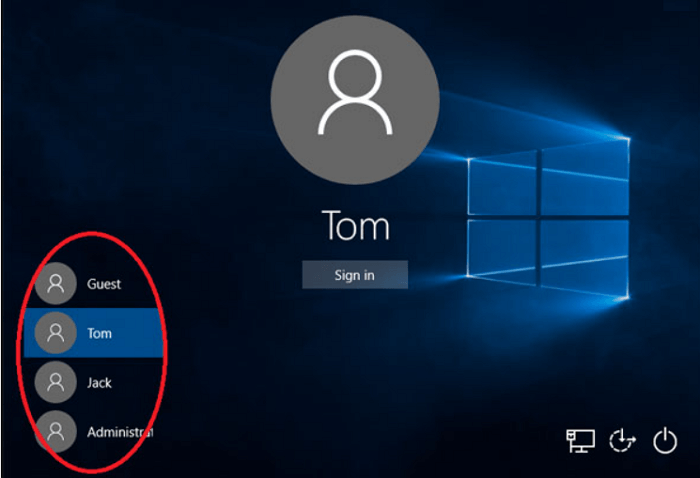
If you're using a shared computer and find yourself locked out of Windows 10, you can access it via another user account, specifically an administrative account, which can help you bypass the password. To do this, follow the steps to log in with another account.
Step 1. On the login screen, log in with another administrator account.
Step 2. Go to the "Control Panel" and look for the accounts option.
Step 3. Choose the option of "User Account".
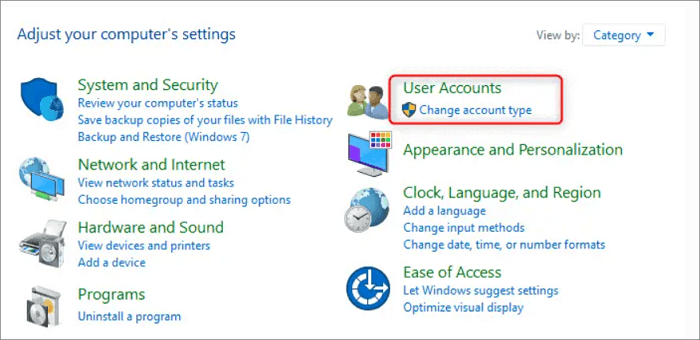
Step 4. Select the option of "Manage account type".
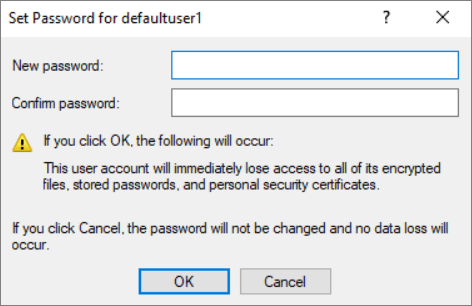
Step 5. Now, manage your account for which you want to bypass the password.
Step 6. Type in a new password and confirm it.
To sign out of the current account, click on your profile picture in the top right corner of the screen, then select "Settings" and click on "Sign out". Once signed out, you can log in to the locked account by clicking on the login button and entering the new password.
Note:
- This method is not suitable for one-person users.
- The method is compatible with only local or administrative users.
Method 2. Reset Your Microsoft Account Password
If you're using a Microsoft account, you can reset your password online, which will allow you to log in to Windows 10 with the new password.
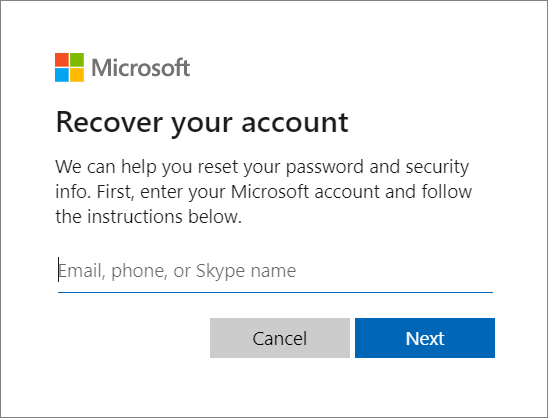
Step 1. Use another computer and go to https://account.live.com/password/reset.
Step 2. Enter your email and get a code.
Step 3. Type in your new password.
To change your password, go to the password reset page, enter your current password and new password, and click submit. Then, you can use the new password to log in to your computer.
Note:
- The password reset method works well if you remember your alternate email or security phone number, which can be used to recover your account.
- You cannot bypass the Windows 10 password for local or administrator accounts using this method.
Method 3. Bypass the Password with Windows 10 Installation Media
The most effective way to bypass Windows 10 lock screen passwords is by using Windows 10 installation media. You can use an installation disk for Windows 10, or download it from Microsoft's official website if you don't have one. This method allows you to access your computer without entering a password.
Follow the steps below to unlock your PC with Windows 10 installation media.
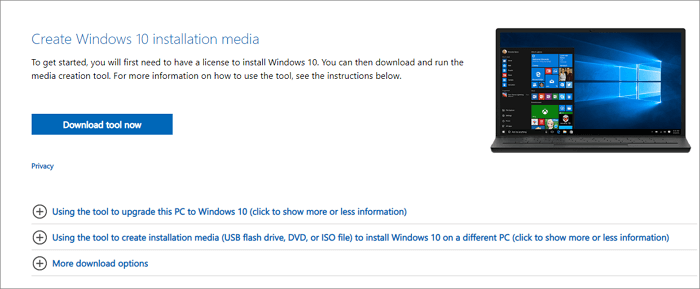
Step 1. Download Windows 10 installation media.
Step 2. Create a USB installation media.
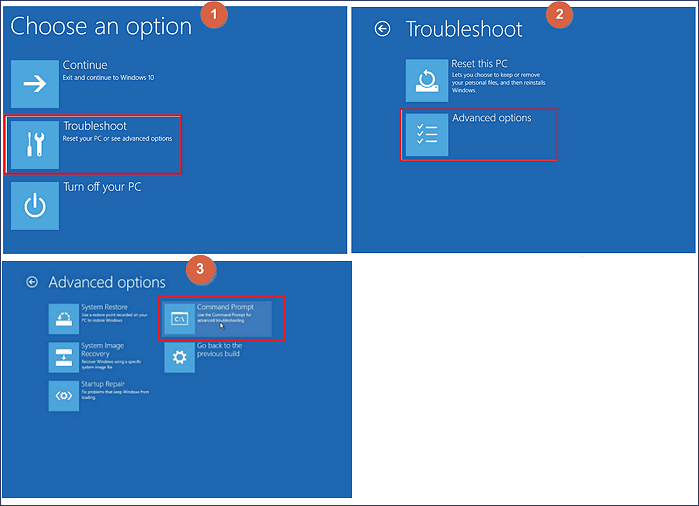
Step 3. Open Command Prompt from the Boot Interface.
Insert your USB installation media and boot from it.
This article provides a summary of the methods to regain access to your Windows 10 computer.
Then, click "Troubleshoot > Advanced Options > Command Prompt".
Step 4. Type in the following command.
- move c:\windows\system32\utilman.exe c:\
- copy c:\windows\system32\cmd.exe c:\windows\system32\utilman.exe
Step 5. Take out of the drive or disc and reboot your computer.
When your computer restarts, press the Shift key five times in a row, and it will open the Command Prompt.
Step 6. Change the Windows 10 password with the following command.
- net user (username)/add
- net localgroup administrators (username)/add
To reset your Windows password, first boot the PC from a bootable disc or USB. Open Command Prompt, type "copy c:\utilman.exe c:\windows\system32\utilman.exe" and press Enter. Then, type "Yes" to confirm.
You can now bypass the Windows 10 password and log in with a new one.
Conclusion
If you're locked out of Windows 10, there are three ways to bypass the password: using a password reset disk, booting from a USB drive with a password reset tool, or using a third-party software like Qiling to recover lost data and potentially unlock the system. Each method has its advantages and disadvantages, so you can choose the one that suits your needs. If data loss occurs after unlocking, Qiling data recovery software can help restore deleted, formatted, or lost files, photos, videos, and documents.
Related Articles
- 11 Fixes for Toshiba External Hard Drive Not Working/Showing Up
- Can VLC Repair MP4? Look How to Repair Corrupted MP4 Video Files Using VLC
- How to Repair Damaged BMP Files in 3 Ways
- How to Work on Large Excel Files Without Crashing (5-Step Guide)
- Solved: Files Saved to Desktop Not Visible in Windows 10/8/7
The issue of files saved to the desktop not being visible or showing up in Windows 10 has been resolved. A simple tutorial can be followed to easily make saved and downloaded files appear normally on the desktop. - How to Find a File in Linux Using Terminal and Commands
To find a file in Linux without knowing the path, you can use the terminal and command. If you're unable to locate a file, you can also use Qiling data recovery software to restore deleted or lost files.
Products
Articles & Tutorials
- Data Recovery
- Data Backup
- File Recovery
- File Backup
- System Backup and Restore
- Disk and Partition Clone
- Technical articles
- Mobile articles
- Disk Master Help
- Windows Data Recovery Tutorials
- Windows Secure Delete Tutorials
- Windows Partition Management Tutorials
- Windows File Backup and Restore Tutorials
- Windows System Backup and Restore Tutorials
- Windows Disk Backup and Restore Tutorials
- Windows Clone Tutorials