How to Optimize Windows 11 for Gaming (6 Ways)
Microsoft claims that Windows 11 will take gaming to a new level, but gamers may be concerned about its performance.
- 1. Turn On the Game Mode
- 2. Use Auto HDR
- 3. Use Per-App GPU Selection Settings
- 4. Use Dedicated Software for NVIDIA and AMD GPUs
- 5. Optimize Gaming by Turning On High-Performance
- 6. Increase C Drive Space
Windows 11 Gaming Features
To optimize your Windows 11 game performance, several improvements can be made. There are several aspects that can be improved to enhance the gaming experience on Windows 11.
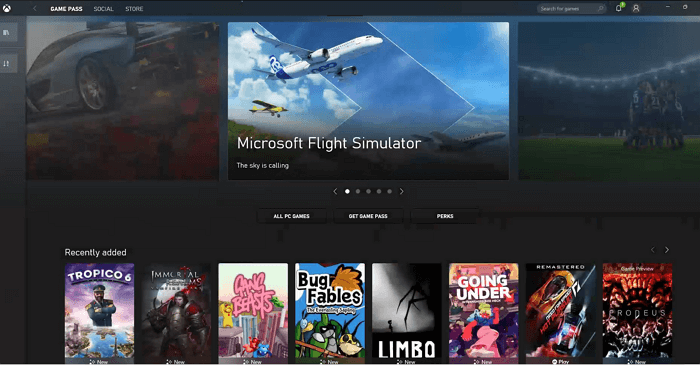
Xbox Game Pass
Windows 10's Xbox app is being replaced by a new Game Pass app, allowing for easy game buying, management, and removal. This new app also enables access to Xbox Live Gold, EA Play, and cloud gaming across devices when joining Xbox Game Pass Ultimate.
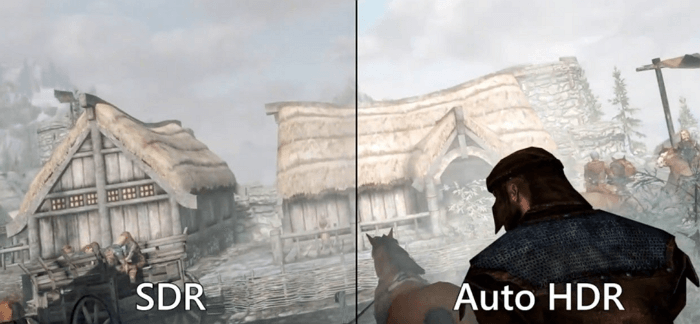
Auto HDR
The new device will support HDR, which enhances the lighting and color of the screen, resulting in more realistic graphics.
DirectStorage
The Xbox Series X/S console now features DirectStorage, a technology that allows main game assets to be downloaded and installed, enabling faster gameplay.
To optimize Windows 11 for gaming, consider implementing various methods. First, ensure your system meets the minimum requirements for Windows 11 and your desired games.
How to Optimize Windows 11 for Gaming
Microsoft has paid special attention to games, allowing for optimized gaming performance with new features.
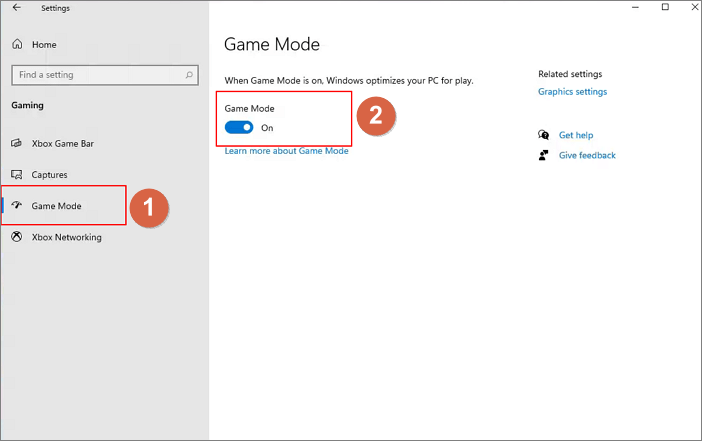
Method 1. Turn On the Game Mode in Windows 11
With the all-In Windows 11, the new Settings app features a dedicated Gaming tab, where users can access and configure the Game Mode, a feature designed to optimize system performance for gaming.
Step 1. To access the Settings on a Windows computer, click on the Windows icon located in the taskbar and then select "Settings" from the menu that appears.
Step 2. From the left sidebar, go to "Gaming > Game Mode".
Step 3. Turn on the option of Game Mode.
Method 2. Use Auto HDR
To enhance the visual experience of a game, make the colors more vibrant on HDR-supported displays. This can be particularly noticeable on HDR-enabled monitors, where the difference between Standard Dynamic Range (SDR) and High Dynamic Range (HDR) can be easily seen. If you don't have an HDR-supported monitor, consider investing in one to take full advantage of this feature.
Method 3. Use Per-App GPU Selection Settings
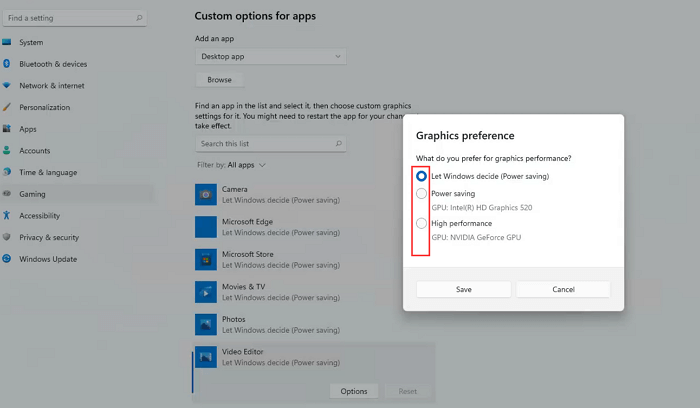
If you have a gaming laptop with two GPUs - an integrated GPU and a dedicated GPU, you can choose which app uses which GPU. To select your CPU, follow the steps below.
Step 1. To enable Game Mode, click on the Start Menu icon and go to Settings > Gaming > Game Mode.
Step 2. Under Related Settings, click "Graphics".
Step 3. On the Graphics Performance page, you can select the GPU for your apps and add new apps to the list.
Windows typically assigns a GPU to each app automatically, but users have the option to manually change this setting.
Step 4. The Power Saving option should be allocated to apps that don't require graphics performance, while the High-Performance option should be reserved for games and GPU-centric apps.
Method 4. Use Dedicated Software for NVIDIA and AMD GPUs
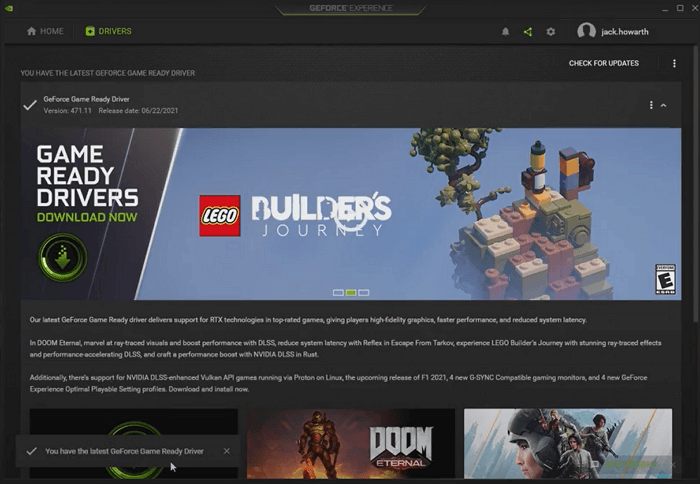
You can download NVIDIA's GeForce Experience or AMD's Radeon Software to tweak graphics settings and adjust GPU performance for games on your laptop with an NVIDIA or AMD GPU.
Method 5. Optimize Gaming by Turning On High-Performance
To optimize Windows 11 for gaming, change the power settings to High-performance mode.
Step 1. Open your search bar and type power plan.
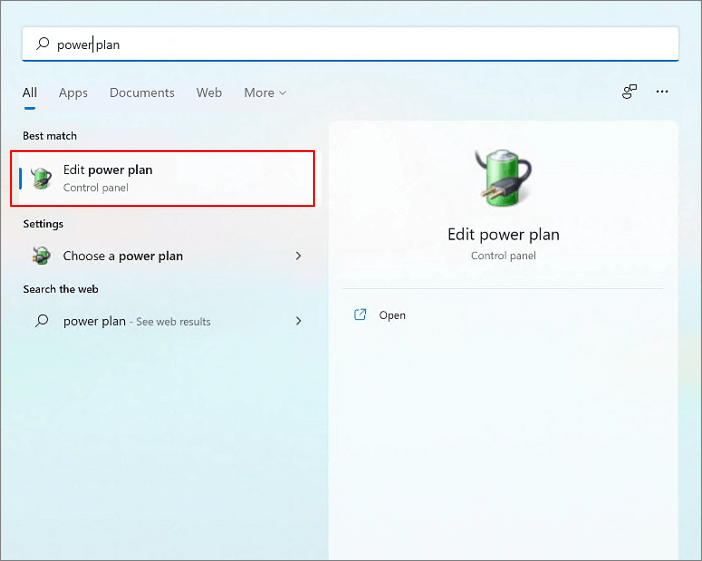
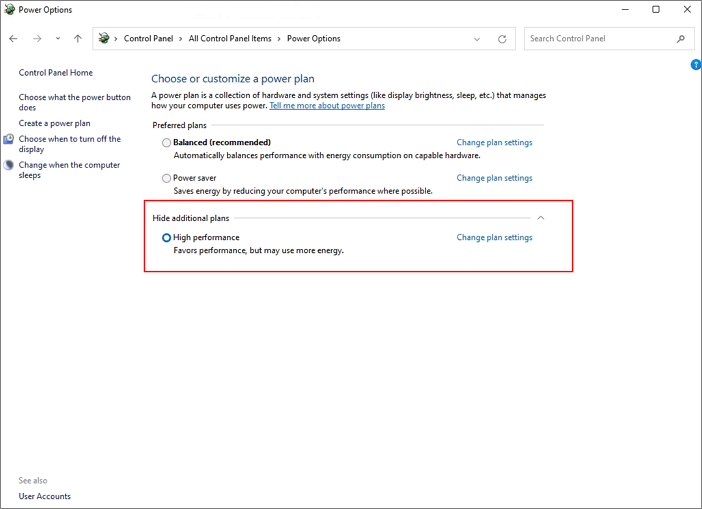
Step 2. To access the Power Options, click on the "Edit Plan Settings" and then select "Power Options" at the top.
Step 3. Select "High performance" in this window.
Method 6. Increase C Drive Space to Improve Gaming Performance
To optimize Windows 11 for gaming, consider increasing the C drive space, as running out of space can cause games to slow down. This can be achieved using a disk management tool like Qiling Partition Master, which allows for effortless partitioning of hard drives and optimal use of disk space.
- Qiling Partition Master -
Your Smart Windows 11 Update Disk Manager
- MBR to GPT Converter, Make Disk Ready for Windows 11.
- Migrate Windows 11 to New SSD in 1-Click.
- Handy to Extend or Combine Partitions in Windows 11.
- Clone and Upgrade Disks without Data Loss.
Option 1. Extend System C drive with unallocated space
- 1. Click on the System C: drive and select "Resize/Move".
- 2. Drag the system partition end into the unallocated space so to add it to the C: drive. And click "Proceed" to execute the operations and extend the C drive.
Option 2. Extend System C drive without unallocated space
- 1. To resize a partition, click on a large partition with sufficient available space on the system drive, then select "Resize/Move".
- 2. To add unallocated space to the C: drive, drag the big partition end to shrink it and create unallocated space. Then, click "Proceed" to execute the operation and add the unallocated space to the C: drive.
- 3. In the "Allocate Space From" section, select the system drive and choose the option to "Resize/Move".
- 4. Move the end of System C drive into the unallocated space, then click "Proceed" to save the changes and extend the C drive.
Conclusion
The optimization solutions on Windows 11 are expected to provide better gaming scores. These solutions can be used to improve gaming performance, and Qiling also offers high CPU solutions and Windows slow speed solutions, among other things. Users can expect to enjoy better performance with these solutions.
Users should prioritize leaving sufficient free space on the system C drive for a fast and smooth gaming experience, which can be achieved using Qiling Partition Master to manage partition space.
If Rainbow Six Siege loads slowly despite general Windows tuning, use the Rainbow Six Siege load-time checklist to separate storage delays from matchmaking waits.
Related Articles
- Qiling Clone Wizard | How to Clone Hard Disk with Qiling Partition Master
- Mini SD Card | What Is Mini SD Card, How to Format It
- How to Create Qiling Partition Master Bootable USB
- How Long Does Windows 11/10 Update Take? Windows 10 Update Taking Forever Fixes
- How to Change Drive Letter [Full Tutorial]🔥
Do you need to change your drive letter? Is it safe to change drive letters? If you are having those doubts, this article may have answers to your questions. You can also learn how to change drive letter here. - How to Check Disk Read/Write Speed in Windows 10? 3 Practical Methods
To check the disk read/write speed in Windows 10, you can use one of three practical methods. By following these step-by-step guides, you can measure your disk's speed and identify potential issues with your storage devices, ultimately knowing the actual speed of your disk.
Products
Articles & Tutorials
- Data Recovery
- Data Backup
- File Recovery
- File Backup
- System Backup and Restore
- Disk and Partition Clone
- Technical articles
- Mobile articles
- Disk Master Help
- Windows Data Recovery Tutorials
- Windows Secure Delete Tutorials
- Windows Partition Management Tutorials
- Windows File Backup and Restore Tutorials
- Windows System Backup and Restore Tutorials
- Windows Disk Backup and Restore Tutorials
- Windows Clone Tutorials