What is System Reserved Partition and How to Delete It [Windows 11 Available]
| Workable Solutions | Step-by-step Troubleshooting |
|---|---|
| System Reserved Partition Overview | In this part, we'll explain to you everything about System Reserved partition here...Full steps |
| Check if System Reserved Partition is Deletable | Step 1. Right-click on This PC/My Computer icon on the desktop and select "Manage"...Full steps |
| Delete System Reserved Partition | Step 1. Right-click the partition you want to copy, and choose Clone...Full steps |
This page provides a comprehensive overview of the System Reserved Partition, covering everything you may want to know about it. It includes information on the purpose and characteristics of the System Reserved Partition, as well as its relationship to the operating system and other system components. The page also covers topics such as the partition's size, location, and how it is used by the operating system, as well as any specific settings or configurations that may be associated with it.
- 1. What is system reserved partition?
- 2. What is system reserved partition used for?
- 3. How do I check my system reserved partition?
- 4. What happens if you delete system reserved partition?
- 5. How to deal with system reserved partition?
- 6. How to delete system reserved partition?
IMPORTANT:Before making any changes to your system, please ensure you have backed up your system to prevent any potential damage or non-bootable PC.
System Reserved Partition Overview
The System Reserved partition is a small, hidden partition on a Windows computer that contains essential system files and settings. It's usually around 100-500 MB in size and is created by the operating system during installation.
1. What is system reserved partition?
System Reserved Partition The System Reserved partition is a separate storage area located before the main C: drive, created during a Windows clean installation to reserve disk space for future use. It doesn't have a drive letter assigned to it by Windows.
The space consumption of Windows OS starts from 100 MB in Windows 7 and increases to 350 MB in Windows 10, with some system components being saved in the System Reserved Partition for booting purposes.
2. What is System Reserved Partition used for?
You can use it as a normal data storage partition. And sometimes, Windows uses it as a boot partition to load necessary information for the computer to boot up.
3. What happens if you delete System Reserved partition?
If you directly delete the System Reserved partition, which contains OS information or boot files, the computer won't be able to boot up. It's only safe to delete this partition if you've checked if it's deletable first.
The System Reserved partition is a special partition on your hard drive that contains the boot files and other system files. It's usually created when you install Windows.
How to Deal with System Reserved Partition - Check If It's Deletable
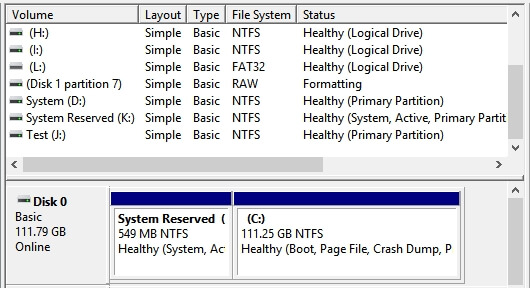
Most computer users won't notice a non-drive letter assigned partition called "System Reserved" unless they open Disk Management in Windows 7, 8, 10, or 11.
To check the System Reserved partition, open the Disk Management tool by pressing the Windows key + R, typing "diskmgmt.msc," and pressing Enter. In the Disk Management tool, look for the System Reserved partition, which is usually labeled as "System Reserved" or "System (C:)" and has a size of around 100-500 MB.
Step 1. Right-click on the This PC/My Computer icon on the desktop and select "Manage".
Step 2. Click "Disk Management" on the pop-up window.
Step 3. Check the System Reserved partition to see if it contains "System" next to the Healthy state.
Step 4. Decide what to do with this partition:
- If your System Reserved partition contains "System" information, it's recommended not to delete it, as your system relies on this partition to load the computer.

- If the System Reserved partition doesn't contain the "System" information, you can delete it without any issues.
- If you normally delete the System Reserved partition and OS partition, allowing you to use the OS disk as a normal data drive, you can also choose to delete it.
To delete the System Reserved partition, you'll need to access the Disk Management tool, which can be found by pressing the Windows key + R and typing "diskmgmt.msc" in the Run dialog box. From there, you can right-click on the System Reserved partition and select "Delete Volume" or "Delete Partition" to remove it from your computer.
How to Recover Deleted Files from Recycle Bin?
If you're looking to recover deleted files from the Recycle Bin, follow these steps to do so immediately.
How to Delete System Reserved Partition
You can delete the System Reserved partition if it doesn't contain any system boot components or information, and you don't want it on your drive.
You can't delete a partition in Windows Disk Management that's protected by Windows' protection mechanism, which prevents it from being deleted.
To delete the System Reserved partition safely, consider using Qiling Partition Master, a reliable and powerful free partition manager that can help you accomplish this task with ease.
Note: If you frequently use an OS drive as a data disk and delete the System Reserved partition and other existing drives, ensure you've installed or migrated your OS to a new HDD/SSD. Also, back up any important data from the partition before proceeding.
Tutorial on How to Delete System Reserved Partition on Windows 11/10/8/7
To remove the System Reserved partition, we'll need to boot from a Windows installation media, such as a USB drive or CD/DVD, and then use the built-in Disk Management tool to delete the partition. This process will also require you to boot from the installation media and select the option to repair your computer.
Step 1. Right-click the partition you want to copy, and choose Clone.
Step 2. Choose your the target partition and click Next to continue.
- If you clone partition to the existing partition, you should transfer or back updata before cloning to prevent it being overwritten.
Step 3. Click Proceedand wait for the clone to complete.
Besides this, Qiling Partition Master also helps to:
- Recover deleted System Reserved partition
- Clone System Reserved Partition
- Fix low System Reserved partition error
- Fix we couldn't update System Reserved partition issue
Conclusion
The System Reserved partition is a system partition that contains essential files for Windows, such as the Boot Configuration Data (BCD) store, boot files, and recovery tools. It's not a drive where you can store files, but rather a partition that's used to boot Windows. If you're considering deleting this partition, it's recommended to check if it's deletable first to avoid any potential issues.
If the folder contains system data, it's best not to delete it to avoid Windows or PC boot issues. But if it doesn't contain system data, you can safely delete it.
For deleting a partition, take powerful partition manager software - Qiling Partition Master as your first choice, as it always works to help.
Related Articles
- How to Extend or Increase C Drive in Windows 8/8.1
- Solved 2022: Desktop Window Manager High Memory Windows 11/10
- How to Enable/Disable UEFI Mode? Your Complete Guide
- Fix Windows Cannot be Installed to This Disk MBR on Windows 11
- How to Create a Local Backup of My 1Password Vault?
Is it possible to back up the 1Password vault? How to create a local backup of my 1Password vault? Do not pass this post, because you will find all the answers with detailed tips in this short post. - How to Delete System Restore Points Windows 7
Do you know how to delete system restore points Windows 7? If you do not know, this short post will help you. In addition, you can learn how to delete system restore points in Windows 7 and how to use a better way to protect your Windows 7 PC.
Products
Articles & Tutorials
- Data Recovery
- Data Backup
- File Recovery
- File Backup
- System Backup and Restore
- Disk and Partition Clone
- Technical articles
- Mobile articles
- Disk Master Help
- Windows Data Recovery Tutorials
- Windows Secure Delete Tutorials
- Windows Partition Management Tutorials
- Windows File Backup and Restore Tutorials
- Windows System Backup and Restore Tutorials
- Windows Disk Backup and Restore Tutorials
- Windows Clone Tutorials