Fix Desktop Window Manager High Memory in Windows 11/10
How to fix Desktop Windows Manager High Memory Windows 11/10:
| Workable Solutions | Step-by-step Troubleshooting |
|---|---|
| Preparation: Check File System Error | Download free disk checker to make sure disk is healthy...Full steps |
| Fix 1. Windows 11 Fix DWM High Memory |
1. Download the latest Intel Driver...Full steps 2. Modify Windows Visual Effects...Full steps 3. Restart Desktop Window Manager from Task...Full steps |
| Fix 2. Windows 10 Fix DWM High Usage |
1. Update Intel Graphic Driver...Full steps 2. Use Full System Scan...Full steps |
"Hi, I recently noticed that the Desktop Window Manager is using high memory at some point, even when I have nothing open except the task manager... So any device that doesn't involve altering my laptop internals or resetting will be greatly appreciated!"
Intel has released a new driver to address the high memory usage issue with the Desktop Window Manager, which has been a concern for some users on Reddit and other forums. The new driver is available for download and installation.
What Is Desktop Window Manager Windows 11?
The Desktop Window Manager (Dwm.exe) is a system process in Windows that handles graphical user interface (GUI) rendering, allowing for features like transparent windows, real-time taskbar thumbnails, and Flip3D. It also supports high-resolution display.
Windows applications don't draw their displays directly to the screen. Instead, they write pictures of their windows to specific locations in memory. Windows then creates a composite of all the windows on the screen before sending the final image to the monitor. This process allows for effects like transparency and window animation to be added when showing windows in layers.
Related high memory usage issues:
Why Is Desktop Window Manager Using A Lot of Memory?
Desktop Window Manager typically takes up 50-100 MB of memory and uses around 2-3% of CPU. However, high memory usage often occurs when opening windows or apps, leading to a large number of processes running and potentially slowing down or freezing the PC. This issue may be caused by an Intel driver bug, but Intel has released a new graphics driver update to address the problem.
To fix Desktop Window Manager's high memory usage, you can try a few things. One approach is to disable the Aero theme, which can be done by right-clicking on the desktop, selecting "Personalize," and then clicking on "Themes" and selecting a non-Aero theme.
How to Fix Desktop Window Manager High Memory Usage
To resolve the issue, ensure your disk file system is healthy. File system errors can sometimes be the cause, so download a free disk checker like Qiling Partition Master, which can quickly fix disk errors without data loss.
Step 1. Click the target partition that has a problem.
Step 2. Choose "Advanced" > "Check File System".
Step 3. In the Check File System window, select the option to "Fix the error on the disk".
Step 4. Click "Proceed" to check errors on your partition.
Then apply the below methods.
For Windows 11:
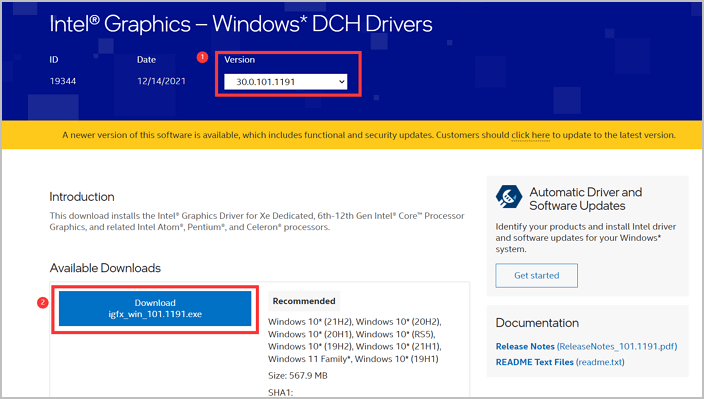
To fix the memory leak problem on Windows 11, Intel has released the latest genetic graphics driver, 30.0.101.1191, in Feb 2022.
Step 1.Visit Intel's official website and download the driver.
To download the version 30.0.101.1191, click on the version tab on the banner part, select it, and then click the "Download" button.
Step 2.Click on the executable file and start to install the Intel Graphics driver. Click "Begin installation."
Step 3.Confirm the Intel Software License Agreement, then click "Start" to install the new graphics driver and wait for the installation to complete.
Step 4.Once the installation is complete, restart your Windows 11 PC to apply the changes made during the installation process.
What's the fix you're referring to? You can try disabling the Intel graphics driver and then re-enabling it.
1. Modify Windows Visual Effects
Step 1.Right-click "This PC" and select Properties.
Step 2.Click on the "Advanced System Settings".
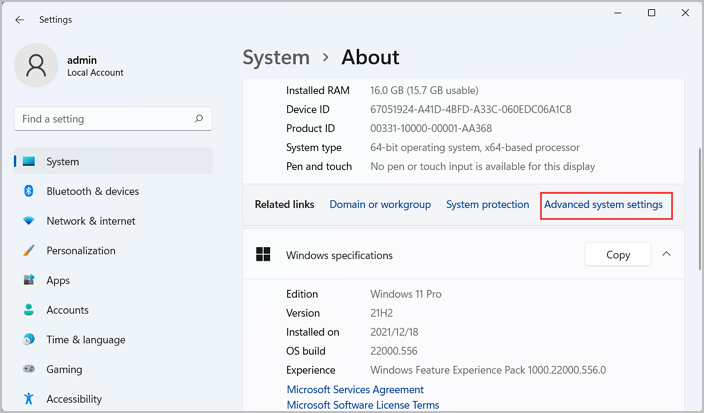
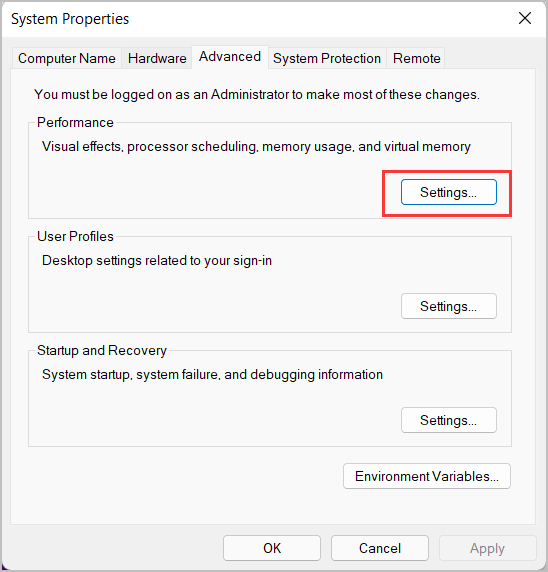
Step 3.To access the performance settings, go to the "Advanced" tab and then click on the "Performance" section, followed by the "Settings" option.
Step 4.Under the "Visual Effects" tab, select either "Custom" or "Adjust for best performance".
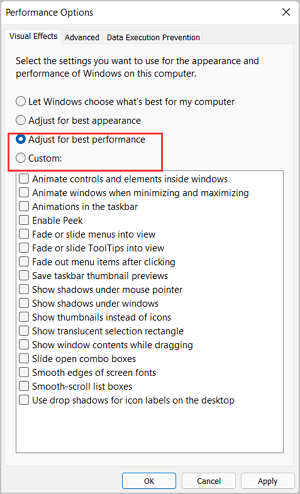
Step 5.Apply the changes. Then reboot your system.
2. Restart Desktop Window Manager from Task Manager
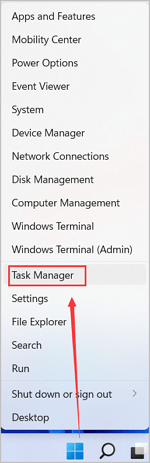
Step 1. To access the Task Manager, right-click the Start button from the taskbar and choose Task Manager from the menu.
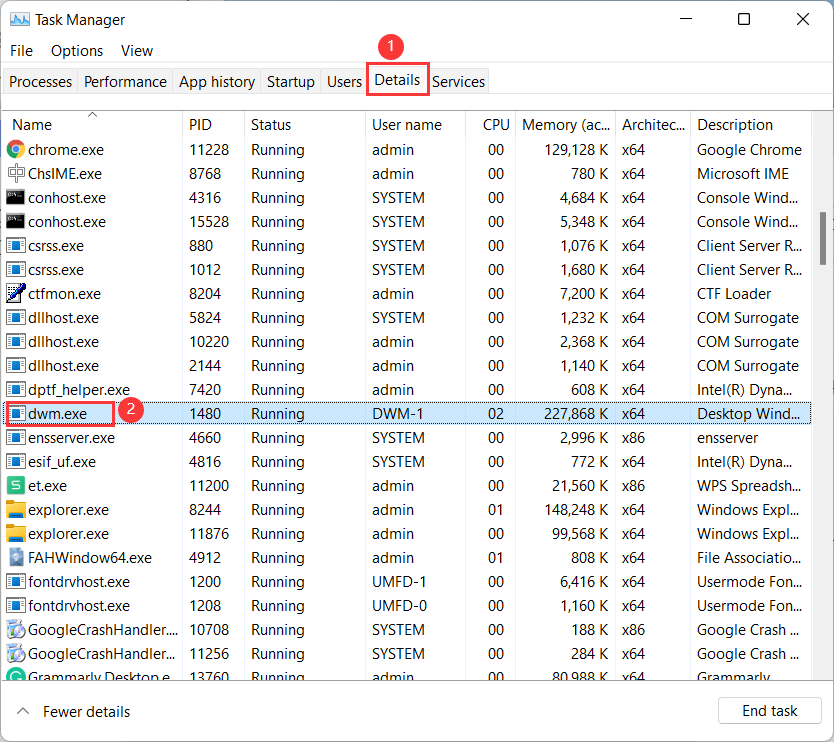
Step 2.To end the dwm.exe process, go to the Details tab, right-click on dwm.exe, and select "End Task."
For Windows 10:
1. Update Intel Graphic Driver
Step 1.Right-click the Start button and choose "Device Manager".
Step 2.Expand the Display adapter option. Right-click the Intel(R) Graphics.
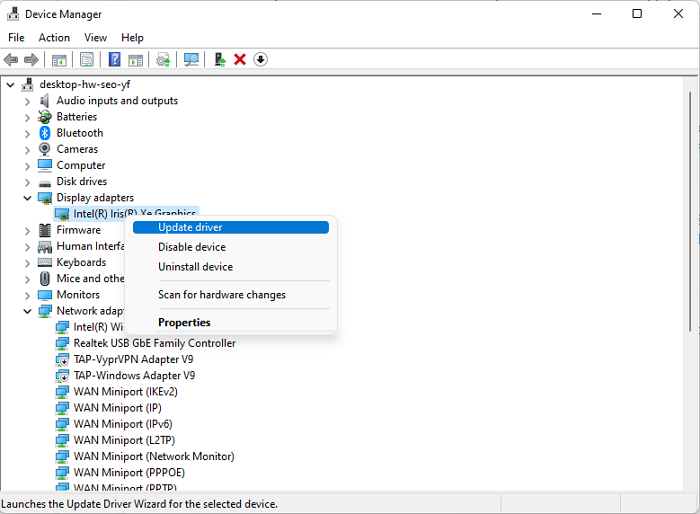
Step 3.To update the Intel graphics driver, go to the "Device Manager" and select "Update driver". Then, choose "Search automatically for drivers".
You can choose the "Search for updated drivers on Windows Update" option and then click the "Optional updates" option.
2. Use Full System Scan
Save all work and close programs. Then, restart the PC.
Step 1.Open Settings and locate Update & Security section.
Step 2.Click on the Windows Security tab and then select Virus & threat protection.
Step 3.To run a Microsoft Defender Offline scan, select Scan Options and choose Microsoft Defender Offline scan, then click the "Scan now" button.
Step 4.Click the Scan button to reboot your PC.
To Sum Up
To resolve Desktop Window Manager issues, download the latest graphics driver, specifically version 30.0.101.1191 from Intel, which has been found to be effective. Before doing so, use a free disk checker like Qiling Partition Master to ensure there are no disk errors, as this can help prevent any potential issues during the driver installation process.
Related Articles
- Can I Upgrade Windows 8.1/8 to Windows 11? 2022 Step-By-Step Guide
- [Fixed] Can't Save Files to USB Flash Drive
- Recover/Create EFI Partition Windows 11/10 When EFI Boot Partition Missing
- 7 Top Best Free Disk Partition Software For Windows in 2022
- How to Crack Windows Password [Step-by-Step]
Forgetting your Windows password can be frustrating, but there are solutions available. You can either crack the password without using software or utilize a reliable third-party tool like Qiling Disk Master, which can help you regain access to your Windows 11, 10, and 7 systems. - How to Create Bootable USB to Wipe Hard Drive
Want to securely erase your hard drive before selling a computer or reinstalling Windows? Follow this guide to create a bootable USB drive that will wipe your hard drive clean, giving you peace of mind as you prepare to let go of your old device or start fresh with a new OS.
Products
Articles & Tutorials
- Data Recovery
- Data Backup
- File Recovery
- File Backup
- System Backup and Restore
- Disk and Partition Clone
- Technical articles
- Mobile articles
- Disk Master Help
- Windows Data Recovery Tutorials
- Windows Secure Delete Tutorials
- Windows Partition Management Tutorials
- Windows File Backup and Restore Tutorials
- Windows System Backup and Restore Tutorials
- Windows Disk Backup and Restore Tutorials
- Windows Clone Tutorials