How to Recover Unsaved/Deleted Word Document 2019/2018/2016/2013/2010/2007
The Microsoft Office Word 2019, 2016, 2013, 2010, 2007, and 2003 versions can be applied to this solution.
How to Recover Unsaved Word Document in 5 Ways
If you accidentally close Word or experience a program/system crash, your unsaved document may disappear. However, there's still a chance to recover the unsaved Word document in Windows 10/11 from Temporary Files, AutoRecover, or Word Document Recovery.
If your saved Word document is deleted, you can recover it from the Recycle Bin or use data recovery software.
| Workable Solutions | Step-by-step Troubleshooting |
|---|---|
| Fix 1. Recover unsaved Word from Temporary Files | Open Word program, click "File" > "Info" > "Manage Document" > "Recover Unsaved Documents"...Full steps |
| Fix 2. Restore unsaved Word documents from AutoRecover | Open Word > click "File" > "Options" > "Save" > copy AutoRecover file location path and paste it...Full steps |
| Fix 3. Recover unsaved Word file with Document Recovery | When your system comes back online, reopen Word, click available files under Document Recovery...Full steps |
| Fix 4. Restore deleted Word from Recycle Bin | Go to the Recycle Bin. Check if the deleted word file is still there. If you don't know the name...Full steps |
| Fix 5. Recover lost Word documents with Data Recovery Software | Choose the hard disk drive or a specific folder where the Word document was saved, click "Scan"...Full steps |
If you've lost a Word document due to accidental closure, program crash, or deletion, there are still ways to recover it. You can try using the Autosave feature, which automatically saves your work at set intervals, or check the Word's Recent Documents list to see if the file is still there. If not, you can also try using a third-party data recovery software specifically designed for Microsoft Office files, such as Deep Data Recovery, to scan your computer for any recoverable files. Additionally, you can also check your computer's Recycle Bin or Trash to see if the deleted file is still there.
This article provides effective ways to recover unsaved Word documents and introduces Qiling data recovery software, which can help restore deleted or permanently deleted Word documents in a few clicks, as well as repair corrupted DOCX/DOC files and other documents.
Solution 1. Recover Unsaved Word Document from Temporary Files
Users can try to recover their unsaved Word documents by checking the "Recent" list, looking for the file in the "AutoRecover" folder, or using the "File Recovery" feature. These steps can be taken in Word 2016, and similar steps apply to Word 2013-2019.
To recover unsaved Word documents, you can try to find them by following a specific path if AutoSave was turned on beforehand. This feature allows you to recover unsaved files by navigating to a particular location, which may contain the unsaved documents.
C:\Users\Owner\AppData\Local\Microsoft\Office\UnsavedFiles
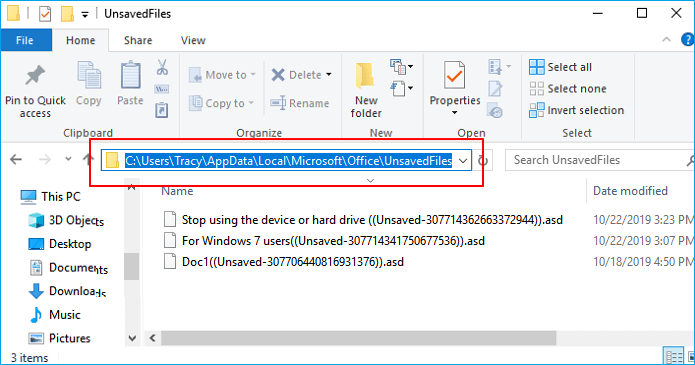
Or you can follow the steps given below to do it.
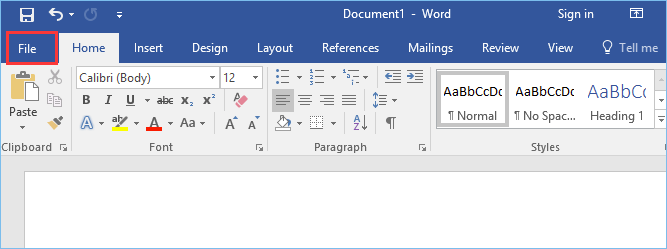
Step 1. To access the "Open" dialog box in MS Word, click the "File" tab located in the upper left corner of the screen.
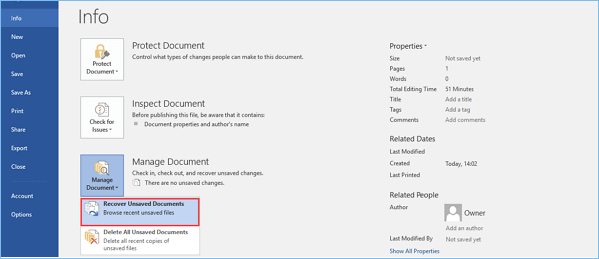
Step 2. To recover unsaved documents, click on "Manage Document" and select "Recover Unsaved Documents" from the drop-down list.
Step 3. Check for your missing File in the dialog box. If it was a recent loss, it should appear. If not, try checking the recycle bin, or the cloud storage service you use, such as Google Drive or Dropbox, to see if the file has been backed up and can be recovered.
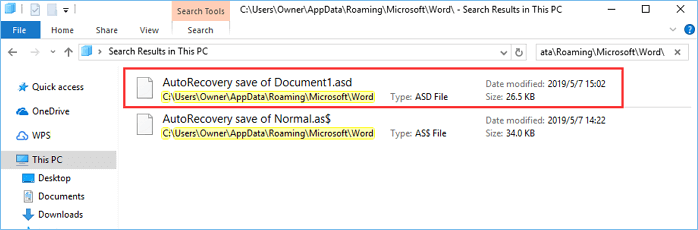
Step 4. To recover a Word document, open Word and click on the "File" tab. Select the document you want to recover and click on "Recent".

Additional Help - How to Turn on AutoRecover
To avoid accidentally closing and losing unsaved Word documents, you can enable AutoRecover, which will periodically save your work in a temporary file, allowing you to recover your document if it's closed without saving.
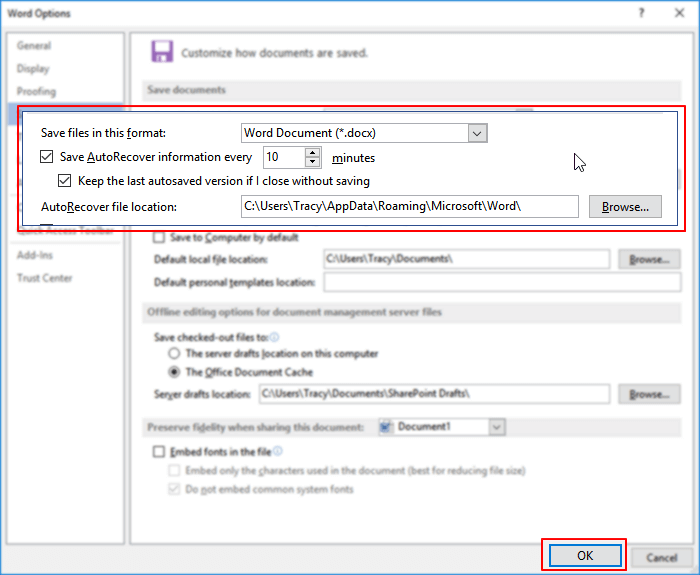
Step 1. Open Word, go to "File" > "Options" > "Save".
Step 2. To enable auto-recovery in Microsoft Office, select the "File" tab, then click on "Options". In the "Save" section, check the box next to "Save AutoRecover information every * minutes" and also select "Keep the last autosaved version if I close without saving" to ensure that your work is saved periodically and can be recovered if you accidentally close the program without saving your changes.
Step 3. Click "OK" to save the changes.
Read More: How to recover unsaved Excel documents on Windows 10
Solution 2. Recover Unsaved Word Document from AutoRecover
To recover an unsaved Word document, you can use the AutoRecover feature, which searches for unsaved files every time Word starts and displays them in the Document Recovery task pane. If the task pane doesn't open automatically, you can manually search for auto-recovered files by following the procedures specific to your Word version. This can help retrieve unsaved data, especially if you've experienced a crash or shutdown.
For Word 2010 - 2019:
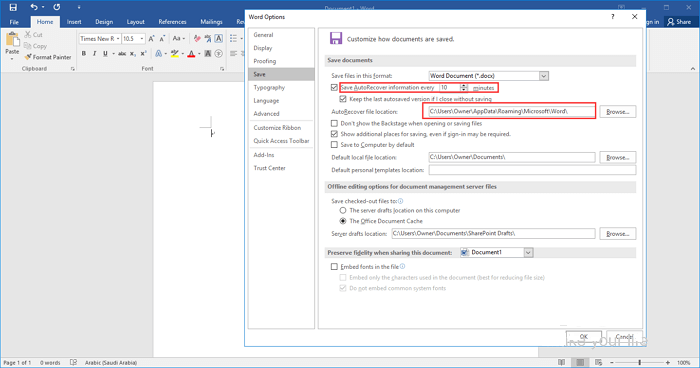
Step 1.To access the AutoRecover file location, open Word and click "File" > "Options". In the left navigation pane, select "Save", then copy the displayed AutoRecover file location path. Finally, paste this path into File Explorer to view the files.
Tip: In the "Save AutoRecover information every xx minutes" option, you can change the time interval for AutoSave, then click OK.
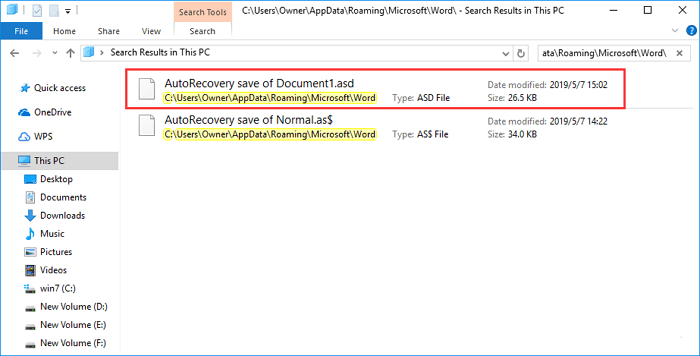
Step 2. To find the unsaved document, go to the File Explorer, navigate to the location where the document was being worked on, and search for the file with the .asd extension. Once found, right-click on the file and select "Copy" to copy its location.
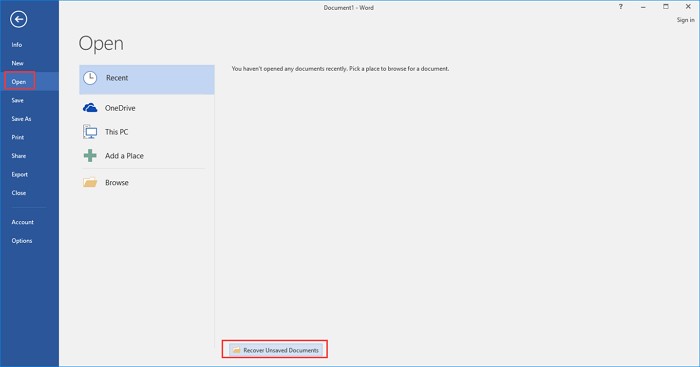
Step 3. Go to your Word app, click "File" > "Open" > "Recover Unsaved Documents" at the bottom.
Step 4. The process of recovering a Word document from a .asd file involves copying the .asd file and pasting it into the File Name box that appears when opening the Word file. This allows Word to recover the document from the.
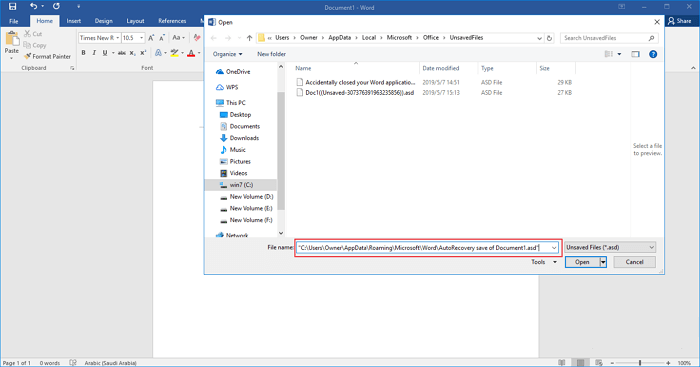
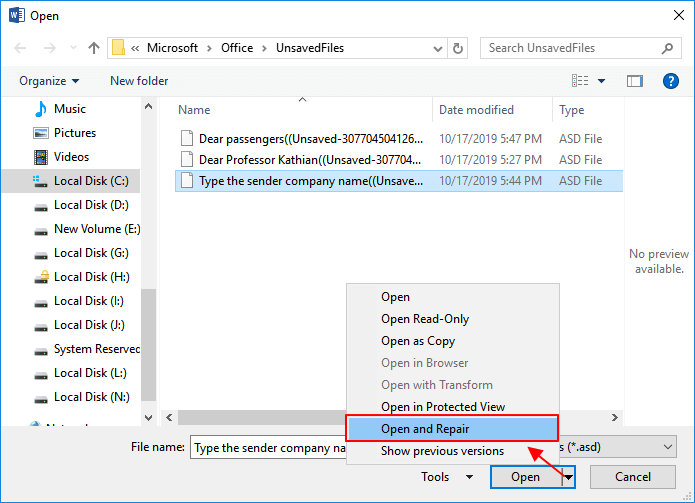
If Word warns that "Word experienced an error...", repeat the steps and click "Open and Repair" at the open Unsaved Document window.
For Word 2002 - 2007:
| Versions | Steps |
|---|---|
| Word 2007 |
1. To change the default save location for Microsoft Word, click the Microsoft Office Button, and then click "Word Options" > "Save", where you can select a new default location. 2. In the AutoRecover file location box, note the path, then click "Cancel" and close Word. 3. Open the folder that you noted in step 2. 4. Look for the Word document you're searching for that ends in .asd (AutoRecover files), then double-click it to open and save it right away. |
| Word 2003 & 2002 |
1. On the "Tools" menu, click "Options". 2. To access the AutoRecover file locations, go to the File Locations tab, double-click on AutoRecover files, note the path, then click "Cancel" and finally click "Close". In the Modify Location dialog box, you may need to click the down arrow in the Folder name list to see the whole path to your AutoRecover files. Close Word. Then, navigate to the location where you want to save the AutoRecover files. 3. After locating the AutoRecover file location, look for files whose names end in .asd (AutoRecover files) to find the files you're looking for. 4. Double-click the Word document to open it, then save it right away. |
To ensure the security of your confidential document, you can check the file content and save it as a new Word file at another secure location. This way, you can maintain a backup of your original document and prevent any potential data loss or unauthorized access.
Solution 3. Recover Unsaved Word with Document Recovery
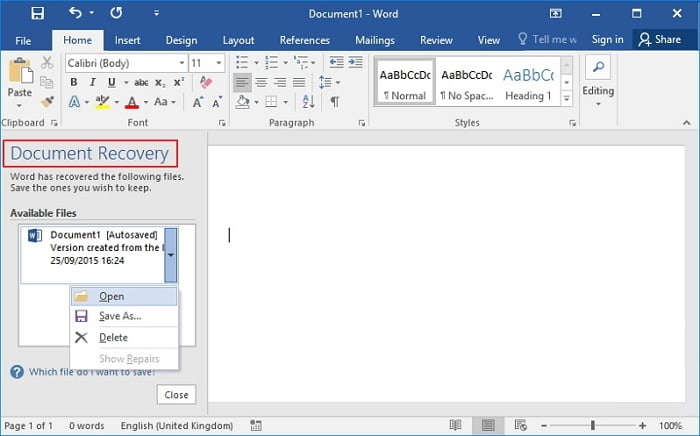
If your Word crashes or closes suddenly, it will usually restore any unsaved documents when it restarts. You can find these recovered documents in the Document Recovery section of the Word interface.
Solution 4. Recover Deleted Word Documents from Recycle Bin
If you deleted a Word document without emptying the recycle bin, you can undelete it with a few simple steps.
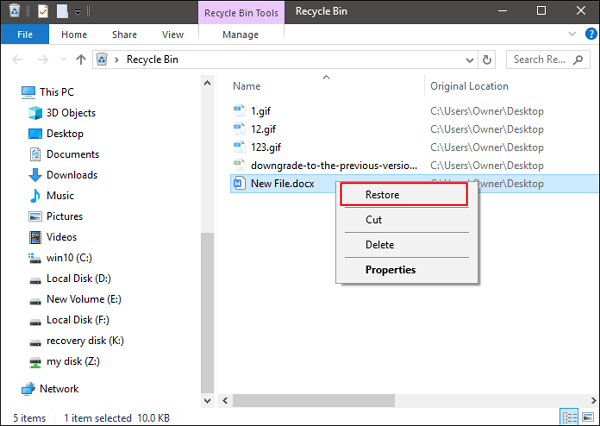
Step 1. To check if a deleted word file is still in the Recycle Bin, go to the Recycle Bin, and look for files with the types DOC, DOCX, DOT, etc. If the file is still there, you can restore it by right-clicking on the file and selecting "Restore". If you don't know the name of the file, you can search for files with these types in the Recycle Bin. If the file is not in the Recycle Bin, it may have been permanently deleted and you may need to use a data recovery software to retrieve it.
Step 2. Select the Word file and click "Restore" to recover it.
If you've emptied the recycle bin after deleting a Word file, it may be permanently lost. To recover the deleted file, use a data recovery program.
Solution 5. How to Recover Word Document with Data Recovery Software
If you've lost saved Word documents due to deletion, hard drive formatting, or system errors, the above methods won't be effective. In such cases, you'll need to use a professional hard drive recovery software like Deep Data Recovery. This tool can help you recover deleted files from various devices, including Recycle Bin, HDD/SSD, Micro Card, Camcorder, Music Player, and even recover data from USB flash drives or SD cards.
Note: This solution can only be used to recover deleted or lost Word documents that were saved on your computer beforehand.
Qiling data recovery program can recover various file types, including Microsoft Office documents, photos, videos, audios, email, ZIP, and more. It also offers a free version that allows for the recovery of up to 2GB of data for free.
Step 1. Launch Deep Data Recovery. Select file types
Launch Qiling Deep Data Recovery software on your PC, select file types, and click "Fast Scan" to start the recovery process.

Note: You can choose different search modes based on where and why the data was lost.
Step 2. Choose the Word file location
Select the drive or a specific folder you want to scan, then click the "Scan" button.

Step 3. Locate your Word files
The software will immediately start scanning the selected drive for lost data, after which you can select the "Documents" option from the left panel, choose "Word" from the category bar, and then click "Preview".

Step 4. Recover Word files
After previewing the lost Word files, select the desired Word files and click "Recover". Then, select a folder to store the Word files.
- Important
- We don't recommend using data recovery software to recover unsaved Word documents, as these programs only help with recovering saved documents that have been lost due to deletion, formatting, viruses, or other issues. They require an original saved file to work.
How to Recover Unsaved Word Document on Mac in 2 Ways
On a Mac, AutoRecover is turned on by default, allowing for unsaved Word file recovery. To recover an unsaved Word file on a Mac using the AutoRecover function, you can follow two methods: the methods below.
Solution 1. Restore Unsaved Word Document in Finder
Step 1. Start your Mac and open the Finder window.
Step 2. To find the AutoRecovery file in Word, search for "AutoRecovery" in the search bar, and a list of Word documents named "AutoRecovery save of" will be displayed.
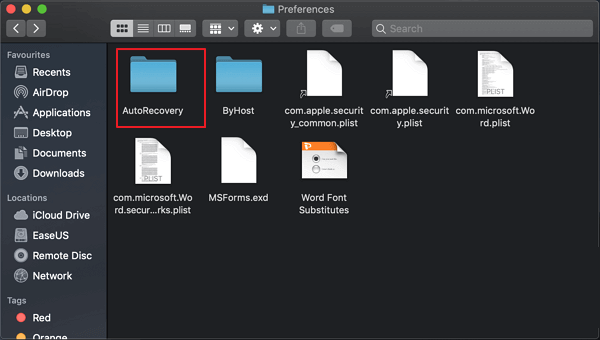
Step 3. Find and open the Word document you want to recover.
Step 4. To save the restored files, click the "File" menu and select "Save As". Then, rename the files and click the "Save" button.
Solution 2. Restore Unsaved Word Document with Terminal
The unsaved Word document can be recovered from the temporary folder by using Terminal, allowing for potential retrieval of lost work.
Step 1. To open Terminal on your Mac, navigate to the "Applications" folder, then click on "Utilities", and finally, click on "Terminal".
Step 2. Type open $TMPDIR and find the TemporaryItems folder on the list.
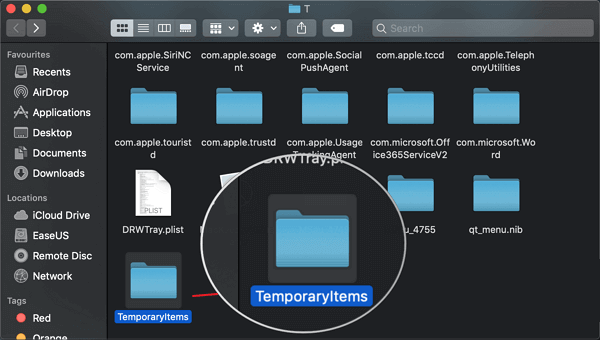
Step 3. To recover an unsaved Word document, you can try the following: locate the file you were working on, open it, and save it. If you're unable to find the file, check your computer's "Recent" folder or "Temporary Files" for a copy of the document. You can also check the Word's "Recover Unsaved Documents" feature, which can be accessed by going to "File" > "Recent" > "Recover Unsaved Documents". This feature will attempt to recover any unsaved documents from the last time Word was closed.
Conclusion
You can recover unsaved Word documents on Windows and Mac devices using five methods. Qiling file recovery software can help restore lost Word documents, whether they were deleted, encrypted by malware, or corrupted when saved on a faulty partition.
Hope these solutions can help you get back any lost Word documents.
Recover Unsaved Word Document Frequently Asked Questions
If you still have some Word recovery problems, you can read the following questions and answers to get more help.
How do I recover an unsaved Word document in 2018?
Step 1. To access the document management feature, click on the "File" tab in the top left corner of the Excel window, then select "Info" from the dropdown menu, and finally choose "Manage Documents" from the list of options.
Step 2. Select "Recover Unsaved Documents" from the drop-down menu.
Step 3. When you've selected the document you want to recover, click "Open" to proceed.
Step 4. Click the "Save As" button and save your Word document.
Where are unsaved Word documents stored?
To find the unsaved Word files, go to "File" then select "Open" and click the "Recover Unsaved Documents" button at the bottom of the Recent File List.
How long does Word keep unsaved?
4 days. Word keeps your unsaved documents for 4 days.
Related Articles
- How to Corrupt a File So It Won't Open on PC and Mac [Easy Guide]
- 3 Steps to Recover Deleted iTunes Backup
- Recover Hidden Files From External Hard Disk
- Left-Click Mouse Causes Deletion in Windows 10/8/7 [Solved]
- How to Recover Deleted WhatsApp Audio
Here are the step-by-step guide for how to recover deleted WhatsApp audio files from PC, Mac and iPhone. - How to Recover Deleted YouTube Videos
Here in the article, let's see how to recover deleted YouTube videos, how to recover deleted YouTube offline videos, and how to recover deleted YouTube videos with link.
Products
Articles & Tutorials
- Data Recovery
- Data Backup
- File Recovery
- File Backup
- System Backup and Restore
- Disk and Partition Clone
- Technical articles
- Mobile articles
- Disk Master Help
- Windows Data Recovery Tutorials
- Windows Secure Delete Tutorials
- Windows Partition Management Tutorials
- Windows File Backup and Restore Tutorials
- Windows System Backup and Restore Tutorials
- Windows Disk Backup and Restore Tutorials
- Windows Clone Tutorials