How to Recover Unsaved/Lost Excel File 2016/2013/2010/2007
See Available Solutions in Recovering Unsaved Excel Document
The solution can be applied to various versions of Excel, including Excel 2019, 2016, 2013, 2010, 2007, and older editions.
There are three ways to recover unsaved Excel files, which are outlined in the table below. For full steps, read the detailed content.
| Workable Solutions | Step-by-step Troubleshooting |
|---|---|
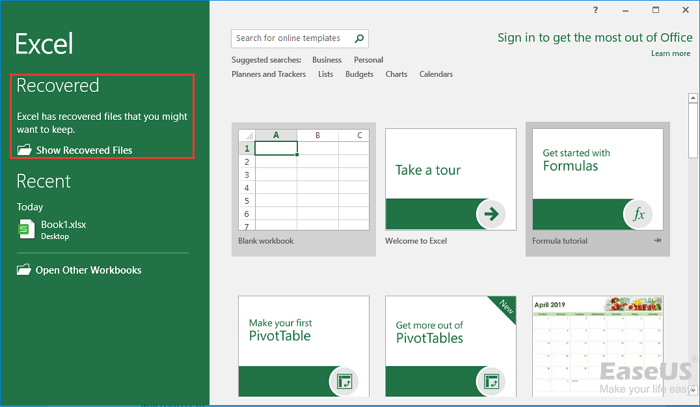
| Fix 1. Recover via document recovery | Open Excel application, find "Recovered" and click "Show Recovered Files". The "Document Recovery"...Full steps |
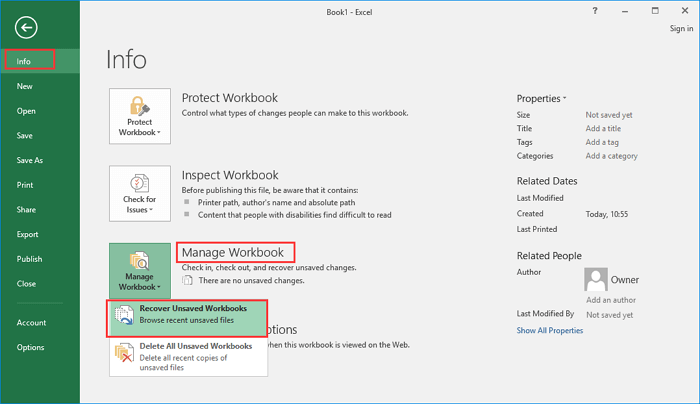
| Fix 2. Recover from temporary files | Open Excel, and click "File" > "Info" > "Manage Workbook". Click "Recover Unsaved Workbooks"...Full steps |
| Fix 3. Recover from AutoRecover | Go to your Excel app, click "File" > "Open" > "Recover Unsaved Workbooks". Find the unsaved Excel...Full steps |
Try using the "Recover Unsaved Workbooks" feature in Excel. You can access it by going to File > Recent > Recover Unsaved Workbooks. This might help you recover your unsaved file. If that doesn't work, you can also try checking the Excel autosave location, which is usually found in the "Recent" list or in the "Recover Unsaved Workbooks" dialog box. If you're still having trouble, you can try using a third-party recovery tool or contacting Microsoft support for further assistance.
If you experience a power failure, Excel not responding, or other issues that cause Excel to close without saving, you can try retrieving your unsaved file using Document Recovery, Temporary File, or AutoRecover. Alternatively, you can use data recovery software like Deep Data Recovery to easily recover deleted or lost Excel files without much effort.
How to Recover unsaved Excel Document in Windows 10 (3 Ways)
To recover an unsaved Word, Excel, or PPT document in Windows 10, follow these steps. The process is similar for all three programs, and there are three possible solutions to try. First, try the AutoRecover feature, which may have saved a copy of your document.
The following operations are performed on Excel 2016 edition. The processes are similar for other Excel editions. To perform the operations, first open Excel 2016.
Method 1. Recover from Document Recovery in Excel
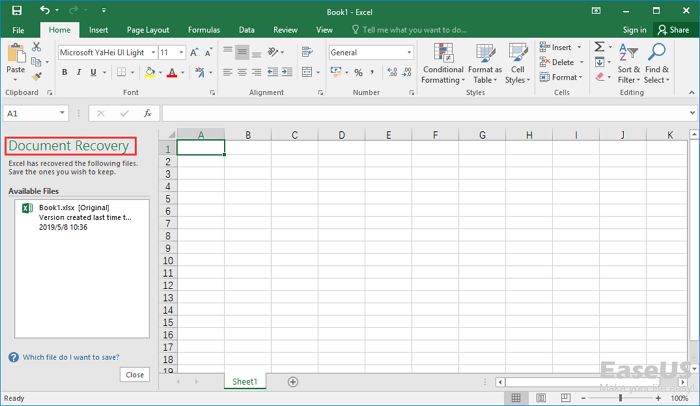
If you saved an Excel file earlier but the latest changes weren't saved due to a system crash or power outage, you can recover the unsaved changes using the Document Recovery feature.
1. Open Excel application, find "Recovered" and click "Show Recovered Files".
2. The "Document Recovery" pane will display the unsaved files. Open and save the one you need.
Method 2. Recover from Temporary File
Temporary files act as backups, allowing you to recover an unsaved Excel file if it's lost.
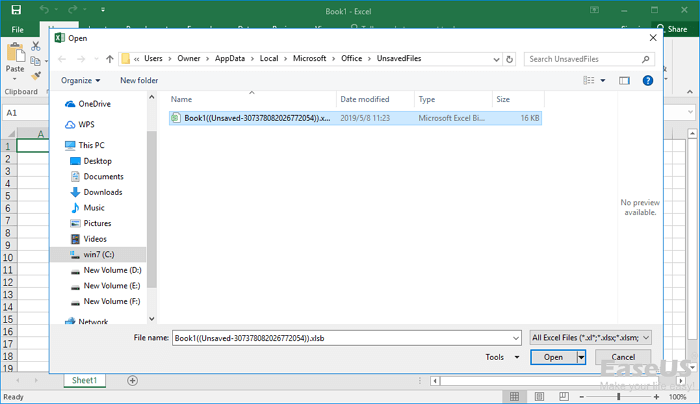
You can go to the following path to find the unsaved Excel file:
C:\Users\[username]\AppData\Local\Microsoft\Office\UnsavedFiles
Or you can make it with the guides below.
1. Open Excel, and click "File" > "Info" > "Manage Workbook". Click "Recover Unsaved Workbooks" from the drop-down menu.
2. Select the unsaved file and click the "Open" button. To recover a lost document, go to the "File" menu and select "Recent" or "Open Recent" to see a list of recently opened documents. If the document is there, you can open it and save it to a new location.
Method 3. Recover from AutoRecover
1. To recover an unsaved Excel workbook, go to the Excel app, click on "File", then select "Open", and at the bottom of the menu, choose "Recover Unsaved Workbooks".
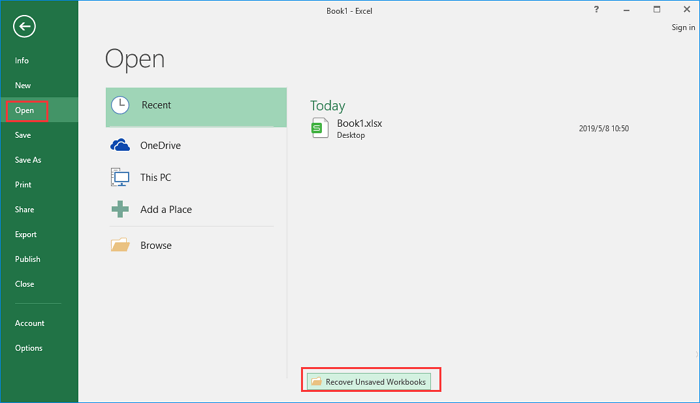
2. If you lost an unsaved Excel file, you can recover it by finding the file, opening it in Excel, and then saving it with a new name using the "Save As" button.
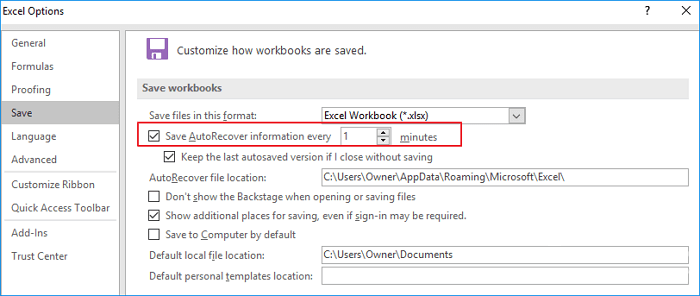
You can configure and change the AutoRecover settings in the following way.
To change the AutoRecover duration in Excel, go to "File" > "Options", then click on "Save" in the left navigation pane. In the Save AutoRecover information every xx minutes field, update the duration to your desired time, and click "OK" to save the changes.
If you need a guide on how to recover an unsaved Excel file on Mac, here is the quick access. If you also need the guide on how to recover unsaved Excel file on Mac, here is the quick access.
How to Recover Deleted or Lost Excel File with Qiling File Recovery Software
When saved Excel documents go missing, it's often due to mistaken deletion, virus attacks, hard drive damage, or OS crashes, except for the case of unsaved Excel loss. In such situations, you can utilize Deep Data Recovery to recover lost files, including Excel/Word/PPT documents, images, videos, audios, and emails, with just a few easy clicks.
Qiling File Recovery Software
- Recover files from emptied Recycle Bin, as well as from damaged, corrupted, or formatted hard drives (HDD), solid state drives (SSD), memory cards, USB flash drives, digital cameras, and camcorders, with specialized software designed to retrieve deleted files, even if they have been overwritten. These tools can scan storage devices for recoverable data, and some can even recover files from devices that have been physically damaged or are no longer functioning.
- Data recovery support is available for various situations, including sudden deletion, formatting, hard drive corruption, virus attacks, and system crashes. This assistance helps restore lost data under different circumstances, ensuring that important files and information are recovered and made accessible again.
- Repair corrupted files for free after data recovery, supporting the repair of corrupted Excel, Word, PPT, and PDF documents.
To recover lost Excel files, download and install a reliable Excel file recovery software and follow these simple steps.
Step 1. Select file types and click "Fast Scan" to start
Launch Deep Data Recovery on your PC, select the file types you want to recover, and click "Fast Scan" to initiate the recovery process.

Note: You can choose different search modes based on where and why the data was lost.
Step 2. Select location and click "Scan"
Select the drive or folder where the Excel files are located and click the "Scan" button to start the recovery process.
Step 3. Locate your excel files
To quickly find the Excel files from the scan results, click the "Documents" option in the left panel, choose "Excel", and then click "Preview" to verify if the files are the desired ones.

Step 4. Recover Excel files
Select the desired Excel files, click "Recover", and choose a folder to save the recovered files to another location.
Related Articles
- Files Missing from External Hard Drive but Still Taking Space
- Google Drive Files Not Showing Up on PC/Phone/Mac [Fixed]
- JPEG Repair Tool Free Download | Repair Corrupted JPEG Files
- Super Easy! How to Recover Deleted Files from NAS (Synology/QNAP)
- How to Unformat Memory Card on Android Phone/Camera
If you want to unformat memory card on your Android device or camera and rescue the fromatted data, you need to follow the guide for recover data from formatted memory card. - Where Do Photos/Pictures Go After Recently Deleted on Mac/Windows/Android Phone/iPhone
Deleted photos from the recently deleted folder are stored in the device's storage, varying by device type: Mac/Windows PC (computer storage), Android (internal storage), and iPhone (iCloud storage).
Products
Articles & Tutorials
- Data Recovery
- Data Backup
- File Recovery
- File Backup
- System Backup and Restore
- Disk and Partition Clone
- Technical articles
- Mobile articles
- Disk Master Help
- Windows Data Recovery Tutorials
- Windows Secure Delete Tutorials
- Windows Partition Management Tutorials
- Windows File Backup and Restore Tutorials
- Windows System Backup and Restore Tutorials
- Windows Disk Backup and Restore Tutorials
- Windows Clone Tutorials