How to Corrupt a File So It Won't Open on PC and Mac [Easy Guide]
Corrupting a file so it won't open on PC/Mac is surprisingly easy to complete. You don't need to spend a lot of time on it, and it's not a complex task. In fact, you can corrupt a file in no time, which can save your day if you're in a hurry.
Method 1. Change File Extensions to Corrupt a File on Mac and PC
Changing a file extension can confuse the operating system about the file type and fail to run the file. File extensions, such as .exe or .txt, are indicators that tell the operating system how to handle a file.
Step 1. Press the Windows button and search for folder options.
Step 2. Once you are in the folder options, click on the tab named 'View'.
Step 3. Now, you will see a box in front of a command saying Show file extensions; tick this box.

Step 4. Now go to the file you want to corrupt, and it will have an extension name at the end; suppose it is a word file with the extension name Docx.

Step 5. Right-click on the file and rename it.
Step 6. Don't rename it fully; just change its extension name and press enter.
The operating system won't be able to run this file, and anyone who tries to run it will get an error.
Method 2. Corrupt A File Using Notepad On Windows
Corrupting a word or PDF file with Windows built-in notepad is a simple process that can be completed in under a minute. To corrupt a file, open Notepad, copy and paste the contents of the file into it, then save the file with the same name and extension. This will overwrite the original file with the contents of Notepad, effectively corrupting it. This method is a quick and easy way to corrupt a file and save your reputation from getting ruined.
Step 1. First of all, right-click on the file you want to corrupt and open it with a notepad. Notepad might take a long time to run due to the file type so keep waiting.
Step 2. You need to delete 10-12 lines of code from the notepad, selecting them from any part of the screen (top, middle, or bottom).
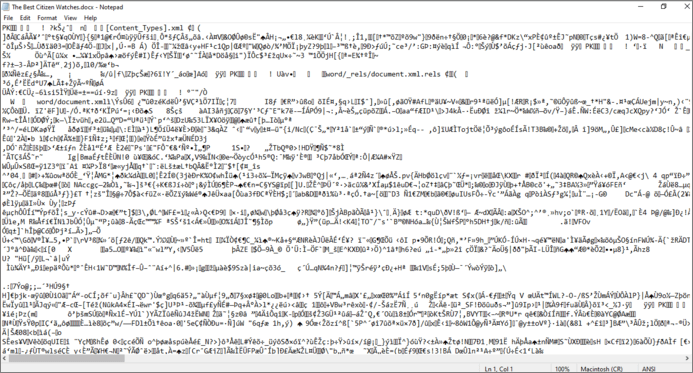
Step 3. After erasing the file, save the notepad file and close the notepad app, which might take longer than usual to close and keep the file.
Step 4. Running the file through a file viewer reveals that it's corrupt and can't be opened. A simple method to fix this can be completed in 1-2 minutes.
Method 3. Using an Online File Corrupter to Corrupt a File on Mac and PC
Some bosses or professors may be clever enough to detect that a file has been intentionally corrupted, which could lead to trouble. To avoid this, you can use an online tool like corrupt-a-file.net to corrupt a file without arousing suspicion. This way, you can stay on the safe side and avoid any potential consequences.
This is an online tool that is free to use and corrupts your file in no time. Here is how you can use it:
Step 1. Visit their website (https://corrupt-a-file.net/).
Step 2. Scroll down and click on "From Your Computer" just below the select the file to corrupt.
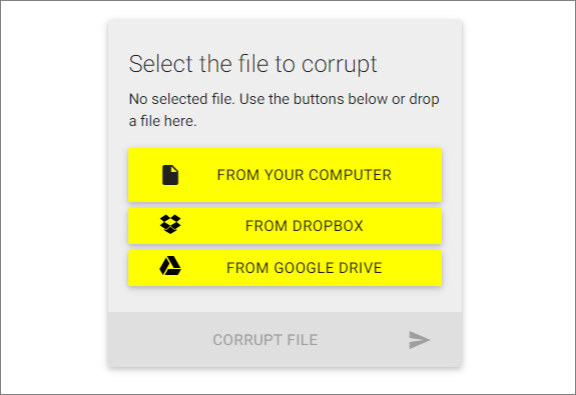
Step 3. Now, navigate to the file you want to corrupt, click on it and upload it to the website.
Step 4. To fix the corrupted file, first, open the File Explorer and navigate to the location of the corrupted file. Then, click on the corrupt file option and wait for a moment.
Step 5. Your file will be corrupted and saved at your desired location.
Method 4. Use File Compression Tool
Using the file compression tool, such as Winrar Archiver, which can be downloaded for free online, is another way to intentionally corrupt a file. After installing the tool, you can follow these steps to corrupt a file on purpose.
Step 1. To corrupt a file, right-click on it and select "Compress" from the context menu.
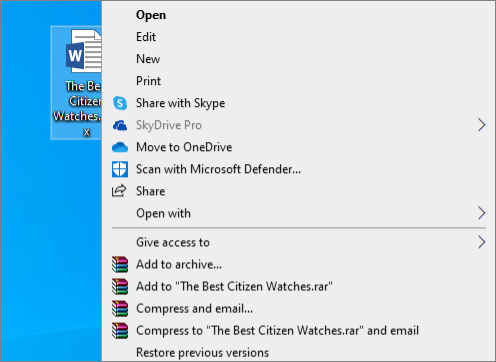
Step 2. When the compression is almost 90% completed, pause and cancel it.
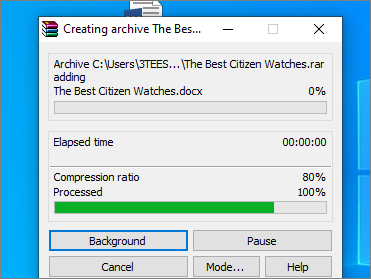
Step 3. Canceling at 90% will cause the compressor to create a new file, but the compressed file will not contain full data from the previous one, resulting in the compressed file not running.
How to Repair Corrupted Files with File Repair Tool
Corrupting a file can be done for multiple purposes, but it's essential to create a copy beforehand to ensure access to the data in the future. However, if a file becomes corrupt, either intentionally or due to a virus, recovering the original data can be a significant challenge. In such cases, Deep Data Recovery can be a lifesaver, helping to access and retrieve the corrupted file.
Qiling file repair tool quickly and easily fixes all corrupted files, including Excel, Word, PPT, and PDF documents, as well as broken videos and images.
You can download a data repair and recovery tool for free to fix damaged files, and it can also handle other tasks to make your life easier. This option is cost-effective as well, as many file repairing tools online are available at a hefty price.
Step 1.Launch Deep Data Recovery, select the file types you want to recover, and click "Fast Scan" to begin the recovery process.

Note: You can choose different search modes based on where and why the data was lost.
Step 2.To repair corrupted files, select a disk location where the damaged files are saved, then click "Scan" to start finding the broken files. The Qiling file repair tool can fix damaged documents, videos, and pictures in different formats.

Step 3.After scanning, you can quickly find corrupt data by file type, allowing you to repair damaged documents, such as Word and Excel files, or PDFs, by selecting the corresponding category. For pictures and videos, the software supports a wide range of common types, including JPEG, PNG, BMP, MOV, MP4, GIF, and more.

Step 4.Qiling file repair software automatically fixes broken files, allowing you to preview the repaired files before recovery. Once you're satisfied, simply click "Recover" and save the recovered files to a different location to avoid data overwriting.
Conclusion
For college or university students, corrupting a file might seem like an easy way out, but it's not recommended. Many educational institutions are aware of this trick and have strict rules against it, making it not worth the risk. However, if you're looking for alternative ways to ease your problem, there are likely other, more legitimate solutions available.
If you've corrupted a file, there are multiple methods to recover it. You can try changing file extensions, using an online file corrupting tool, or compressing the file. Alternatively, if you didn't create a backup of your file and it got corrupted immediately, you can use Qiling to easily repair it. Additionally, Deep Data Recovery software offers many benefits, including repairing your file, in case of corruption.
Related Articles
- How to Recover Deleted PST File in Outlook 2019/2016/2013/2010
- How to Restore Lost WPS Office 2016 Files
- How to Recover Overwritten or Replaced Excel/Word Document
- How to Recover Deleted Sticky Notes in Windows 10/8/7
- [Official & Latest] Deep Data Recovery Key 3.1 and Qiling License Code
Stop trying to use Qiling data recovery crack, keygen, or serial number. Deep Data Recovery 3.1 with the official license code and serial key is available here for you to download. With the Qiling data recovery key, you can activate Deep Data Recovery legally and recover your data in the safest way. - How to Recover Deleted Files in Windows 10 (7 FREE Ways)
How to recover deleted files in Windows 10? This tutorial covers several effective ways to help you undelete files or restore permanently deleted files on Windows 10.
Products
Articles & Tutorials
- Data Recovery
- Data Backup
- File Recovery
- File Backup
- System Backup and Restore
- Disk and Partition Clone
- Technical articles
- Mobile articles
- Disk Master Help
- Windows Data Recovery Tutorials
- Windows Secure Delete Tutorials
- Windows Partition Management Tutorials
- Windows File Backup and Restore Tutorials
- Windows System Backup and Restore Tutorials
- Windows Disk Backup and Restore Tutorials
- Windows Clone Tutorials