How to Find and Recover Deleted Files in Windows 10
Deleting files by mistake is common in Windows 10. In many cases, the files are not gone immediately. They may still be in the Recycle Bin, saved in a backup, stored in a previous version, or recoverable from the drive before new data overwrites them.
The best recovery method depends on how the files were deleted. Start with the simplest places first, such as Recycle Bin and backups. If the files were permanently deleted, emptied from Recycle Bin, or lost after formatting, use data recovery software as soon as possible.
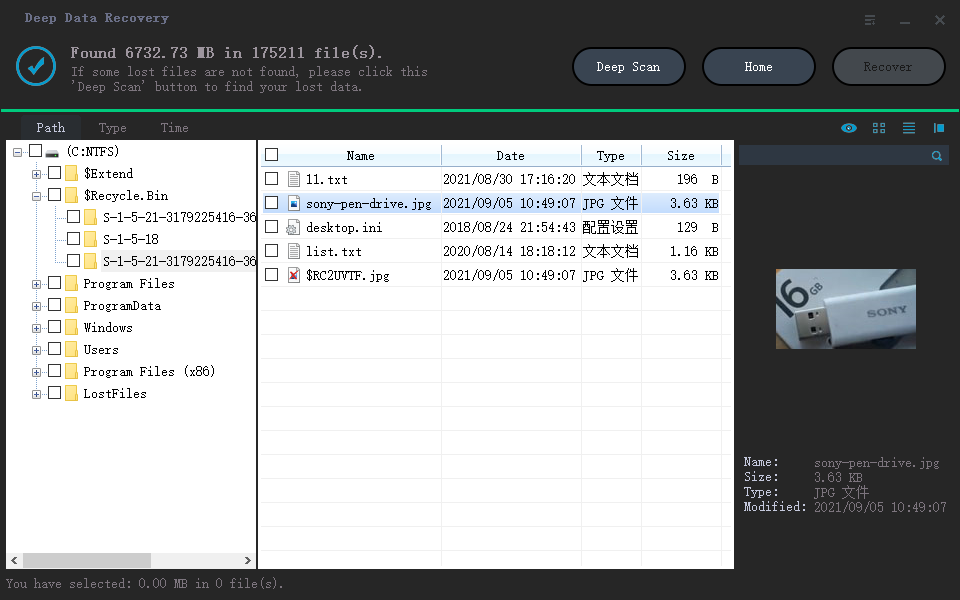
Where to Find Deleted Files in Windows 10
When you delete a file normally, Windows usually moves it to the Recycle Bin. Open Recycle Bin from the desktop, search for the file name, right-click the item, and choose "Restore". The file will return to its original folder.
If the file is not in Recycle Bin, check whether it was deleted with Shift + Delete, removed from an external drive, deleted by a cleanup tool, or lost after formatting. These situations often bypass Recycle Bin, so you need backups, Previous Versions, Windows File Recovery, or recovery software.
Solution to Recover Deleted Files in Windows 10
If the deleted files are not available in Recycle Bin or backup, stop using the affected drive first. New downloads, installations, or copied files may overwrite deleted data and reduce the chance of recovery.
Deep Data Recovery can scan hard drives, SSDs, USB drives, SD cards, external disks, and other storage devices to find deleted and lost files. It is useful when files are permanently deleted, lost after formatting, removed from Recycle Bin, or missing because of system errors.
Step 1. Install and launch the recovery software. Select the drive or folder where the deleted files were originally stored.
Step 2. Start scanning. After the scan, browse "Deleted Files" and "Other Lost Files", or use the filter and search box to find files by name, type, size, or date.
Step 3. Preview recoverable files and select the items you need. Save them to another drive or external storage device instead of the original location.
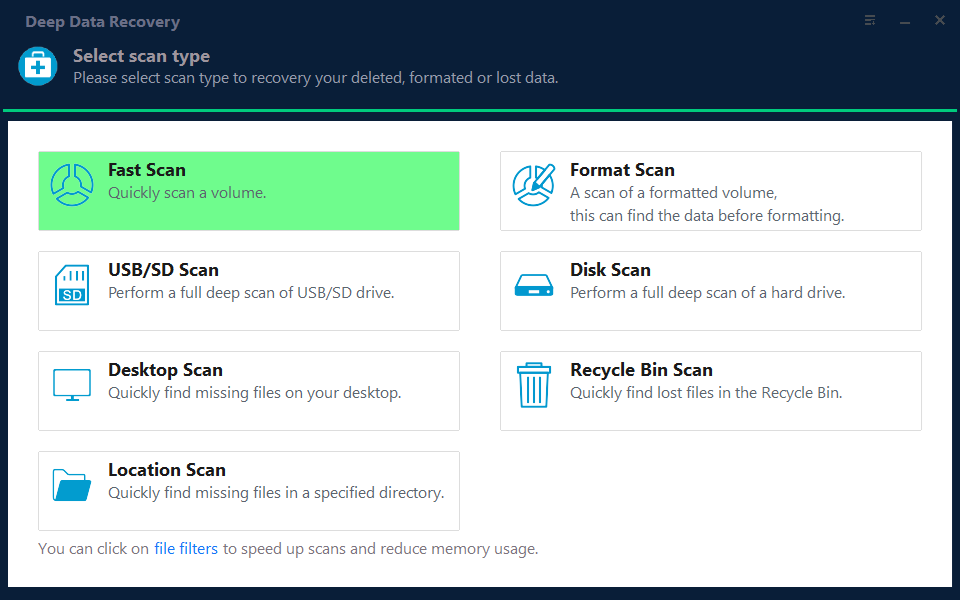
Note: You can choose different search modes based on where and why the data was lost.
Recover Deleted Files Without Software
If you want to try built-in Windows tools first, check File History and Previous Versions. File History can restore files if it was enabled before the deletion. Open Control Panel, choose File History, and click "Restore personal files" to browse available versions.
Previous Versions may also help if Windows created restore points or backups for the folder. Right-click the folder that contained the deleted file, choose "Restore previous versions", select a version, and restore or copy the file to a safe location.
Windows File Recovery is another option from Microsoft. It works through command lines and is useful for users who are comfortable with recovery syntax. For beginners, a graphical recovery tool is usually easier to operate.
Deleted File Backup Software
After recovering important files, build a regular backup plan. File History can protect common user folders, while Qiling Backup can create file backups, system backups, disk backups, and scheduled backup tasks for broader protection.
Keeping backups on another disk, external drive, NAS, or cloud storage makes future recovery much safer. If a file is deleted again, you can restore it from backup instead of relying only on undelete tools.
Tips to Improve Deleted File Recovery
Act quickly after deletion. Do not install software, download files, or save recovered data to the same drive where files were lost. If the deleted files were on an SSD with TRIM enabled, recovery may be harder, so backups are especially important.
For business files, photos, documents, and project data, use at least two backup locations. A simple combination of File History and a scheduled file backup can prevent many common data loss problems.
Related Articles
- Recover Deleted Files Windows 10 | 6 FREE Ways
- How to Recover Deleted Files on Windows 10/8/7
- Recover Deleted Files from Recycle Bin in Windows
- Beginner's Guide: How to Use File History Windows 10
- Restore Deleted Files in Windows 10/8/7 for Free
If you find your important files deleted accidentally, try these methods to restore deleted files in Windows 11, 10, 8, or 7. - Guide to Recover Deleted Files with System Restore
You can recover deleted files with System Restore when restore points or backups are available, and use recovery software if needed.
Products
Articles & Tutorials
- Data Recovery
- Data Backup
- File Recovery
- File Backup
- System Backup and Restore
- Disk and Partition Clone
- Technical articles
- Mobile articles
- Disk Master Help
- Windows Data Recovery Tutorials
- Windows Secure Delete Tutorials
- Windows Partition Management Tutorials
- Windows File Backup and Restore Tutorials
- Windows System Backup and Restore Tutorials
- Windows Disk Backup and Restore Tutorials
- Windows Clone Tutorials