Recover Deleted Files Windows 10 | 6 FREE Ways
If you're looking to recover deleted files Windows 10, there are various methods you can use to get your data back, including Qiling file recovery software and Windows' built-in file recovery tools. We'll show you the best approach to take in different data loss situations.
Deleting files in Windows 10 can be a perilous process, with the risk of permanently losing data if not done carefully. While the Recycle Bin provides a safety net, it's not foolproof - holding the Shift key while deleting a file bypasses the Bin, and if the Bin is full, deleted files are simply wiped out, regardless of size. This means that deleting files when the Bin is full can result in irretrievable data loss.
You can still recover permanently deleted files in Windows 10 using built-in tools and third-party options, and we'll show you how. Join us to learn the steps to restore your lost files.
- Recover Deleted Files Windows 10 Using Undo Delete
- Restore Deleted Files in Windows 10 from Recycle Bin
- How to Recover Permanently Deleted Files Windows 10 with Data Recovery Software (Recommended)
- Restore Deleted Files Windows 10 Using Windows File Recovery
- Recover Permanently Deleted files in Windows 10 from File Backup and Previous Versions
Recover Deleted Files Windows 10 Using Undo Delete
Users can quickly restore recently deleted files by using the "Ctrl+Z" shortcut or by right-clicking the folder where the file was located and selecting "Undo Delete".
To undelete files using the Undo Delete feature, go to the folder where the deleted file was located and click on the "Undo Delete" button. Select the file you want to undelete from the list of recently deleted files and click on the "Restore" button to recover it.
Step 1. Right-click the folder where the file was lost.
Step 2. Click the "Undo Delete" button to restore the file to its original location.
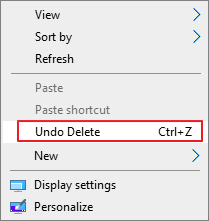
Step 3. Or, press "Ctrl+Z" directly to restore the lost files.
If you've deleted a file or folder recently, you can use Ctrl+Z or the Undo Delete feature to recover it. However, this method won't work if you restart your computer or a significant amount of time has passed since the deletion.
Restore Deleted Files Windows 10 from Recycle Bin
If you've accidentally deleted a file in Windows 10, you can easily undelete it by going to the Recycle Bin, finding the deleted file, and clicking 'Restore' to put it back in its original location. Alternatively, you can use a third-party file recovery software like Deep Data Recovery or Qiling file recovery software to scan your computer for deleted files and recover them.
Step 1. To recover deleted files, open the "Recycle Bin" from the desktop or Start menu and locate the files you want to recover.
Step 2. To find the files you need in the Recycle Bin, you can browse through its content, perform a search for a specific file, or use the column headings to identify files based on size, date of modification, and other criteria.
Step 3. To recover a file, select the file you'd like to retrieve and right-click on it to access further options.
Step 4. Click "Restore" to recover the deleted files.
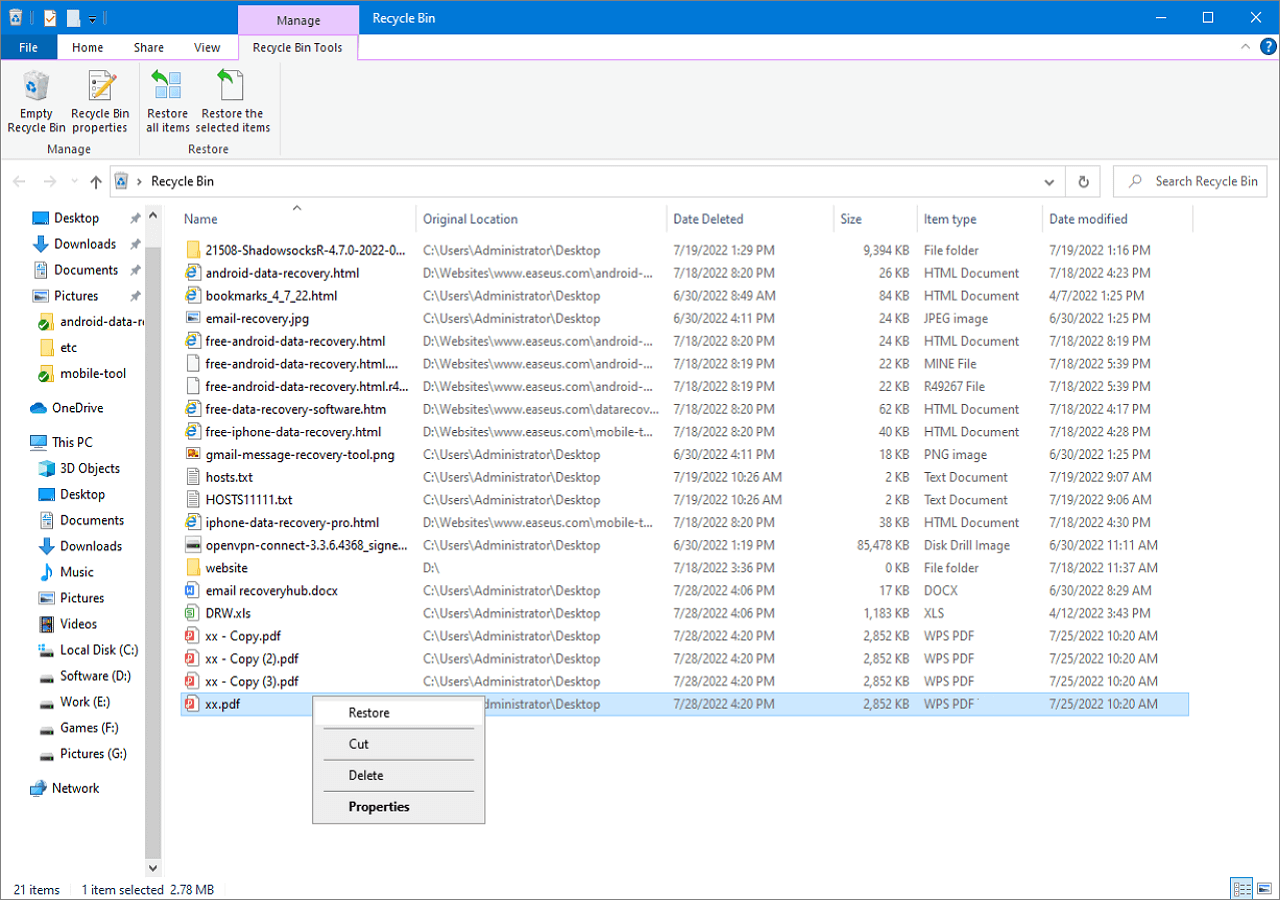
There are limitations to this method, which only works if the Recycle Bin has not been emptied and the Shift key has not been held while deleting data. If the files cannot be found in the Recycle Bin, they may have been permanently deleted, and alternative methods for Recycle Bin recovery can be tried.
How to Recover Permanently Deleted Files Windows 10 with Data Recovery Software
To recover deleted files, a reliable method is to use dedicated data recovery software, such as Deep Data Recovery, which is available for Windows 10 and macOS, has a high success rate, and is easy to use.
The program is highly likely to recover deleted data even without a backup available.
Qiling File Recovery Windows 10
- Recover lost or deleted files, documents, photos, videos, audio, music, and emails easily with effective recovery tools and techniques. Whether it's a personal computer or a work device, data loss can be a stressful experience.
- Recover deleted files from various storage devices, including hard drives, memory cards, flash drives, digital cameras, and camcorders, even after emptying the recycle bin. This can be done using specialized software that scans the device for deleted files and restores them to their original state.
- Data recovery support is available for various situations, including accidental deletion, formatting, inaccessible drives, virus attacks, and system crashes, helping users recover lost data under different circumstances.
You can download the Qiling files recovery software for free from the provided link, and then follow these steps to recover your deleted files.
Note: To ensure the best chance of recovering lost data, install Qiling data recovery software on a separate disk drive, rather than the original disk where the files were lost. This approach helps prevent overwriting of the original data and increases the likelihood of successful recovery.
Step 1. Launch Deep Data Recovery on your Windows computer, choose file types and click "Fast Scan" to start the recovery process.

Note: You can choose different search modes based on where and why the data was lost.
Step 2. Select the disk partition or storage location where you lost data and click "Proceed".

Step 3. The recovery software will start scanning the disk to find all lost and deleted files. Once the scan is complete, you can filter the results by selecting "Filter" > "Type" to specify the types of lost files you want to recover.

Step 4.To recover lost Windows files, simply double-click to preview the scanned files, select the desired data, and click the "Recover" button to save them to a safe spot, either on your PC or an external storage device.
Time is of the essence when it comes to data recovery. The sooner you start the process of locating and recovering data, the better your chances of success. If you wait too long, data may be overwritten or a problem may arise on the drive you're trying to recover from, making recovery impossible.
Restore Deleted Files Windows 10 Using Windows File Recovery
Microsoft's Windows File Recovery is a free data recovery tool that can be used on Windows 10 2004 or later, but it requires installation from the Microsoft Store. Unlike other data recovery programs, it is a command-line tool, making it less user-friendly for those not comfortable with text-based interfaces.
Windows File Recovery is only recommended for slightly more experienced computer users due to the potential for things to go wrong.
Before using Windows File Recovery, there are a couple of conditions to be aware of.
- To recover data, you'll need a secondary drive, which can be a regular hard drive or an external USB drive.
- To recover deleted files, you need to know the exact location where they were originally stored. This is because deleted files are not actually deleted, but rather marked as deleted and their space on the storage device is made available for new data.
How to use Windows File Recovery to restore deleted files in Windows 10
Step 1.To recover deleted files on Windows, open the "Microsoft Store" app, search for "Windows File Recovery", download and install the app by clicking the "Get" button.
Step 2. Open Windows File Recovery from the Start menu shortcut.
Solution source: https://www.microsoft.com/en-us/p/windows-file-recovery/9n26s50ln705?activetab=pivot:overviewtab from Microsoft official website
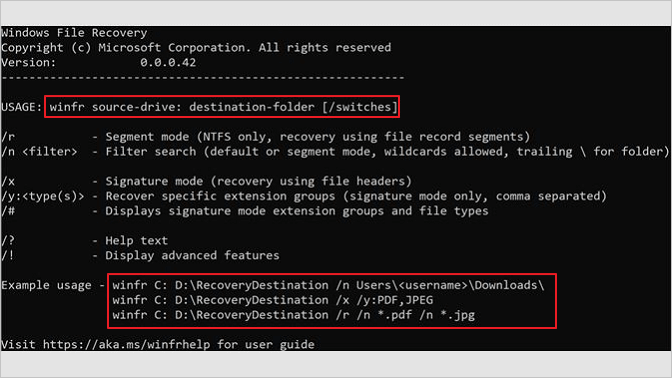
Step 3. Use the syntax indicated below to start the process of recovering deleted files. The basic command line is:
winfr source-drive: destination-drive: [/switches].
For example:
winfr C: D: /n \Users\Documents\test.docx
The command to recover a deleted Word document named "test" from the C: drive and save it to the D: drive is: `undelete -i -r -f "test" -d C: -s D:`. This command instructs the undelete program to interactively recover the file, recursively scan the drive, force the recovery, look for the file on the C: drive, and save the recovered file to the D: drive.
Step 4. To restore deleted files, follow the on-screen instructions and complete the process.
This method of data recovery is not suitable for everyone due to the need for different commands in each scenario, and it may not work in every instance, such as recovering files after a virus attack or lost partition.
Recover Permanently Deleted Files Windows 10 from File Backup
If you have a backup set up or have used the File History function before data loss occurs, you can recover deleted files on Windows 10. However, if there is no backup available, you will need to use data recovery software to recover permanently deleted files.
To recover deleted files from a Windows backup, go to the Control Panel, click on System and Security, then Backup and Restore (Windows 7), or Backup (Windows 8 and later). From there, select "Restore your files" and follow the prompts to browse for the deleted files.
Step 1.To access the backup settings, open the "Settings" app from the Start menu and navigate to the "Update & Security" section. From there, click on the "Backup" section to the left.
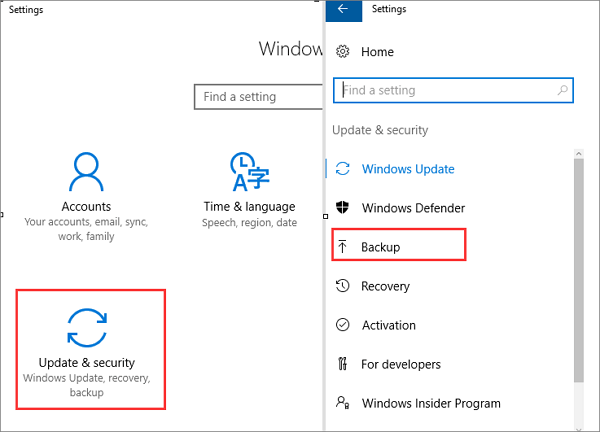
Step 2. To restore your files, select "Backup and Restore (Windows 7)" and then choose "Restore my files". From there, select either "Browse for files" or "Browse for folders" to locate the previously created backup.
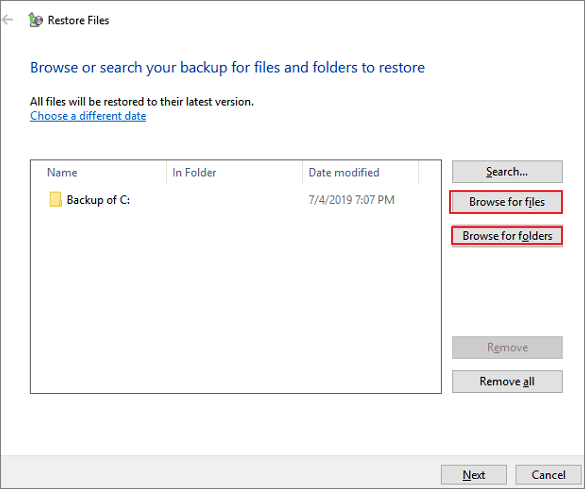
Step 3. Save your files to a chosen location, and if there's a naming conflict, Windows will alert you. Then, select whether to copy and replace, not copy, or copy but keep both files, and wait for the restore process to finish.
Recover Deleted Files in Windows 10 from Previous Versions
To recover Windows 10 files, you can use the "previous versions" function, but you must have enabled File History to back up files automatically, making this option available to you.
To restore permanently deleted files on Windows, follow these steps:
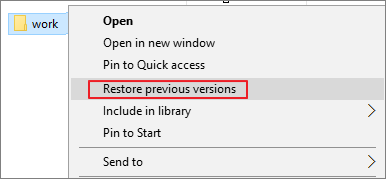
Step 1. To recover permanently deleted files, look for and right-click on the folder that contained the deleted files, then select "Restore previous versions" from the context menu. This will allow you to browse through and select the desired version of the folder and its contents.
Step 2. Click "Restore previous versions".
Step 3. Select the files you are interested in, and click "Restore".
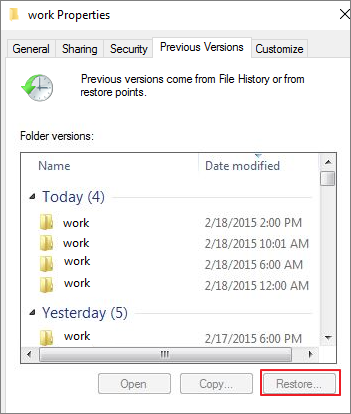
If Windows warns you that it already contains a file or folder with the same name, you can either select "Replace the file in the destination" to overwrite it, or choose a new file name to avoid any conflicts.
What's the Best Way to Recover Permanently Deleted Files in Windows 10
In Windows 10, you can recover deleted files using the Recycle Bin, File History, or third-party software, depending on the circumstances of the file deletion.
The table below provides a comparison of different recovery methods, allowing you to consider the pros and cons of each.
| Comparison | Recycle Bin | Data Recovery Software | Windows File Recovery | File Backup & Previous Versions |
|---|---|---|---|---|
| Easy of use | Easy |
Easy |
Hard |
Medium |
| Deleted recovery | Yes | Yes | Yes | Yes |
| Permanently deleted recovery | No | Yes | No | Yes |
| Formatted recovery | No | Yes | No | Yes |
| Recycle Bin emptying recovery | No | Yes | No | Yes |
| Need backup | No | No | No | Yes |
| Platform | Windows | Windows + Mac | Windows | Windows |
| Recovery rate | Low | High | Low | Very low |
| Price | Free | Free or Paid | Free | Free |
While various methods and techniques can aid in data recovery, specialist software like Deep Data Recovery offers the best chance of success in a wide range of circumstances.
Recover Deleted Files FAQs
Read futher information on how to restore permanently deleted files in Windows 10.
1. Can I recover permanently deleted files from my computer?
While it's generally possible to recover deleted files, the likelihood of success depends on factors such as the type of file and how long ago it was deleted. If you've recently deleted a file and emptied it from your computer's Recycle Bin, you may still be able to recover it using a deleted file recovery program.
2. How to recover permanently deleted files Windows 10 using CMD?
The Windows Command Prompt can be a powerful tool for disk and file management, but it has its limitations. While the attrib command can be used to recover hidden files, it cannot restore deleted files, which are lost forever once they're deleted.
Step 1. Type cmd in the Search box. Right-click on Command Prompt and select Run as administrator.
Step 2. Type ATTRIB -H -R -S /S /D X:*.* and hit Enter. Replace "X" with the letter of your hard drive.
3. How to recover deleted files Windows free?
To recover deleted files for free, you can use Deep Data Recovery Free, a free software that scans your hard drive and attempts to recover deleted files, allowing you to recover up to 2GB of data without any cost.
Step 1. Download and run Deep Data Recovery Free.
Step 2. Scan a disk for deleted files.
Step 3. Preview and recover lost files.
4. How can I recover deleted files in Windows 10 without software?
If you've accidentally deleted a file, you can try recovering it without using any third-party software. First, check if the file is still in the Recycle Bin; if it is, simply right-click on the file and select Restore. This method is a simple and straightforward way to recover deleted files.
To restore a file that's not in the Recycle Bin, try restoring it from a previous version. This can be done by going to the File Explorer, right-clicking on the file you want to restore, and selecting "Properties." Then, click on the "Previous Versions" tab and select the version you want to restore.
Step 1. Open File Explorer and navigate to the folder where the deleted file was located.
Step 2. Right-click on the folder and select Properties.
Step 3. Under the Previous Versions tab, select the most recent version of the folder that contains the deleted file and click Restore.
5. How to restore permanently deleted files from Recycle Bin?
You can use third-Party file recovery software can be used to recover permanently deleted files from your Recycle Bin.
Step 1. Install and launch Qiling Recycle Bin recovery software.
Step 2. Click Recycle Bin option under the Locations section and click Scan.
Step 3. Select the file you need, preview and restore it.
6. How can I recover permanently deleted files in Windows 10 without backup?
If you've accidentally deleted a file and don't have a backup, you can use dedicated Windows 10 data recovery software like EasedUS to recover it.
To recover permanently deleted files, start by choosing and installing a file recovery program, then run it and follow the prompts to attempt to recover your lost files.
Related Articles
- Fix Corrupted Data and Recover Files from PSP Memory Stick
- How to Recover Data from Western Digital Hard Disk
- How to Recover Deleted Files/Folders in Windows 11 [Ultimate Guide]
- Deep Data Recovery 2.6 Crack with License Code 2022
- How to Recover Overwritten or Replaced Photos, Excel, Word files
How to recover overwritten/replaced photos, excel, word files from hard drives or external storage devices like SD Card? The article lists detailed steps to guide you to complete overwritten file recovery. - How to Recover a Partition on a USB Drive
To recover or restore a partition from a USB drive, it's essential to follow the correct procedure and consult a reliable guide for partition recovery on USB drives.
Products
Articles & Tutorials
- Data Recovery
- Data Backup
- File Recovery
- File Backup
- System Backup and Restore
- Disk and Partition Clone
- Technical articles
- Mobile articles
- Disk Master Help
- Windows Data Recovery Tutorials
- Windows Secure Delete Tutorials
- Windows Partition Management Tutorials
- Windows File Backup and Restore Tutorials
- Windows System Backup and Restore Tutorials
- Windows Disk Backup and Restore Tutorials
- Windows Clone Tutorials