Beginner's Guide: How to Use File History Windows 10
File History is a built-in Windows 10 backup feature that helps protect personal files. After it is turned on, Windows saves copies of selected folders to an external drive or network location, so you can restore deleted, changed, or damaged files later.
This feature is useful for documents, photos, videos, music, Desktop files, and offline OneDrive files. It does not create a full system image, so it cannot restore Windows itself after a serious system failure. Still, for everyday file protection, File History is a simple place to start.

What Is File History in Windows 10?
File History keeps versions of files in common user folders. When a file changes, Windows can save another copy to the backup drive. This lets you go back to an earlier version if the latest file is missing, corrupted, or overwritten by mistake.
By default, File History focuses on user data instead of the whole operating system. It is suitable for recovering personal files, but it is not a replacement for system backup, disk backup, or partition backup. If you need to protect Windows, programs, and boot files, use a system image or dedicated backup software.
How to Restore Files from File History
If File History was enabled before the file was lost, you can restore files directly from Windows. Connect the backup drive first, then open Control Panel, choose File History, and select "Restore personal files" from the left side.
Browse the available backup versions and find the file or folder you need. You can preview versions by date, choose the correct item, and click the restore button. Windows can restore the file to its original location or let you save it to another folder.
If the original folder still contains a file with the same name, Windows may ask whether to replace it, skip it, or compare both files. Choose carefully to avoid overwriting a newer copy that you still need.
What If File History Has No Backup?
File History can only restore files that were backed up before deletion or damage happened. If File History was turned off, the backup drive was disconnected, or the target folder was not included, you may not find the lost file in File History.
In that situation, stop saving new data to the affected drive as soon as possible. New files may overwrite the lost data and reduce the chance of recovery. You can then try data recovery software to scan the drive and recover deleted or lost files.
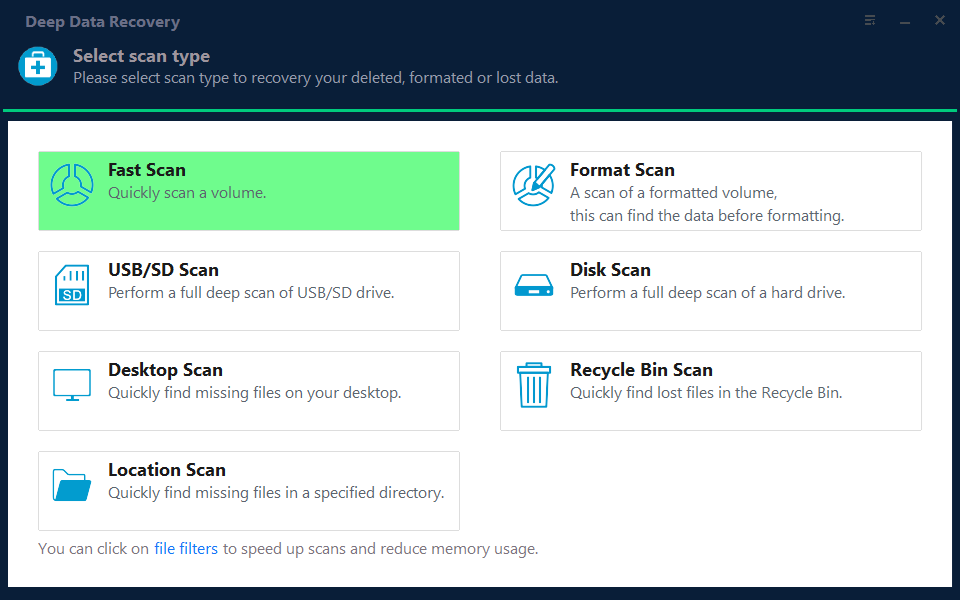
Deep Data Recovery can scan hard drives, external drives, USB drives, memory cards, and other storage devices for deleted or missing files. It is helpful when files are not in Recycle Bin and no File History backup is available.
How to Make File History More Reliable
To make File History useful, keep the backup drive connected regularly and check the backup status from time to time. You can also adjust how often Windows saves copies and how long it keeps saved versions.
For important data, use more than one protection method. File History can protect personal folders, while file backup, disk backup, or cloud backup can add another layer of safety. This way, you still have recovery options if one backup fails.
File History Backup Software
If you need more flexible backup options, Qiling Backup can help create file backups, system backups, disk backups, and scheduled backup tasks. It is useful when you want to back up folders outside the default File History range or save backups to different storage locations.
Related Articles
- Beginner's Guide: How to Use File History Windows 10
- How to Restore Files from Backup in Windows 10 Step by Step
- Solved 2022: Windows 10 File History Not Working
- Windows 10 File History vs Backup: Which One Works for Me?
- 4 Methods To USB Drive Recovery
You can recover a USB flash drive on a Mac or Windows PC, and this page will guide you through the process in 2023. - Guide to Restore Files from Backup in Windows 10
To restore files from a backup in Windows 10, follow this tutorial to recover backed up files safely and clearly.
Products
Articles & Tutorials
- Data Recovery
- Data Backup
- File Recovery
- File Backup
- System Backup and Restore
- Disk and Partition Clone
- Technical articles
- Mobile articles
- Disk Master Help
- Windows Data Recovery Tutorials
- Windows Secure Delete Tutorials
- Windows Partition Management Tutorials
- Windows File Backup and Restore Tutorials
- Windows System Backup and Restore Tutorials
- Windows Disk Backup and Restore Tutorials
- Windows Clone Tutorials