[SOLVED] The Boot Configuration Data for Your PC Is Missing
The Boot Configuration Data for Your PC Is Missing
If you receive the error message "The Boot Configuration Data for Your PC is missing", it means your computer's boot information has been corrupted, likely due to various reasons such as software or hardware issues.
- Viruses attacks
- Power Surges
- Hardware boot failures
- Missing or corrupt boot configuration data
- Corrupted master boot record (MBR)
The "The Boot Configuration Data for Your PC is missing" error can be caused by various reasons. Fortunately, fixing it is a relatively straightforward process, and this article provides the best solutions to resolve the issue. Users can rest assured that the problem can be addressed with the help of these fixes, making it easy to get back to normal.
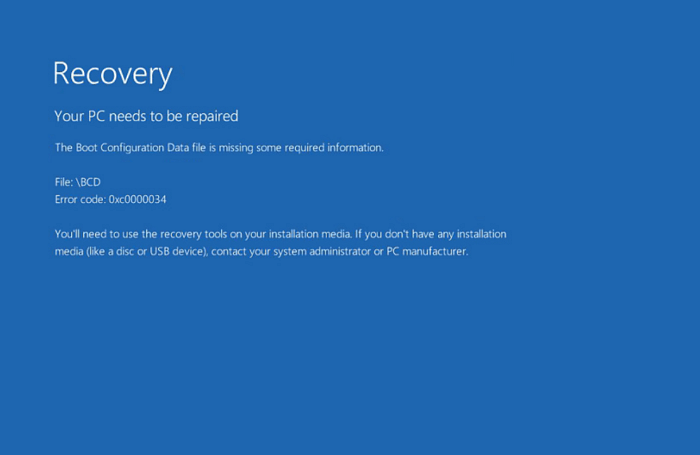
4 Ways to Fix Boot Configuration Data for Your PC Is Missing
If you're experiencing the "boot configuration data for your PC is missing" error, there are several ways to resolve it. Four effective solutions are available, explained step by step to guide you through the process. These fixes can help you overcome the issue and get your PC up and running smoothly.
| Workable Solutions | Step-by-step Troubleshooting |
|---|---|
| 1. Rebuild BCD | Now, to access the command prompt, you will have to boot the Windows with a bootable disk...Full steps |
| 2. Run Windows Startup Repair | Once the system turns on and the following text appears, "press any key now to boot from CD...Full steps |
| 3. Bcdedit.exe | Insert the Windows bootable drive and boot from it. Select your language preferences...Full steps |
| 4. Set Windows Partition Active | To activate a Windows partition, you must go to the command prompt. So, go to the start menu...Full steps |
Fix 1. Rebuild BCD with Command Prompt
BCD, or Boot Configuration Data, is a file that stores information about the boot options on your computer. If this file becomes corrupted, it can cause problems when trying to boot your computer. However, you can use the Command Prompt to rebuild the BCD and resolve these issues. To do this, follow these steps to use the Command Prompt to rebuild BCD.
Step 1. To access the command prompt, you'll need to boot Windows using a bootable disk or USB. Insert the disk or USB into your system and press the enter key to boot. Then, select the language preference.
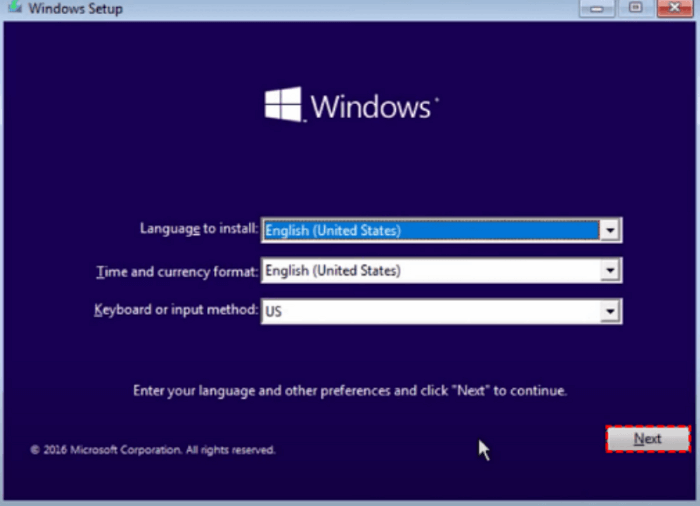
Step 2. Click on the "Repair Your Computer" option on the left corner of your computer screen to proceed further.
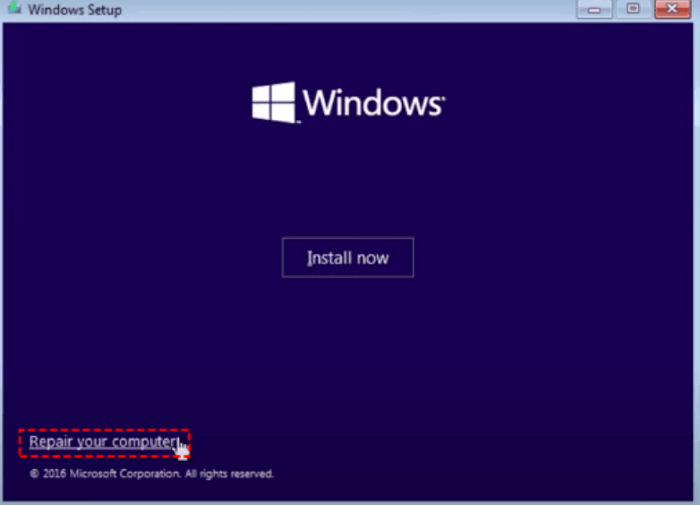
Step 3.Now click on "troubleshoot" and then choose the advanced options. Under this setting, you can find a variety of further options. Click on "Command Prompt".
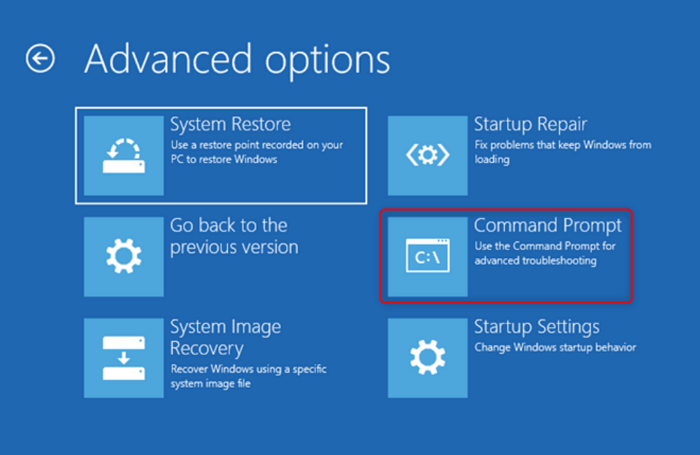
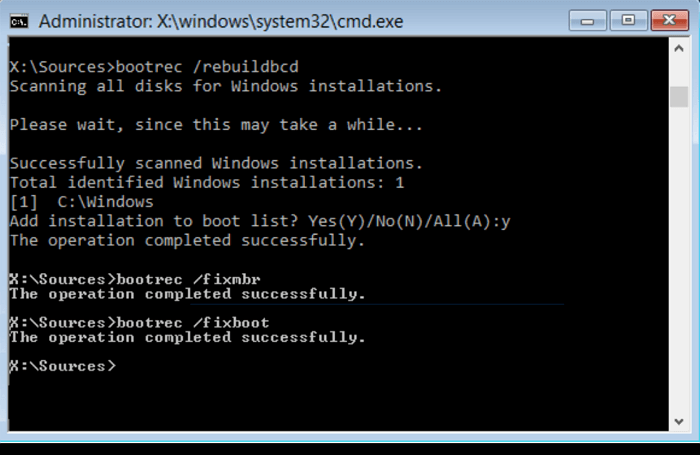
Step 4. Type the following command in the Command Prompt and press Enter.
- bootrec /fixmbr
- bootrec /fixboot
You can use the fixmbr command to repair any issues with your boot sector.
Step 5. In the last step, type the following command and press Enter.
- bootrec /scanos
Fix 2. Run Windows Startup Repair
This error can occur for many reasons, which we discussed already. However, in the majority of cases, it's the corrupted data files of your Windows operating system. So, one way to fix this error is to repair those corrupted Windows files by repairing the Windows OS itself.
Here you should note that repairing your Windows will also help prevent such errors from popping in again in the future.
Below mentioned are the steps that you need to follow to run Windows startup repair.
Step 1. To repair the Windows OS, insert a bootable disk or USB into your PC or laptop and turn it on, then press any key to continue when the system turns on and the text "press any key now to boot from CD, DVD" appears.
Step 2.The Windows setup interface will appear. Select your desired language preference to begin.
Step 3. Now choose, "troubleshoot" to proceed further
Step 4.The interface provides you different options. Choose the third option, "Automatic Repair".
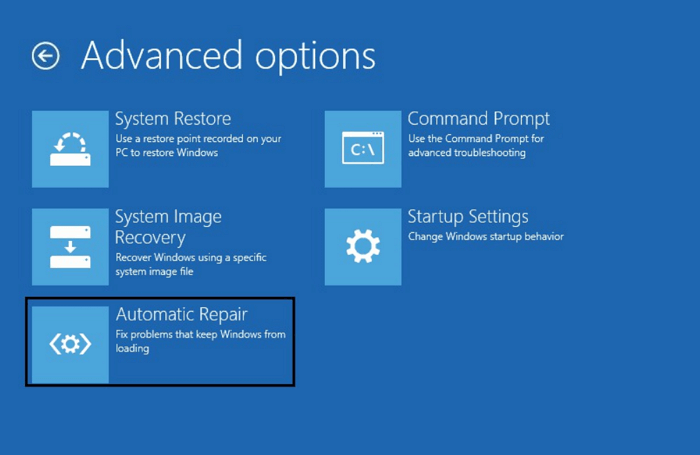
Step 5. The system will automatically start the repair process. Please wait until it's finished.
Fix 3. Rebuild BCD Store with Bcdedit.exe
The third method to resolve the issue is to rebuild the BCD store using Bcdedit.exe. This involves fixing the Boot Configuration Data, which is a crucial component that can be a primary reason for the "The Boot Configuration Data for Your PC is missing" error. By rebuilding the BCD store, you can potentially resolve the issue and get your PC up and running again.
To correct corrupted boot configuration data, you can rebuild the BCD store using Bcdedit.exe. This process involves using the command-line utility to recreate the boot configuration data, effectively replacing the corrupted data with a fresh set. By rebuilding the BCD store in this way, you can resolve issues related to corrupted boot configuration data and ensure a stable and functioning boot process.
Step 1. Insert the Windows bootable drive and boot from it.
Step 2. Select your language preferences and click next.
Step 3.To open the command prompt, you can press the Windows key + R, type cmd, and press Enter. Alternatively, you can right-click on the Start button, select Command Prompt (Admin), or use the shortcut Shift + F10 and type cmd. 4
Step 4. Type the commands below.
- bootrec.exe /Rebuildbcd
- bootrec.exe /Fixmbr
- bootrec.exe /Fixboot
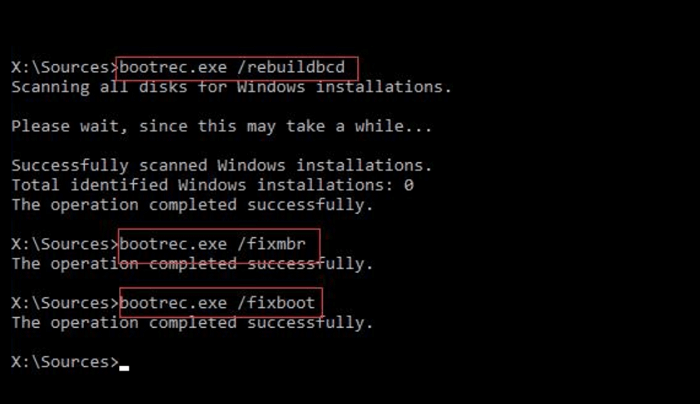
After entering the commands above, press Enter to execute them.
Step 5.If some commands are not working for you, you can try using alternative commands. These alternative commands may help resolve the issue and allow you to complete your task or achieve your desired outcome.
- bcdedit /export C.\BCD_Backup
- cd boot
- attrib bcd -s -h -r
- ren c.\boot\bcd bcd.old
- bootrec /RebuildBcd
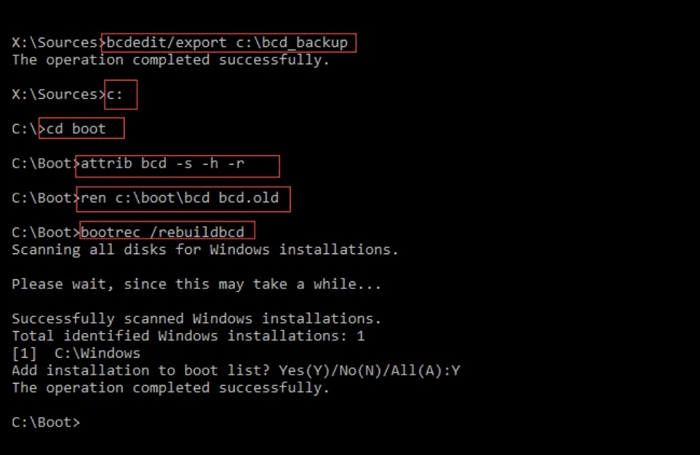
Step 6. To exit the command prompt, type "exit" and press enter, then restart your system.
Fix 4. Set Windows Partition Active
If the error occurs because of the Windows partition, you need to activate that partition where Windows is installed. This can be done by following the steps to activate the Windows partition, which may resolve the issue.
Step 1.To activate a Windows partition, go to the start menu, type "Command Prompt", and press enter.
Step 2. Now you have to type the command list disk
Step 3. After entering the "list disk" command, it will display all the partitions of your storage device; you have to enter the command "list partitions".
Step 4. When all the partitions are listed, it's time to choose the one where the Windows OS is installed. Simply select that partition and press Enter.
Step 5.You have to type enter to activate a partition.
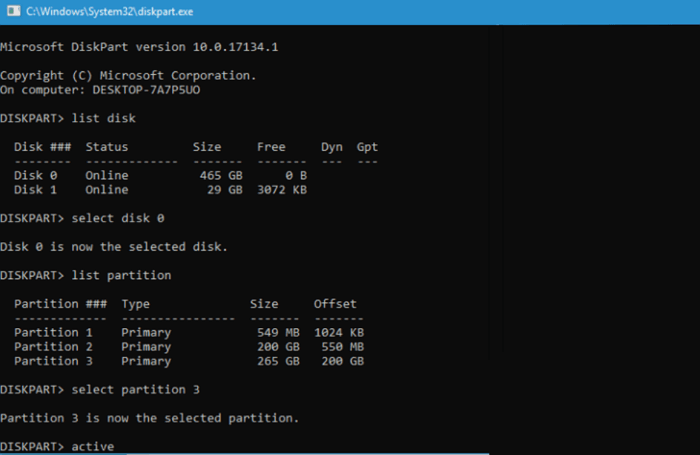
To resolve the BCD error, select the partition where the Windows OS was installed, press the "Shift" key, and click on "Apply" to update the BCD. This will allow you to boot into the Windows OS again.
Recover Data from BCD Missing Windows [Free]
If none of the methods work in your case, there's no need to stress. The "Boot configuration data file is missing Windows 10" issue is not a major problem, and you can resolve it using quality free data recovery software.
This data recovery solution can help you recover deleted or lost files from your PC. It supports various file types and is easy to use, even for those who are not tech-savvy. It can recover photos, videos, documents, and other types of files.
The recovery tool is 100% safe and won't lose or corrupt your data during the recovery process. It's an excellent tool that recovers the original data without overwriting its file, allowing you to easily retrieve the data you lost or got corrupted.
If you're experiencing errors like "BCD missing Windows 10", Qiling hard drive data recovery software can help. With its user-friendly interface, you can easily recover lost or corrupted data files without delving into technical complexities, making it a reliable solution for various data recovery needs.
Step 1. Select file types
Launch Deep Data Recovery and choose file types, then click "Fast Scan".

Note: You can choose different search modes based on where and why the data was lost.
Step 2. Select a location and start scanning
Launch Deep Data Recovery, select the partition where the lost data is located, and click "Scan" to begin the recovery process.

Step 3. Filter and preview files
To find the files you need, use the file format filter located on the left or upper right corner. Once you've filtered the files, you can either click the "Preview" button or double-click a file to preview its content.

Step 4. Recover lost data or files
To recover lost data, select the file you want to recover, check the box next to it, and click "Recover" to restore the file to a secure location.
Conclusion
The "Boot configuration data file is missing Windows 10" issue can be resolved in several ways. Four easy fixes are available, but one simple solution is to use a reliable data recovery tool like Deep Data Recovery, which can recover all types of data without issues, and can be downloaded today to explore its features.
Related Articles
- 2022 Unformat Freeware | Unformat Hard Disks/USB Drives with Ease
- Convert RAW to NTFS Without Losing Data
- Open/Boot Command Prompt at Boot in Windows 10 (4 Ways)
- Does Initializing a Disk Erase Data, Yes or No?
- Recover Deleted Photos from Folder Lock App in Android and PC
The best folder lock data recovery tool allows you to recover files and photos from the Folder Lock app on Android devices and PC, effectively retrieving lost files regardless of the reason for their disappearance. - Hard Drive Recovery| Recover Files from a Hard Disk
Have you ever lost your hard drive data? We compiled super easy methods to perform hard drive data recovery on Windows 11/10/8/7 and restore hard drive data on Mac. Read on to get the full guide to recover hard drive data in no time.
Products
Articles & Tutorials
- Data Recovery
- Data Backup
- File Recovery
- File Backup
- System Backup and Restore
- Disk and Partition Clone
- Technical articles
- Mobile articles
- Disk Master Help
- Windows Data Recovery Tutorials
- Windows Secure Delete Tutorials
- Windows Partition Management Tutorials
- Windows File Backup and Restore Tutorials
- Windows System Backup and Restore Tutorials
- Windows Disk Backup and Restore Tutorials
- Windows Clone Tutorials