Windows 10 Won't Update with/Without Sending Errors - (20+) Tips
Windows 10 won't update. After what felt like an eternity, the update process finally finished. However, it's possible that the case is related to a discontinuous updating process, where the update was interrupted by an error code or failed midway. Some users have experienced issues with completing Windows 10 updates to the latest 21H1, as well as older versions like 20H2, 2004, 1909, and 1809. If you've encountered the same problem, it's worth investigating the cause and trying to resolve it to avoid any further issues.
Microsoft regularly releases updates, including a major overhaul annually and security patches monthly through the Patch system. Engineers recommend downloading the latest security update to resolve common computer issues, but sometimes automatic updates may fail to install due to various reasons.
How to Quickly Get the Right Fix for Your Own Case
To continue with Windows 10 automatic updates after a failed first attempt, we need to troubleshoot. There are two types of affected users: those who receive a specific update error message and those who don't.
Case #1. Update failed with an error code
Error codes in the table usually indicate update issues that can be identified. If you encounter any of the error codes listed, refer to the "what the error implies" column to jump directly to the specific fix for each issue.
| Error Code | What The Error Implies |
|---|---|
| 0x80073712 | A corrupted or missing file is preventing Windows Update from functioning properly.#Fix 15 |
| 0x800F0923 | A software or driver on your PC is not compatible with the upgrade to Windows 10.#Fix 12 |
| 0x80200056 | To resolve the issue, try upgrading again and ensure your PC remains turned on and plugged in. This will allow the upgrade process to continue uninterrupted.#Fix 3 |
| 0x800F0922 |
If your PC can't connect to the Windows Update servers, try disconnecting from a VPN connection to a work network, turning off the VPN software if applicable, and then attempting the upgrade again.#Fix 5 & #Fix 8 The error could also mean there isn't enough free space in the System Reserved partition. You might be able to fix this problem by using third-party software to increase the System Reserved partition size. |
| 0xC1900208 – 0x4000C | An incompatible app is installed on your PC, preventing the upgrade process from completing. Remove the incompatible app and then try upgrading again.#Fix 9 |
|
0xC1900200 – 0x20008 |
Your PC doesn't meet the minimum requirements to download or install the upgrade to Windows 10, so you won't be able to download or install the upgrade.#Fix 11 |
| 0x80070070 – 0x50011 0x80070070 – 0x50012 0x80070070 – 0x60000 |
Your PC is running out of storage space, so you can't install the upgrade. Try to free up some space on your drive and then try again.#Fix 11 |
Case #2. Update failed without any warning message
Some people are unable to download or install the latest Windows 10 update, despite receiving no error messages. To resolve this, it's necessary to troubleshoot the issue by examining the computer and applying various solutions until the update is successfully installed. General Windows 10 update troubleshooting methods can also be used.
(Fix 1-Fix 10) Quick Troubleshooting Steps Worth Trying First
Windows 10 update issues can occur at various stages, including mid-download, failed installation, or stuck installation at 0%, 50-99%, or even after completion. Although the symptoms seem similar, the solutions can range from simple to complex. To efficiently troubleshoot, start with instant repair methods, which are easy to implement and require minimal guidance, making them accessible to everyone. These simple fixes can often resolve Windows 10 update problems.
Fix 1. Make sure that the update really is stuck or failed
Windows 10 updates can take several hours, especially on slower computers, as they involve downloading and installing large update files. If the update seems stuck, it's best to leave the computer for a few hours and check the progress later, rather than restarting or interrupting the process. Patience is key.
Fix 2. Restart to apply installed updates
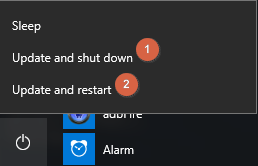
To update your device, you may need to restart it. Close all running programs and click Start > Power, then select either "Update and restart" or "Update and shut down" to complete the update.
Fix 3. Run Windows update again
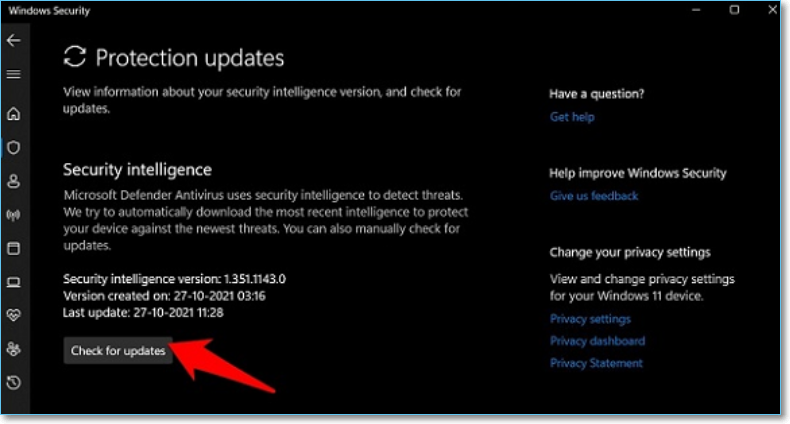
When the initial update fails, go back to Settings > Update & Security > Windows Update and click on "Check for updates" to download and install any new updates that may have been released since the initial attempt. This ensures that all necessary updates are installed in a timely manner.
Fix 4. Disconnect all periphrals
The devices to be disconnected include all cameras, phones, physical hard drives, HDDs, USB flash drives, SD card readers, and docks. Additionally, the keyboard and mouse should also be disconnected. After this, you can attempt to get the automatic update again.
Fix 5. Check internet connection
A stable internet connection is necessary for Windows 10 to download updates, as interrupted downloads can result in corrupted updates that fail to install on the computer.
Fix 6. Run a thorough virus scan
Virus, malware, and spyware can block Windows updates, so Microsoft occasionally releases security updates to strengthen Windows' defenses against these threats. To resolve the issue, run a full and thorough virus scan using your installed security software or Windows Defender to detect and remove any malicious programs.
Fix 7. Check the Windows Update utility
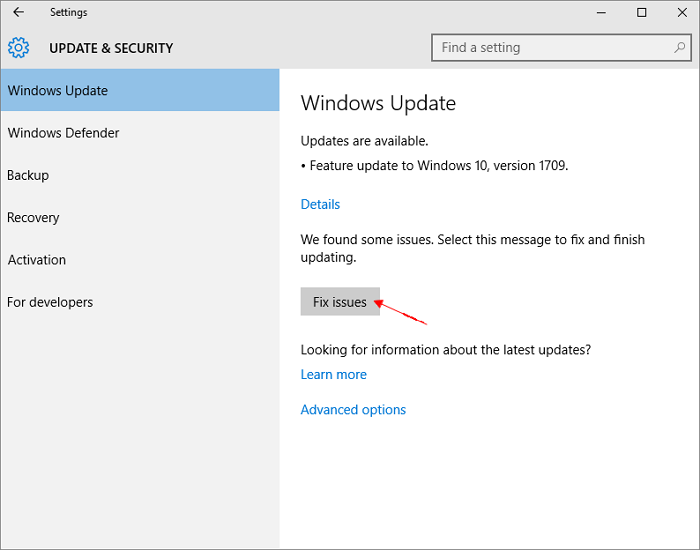
In some cases, a failed Windows update may not offer the "Fix issues" option in the Windows Update utility, but some users might be lucky. If your Windows Update screenshot looks like the one below, you can try clicking the "Fix issues" button to let Windows troubleshoot the error and complete the updating process.
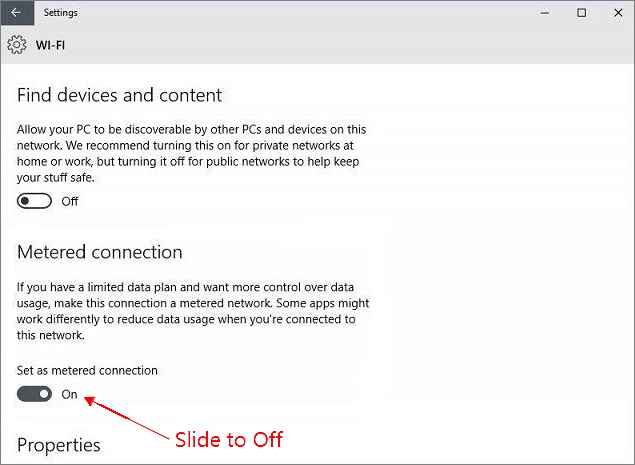
Fix 8. Turn off Metered Connection
To download a Windows update, if the internet connection is set as a metered connection, the download may be restricted. Turning off the metered connection and restarting the download can resolve this issue.
- To access the wifi settings, go to Settings, then click on Network and Internet, and on the left side, select Wifi. After that, click on Manage known Networks in the next window.
- Click on the wifi name and select Properties
- To disable a metered connection, click the slider to set it to Off.
Fix 9. Remove third-party security software
If the virus issue has been ruled out, the problem may be caused by third-party security software that is not compatible with the latest version of Windows 10, preventing updates or causing errors.
Before uninstalling the software, ensure you know how to reinstall it and have a valid product key to avoid any inconvenience.
Fix 10. Run Windows Update Troubleshooter
Windows has a built-in troubleshooting tool that can fix common update issues, allowing users to continue updating as long as the "fix issue" option is available. This feature can automatically resolve problems and complete the update process.
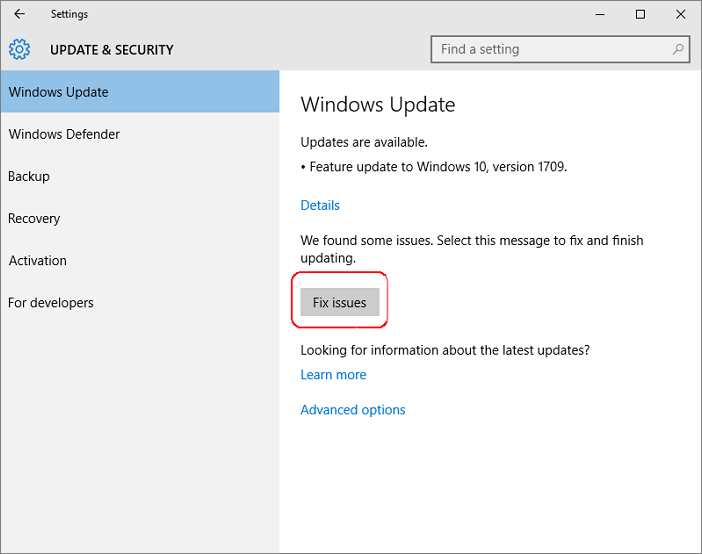
- Go to Settings > Update & security.
- In the Windows Update utility, click Fix issues.
Fix 11. Increase C Drive Free Space
The minimum free space required to upgrade your device's operating system is 16GB for a 32-bit OS and 20GB for a 64-bit OS. To check your device's free space, refer to the article on how to check total hard disk size in Windows 10, which also shows the free space on each drive partition.
To free up extra space on the system C drive, you can consider the following options: compress files, remove temporary files, uninstall unused programs, and consider upgrading your storage to a larger drive. You can also use the Disk Cleanup tool to delete unnecessary files and free up space.
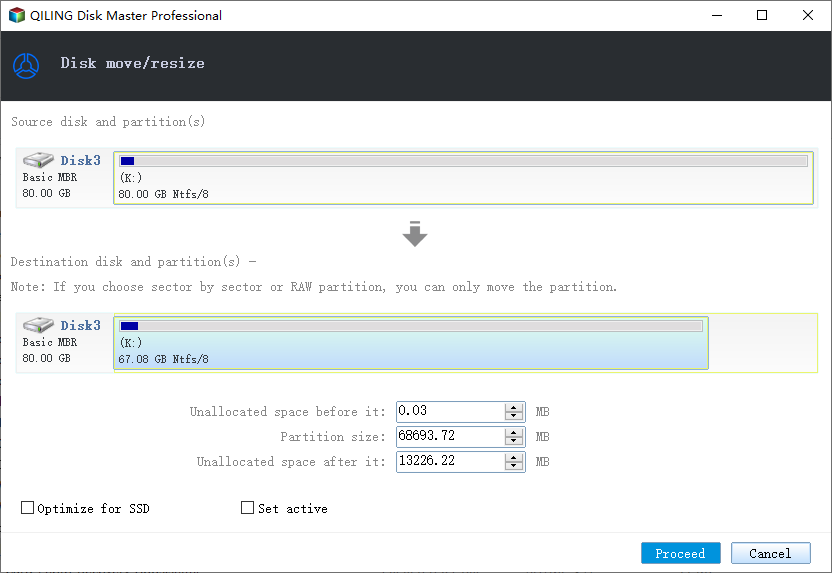
- 1. Perform a system cleanup to clear all junks, unused large files, caches, and useless items, following methods like the 5 ways to clean up Windows 10.
- 2. Transferring free space from D drive to C drive, or from any other drive with ample free space, can be accomplished using Qiling Partition Master.
Fix 12. Update Incompatible Drivers
You've added new hardware to your PC and want to run Windows updates again. To do this, check the manufacturer's website for third-party driver updates. Look for the hardware brand online or in the user's manual, and follow the installation instructions provided. Updating essential drivers may help you run updates again.
Fix 13. Rename Software Distribution Folders
Be careful when using command line procedures, as incorrect operations can lead to further computer issues. This method is more advanced and requires some computer knowledge. Proceed with caution.
- Type "cmd" in the search box, select "Command Prompt" and click on "Run as administrator".
- Type the command lines each by each followed by pressing Enter.
net stop bits
net stop wuauserv
ren %systemroot%\softwaredistribution softwaredistribution.bak
ren %systemroot%\system32\catroot2 catroot2.bak
net start bits
net start wuauserv
Close the command prompt windows after the commands are completed. Restart to update again. If the re-update doesn't work, go on with the next solution.
Fix 14. Repair C Drive Errors
- Warning
- Running chkdsk may repair drive errors, but it can also lead to total data loss. To avoid this, it's recommended to perform data recovery first, and then proceed with the CMD method.
- Open the command prompt window again
- To fix C drive errors and resolve Windows 10 update issues, you can use the command line "chkdsk /f" followed by the drive letter, for example, "chkdsk /f C:". This command checks the drive for errors and attempts to fix them.
chkdsk/f C:
Fix 15. Repair Corrupted System Files
If the CHKDSK command didn't help you resume the Windows 10 update after renaming the software distribution folder and repairing the C drive errors, proceed with the other command method to restore and repair system files.
- Type this command in the Command Prompt window and hit Enter.
DISM.exe /Online /Cleanup-image /Restorehealth
- Next, type the other command line and hit Enter.
sfc /scannow
- Try running the Windows Update again.
Fix 16. Restart Windows Update Service by CMD
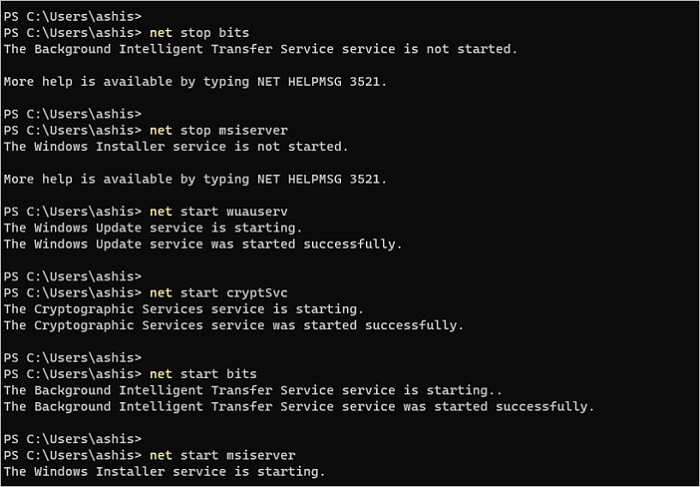
The command lines you'll execute one by one include:
net stop wuauserv
net stop cryptSvc
net stop bits
net stop msiserver
ren C:\Windows\SoftwareDistribution SoftwareDistribution.old
ren C:\Windows\System32\catroot2 catroot2.old
net start wuauserv
net start cryptSvc
net start bits
net start msiserver
You may refer to the results I've tried:
Fix 17. Launch Windows in Safe Mode
In Safe Mode, only the most basic Windows applications are loaded, reducing the chance of update issues, making it a potential workaround to complete a Windows 10 update.
How to Boot into Safe Mode in Windows 10 in Every Way
Starting Windows 10 in Safe Mode can help troubleshoot and fix issues on your computer. To boot into Safe Mode, you can try one of the six ways: To boot into Safe Mode, you can try one of the six ways: To boot into Safe Mode, you can try one of the six ways: To boot into Safe Mode, you can try one of the six ways: To boot into Safe Mode, you can try one of the six ways: To boot into Safe Mode, you can try one of the six ways: To boot into Safe Mode, you can try one of the six ways: To boot into Safe Mode, you can try one of the six ways: To boot into Safe Mode, you can try one of the six ways: To boot into Safe Mode, you can try one of the six ways: To boot into Safe Mode, you can try one of the six ways: To boot into Safe Mode, you can try one of the six ways: To boot into Safe Mode, you can try one of the six ways: To boot into Safe Mode, you can try one of the six ways: To boot into Safe Mode, you can try one of the six ways: To boot into Safe Mode, you can try one of the six ways: To boot into Safe Mode, you can try one of the six ways: To boot into Safe Mode, you can try one of the six ways: To boot into Safe Mode, you can try one of the six ways: To boot into Safe Mode, you can try one of the six ways: To boot into Safe Mode, you can try one of the six ways: To boot into Safe Mode, you can try one of the six ways: To boot into Safe Mode, you can try one of the six ways: To boot into Safe Mode, you can try one of the six ways: To boot into Safe Mode, you can try one of the six ways: To boot into Safe Mode, you can try one of the six ways: To boot into Safe Mode, you can try one of the six ways: To boot into Safe Mode, you can try one of the six ways: To boot into Safe Mode, you can try one of the six ways: To boot into Safe Mode, you can try
Fix 18. Make All Windows Update Services Running
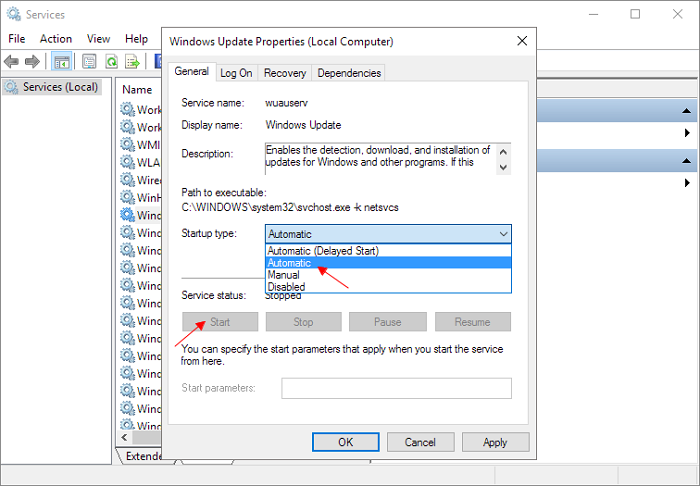
If Windows update progress is halted, it's likely due to a lack of necessary Windows update services. To resolve this, you should check the services and ensure that all required objects are functioning properly.
- To access the Services console, press the Windows key + R to open the Run dialog box, type services.msc, and then click OK. This will open the Services console where you can view and manage the running services on your computer.
- In the Services window, right-click on Windows Update and select Properties.
- To ensure the Windows Update service is running properly, change the Startup type to Automatic and click Start if the Service status is stopped. Click Apply and then OK.
- To set the Startup type of Background Intelligent Transfer Service (BITS) and Cryptographic Service to Automatic and their Service status to Start, go back to the home screen and follow the same steps as before, selecting Automatic for Startup type and Start for Service status for both services. This ensures that these services start automatically when the system boots up.
Fix 19. Perform A Clean Installation
If all attempts to fix an automatic Windows 10 update fail, you can try a clean install of Windows 10 by following the instructions provided in this link. This will allow you to start fresh with a new installation of Windows 10.
- You need to download a Windows media creation tool first.
- Next, follow the linked page to manually install the latest Windows 10 update.
How to Reinstall Windows 10 Without CD
Reinstalling Windows 10 is often a solution when a PC stops working or doesn't function properly, and it can effectively make the device as good as new or even better.

Fix 20. Contact Microsoft for Help
For manual help, you can visit the link: https://support.microsoft.com/en-us/topic/installation-updates-2f9c1819-310d-48a7-ac12-25191269903c?ui=en-us&rs=en-us&ad=us
Fix 21. Send Your Computer for Maintenance
If your computer is struggling to run the latest Windows 10 update, it might be due to its age or a damaged hard drive. In this case, it's best to let a professional diagnose the issue, rather than trying to troubleshoot it yourself. Alternatively, you can try to diagnose your computer's health in advance to identify potential problems.
Followed-problem after a finished Windows 10 update
This article provides solutions to the common issue of Windows 10 failing to update, including problems with updating to 20H2/21H1, downloads or installations not completing, and updates getting stuck at certain percentages. The article aims to help users successfully install the desired Windows 10 update version after a potentially frustrating and time-consuming process of troubleshooting and repairing. Finally, it addresses a common post-update issue that users may encounter.
If you're experiencing issues finding files after a major Windows 10 update, it's possible that the files were moved to a different location or that the update caused some file system issues. Here are a few potential solutions: 1) Check the File Explorer's "View" tab for any hidden folders or files.
The most frequently asked question after each major Windows 10 update is how to recover deleted files. Fortunately, it's simple with the help of Deep Data Recovery, a free and reliable data recovery tool for Windows that has a high success rate. Whenever you can't find files after a finished update, you can try to get them back with this software.
Step 1. Launch Deep Data Recovery on your PC, and click "Fast Scan" to begin the process.

Note: You can choose different search modes based on where and why the data was lost.
Step 2.Choose the exact file location and then click the "Scan" button to proceed.

Step 3.After the process, select the "Deleted Files" and "Other Lost Files" folders in the left panel, and apply the "Filter" feature or folders button to find the deleted files.

Step 4.Click the "Recover" button and save the restored files – ideally, it should be different from the original one.
Related Articles
- Should You Wait for a Response or Close When Excel Frozen but Not Crashed? 10 Tricks Here
- Is It Safe to Delete Windows Update Cleanup Folders/Files? Get Answers Here
- Picture Contains Invalid Image File Header, How Do I Fix It? [5 Ways]
- [Solved] USB Pen Drive Not Showing Data, Files, and Folders
- How to Fix A Corrupted SQL Server Transaction Log File
A corrupted transaction log file (.ldf) can occur due to various errors such as unexpected system shutdown, hard drive problems, or a virus attack. To resolve this issue, you can try the methods provided. - DIY Solutions | Fix/Repair Corrupted USB Drive Without Formatting
If your USB flash drive or pen drive is damaged, you can try to repair it without losing data. If your computer can recognize the corrupted USB, you can refer to [1] for solutions. If it can't be detected, try [2].
Products
Articles & Tutorials
- Data Recovery
- Data Backup
- File Recovery
- File Backup
- System Backup and Restore
- Disk and Partition Clone
- Technical articles
- Mobile articles
- Disk Master Help
- Windows Data Recovery Tutorials
- Windows Secure Delete Tutorials
- Windows Partition Management Tutorials
- Windows File Backup and Restore Tutorials
- Windows System Backup and Restore Tutorials
- Windows Disk Backup and Restore Tutorials
- Windows Clone Tutorials