Picture Contains Invalid Image File Header, How Do I Fix It? [5 Ways]
An Invalid Image File Header is a common issue with JPG/JPEG images. This error occurs when the image's header is corrupted or missing, making it inaccessible. Fortunately, there are 5 reliable fixes to repair and open invalid images without errors. By following these solutions, you can restore your images to a workable state and view them without any issues.
Error: Invalid Image File Header
The file header is a section of data located at the beginning of a file, typically containing information about the bitmap data it holds.
The image file header contains essential information that allows an image to be displayed, including the image size and the number of colors used. This header defines the necessary details for the image to be correctly displayed.
If the image file header becomes invalid, the image will not load properly and may display incorrectly or not at all. This can occur due to various reasons such as corruption of the file, incorrect formatting, or damage to the header data. As a result, the image may appear distorted, pixelated, or may not display any image at all, depending on the severity of the issue.

- Unopenable
- Corrupted
- Half greyed-out
- Wrong image size
- Losing colors
- Etc.
To fix invalid images and ensure they display correctly, try checking the image file format, resizing the image to the correct dimensions, and verifying the image's resolution and compression settings. Additionally, check for any corrupted or damaged image files and consider using image editing software to repair or recreate the image. If the issue persists, you may need to re-upload the image or seek assistance from a web developer or designer.
How to Fix Invalid Image File Header? Here Is What to Do
To fix an invalid JPEG image file, start by checking the file's integrity by using a tool like `file` or `identify` from ImageMagick. If the file is corrupted, try to recover it using a dedicated tool like `jpegrepair` or `jpegrescue`. If the file is still invalid, you can try to convert it to a different format, such as PNG, using a tool like `mogrify` from ImageMagick. If the file is still unusable, it may be beyond repair.
First, Close Images and Image Editors
- Close the invalid image.
- To save a duplicate edition of the image to a safe location, simply right-click on the image and select the option to "Save image as" or "Save picture as" from the context menu. This will allow you to choose a location on your computer or device to save the image, such as your desktop or documents folder.
- Stop using any image editor.
Next, Pick a Method to Make Invalid Images Usable - 5 Ways
- #Fix 1. Open Image in New Image Editor
- #Fix 2. Change Image Format
- #Fix 3. Unhide Image Extension
- #Fix 4. Open Image in Internet Browser
- #Fix 5. Use Image Repair Tool
Editors Pick:
- For the easiest and effective way out, you should first try Fix 1, 2, 3.
- If all other methods fail, using the Qiling image repair tool to fix images is recommended.
Fix 1. Open Invalid Image in A New Image Editor
Time: 1-minute; Difficulty Level: Easy.
When a Windows computer tries to open an image with a rare file format, it may not be able to do so and instead shows an "invalid image file header" error, usually opening the image in the Photos app by default.
To fix the error, try opening the invalid image in a new image editor to see if it can be recovered. If not, you can try using a different image editor or software to repair or convert the image.
Step 1. Quit the default image editor or Photos App.
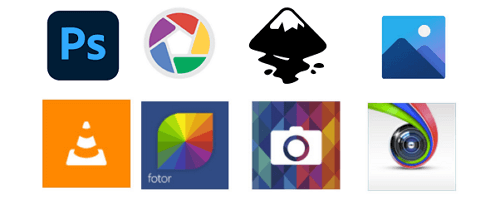
Step 2. Open a new image editor, like Photoshop, Picasa, etc.
Step 3. Check if the image opens or not.
#Fix 2. Change Image Format
Time: 2-minute; Difficulty Level: Easy.
When a computer can't read an image file's format, the file becomes invalid. Converting the file format can resolve the issue.
Here you have two options:
1. Manually Change Image Format
Step 1. Copy the image and paste a duplicate version on your computer.
Step 2. Right-click the image and select "Rename".
Step 3. Change its image format to a normal extension, such as JPG, JPEG, PNG, etc.
Step 4. Confirm the changes.
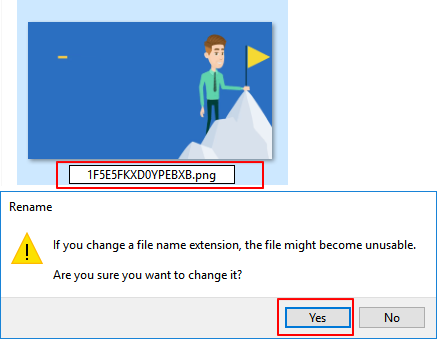
Step 5. Reopen the image with the changed file extension.
2. Use Image File Converter
You can also try to convert the image file extension to a computer-supported format using an image converter if you have time.
Fix 3. Unhide Image Extension
Time: 2-minute; Difficulty Level: Medium.
To fix an invalid image file header, you can try unchecking the "Hide extensions for known file types" option in your operating system settings. This will allow you to see the file extension, which can sometimes be hidden, and may resolve the issue.
Step 1. Press Windows + E keys to open File Explorer.
Step 2. Go to the View tab, check "File name extensions".
Step 3. Uncheck the "Hidden items" box.
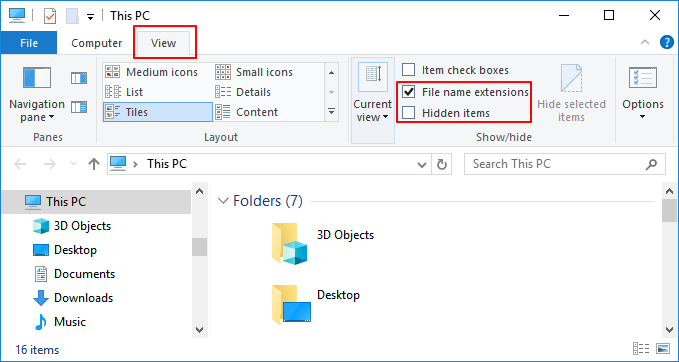
After trying to open the image, restart your computer and then try again. This should resolve the issue.
Fix 4. Open Image in Internet Browser
Time: 1-minute; Difficulty Level: Easy.
If an image editor or picture application cannot open your images, you can try to open them in an internet browser instead.
Here are the steps:
Step 1. Launch an internet browser, such as Google Chrome, Mozilla Firefox, Safari, Microsoft Edge, or Opera, on your device.
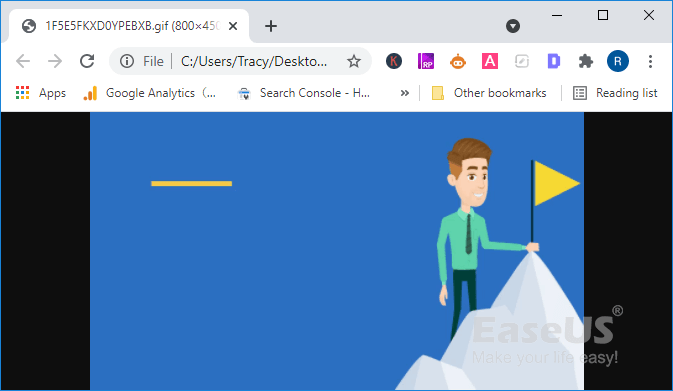
Step 2. Find and drag the invalid image files into the browser.
Step 3. Check if the image opens.
Fix 5. Use Image Repair Tool
Time: 3-5 minutes; Difficulty Level: Medium;
If none of the methods work, the image itself might be corrupted or the file header is missing, which could be causing the issue.
If you're struggling to repair a damaged image, consider using a reliable image repair tool for assistance. Qiling Data Recovery Wizard, specifically its Photo Repair feature, can be a helpful solution in this situation.
Deep Data Recovery
- Recover lost or deleted files, documents, photos, audio, music, and emails easily with specialized software and techniques. These tools can help retrieve accidentally deleted files, restore corrupted data, and even recover files from formatted or damaged storage devices.
- Repair corrupted images, like JPG, JPEG, GIF, BMP, etc.
- Repair corrupted videos, like MP4, MOV, etc.
Before You Start: Copy and save a duplicate version of the invalid image > Delete the copied version.
Now, follow the steps here to repair your corrupted images with invalid image file header immediately:
Step 1. Launch Deep Data Recovery, select the desired file types, and click "Fast Scan" to initiate the recovery process.

Note: You can choose different search modes based on where and why the data was lost.
Step 2. Launch Qiling data recovery software, select a hard drive that contains broken photo files, and click "Scan".

Step 3. To find corrupted photos, select the "Pictures" option, which can be in various formats such as JPEG, JPG, PNG, BMP, and more. Alternatively, you can click "Search files or folders" in the top right corner to search for specific files.

Step 4. Double-click on a damaged picture to repair and preview the file, then click "Recover" to save the images to a different location.
Further Readings: How to Protect and Prevent Images Becoming Invalid
After resolving the image with an invalid image file header issue, you may also want to consider learning how to protect your images properly to avoid similar problems in the future.
To safely guard your images, ensure that you have a clear understanding of your rights and responsibilities regarding image use, and be aware of the potential risks of image sharing. Be mindful of the context in which your images are being used, and consider the potential impact on your personal and professional reputation.
- Back up important images and pictures timely.
- Set a common and widely supported image format.
- Clean up the virus regularly.
Invalid Image Error Is Fixable, Follow to Make Your Images Workable Again
This page explains what the Invalid Image File Header error is and provides 5 methods to fix it, making an image openable again. The error can occur due to various reasons and is typically resolved by using one of the provided methods, such as using a different image viewer, checking for malware, or using a file repair tool.
Which method works the best? Here is Editor's Pick:
- Try Fix 1, Fix 2, and Fix 3 in sequence. This should resolve the issue.
- If you're experiencing issues with your Qiling image, try restarting your device, checking for software updates, or using the built-in image repair tool.
To fully protect your images from the invalid error, back up the file and set a common file extension to it, such as .jpg or .png.
Related Articles
- Fix I/O Device Error on External Hard Drive/USB Drive in Windows
- How to View/Delete Chrome History
- How to Repair PDF Files Online [Easy Guide]
- Fix 'You Need to Format the Disk in Drive Before You Can Use It' Error
- How to Disable AutoSave in Word and Excel
Learn how to disable AutoSave in Microsoft Word and Excel to prevent unwanted automatic saves. Step-by-step guide for Office 365, 2019, 2016 and earlier versions. Take control of your document saving with these quick methods. - Fix: Discord Not Opening, Stuck or Not Responding on Startup
If you're experiencing issues with Discord not opening on startup in Windows 10, there are 11 potential solutions to help resolve the problem.
Products
Articles & Tutorials
- Data Recovery
- Data Backup
- File Recovery
- File Backup
- System Backup and Restore
- Disk and Partition Clone
- Technical articles
- Mobile articles
- Disk Master Help
- Windows Data Recovery Tutorials
- Windows Secure Delete Tutorials
- Windows Partition Management Tutorials
- Windows File Backup and Restore Tutorials
- Windows System Backup and Restore Tutorials
- Windows Disk Backup and Restore Tutorials
- Windows Clone Tutorials