How to Boot into Safe Mode Windows 10 in Every Possible Way
Quick Access - How to Boot to Safe Mode in Windows 10
- At the sign-in screen, to restart your Windows 10 computer, press the Windows key + X on your keyboard, then select "Power > Restart" and hold the Shift key down.
- After your PC restarts to the "Choose an Option" screen, select "Troubleshoot > Advanced options > Startup Settings > Restart".
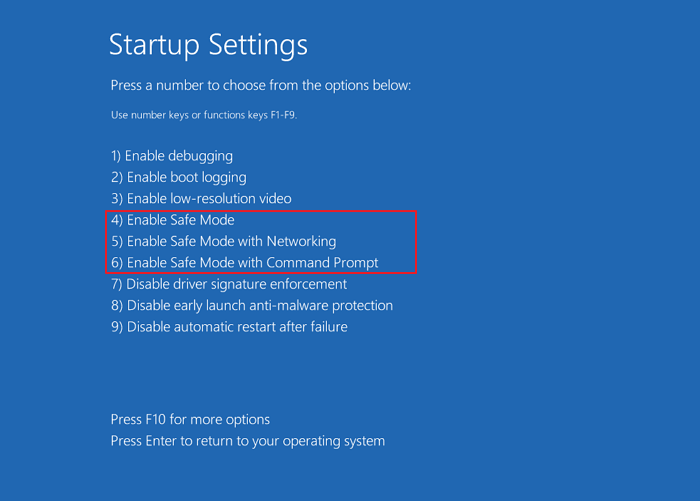
- After your PC restarts, a list of options should appear, select "4" or "F4" to start your PC in Safe Mode.
What Is Windows 10 Safe Mode and Why You Use It
Starting your Windows 10 computer in Safe Mode can be a helpful way to troubleshoot and resolve common problems, such as issues with the loading screen.
Safe Mode Windows Safe Mode is a built-in diagnostic mode that starts Windows with a limited set of files and drivers, allowing you to troubleshoot problems on your PC by narrowing down the source of the issue.

Windows 10 offers three types of Safe Mode, allowing users to choose the best option for their needs and boot the operating system accordingly.
Enable Safe Mode
In this mode, the operating system starts with the bare minimum of installed drivers, and only the main Windows functions are used.
Enable Safe Mode with Networking
In this mode, the network drivers are also started.
Enable Safe Mode with Command Prompt
This mode starts the operating system in text mode, requiring users to have knowledge of computer commands, making it more suitable for professional users.
Safe Mode is a troubleshooting environment in Windows that starts with a minimal set of system files and drivers. It allows you to access Windows with only the most basic drivers and system files, which can help resolve issues caused by problematic drivers or system files.
How Do I Start Windows 10 in Safe Mode (Official Tips)
If you're familiar with Windows 10, you may have noticed that pressing F8 or Shift + F8 to enter Safe Mode no longer works. Fortunately, there are alternative ways to start Windows 10 in Safe Mode, including when your PC doesn't boot correctly or when you can't log in. To start Windows 10 in Safe Mode, you can try booting your PC in Safe Mode with the following methods: booting in Safe Mode with Networking, booting in Safe Mode with Command Prompt, booting in Safe Mode with a specific user account, booting in Safe Mode with a USB drive, booting in Safe Mode from the Windows Recovery Environment, or booting in Safe Mode from the Windows 10 installation media. These methods can help you troubleshoot and resolve issues with your Windows 10 PC.
- 1. Start Safe Mode Directly from Windows 10
- 2. Enter Safe Mode from the Sign-in Screen
- 3. Restart Windows 10 in Safe Mode by Msconfig
- 4. Enter Safe Mode from the Settings App
- 5. Start Windows 10 in Safe Mode from a Black Screen
Solution 1. Start Safe Mode Directly from Windows 10
To boot into Windows 10 Safe Mode, click on the Start menu, hold the Shift key, and click on the Power button. Then, select Restart while holding the Shift key. Windows 10 will automatically boot into Safe Mode.
Step 1. Click the Windows button and select "Power".

Step 2. Hold the "shift" key on the keyboard and click "Restart".

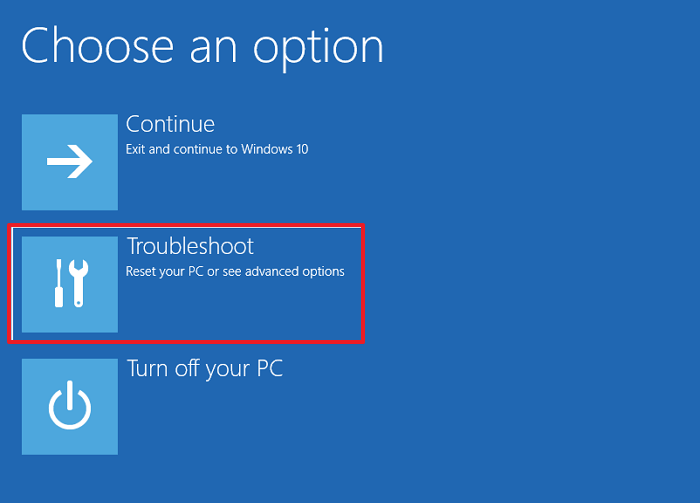
Step 3. Click the "Troubleshoot" option.
Step 4. Then, select the "Advanced options".

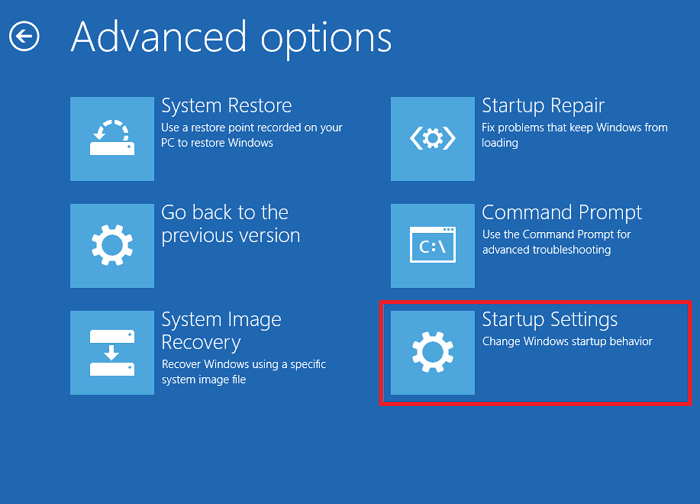
Step 5. Go to "Advanced options" and click "Start-up Settings".
Step 5. Under "Start-up Settings" click "Restart".

Step 6. Various boot options are displayed.
- The relevant options for booting in Safe Mode are numbers 4, 5, or 6.
- You can select an option by pressing one of the numbers or function keys F4, F5 or F6.
Windows 10 starts in Safe Mode, allowing you to troubleshoot and solve problems.
Solution 2. Enter Safe Mode in Windows 10 from the Sign-in Screen
If you're unable to log into Windows 10 but can access the sign-in screen, you can enter Safe Mode by pressing Shift + Restart.
Step 1. To restart Windows 10, press the Shift key while clicking the Power icon at the bottom-right of the Sign-in screen and choose "Restart".

Step 2. Windows 10 restarts and asks you to select an option.
- Choose "Troubleshoot" > Advanced options" > "Startup Settings" > "Restart".
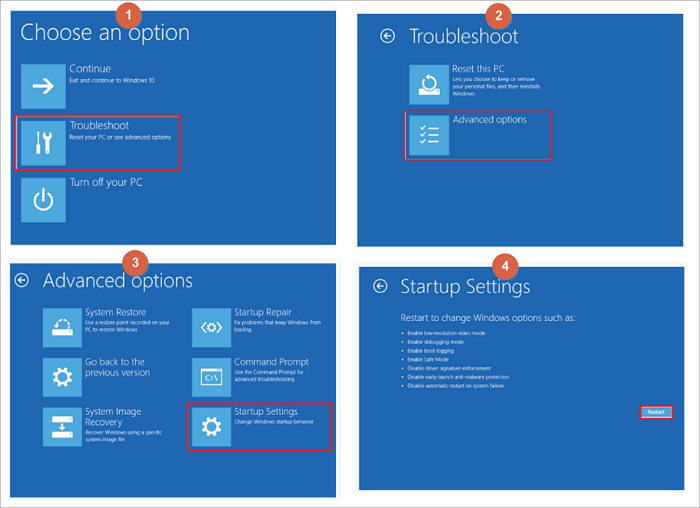
After restarting the Windows 10 PC, a list of startup options appears. Press F4 to boot in Safe Mode, or press F5 to start in Safe Mode with Networking.
Solution 3. Restart Windows 10 in Safe Mode by Windows System Configuration
You can also try another way to boot into Safe Mode in Windows 10 if you can enter Windows 10 system normally.
Step 1. Press the Windows key + R, type msconfig, and press Enter to open the System Configuration utility.

Step 2. Under the "Boot" tab, you can select a "Safe boot" option based on your specific needs. This allows you to choose a safe boot option.
- Minimal equals Safe Mode.
- Alternate shell refers to Safe Mode with Command Prompt.
- Network refers to Safe Mode with Networking.
- The Active Directory repair option is used to repair the Active Directory server.
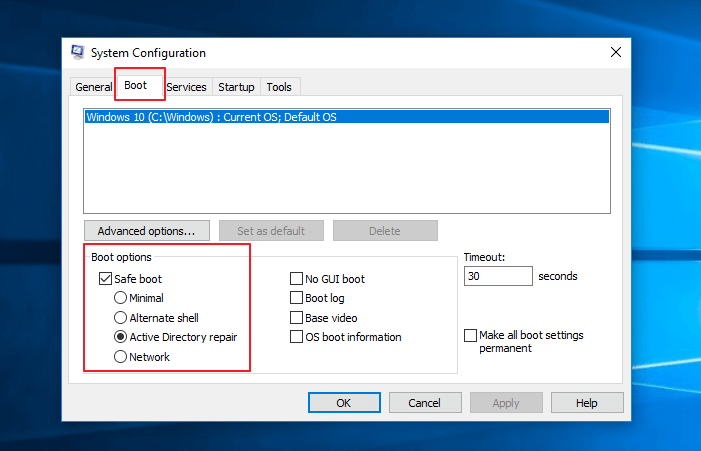
To start Windows 10 in Safe Mode, you can choose between the Minimal or Network option, both of which allow you to troubleshoot problems in the Windows 10 system.
Solution 4. Enter Windows 10 Safe Mode from the Settings App
If you can log in to Windows 10, this way also enables you to boot into Safe Mode.
Step 1. To update Windows, press the keys Windows + I to open the Settings app, then navigate to the "Update & security" section.
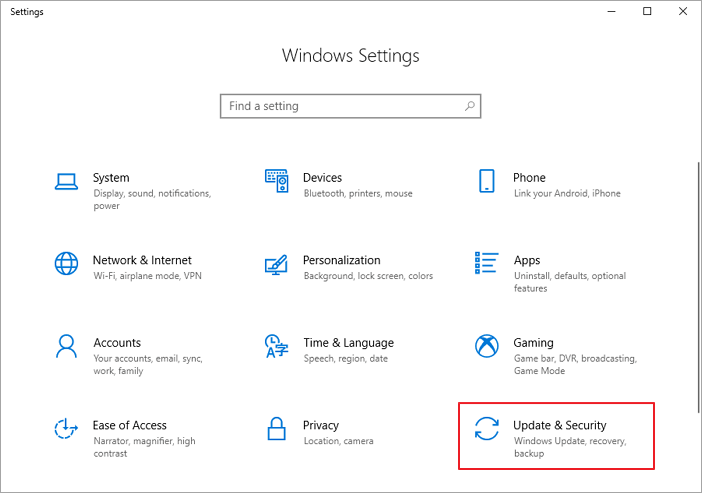
Step 2. To restart your device in recovery mode, go to the left panel and press the "Recovery" option. Then, click or tap the "Restart now" button on the right side of the app.
Step 3. After Windows 10 restarts, choose "Troubleshoot" > Advanced options" > "Startup Settings" > "Restart", then follow the same steps as shown in Solution 1.
Solution 5. How to Start Windows 10 in Safe Mode from a Black/Blank Screen
If your computer can't boot up, you'll need to directly enter the Windows Recovery Environment (WinRE) to troubleshoot and fix the issue.
Step 1. To do this, you will repeatedly turn your device off, then on:
- Press and hold the power button for 10 seconds to turn off your device.
- Press the power button again to turn on your device.
- Immediately shut down your device by holding down the power button for 10 seconds when you see the manufacturer's logo after restarting.
- Press the power button again to turn on your device.
- Turn off your Windows device by holding down the power button for 10 seconds after it restarts.
- Press the power button again to turn on your device.
- Allow your device to fully restart. You will enter winRE.
In Windows Recovery Environment (winRE), follow these steps to boot into safe mode:
Step 2. To troubleshoot startup issues, select "Troubleshoot > Advanced options > Startup Settings > Restart" on the Choose an option screen, then follow the same steps as Solution 1.
After your device restarts, you'll see a list of options. Select option 5, which is Safe Mode with Networking, or press the F5 key.
Solution 6. How to Boot in Safe Mode Windows 10 While Booting through F8 Key
Note: This method doesn't work for UEFI legacy and SSD drives.
In Windows 10, press Shift + F8 just before Windows starts loading to launch the recovery mode, from where you can boot into Safe Mode.
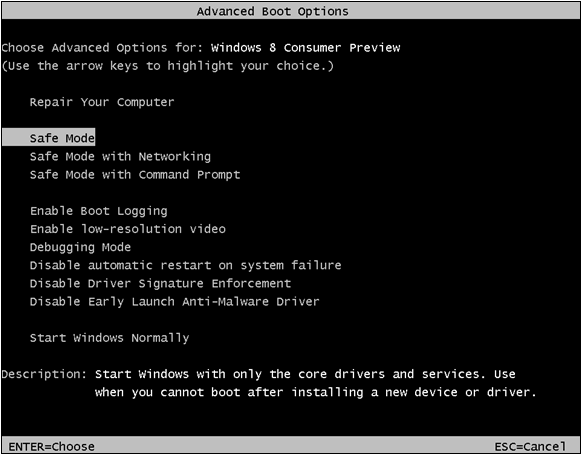
The F8 key, which was once used to enter Safe Mode in Windows, no longer works in Windows 10, making it impossible to interrupt the boot procedure with keypresses. This is due to the modern PC's UEFI legacy and fast SSD drive, rendering F8 useless. Only Windows 7 and Windows 8 users can still enter Safe Mode using F8.
How to Tell If You're in Safe Mode
To confirm you're in Windows 10 Safe Mode, look for the black desktop background and the words "Safe Mode" at all four corners. Additionally, the top of the screen will display the current Windows build and service pack level.

How to Exit Windows 10 Safe Mode Easily
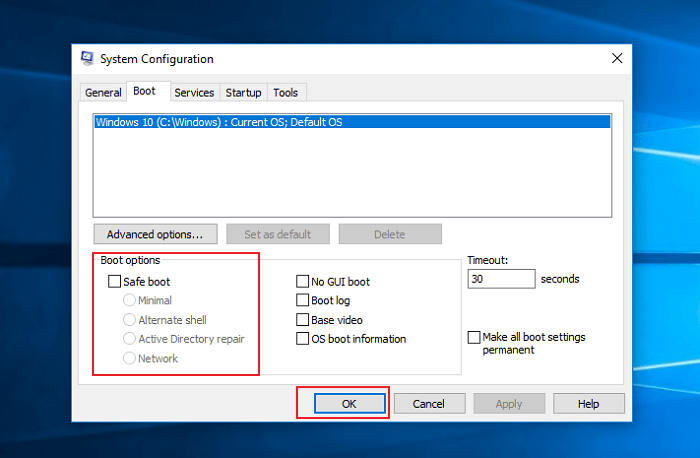
If you want to exit safe mode, you can follow these steps.
- Press the Windows logo key + R.
- Type msconfig in the Open box and then select "OK".
- Select the "Boot" tab.
- Under Boot options, clear the "Safe boot" checkbox.
How to Troubleshoot Windows 10 Computer Issues in Safe Mode
Starting your Windows 10 PC in Safe Mode can help you troubleshoot and fix some problems with your computer. If your computer or laptop gets infected by a virus, consider using data recovery software like Qiling, which can make data recovery easy even if your computer can't boot or start in Safe Mode. This hard disk recovery software can be a lifesaver in such situations.
Step 1. To recover data, launch Deep Data Recovery in Windows, select the desired file types, and click "Fast Scan" to proceed with the recovery process.

Note: You can choose different search modes based on where and why the data was lost.
Step 2. Launch Deep Data Recovery in Windows 11/10/8/7, choose the place where you lost data, and click "Scan".

Step 3. After scanning, use the file format filter to locate the files you need, and then click the "Preview" button or double-click a file to view its content.

Step 4. To recover lost data, select the file that was lost and click the checkbox next to it. Then, click the "Recover" button to restore the data to a secure location.
You can troubleshoot Windows computer problems when certain parts of the OS may not function or may not work as quickly as you're used to. In Safe Mode, you can identify and isolate the source of the problem, potentially resolving issues with drivers, startup programs, or other system components that may be causing the problem.
- Remove Malware or Virus
- Uninstall Improper Software
- Roll Back a Driver
- Update a Driver
- Perform a System Restore
Conclusion
If your computer can boot normally, Solution 3 is the easiest and fastest solution, but if you cannot boot into Windows 10, Solution 5 is recommended.
Related Articles
- Recycle Bin Empties Itself: How to Stop Recycle Bin Auto Deletion in Windows 7/8/10
- Pen Drive Recovery: Pen Drive Data Recovery Software Full Version Free Download
- Does Formatting a USB Delete Everything? (What Really Happened)
- How to Find a File in Linux Using Terminal and Commands
- How to Repair Corrupt RAW Photos on Windows PC🖼️
Is it hard to repair corrupt RAW photos? The answer is NO. You can easily repair corrupt RAW photos with professional photo repair software, Deep Data Recovery. We'll also introduce how to open corrupt RAW photos with the Windows Photos app and convert RAW pictures to other formats. - [SOLVED] Repair Corrupted Photos: JPG/JPEG Repair on Windows
Can I repair corrupted photos? You won't miss learning about five easy ways to repair corrupted photo issues! To understand more, continue to read the entire passage and download the practical image repair tool - Qiling Fixo.
Products
Articles & Tutorials
- Data Recovery
- Data Backup
- File Recovery
- File Backup
- System Backup and Restore
- Disk and Partition Clone
- Technical articles
- Mobile articles
- Disk Master Help
- Windows Data Recovery Tutorials
- Windows Secure Delete Tutorials
- Windows Partition Management Tutorials
- Windows File Backup and Restore Tutorials
- Windows System Backup and Restore Tutorials
- Windows Disk Backup and Restore Tutorials
- Windows Clone Tutorials