How to Find a File in Linux Using Terminal and Commands
How to find files and folders in Linux:
| Workable Solutions | Step-by-step Troubleshooting |
|---|---|
| Find Linux Files and Folders with Command Lines | Use these command lines to find a file in Linux: find ~ -name "filename"; find ~ -mtime – amount of days (in number); find ~ -type (type symbol) –name "filename"; use Locate and Grep commands...Full steps |
| Find a File in Linux Using Terminal | Launch your virtual machine, such as Ubuntu, on your PC. Open your Linux terminal. Enter the file find commands...Full steps |
| Find Deleted or Lost Files in Linux | If you want to find deleted or lost files on Linux, use professional Linux data recovery software...Full steps |
Finding files in Linux can be a daunting task due to its complexity compared to other operating systems. However, with the right commands, you can easily locate lost files and folders. This article will guide you through the correct ways to find and retrieve misplaced files in Linux, so you can get started with confidence.
How to Find Files and Folders in Linux with Command Lines
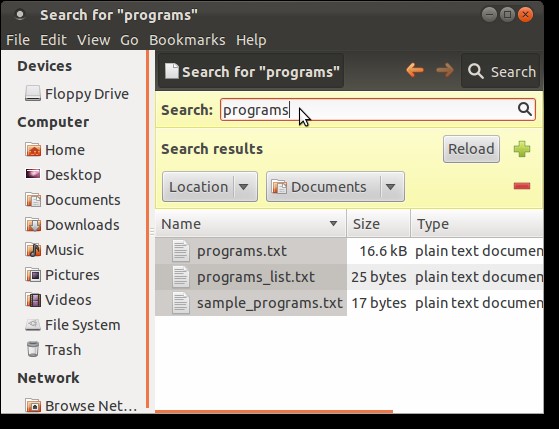
On Linux, most users rely on graphical file managers like Nautilus, Dolphin, or Thunar to search for files. However, there are also various command-line methods to locate files, regardless of the desktop manager being used.
1. Use Find Command
The "find" command can be used to search for files based on various parameters, including name, owner, group, type, rights, and date, and it can search through a folder and its subdirectories to find files that match the search criteria.
You can find a file by its filename using regular expressions to match the full file name or parts of it.
Syntax: find ~ -name "filename"
You can use the `-mtime` option with a negative number of days to find a file you last modified within a certain period. For example, `find . -mtime -7` finds files modified in the last 7 days.
Syntax: find ~ -mtime – amount of days (in number)
The "find" command results can be optimized by specifying the file type you're searching for using the "-type" option, which has letter codes representing different data types.
Syntax: find ~ -type (type symbol) –name "filename"
Some of the basic type symbols are:
- d - directory
- l - symbolic link
- b - block special
- p - named pipe
- s – socket
- f – file
To find a file in Linux using the find command, first, navigate to the directory where you think the file might be.
Step 1. To navigate to a specific folder, open the command line and type `cd folder name/`, then press the Enter button.
Note: Here folder name indicates the folder in which you wish to search a file.
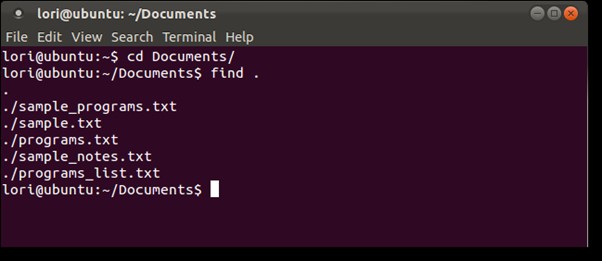
Step 2. You can use the `find` command with various syntaxes to search for files. For example, to search for files in the current directory and its subdirectories, you can use 'find .'
2. Use Locate Command
The locate command is faster than find because it doesn't search the entire system, instead providing a list of possible pathnames for the required parameter and syntaxes.
The locate command finds all files on the file system, starting with the path that contains all or part of the search parameters.
Syntax: locate filename
The locate command is used to find files or directories based on a search pattern. It is a quick way to locate files without having to navigate through the entire file system.
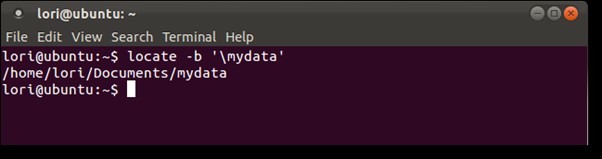
Syntax: locate –b \filename
The backslash is used to escape special characters in regular expressions, allowing for more precise pattern matching. It enables the use of characters that would otherwise be interpreted as special characters, such as the dot (.
To understand how to find a file in Linux using the locate command, follow these instructions:
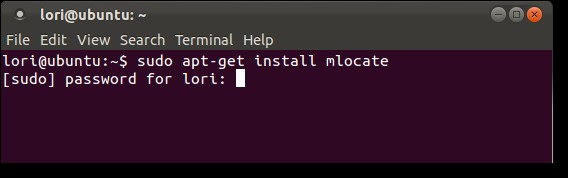
Step 1. To install the locate command on your system, launch the command line and type `sudo apt-get install mlocate` to initiate the installation process. Press Enter and enter your password to confirm. This will enable the locate command, allowing you to search for files on your system.
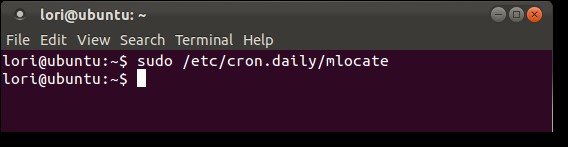
Step 2. To create a database, run the command `sudo /etc/cron.daily/mlocate` in the terminal and press Enter. This will initiate the database creation process.
Note: locate command does not work without a database.
Step 3. Now, write "locate" with any of the above syntaxes and hit the Enter key to locate the file or folder. Type "locate filename" or "locate /path/to/filename" to find the file, and "locate /path/to/folder" to find the folder.
3. Use Grep Command
Another way to search files in Linux using the command line is by utilizing the grep command. Grep allows you to search for text within files.
You can use the grep command to search for a specific sentence or combination of letters in a file by typing `grep "search_term" file_name.txt` in your terminal, replacing "search_term" with the desired search term and "file_name.
Syntax: grep -r -i "text" /path
-r: The search is recursive, meaning it scans the current directory and all subdirectories.
-i: specifies that the query is case-insensitive.
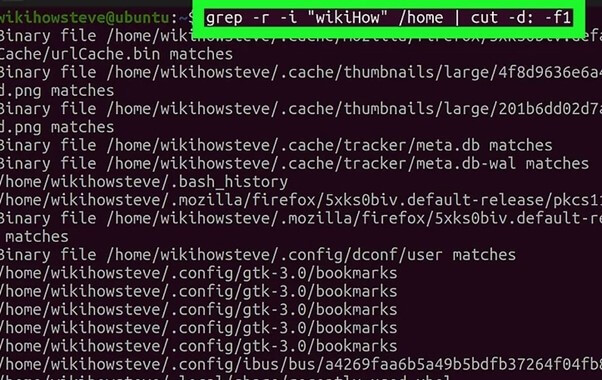
The command to suppress the matched text and show the file names and paths is `git diff --name-only --no-renames`. This command will show the names of the files that have been modified, added, or deleted, but will not display the actual changes.
Syntax: grep -r -i "text" /path | cut -d: -f1
The grep command will produce an error when attempting to access directories without proper permissions or encountering empty folders, which can be redirected to /dev/null.
Syntax: grep -r -i "text" /path 2>/dev/null
To find a file in Linux using the grep command, start by navigating to the directory where you think the file might be located. Then, type the command `find` followed by the name of the directory and the file you're looking for, like this: `find /home/user/Documents -name "example.
Step 1. Open the command line in Linux
Step 2. The command `grep` can be used with any of the above syntaxes to find the file path. For example, `grep -r 'keyword' /path/to/search` will search recursively for the keyword in all files within the specified directory, and return the file path where the keyword is found.
How to Find a File in Linux Using Terminal
Many graphical user interface (GUI) services enable Linux users to browse for files, regardless of distribution. However, in cases like server management or SSH access, terminal access is limited, making file browsing through the terminal necessary.
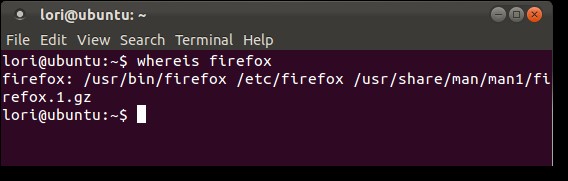
A Linux terminal is a simple and effective text-based interface for controlling a Linux machine, which provides a range of tools to complete tasks. The terminal is one of several options available to Linux users, but it's often considered the most suitable solution. Users can utilize commands such as find, locate, grep, which, and whereis to search for files or folders on the terminal.
- The syntax for which command: which filename
- The syntax for whereis command whereis filename
For Linux find a file by name, follow these steps:
Step 1. Launch your virtual machine, such as Ubuntu, on your PC.
Step 2. Open your Linux terminal.
Step 3. To find a specific pile or folder, you can use the "find" command with its syntax. For example, you can use the command "find / -name 'filename'" to search for a file named "filename" in the entire system.
Note: To use the "find" command, start by navigating to the desired folder by typing "cd folder name" on the terminal.
How to Find Lost or Deleted Files with Linux Data Recovery Software
Lost data and unintentional loss of critical files can be a frustrating and potentially disastrous experience. In Linux, the trash bin can provide a temporary safety net for recovery, but once files are deleted from there, they are gone for good. This highlights the importance of having a reliable backup system in place to prevent such losses and ensure the integrity of your digital assets.
If you don't have backups, your chances of recovering data are slim. However, if you don't have backups, you can try using data recovery software like Deep Data Recovery.
Qiling data recovery is a professional tool that can recover lost data by utilizing its software algorithm and the fact that most deleted files remain on the disk but are inaccessible. The operating system works in such a way that Qiling's data recovery wizard can intelligently locate and quickly recover deleted files.
If you're trying to recover lost or deleted files on Linux, the Qiling data recovery wizard is a good option due to its straightforward and efficient interface. You can download this Linux data recovery software for free and use it to restore lost data on a Windows PC by connecting the two through a simple process.
Note: Linux Recovery is a new feature of Deep Data Recovery, included in the latest version, which can be installed by contacting online customer service.
Step 1.To recover data from a Linux system, install and launch Deep Data Recovery on your Windows PC, then select "Linux Recovery" from the left panel.
Step 2.This software will automatically detect your IP and Port, but you'll need to input your user name and password. If the IP address or Port is incorrect, you can manually correct it and then click "Fast Scan".

Note: You can choose different search modes based on where and why the data was lost.
Step 3. After successfully connecting to your Linux device, Qiling recovery software will start scanning the disk to find all lost and deleted files. Once the scan process completes, you can click "Filter" > "Type" to specify the types of lost files you want to recover.

Step 4.To recover lost files in Linux, you can first preview the scanned files, then select the target data and click the "Recover" button to restore the files.

Conclusion
Although Windows is the most widely used operating system, many people still prefer Linux due to its enhanced security features and open-source flexibility. However, Linux can be more challenging to navigate than Windows, particularly when it comes to finding specific files. Fortunately, the methods outlined in this article can help make it easier to locate files in Linux.
If you've accidentally deleted or lost your files, we recommend using Deep Data Recovery to find the lost files in Linux. This tool provides proper protection to the data, making it your safest and most efficient approach to recovering the files.
Related Articles
- How to Recover Deleted Emails with 5 Best Email Recovery Tools
- Find the Simplest Way to Get Data off an Old Hard Drive Here
- Camtasia Recording Recovery | How to Retrieve Camtasia Projects/Videos
- How to Recover Deleted Files on Windows 7 (with Video)
- How to Recover Deleted Call Recordings from SD Card/Memory Card
It's a horrible thing when you realized that you've lost or deleted the call recordings from SD card and memory card. Let's learn the basic information for how to recover deleted call recordings from SD card and memory card, solving the problem you encounter. - How to Recover Deleted DCIM Folder on Samsung Galaxy
This article explains how to locate the DCIM folder on a Samsung Galaxy device and provides a guide on how to recover a deleted DCIM folder using a DCIM folder recovery tool.
Products
Articles & Tutorials
- Data Recovery
- Data Backup
- File Recovery
- File Backup
- System Backup and Restore
- Disk and Partition Clone
- Technical articles
- Mobile articles
- Disk Master Help
- Windows Data Recovery Tutorials
- Windows Secure Delete Tutorials
- Windows Partition Management Tutorials
- Windows File Backup and Restore Tutorials
- Windows System Backup and Restore Tutorials
- Windows Disk Backup and Restore Tutorials
- Windows Clone Tutorials