Recuva Recovered Files Unreadable and Can't Open [SOLVED]
Computers Can't Open Recuva Recovered Files
Cnet Case Unfortunately, deleting a folder from an external drive can be tricky, and it sounds like the recovered files are corrupted. Try running a disk check on the external drive using the built-in Check Disk tool in Windows (if you're on Windows) or the Disk Utility app on a Mac. This might help identify and fix any issues with the drive. Additionally, you can try using a data recovery software specifically designed for external drives, such as Deep Data Recovery or Disk Drill, to see if they can recover the files in a usable format. If none of these steps work, you might want to consider contacting Seagate's support for further assistance. Sorry you're going through this!
Piriform Case You used Recuva to recover your deleted photos, but now your computer is saying it doesn't support the format, even though they're all .jpgs. This is likely because the files were recovered in a corrupted or incomplete state, which is causing the issue. To fix this, try using a photo recovery tool specifically designed for recovering corrupted files, such as PhotoRec or Recovery Toolbox for Photo. These tools can help repair the corrupted files and make them viewable again. Alternatively, you can also try using a file repair software like File Repair or Repair Toolbox to see if it can fix the corrupted files. If none of these solutions work, it's possible that the files are beyond recovery.
Many users have reported that they cannot open or play their retrieved files, especially videos, images, and document files, even after using Recuva. This issue can arise due to various factors, including corrupted files, incorrect file associations, or issues with the file system. As a result, customers may find that their recovered files won't open, making it difficult to access their important data.
- Recuva corruption
- File recovery failure
- File corruption or encryption (due to Virus/malware infection)
- Data overwriting
Here are some suggestions to help you open recovered files:
Solution 1. Contact Recuva Support Team
If you're unable to recover data with Recuva, you can try again before contacting the support team. If it still doesn't work, you can reach out to Recuva's support team for assistance, and they may guide you through the recovery process to ensure you've correctly recovered your files.
If you're having trouble with Recuva, you can visit the support page on their website for help. Alternatively, you can reach out to them on FaceBook or Twitter.
Solution 2. Rescue Data While Recuva Files Won't Open
If you've used Recuva to recover files but it didn't work out, you may have incomplete file recovery. To fix this, make sure you've done a full recovery, then use a different, reliable data recovery software to help you open and read the recovered files.
Here, we highly recommend you try Deep Data Recovery, a professional disk data recovery software that can recover 250+ types of files and supports many file systems including FAT, exFAT, NTFS, NTFS5, ext2/ext3, HFS+, ReFS, ensuring recovered files can be opened properly.
Step 1. Select file types
Launch Deep Data Recovery software, select the desired file types, and click "Fast Scan" to initiate the recovery process.

Note: You can choose different search modes based on where and why the data was lost.
Step 2. Select a location and start scanning
Choose the partition where you lost data. Then, click "Scan".

Step 3. Filter and preview files
To begin, use the file format filter on the left or upper right corner to narrow down the files you need. Once you've filtered the files, you can either click the "Preview" button or double-click a file to preview its content. This allows you to quickly scan the contents of each file without having to open them individually.

Step 4. Recover lost data or files
To recover lost data, select the file that needs to be recovered, click the checkbox next to it, and then click the "Recover" button to restore the data to a secure location.
Quick access to recovering data with Qiling data recovery software:
Solution 3. Decrypt Files Without Paying Ransom
If a virus encrypts your files, you can't view them even if you've restored them. However, you can remove the virus and recover your encrypted files without paying the ransom.
Step 1. Do not pay under any circumstances
Step 2. Run a virus cleaner software to remove viruses from your PC and storage devices.
Step 3. Use file decryption tools or software to decrypt your files
Also read: How to Decrypt Encrypted Files Without Password
You can open your files again to see whether it works or not. If this solution is unable to help you, you can jump to the next solution.
Solution 4. Deal with Recuva Overwritten Files
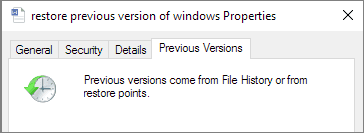
Overwriting data means recording new information over existing data when a file or directory is updated, making it impossible to recover the old data using file recovery software. However, if you have a backup in advance, you can still recover overwritten files using the Previous Version feature in Windows, which allows you to restore deleted, formatted, modified, damaged, or lost files and folders.
Step 1. Right-click the file and choose "Properties".
Step 2. Open the "Previous Version" tab.
Step 3. Click on the latest version of the file you want to restore, and then click the "Restore" button to recover the overwritten files.
Useful Tips to Avoid Recovered File Cannot Open Issue
Tip 1. Stop using the device and perform a data recovery ASAP.
Tip 2. Save recovered files to a different disk or storage device to avoid overwriting or corrupting the original lost files, which can prevent Recuva from recovering them or making them unusable.
Tip 3. Backing up files in advance can provide a safety net in case of data loss due to various reasons. Having a backup allows you to restore files even if the original files are corrupted, deleted, or lost due to hardware failure, software issues, or other unforeseen circumstances. This way, you can quickly recover your important data and minimize the impact of any data loss event.
Tip 4. If you've lost files, Deep Data Recovery can provide emergency assistance to help recover them.
Related Articles
- Reset and Recover Instagram Password Without Email
- How to Recover Data Files Deleted by Antivirus
- Email Password Recovery: How to Recover Gmail Account and Password
- [Solved] Windows Cannot Access the Specified Device Path or File
- How to Show Hidden Files in USB on Windows PC/Mac
Want to show hidden files on your USB flash drive? Don - How to Show Hidden Files in Windows 10
If you're having trouble viewing hidden files in Windows 10, there are several ways to show them.
Products
Articles & Tutorials
- Data Recovery
- Data Backup
- File Recovery
- File Backup
- System Backup and Restore
- Disk and Partition Clone
- Technical articles
- Mobile articles
- Disk Master Help
- Windows Data Recovery Tutorials
- Windows Secure Delete Tutorials
- Windows Partition Management Tutorials
- Windows File Backup and Restore Tutorials
- Windows System Backup and Restore Tutorials
- Windows Disk Backup and Restore Tutorials
- Windows Clone Tutorials