How to Decrypt a File Without Password, Certificate, and Key
Questions About How to Decrypt A File
Unfortunately, it's not possible to decrypt the file without the encryption key. When you encrypted the file, Windows generated a key pair (public and private keys) and stored the private key in your Documents folder. Since you formatted the drive during the Windows reinstall, the private key was lost, and with it, the ability to decrypt the file. You'll need to recover the private key from a backup or recreate the encryption if you have the necessary permissions. However, if you don't have the private key, the file will remain encrypted and inaccessible.
You can try using a data recovery software that specializes in encrypted files, such as Ransomware File Recovery or Deep Data Recovery. These tools can try to recover your files without a password, but be aware that there are no guarantees of success. If you're not comfortable using these tools, you can also try reaching out to a professional data recovery service that has experience with ransomware attacks. They may be able to help you recover your files without paying the ransom. It's also a good idea to take steps to prevent this from happening again, such as using encryption software to protect your files and being cautious when opening files from unknown sources.
If you need to decrypt a file online without a key, or if your files have been encrypted by ransomware, there is a solution. A robust data recovery tool can help you get your files back in just a click.
Part 1. How to Decrypt a File Online Without Key/Certificate/Password
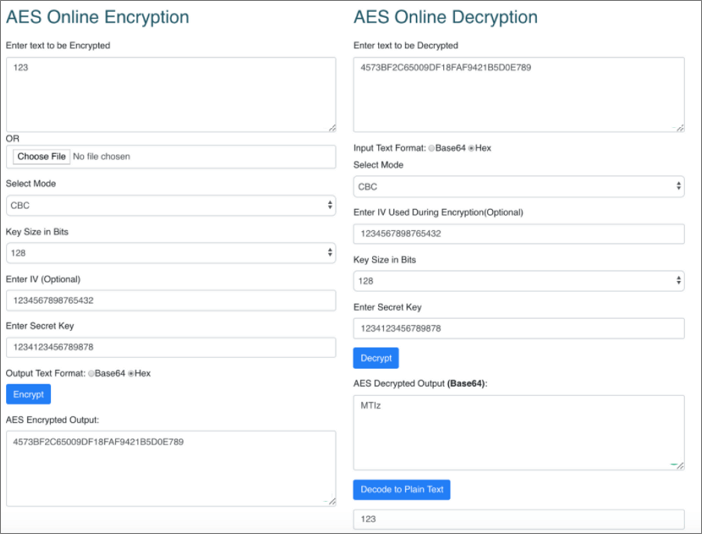
You can decrypt a file online without a key if you have the right tool, specifically using the Advanced Encryption Standard (AES) symmetric encryption algorithm. This allows you to generate and decrypt AES encrypted passwords without needing a key.
Part 2. How to Decrypt a File Without Password/Key/Certificate Offline
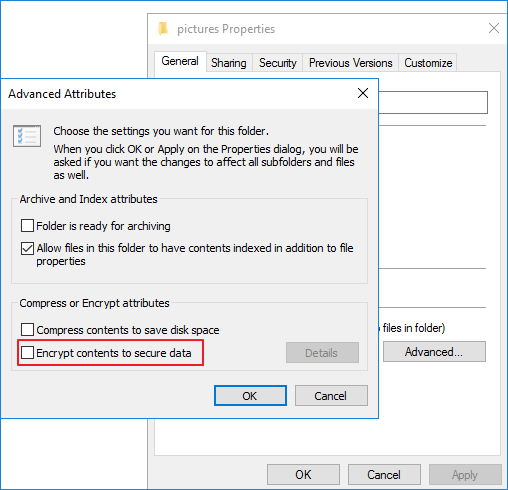
To decrypt the file system, you can disable the "Encrypt Contents to Secure Data" feature, but this will only affect the file system as a whole, not individual files. To decrypt specific files, you will need the certificate or password used for encryption.
If you haven't exported and backed up the file encryption certificate before or if you have forgotten the password, you cannot decrypt encrypted files if you have done one of the following:
- Reinstalling Windows OS
- Moving encrypted files to another computer
- Recovering data from an encrypted disk
Online decryption tools may not be 100% safe, as they can potentially lead to data theft or source data corruption.
In addition to users actively using encryption tools, there is another unexpected way of files being encrypted - by viruses or ransomware. For example, ransomware can encrypt and delete files. To recover data in such cases, a reliable ransomware encrypted file recovery tool can be used, allowing users to get back their data without paying the ransom.
Ransomware Data Recovery: How to Recover Ransomware Encrypted Files
Here are three helpful ways to recover files deleted or encrypted by ransomware like Locky, CryptoLocker, CryptoWall, or TorrentLocker, without paying anything: You can try using a data recovery software to scan your computer and restore deleted files, or use a ransomware decryptor tool to decrypt encrypted files. Additionally, you can also try using a cloud backup service to restore your files from a previous backup, if you have one.
Part 3. How to Recover Encrypted Files Locked by Ransomware
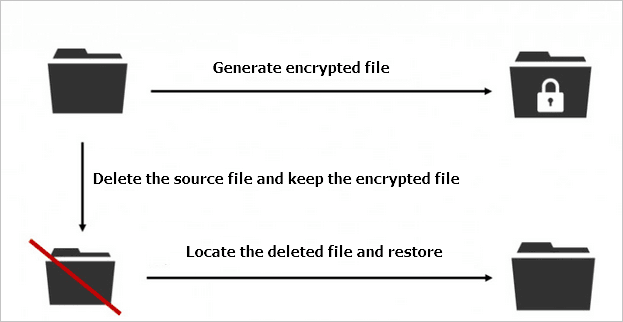
Since most ransomware encrypts files and folders by making an exact copy, encrypting the copy, and then deleting the source, this process can be reversed using professional data recovery software, potentially allowing for the recovery of encrypted files.
Here, we highly recommend trying Deep Data Recovery. This program allows you to recover files infected by shortcut virus, restore files deleted and encrypted by ransomware like Locky, CryptoLocker, CryptoWall, and TorrentLocker, all without paying a ransom.
Deep Data Recovery
- Recover lost or deleted files, documents, photos, audio, music, emails, and more with ease, using specialized software or tools designed to retrieve and restore data from various storage devices, including hard drives, solid-state drives, USB drives, and memory cards.
- Recover files from various storage devices, including SD cards, emptied recycle bins, memory cards, flash drives, digital cameras, and camcorders, with our comprehensive file recovery services. Our experts use advanced technology to retrieve lost data, even from devices that have been formatted or deleted.
- Support data recovery for sudden deletion, formatting, hard drive corruption, virus attacks, and system crashes under various circumstances, ensuring that users can retrieve their vital information even in the face of unexpected events.
You can recover ransomware encrypted files using a capable data recovery tool. To do this, simply download the tool and follow a three-step process. Note that this method is only for recovering files affected by a shortcut virus or ransomware, and does not apply to files encrypted by encryption tools.
Step 1. Select file types and click "Fast Scan" to start
To recover a Qiling virus file, run Qiling virus file recovery software on your Windows PC. Select the desired file types and click "Fast Scan" to initiate the recovery process.

Note: You can choose different search modes based on where and why the data was lost.
Step 2. Select the virus infected drive to scan
To scan for lost or hidden files on a disk attacked by a virus, select the affected disk to run a scan. Note that this process may not detect all viruses, especially those that can disguise themselves as legitimate system files, and may require additional steps to ensure complete removal.
- If an HDD has files hidden or deleted by a virus, it's best to install software on a separate volume or external USB drive to prevent overwriting of existing data.
- If the infected device is an external hard drive, flash drive, or memory card, you can install the software on the local drive of the computer, as it doesn't matter where the software is installed.

Step 3. Check all scanned results
Deep Data Recovery will start a scan process to find deleted or hidden files on the virus-infected hard drive. To quickly locate specific files, you can use the Filter or type grouping feature to display only pictures, videos, documents, emails, etc. This allows you to quickly find the files you need.

Step 4. Preview and recover deleted/hidden files
Once the scanning process is complete, you can preview the recovered files. Select the desired files and click the "Recover" button. It's essential to save the recovered files to a different location to ensure their safety.
Consult with Qiling Data Recovery Experts for a one-on-one manual recovery service, which includes the following services after a FREE diagnosis:
- Repair a corrupted RAID structure, unbootable Windows OS, or corrupted virtual disk file.
- Recover/repair lost partition and re-partitioned drive
- Unformat hard drive and repair raw drive (BitLocker encrypted drive)
- Fix disks that become GPT protected partitions
Part 4. How to Encrypt a File in Windows 10/8/7
We protect our privacy by using file encryption tools like EFS (Encrypting File System), which provides core file encryption technology to store encrypted files on NTFS volumes. This way, only with a certificate, people can access EFS locked files.

Steps to encrypt a file in Windows 10/8/7
Step 1. Find the file or folder you wish to encrypt.
Step 2. Right-click the file/folder and click "Properties", then click the "Advanced..." button on the General screen.
Step 3. To encrypt the contents of a zip file, check the box next to "Encrypt contents to secure data" and click "OK".
Step 4. Click the "OK" button. An encryption warning box will pop up.
Step 5. Check the "Encrypt the File Only" box to encrypt the individual file, then click "OK" to finish encrypting the file.
Note: If you copy unencrypted files to a folder with encryption properties, they will be automatically encrypted.
EFS encryption is transparent, meaning that if you encrypt some data, you can access it without any restriction.
To Sum It All Up
To securely store and protect your files and data, consider using either EFS (Encrypting File System) or Bitlocker for encryption. To prevent losing access to your encrypted files, it's recommended to back up your encryption certificates and keys to a secure location, and make a note of your EFS backup password. This way, you'll have a safeguard in place to ensure you can still decrypt your files if needed.
To prevent encryption problems caused by ransomware, it's crucial to prevent the virus from infecting your computer in the first place. This can be achieved by installing and enabling anti-virus software, which will help detect and remove malware. Additionally, regularly backing up your important data and files will ensure that you can recover them even if your computer is infected.
Related Articles
- 3 Ways to Fix Google Chrome Bookmarks Disappeared
- How to Restore IE Edge Favorites/Bookmarks? | IE Edge Recovery
- How to Repair Office 2016, 2013, 2010 with Microsoft Repair Tool
- Retrieve Deleted Files not in Recycle Bin
- The Causes of GoPro SD Card Errors and How to Fix it
If you're experiencing issues with your GoPro SD card, such as error messages or formatting problems, there are several potential reasons and solutions to consider. The error could be due to a corrupted file system, physical damage to the card, or software issues with the GoPro device itself. - How to Fix the Issue GOPro Won't Turn on
People who use GoPro Hero always said the GoPro won't turn on. Check out the solutions mentioned in the article to fix it.
Products
Articles & Tutorials
- Data Recovery
- Data Backup
- File Recovery
- File Backup
- System Backup and Restore
- Disk and Partition Clone
- Technical articles
- Mobile articles
- Disk Master Help
- Windows Data Recovery Tutorials
- Windows Secure Delete Tutorials
- Windows Partition Management Tutorials
- Windows File Backup and Restore Tutorials
- Windows System Backup and Restore Tutorials
- Windows Disk Backup and Restore Tutorials
- Windows Clone Tutorials