How to Fix Error Code 43 for USB in Windows 10 & Recover Data
To fix Code 43 Error and make your storage device work again, follow this complete guide to resolve the USB flash drive error code 43 issue without losing any data.
Fixes Code 43 Error on USB/External Hard Drive in Windows 10
3 Quick Tips to Fix Code 43 Error:
- 1. Reconnect Device - Unplug & replug device, switch USB port.
- 2. Replace Connection Cable If the cable is broken, replace it with a new one and reconnect the device to the PC.
- 3. Restart PC Unplug the problematic device, reboot your PC, and then reconnect and check the device after it restarts.
After this, open disk management and see if your drive is detectable. If yes, turn to reliable data recovery software to recover all your precious data first.
If error code 43 persists on your USB or other devices, there are four effective ways to resolve the issue. You can try reinstalling the USB drive, updating the device drivers, running the Windows Troubleshooter, or using the Device Manager to uninstall and reinstall the device.
| Workable Solutions | Step-by-step Troubleshooting |
|---|---|
| Fix 1. Update Device Driver | Update the device driver > roll back the USB drive > reinstall the device driver...Full steps |
| Fix 2. Reinstall USB Hub Driver | Go to the "Driver" tab and choose "Disable Device" > "Enable Device"...Full steps |
| Fix 3. Re-enable the Device | Go to the "Driver" tab and choose "Disable Device" > "Enable Device"...Full steps |
Error: Unknown Device - Windows Has Stopped This Device with Code 43
If your USB flash drive or external USB drive is not being recognized, don't worry! A Code 43 error is a common issue that can be easily resolved. This error typically occurs when there's a problem with the USB drive, and it prevents your device from being detected by your computer.
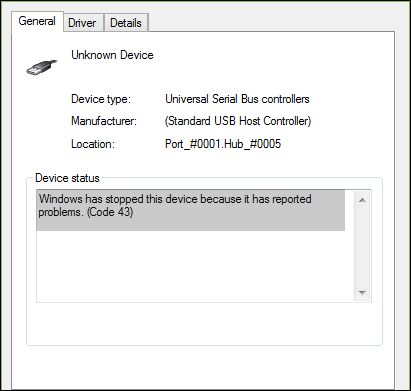
What is Error Code 43?
Code 43 error: Windows has stopped this device because it has reported problems. (Code 43) - a Device Manager error code.
What happens if Code 43 exists on your device?
When you get error code 43 with your USB or other hardware devices, your devices will probably become "unrecognized" by your computer, meaning your computer will no longer be able to communicate with them and they will not function as intended.
- Unreadable
- OS notify drive failure
- Unrecognizable by computer
- Files inaccessible, etc.
To fix the error and get your drive working properly, we'll guide you through the process in the next part.
Method 1. Update Device Driver to Fix Unrecognized Code 43 Device
| Difficulty Level: Easy | Risky Level: Low |
If your USB has a hardware issue or its driver or driver software is outdated, you can try installing the latest drivers for your USB drive, which may resolve the code 43 error.
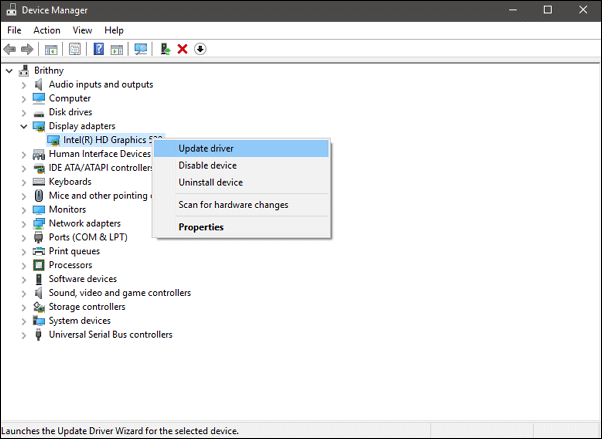
Option 1. Update USB/Device Driver
Step 1. To access the Device Manager, go to the "Search" function, type "device manager", and select "Device Manager" from the search results.
Step 2. Find and right-click the problematic device and choose "Properties".
Step 3. Click "Driver" and then choose "Update Driver".
Step 4. Click "Search automatically for updated driver software".
Solution 2. Roll Back the USB drive
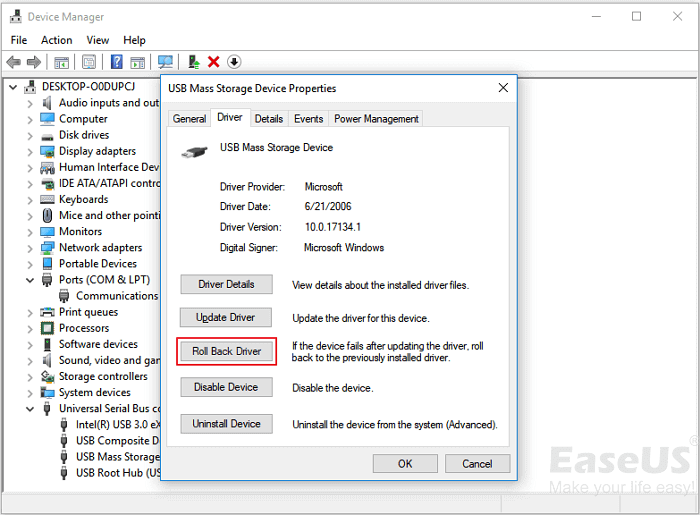
If you've recently updated the device driver and are now experiencing error code 43, rolling back the driver to a previous version may resolve the issue.
Step 1. Open "Device Manager".
Step 2. Right-click your device driver and choose "Properties".
Step 3. Go to "Driver" > "Roll Back Driver".
Method 2. Reinstall the Device Driver to Fix Code 43 Error
| Difficulty Level: Easy | Risky Level: Low |
Some users have reported that reinstalling the device driver can fix error code 43 in Windows 10. To do this, try uninstalling and then reinstalling your USB drive, which may resolve the issue.
Step 1. To open Device Manager, press the Windows key and the S key at the same time, which will open the search bar, then type in "Device Manager" and click on it to open it.
Step 2. To fix a malfunctioning disk drive, expand the disk drive and right-click on the malfunctioning device, then select "Uninstall".
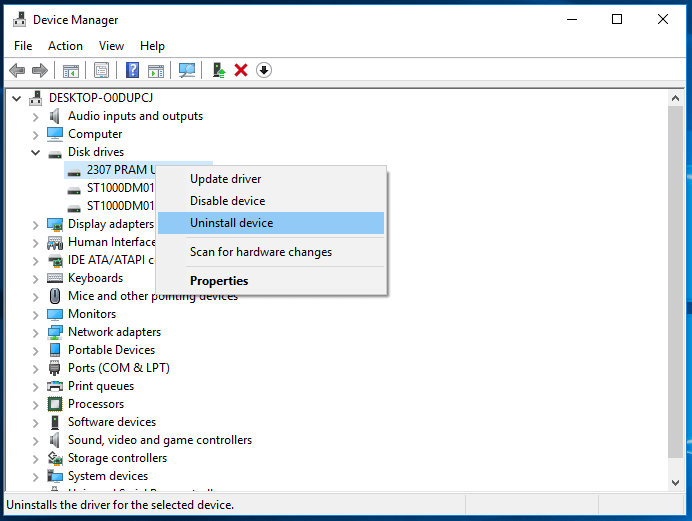
When a warning message appears that you are uninstalling a device from your system, click "OK" to proceed.
Step 3. Right-click your computer name in Device Manager and click "Scan for hardware changes".
The Device Manager scans your system and automatically reinstalls your device.
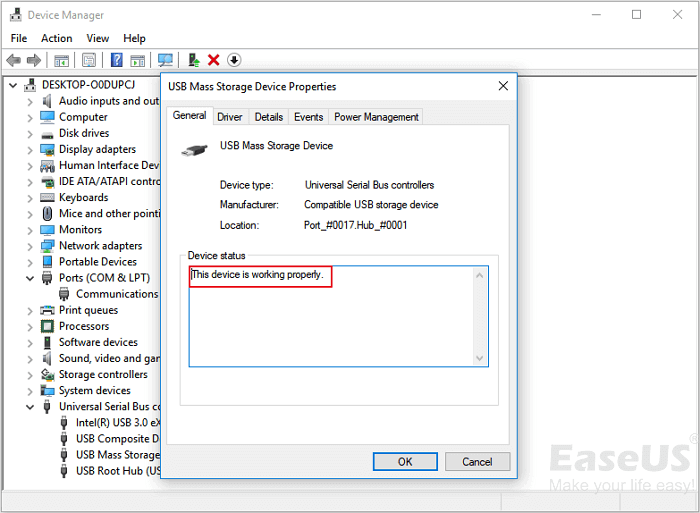
Step 4. Right-click the device and click "Properties".
Step 5. The device properties dialog box shows that the device is working properly, as indicated by the message "This device is working properly" in the device status section.
Method 3. Re-enable the Device to Remove Code 43 Error
| Difficulty Level: Easy | Risky Level: Low |
If you've tried method 2, you're likely familiar with Device Manager. To re-enable your USB, simply head to Device Manager and follow the steps to resolve the issue.
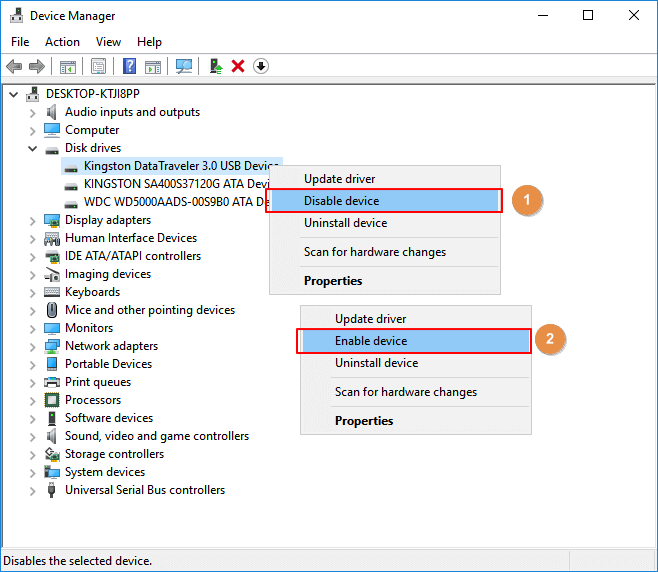
Step 1. Open Device Manager, expand Disk drives.
Step 2. Right-click the problematic device with Code 43 error, select "Disable Device".
Step 3. Click "Yes" to confirm.
Step 4. Re-click the device and select "Enable Device".
Step 5. Restart the computer to keep all changes.
After this, you can check if your device is functioning properly now.
- Notice:
- If your device is still experiencing a Code 43 error, try to retrieve your data and consider replacing the device. If needed, take it in for repair.
IMPORTANT: Recover Data from USB with Code 43 Error in Windows 10
When a USB drive is not recognized by Windows due to code 43 error, it can lead to Windows failing to detect the drive, making the data stored on it inaccessible. In such cases, it's essential to learn how to recover data from a not-recognized external drive.
You can recover lost, inaccessible, or unreadable data from an external USB flash drive with a Code 43 error as long as it can be detected by Disk Management.
Here, reliable hard drive recovery software - Deep Data Recovery can help.
To resolve the code 43 error on your Windows 10 USB device, you can try the following steps:
Step 1. Select file types and click "USB/SD Scan" to start
Launch Deep Data Recovery software, select file types, and click "USB/SD Scan" to initiate the recovery process.

Note: You can choose different search modes based on where and why the data was lost.
Step 2. Choose the USB drive to scan
Choose your USB drive where you lost important files. Click "Scan" to start the recovery process.

Step 3. Check and preview USB drive data
After the scanning process is completed, you can easily find a specific type of file by utilizing the Filter feature and the Search option, both of which enable quick location of desired files.

Step 4. Restore flash drive data
After finding lost USB drive files, click "Recover" to restore them and save the found files to a safe location on your PC, not the USB drive.
Conclusion
If you're experiencing the Code 43 error on your storage devices like USB, external hard drive, or hard disk, there are 3 quick fixes and 3 reliable methods to help you resolve the issue. These solutions can be used to troubleshoot and fix the error, ensuring your storage devices function properly again.
If your device is damaged, we recommend using Qiling data recovery software to retrieve your important data as soon as it becomes detectable.
It's recommended to use third-party system backup software like Qiling Backup to create regular backups of valuable files.
Related Articles
- Recover Deleted DCIM Folder from Android
- How to Fix Memory Card Locked Error Without Losing Data in 4 Ways
- [SOLVED] The Boot Configuration Data for Your PC Is Missing
- How to Tell if Your Computer Is 32 or 64 Bit Windows 10 [Full Ways]
- Dashcam Video Recovery: How to Recover Video Files from Dashcam
Qiling dashcam video recovery software is the best way to recover deleted or corrupted video MOV AVI files from in-car dash cam memory card. Download this easy-to-use software and get back lost videos as soon as possible. - How to Recover Deleted Videos on Any Device
No matter how you lost videos from your PC or phone, there are ways how you can recover deleted videos. Try the best and most effective methods below to recover deleted, formatted, or damaged videos on Windows/Mac/iPhone/Android.
Products
Articles & Tutorials
- Data Recovery
- Data Backup
- File Recovery
- File Backup
- System Backup and Restore
- Disk and Partition Clone
- Technical articles
- Mobile articles
- Disk Master Help
- Windows Data Recovery Tutorials
- Windows Secure Delete Tutorials
- Windows Partition Management Tutorials
- Windows File Backup and Restore Tutorials
- Windows System Backup and Restore Tutorials
- Windows Disk Backup and Restore Tutorials
- Windows Clone Tutorials