How to Stop Disk Checking and Stock CHKDSK on Startup in Windows 11
| Workable Solutions | Step-by-step Troubleshooting |
|---|---|
| 1. Command Prompt | Step 1. Choose Command Prompt on your Windows 11. Make sure that you have launched it with administrative privileges...Full steps |
| 2. Registry Editor | Step 1. Go to Windows search and look for Windows registry. You can get it by launching the RUN dialog box...Full steps |
| 3. Qiling Partition Master | Step 1. Open Qiling Partition Master on your computer. Then, locate the disk, right-click the partition you want...Full steps |
The Disk Check utility, or chkdsk, is a useful tool for checking disk errors and file system issues. However, it can interrupt your work when it runs at every startup, prompting the need to disable disk checking on Windows 11. Fortunately, there are methods to skip disk checking on startup, which we can explore to help resolve this issue.
Why Does My PC Keep Disk Checking?
Chkdsk running automatically at every Startup may be due to multiple reasons, and it's advisable to investigate why it's happening. The command may be triggered by various factors, and identifying the root cause can help resolve the issue.
The chkdsk command running at Startup can be due to an illegal shutdown of the PC, file corruption, or system issues. It may also run automatically if scheduled by the user or Windows itself, or if the system detects problems that need to be checked.
How to Stop Disk Checking on Windows 11?
If you're tired of Windows running the chkdsk command every time you start your PC, you're not alone. This process can delay the Startup of your computer unnecessarily, making it a good idea to stop it from running on Startup. Fortunately, stopping disk checking in Windows 11 is a relatively easy process that can be completed in a few simple steps.
Here are the different methods to help you stop chkdsk from running on startup in Windows 11:
Fix 1. Use Command Prompt to Stop Disk Checking
To stop chkdsk from running on startup in Windows Command Prompt, you don't need to install anything - the built-in feature is all you need.
Here we go with the steps:
Step 1. To open Command Prompt with administrative privileges in Windows 11, launch the Command Prompt and right-click on the Start button, then select "Command Prompt (Admin)" from the context menu. Alternatively, you can search for "Command Prompt" in the Start menu, right-click on the result, and select "Run as administrator" from the context menu. Make sure to select the option that says "Command Prompt (Admin)" or "Run as administrator" to ensure that you have launched the Command Prompt with administrative privileges.
Step 2. Type the Command below. Here C refers to the disk on which you want to stop disk checking at Startup.
chkntfs /x C
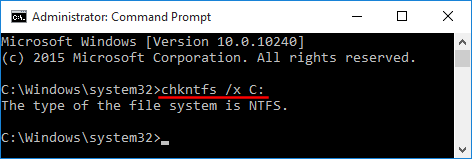
To disable the auto-check for a selected drive, use the command /x. For example, to disable chkdsk on multiple drives, you can use the Command here - `chkntfs /x c: d: e:`.
To enable disk checking at every startup, enter the command "chkntfs /d" in the Command Prompt, replacing "d" with the drive letter you want to allow disk checking on.
Fix 2. Run Registry Editor
To stop chkdsk from running on startup in Windows, you can disable it by modifying the registry. This involves navigating to the "HKEY_LOCAL_MACHINE\SYSTEM\CurrentControlSet\Control\Session Manager" key, then finding and deleting the "AutoRun" value, and finally restarting your computer. Alternatively, you can also use the built-in Windows utility, Disk Cleanup, to remove temporary system files and free up disk space, which may prevent chkdsk from running. However, it's essential to exercise caution when modifying the registry to avoid any potential system issues.
Here are the steps you can follow:
Step 1. To access the Windows registry, go to the Windows search bar, type in "Windows registry" and select the result, or alternatively, launch the RUN dialog box by pressing the Windows key + R, type in "Regedit" and click OK.
Step 2. Follow the path here below.
HKEY_LOCAL_MACHINE\SYSTEM\CurrentControlSet\Control\Session Manager.
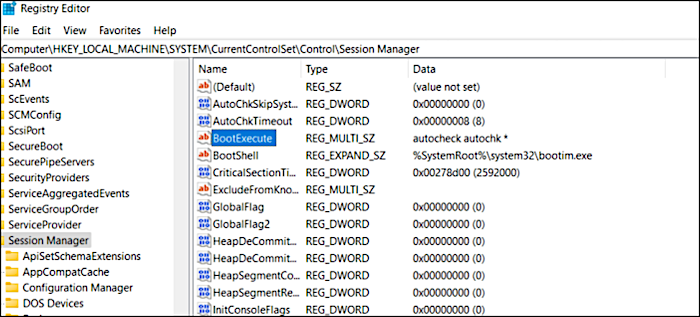
Step 3. Double click on BootExecute on the right pane.
Step 4. On the Edit Multi-String window, delete all the IDs except autocheck autochk. * was removed.
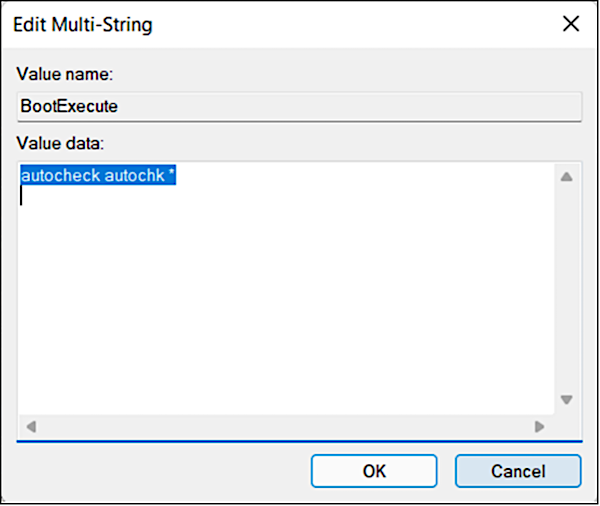
To skip disk checking on Windows 11, you can enable the necessary options in the Registry Editor. This involves navigating to the correct registry key, setting the value of a specific DWORD to 4, and then restarting your computer. By doing so, the disk checking process will be skipped during the next startup, allowing Windows 11 to start more quickly.
Disable Disk Check Utility, Find Alternative
In Windows 11, there are two built-in methods to stop disk checking, but they may not be the most straightforward options. The command prompt method requires an understanding of CHKDSK parameters, which can be complex, while the Windows registry method can be riskier if not done correctly. For a hassle-free experience, a third-party solution is recommended.
- Pro Tip: If you're looking for a tool to help with partition management, we recommend using Qiling Partition Master, which can be downloaded by clicking the provided link.
The Qiling Partition Master is a comprehensive disk and partition manager for Windows that provides total control over hard disks and external drives, allowing you to adjust partition size, convert file systems, clone disks, and more, including disabling disk checks on startup in Windows 11.
The Check Partition feature of Qiling Partition Masterworks is similar to Windows' built-in CHKDSK utility, allowing you to scan and repair disk errors and bad sectors. This feature can effectively fix bad sectors, and is available on the free version of the software, making it accessible without needing to upgrade to the Pro version.
Step 1. Open Qiling Partition Master, locate the disk, right-click the partition, and choose "Advanced" > "Check File System".
Step 2. In the Check File System window, select the "Fix the error on the disk" option and click "Proceed".
Step 3. The software will begin checking your partition file system on your disk, and upon completion, click on "Finish".
Some of the features that make this product unique include.
- It helps you convert NTFS to FAT32.
- Allows you in the split partition in a direct manner.
- It reduces the chances of restarts frequently.
- It is a best disk wipe software.
The software can simplify your experience with tasks such as resizing, migrating, moving, defragmenting, and handling other requirements, making it easier to manage your needs.
The tool can assist with creating, formatting, and deleting partitions, as well as resizing and moving them. It can also be used to merge different partitions and wipe data more effectively and efficiently.
The Concluding Thoughts
The disk checking options at the Startup are not a virus or issue, but rather an indication of a problem with the hard disk or file system, prompting a weekly or first-run hard disk health check, which can be disabled using options like "Check for errors but don't restart" or "Check for errors on next startup".
Qiling Partition Master is a recommended technique to check and fix disk errors, preventing disk checking from starting up in Windows 11.
Related Articles
- How to Wipe a Hard Drive in Windows XP Without CD
- How to Wipe a Hard Drive without Deleting Windows
- Solutions for Windows 10/8/7 Stuck on Startup, Boot, or Loading Screen
- The Volume Is Too Big for FAT32 Windows 11/10, Fixed Here!
- Run USB Flash Drive Speed Test on Windows 10/11 - 2 Ways
If you're looking to test the speed of your USB flash drive, there are two quick and accurate methods to consider. We'll delve into these methods in detail, so you can choose the best one for your needs. - Top 5 Best Free USB Formatter Software for Windows Recommend 2024
What is the best USB formatter for Windows operating systems? Follow this page, and you'll get a list of the top 5 best paid and free USB formatters for Windows users to apply and set up their USB storage devices efficiently.
Products
Articles & Tutorials
- Data Recovery
- Data Backup
- File Recovery
- File Backup
- System Backup and Restore
- Disk and Partition Clone
- Technical articles
- Mobile articles
- Disk Master Help
- Windows Data Recovery Tutorials
- Windows Secure Delete Tutorials
- Windows Partition Management Tutorials
- Windows File Backup and Restore Tutorials
- Windows System Backup and Restore Tutorials
- Windows Disk Backup and Restore Tutorials
- Windows Clone Tutorials