Windows 10/8/7 Stuck on Loading Screen, Start or Boot Screen [Full Fixes & Time-Saving]
Windows 10 and Windows 7 users often encounter the issue of their computer getting stuck on the loading screen or boot screen. Fortunately, there are several effective solutions to resolve this problem on Windows 10, 8.1, 8, and 7.
| Workable Solutions | Step-by-step Troubleshooting |
|---|---|
| Fix 1. Unplug USB Devices | Windows 10 stuck on Windows logo with spinning dots many occur because of faulty USB storage...Full steps |
| Fix 2. Start Windows in Safe Mode | Select "Advanced options" > "Troubleshoot" > "Advanced options" > "Startup Settings" > "Restart"...Full steps |
| Fix 3. Check & Fix File System | Use a partition manager tool to fix the file system or hard disk error with ease. Or you can manually...Full steps |
| Fix 4. Do System Repair | If there is something wrong with the Windows system that causes Windows 7 stuck at starting...Full steps |
| Fix 5. Do System Restore | Turn on Windows and press F8/Shift and click Repair Your Computer. When Windows repair mode...Full steps |
| Fix 6. More Useful Solutions | You can also fix Windows 10 stuck on loading screen problem by Checking System RAM...Full steps |
If your Windows computer gets stuck on the startup screen, Qiling can help. Some users have reported that their computer hangs at the start logo, taking minutes to hours to load, and even shutting down and restarting doesn't provide a long-term solution. However, with Qiling's help, you can fix the issue and get your Windows 10, 8, or 7 computer up and running smoothly, protecting your data and system security in the process.
To resolve the Windows stuck on loading screen issue, you can follow one of the offered methods to solve the problem with ease. Be cautious while trying to follow these solutions.
Method 1. Unplug USB Storage Devices & Reboot PC
If Windows 10 is stuck on the Windows logo with spinning dots, it may be due to faulty USB storage. Try disconnecting all USB devices, including Bluetooth, SD card readers, flash drives, wireless mouse dongles, and more, connected to your computer via a USB cable.
After unplugging the USB cables and devices, restart your PC to ensure it boots up smoothly.
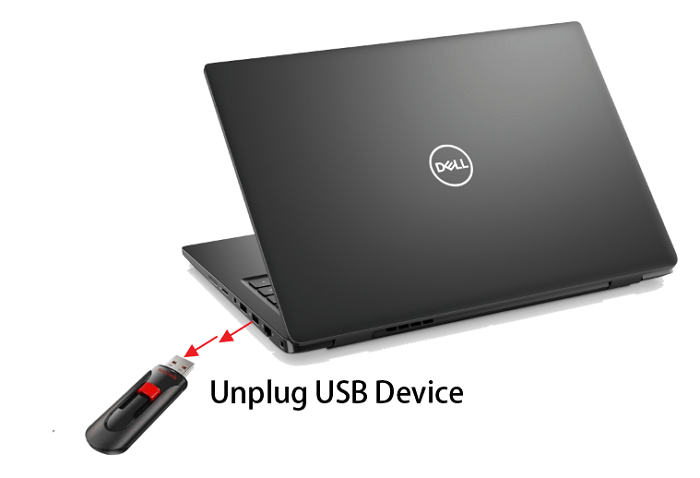
This method has received positive feedback online, and if you're lucky, it may solve the issue. However, if it doesn't fix the problem, you can try the next approach to resolve the Windows 10 or Windows 7 stuck on starting windows issue.
Method 2. Start Windows 10/8/7 in Safe Mode
When Windows gets stuck on the loading screen, it's often due to issues with Windows updates or other problems. To resolve this, try booting your computer in Safe Mode, where only the minimum set of drivers, software, and services are loaded. This can help you troubleshoot the issue without the usual complications, allowing you to identify and potentially resolve the problem that's causing the stuck loading screen.
If your Windows 10 computer is stuck on the loading screen, you can try booting from a bootable disk or shutting it down abnormally more than twice to enter Safe Mode, where you'll see the Preparing Automatic Repair screen.
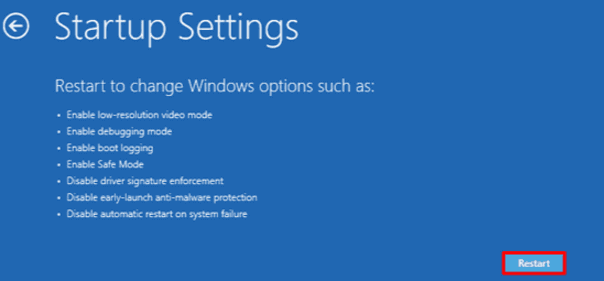
To start your PC in Safe Mode, go to Advanced startup options, select Troubleshoot, then Advanced options, followed by Startup Settings. After restarting your computer, press the number 4 or the F4 key on your keyboard to boot into Safe Mode.
Method 3. Check & Fix File System
You can either manually check and fix file system and hard drive errors with partition manager software or solve the issue manually. The first option is more recommended because partition manager can help you boot your PC from a bootable disk and copy your data to another external storage device, preventing data loss.
Check and Fix the File System with the Partition Manager
Here, we recommend trying Qiling Partition Manager, which can help with complex partition management tasks and fix system hard disk errors with ease.
- Create a WinPE bootable disk from another healthy computer, which is running the same system as your present PC.
- To boot from a bootable disk, connect the USB drive or SD card to a computer and ensure the computer is set to boot from the disk. This is usually done by entering the computer's BIOS settings, which can be accessed by pressing a specific key (such as F2, F12, or Del) as the computer starts up.
- Select to enter Qiling Partition Master. There, you can directly perform a disk or partition copy operation to copy partition data into a new storage device, making sure to connect another new drive or storage device with your PC.
- To resolve the issue, use Qiling Partition Master to check and fix any errors on the hard drive. This tool can help identify and correct any problems that may be causing the issue.
You can safely shut down Windows, and then reboot the computer. If any data were lost during the process, you can restore them from the copied partition data. Once rebooted, you can continue using your computer again. (If some data were lost, You can restore them from the copied partition data.
Manually Check Disk and Fix Hard Drive Error
- Press the Windows key + X, then select Settings. Click on Update & Security, then Recovery.
- If it asks you to choose keyboard, click OK; If it tells to choose the account, choose your account and click OK; If you have a password, enter it. If it asks you to choose a language, choose your language and click OK.
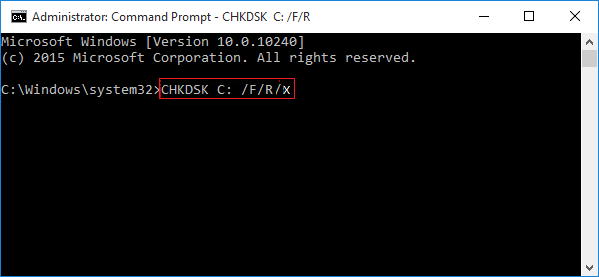
- When you see System Recovery Options, click "Command Prompt" and type `chkdsk e: /f /r /x` in it, replacing "E:" with the drive letter of the problematic drive. Hit Enter to execute the command.
- This will scan and fix errors in the hard disk drive. It will also check for and correct any bad sectors, which can help to prevent data loss and improve overall system performance.
If you encounter issues with Windows 10/8/7, try restarting the computer. This simple step can resolve many problems and get your system running smoothly again.
Method 4. Repair System with the System Repair Disk
If Windows 10 or Windows 7 gets stuck at the starting windows screen, you can troubleshoot the issue by using the system installation disk to start the repair. Since you can't boot Windows normally, you can use a Windows 10 installation CD or enter Safe Mode to open the command prompt window and type "bootrec.exe /fix" to do a system repair.
Extended Reading: If you've updated your computer to the latest Windows 10 or Windows 11, but it's still stuck on the loading screen, it might be due to a buggy Windows update. You can try jumping directly to Method 9 or Method 10 for assistance.
If you're experiencing issues on Windows 11, such as the Taskbar not working, Bluetooth not working, or other new issues, you can click the links provided to get fixes for these specific problems.
Method 5. Restore the System to the Previous State
To recover your system from a disaster, you'll need to have a full system backup in place beforehand. If you have a backup, you can follow these steps:
- Press the F8 key while Windows is booting up, then select the "Repair Your Computer" option from the menu that appears. This will take you to the System Recovery Options screen, where you can select the operating system you want to repair and follow the prompts to run a system file check and other diagnostic tests.
- When Windows is in repair mode, click OK if it asks you to choose a keyboard, then select your account and click OK, and if prompted, enter your password.
- Choose System Restore under System Recovery Options, allowing you to view all available Windows restore points.
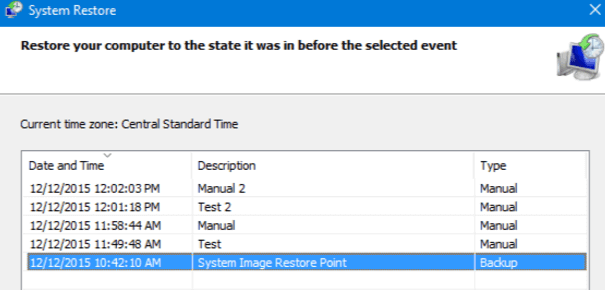
- Select the right restore point which was created when your computer was safe and sound, and check Show more restore points if you don't see all restore points.
- The process of reinstalling Windows can be lengthy, requiring patience as the system restores all Windows to the selected point.
Method 6. Check System RAM & Reinstall CMOS Battery
If the issue is caused by bad memory in the computer or a faulty memory slot on the motherboard, you can try to resolve it by checking and replacing the RAM or upgrading to a newer motherboard with a better memory slot. This may involve identifying the problematic RAM or slot, purchasing a replacement, and physically installing it.
Check System RAM:
- To resolve the issue, try restarting the system in safe mode by pressing the F8 key or Shift on startup after reinstalling or changing the computer. This allows the system to boot with a minimal set of drivers, potentially resolving the problem.
- Select Safe Mode and hit Enter.
- Press Win + R or run MSCONFIG and click OK.
- Select a clean boot option in Under Selective startup.
- Press Apply and restart Windows in normal mode.
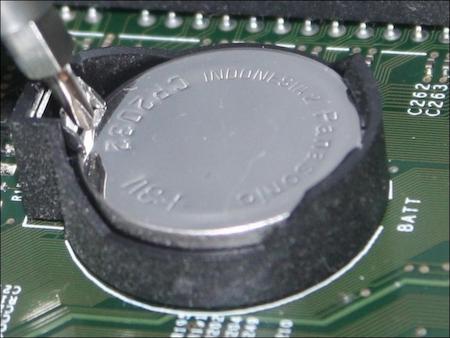
Reinstall CMOS Batter:
- Press and hold the power button to shut down the computer.
- Disconnect the power supply cables and open the computer case.
- Locate and remove the CMOS battery.
- Wait for 5 minutes, and reinstall the CMOS battery.
- And then, restart the PC.
Method 7. Scan Virus in Safe Mode
If your Windows computer is stuck on the loading screen, it may be due to a virus or malware preventing it from starting properly. Since viruses and malware can't run in Safe Mode, you can try scanning your computer for viruses in this mode to resolve the issue.
- Boot Windows into safe mode as described in Method 2.
- Delete temporary files.
- Download virus/malware scanners.
- Run to scan and remove all virus/malware from Windows.
- Reboot PC to start Windows normally.
Method 8. Check Recently Installed or Upgraded Drivers
If antivirus doesn't solve the problem, try checking the recently installed or updated drivers in safe mode, and see if uninstalling or reinstalling them resolves the issue.
Method 9. Reinstall/Clean Install Windows 10/8/7
If all other methods fail, a clean reinstallation of Windows 10 may be the solution, which can be done using the Clone Disk function of Qiling Partition Wizard Bootable Edition to back up data, format the hard drive, and reinstall Windows 10.
To resolve Windows stuck on the loading screen, boot or startup errors, simply download the relative ISO image files of your current Windows system, then perform a clean installation of Windows 10, 8, or 7. This should resolve the issue.
Method 10. Roll Back to a Previous Version of Windows
If you've already fixed the "PC stuck on boot screen" issue using the previous method, but feel that the current Windows version is buggy and unstable, you can opt to revert to the previous Windows version.
To roll back to an earlier version of Windows 10, you can follow these steps within the 10-day rollback period set after the Anniversary Update:
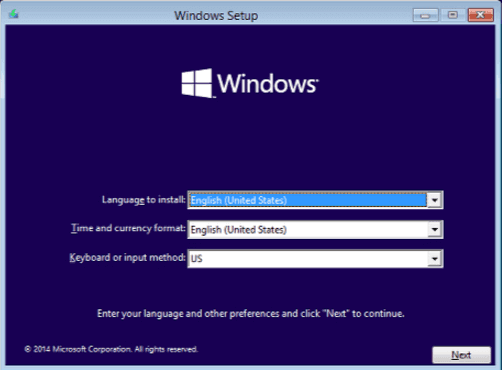
- Download the Windows 10 media creation tool to create a Windows 10 installation media. This can be done to install or reinstall Windows 10 on a computer.
- To boot or start your computer from the Windows 10 installation media, follow these steps: Insert the Windows 10 installation media, which is typically a USB drive or CD/DVD, into your computer. Then, restart your computer and enter your computer's BIOS settings.
- In the Install Windows page, click "Repair your computer" to start the Windows Recovery Environment.
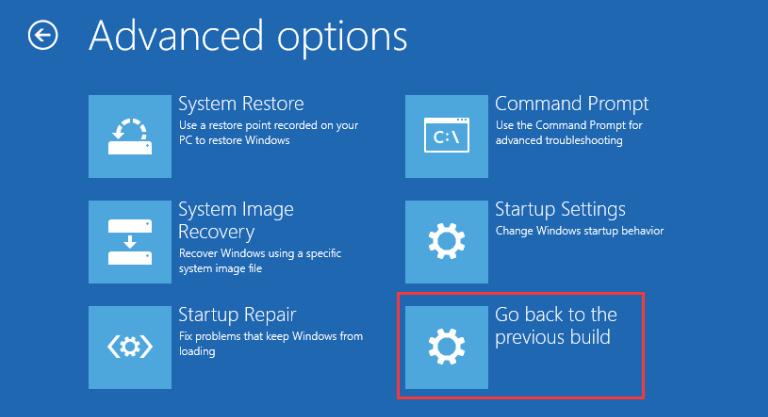
- In the Windows Recovery Environment, on the Choose an option screen, click "Troubleshoot".
- To revert back to the previous build, click on the "Advanced Options" tab and then select the option to "Go back to the previous build".
Final Verdict
When facing issues with Windows 10 or 7 getting stuck on a loading screen, try the following methods to resolve the problem. You can also contact a technical support team for further assistance.
Windows Stuck on Loading Screen FAQs
1. How do I fix Windows 10 stuck on loading screen?
To fix Windows 10 stuck on loading screen issue, boot from a bootable disk or shut down your computer abnormally to enter the "Automatic Repair" screen, then select "Advanced options" and restart. Press 4 or F4 on the keyboard to start your PC in Safe Mode.
2. Why is my computer stuck on loading screen?
This issue can occur after a driver update, graphics issue, or major Windows 10 Update, and sometimes due to other problems. To resolve this, you can enter Safe Mode, do nothing, and then reboot your computer.
3. How do you fix a stuck screen on a loading laptop?
If your laptop is stuck at the loading screen (with circles spinning but no logo appearing), try the following steps to resolve the issue. First, try restarting your laptop in safe mode to see if the problem persists.
To resolve the issue, shut down your laptop and then boot into system recovery by pressing the power button and repeatedly pressing F11. Once in system recovery, select "Troubleshoot", then "Advanced options", and finally "System Restore". Follow the on-screen instructions to complete the process.
4. How do I fix Windows 7 stuck on loading screen?
To resolve Windows 7 getting stuck at the starting windows screen issue, try changing the computer memory or reinstalling it. If that doesn't work, restart in Safe Mode, run MSCONFIG, and select the clean boot option by unchecking all startup options, then apply and restart in normal mode.
Related Articles
- Set Up the Boot Mode in MBR for BIOS, Legacy or UEFI - Qiling
- [Fixed] Hard Drive or C Drive Full for No Reason in Windows 10/8/7
- Easy Solutions to Fix "You cannot format this volume" on Windows 11/10
- 10 Fast Ways to Speed Up Windows 11 | How to Make Windows 11 Faster
- I Need to Format a Hard Drive to Work With Windows, Help
What should I do to use my Mac-formatted hard drive on Windows? The answer is to format a hard drive to work with Windows. This page will provide a safe way to help you format the hard drive. - Is It Possible to Copy the Recovery Partition to a New Hard Drive?
If your disk is running out of space, you may want to copy the recovery partition to a new hard drive. This post will tell you all the details about how to do that.
Products
Articles & Tutorials
- Data Recovery
- Data Backup
- File Recovery
- File Backup
- System Backup and Restore
- Disk and Partition Clone
- Technical articles
- Mobile articles
- Disk Master Help
- Windows Data Recovery Tutorials
- Windows Secure Delete Tutorials
- Windows Partition Management Tutorials
- Windows File Backup and Restore Tutorials
- Windows System Backup and Restore Tutorials
- Windows Disk Backup and Restore Tutorials
- Windows Clone Tutorials