The Volume Is Too Big for FAT32 Windows 11/10, Fixed Here!
| Workable Solutions | Step-by-step Troubleshooting |
|---|---|
| Command Prompt | Step 1: Type cmd in the search box in Windows 11/10. Right-click on it and choose "Run as administrator"...Full steps |
| PowerShell | Step 1: Click the Search button, and type PowerShell; Step 2: Right-click Windows PowerShell from search results...Full steps |
| FAT32 Format Tool | Step 1: Launch Qiling Partition Master, right-click the partition you intend to format and choose "Format"...Full steps |
| Qiling Partition Master Free | Step 1: Right-click target device partition and select "Advanced" > "Convert to FAT"...Full steps |
Why the Volume Is Too Big for FAT32 Error Occurs
FAT32 refers to a file allocation table as a disk file management method that uses 32-bit binary numbers to manage records. It was developed from FAT and FAT16.
The FAT32 file system has good stability and compatibility, making it easy to maintain and fully compatible with Win 9X and previous versions. However, its poor security and limitations, such as only supporting up to 32GB partitions and a single file up to 4GB, are notable disadvantages.
Although newer file systems like NTFS and exFAT have surpassed FAT32, many USB flash drives or devices with capacities over 32GB can only support FAT32. As a result, users may encounter issues when creating or formatting a partition to FAT32, such as "The volume is too big for FAT32" or "Virtual Disk Service error: The volume size is too big".
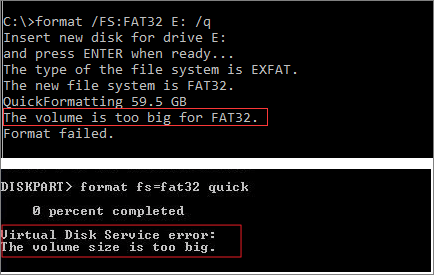
To solve the "volume is too big for FAT32" error, you can use alternative file systems like exFAT, which supports larger volumes than FAT32. You can format your 64GB or 128GB USB or hard drive in exFAT instead of FAT32. This will allow you to use the drive on both Windows and Mac computers. To do this, you can use the built-in formatting tools on your computer or a third-party software like Disk Utility or Rufus. Simply select the drive you want to format, choose the exFAT file system, and follow the prompts to complete the formatting process.
Fix The Volume Is Too Big for FAT32 with Command Prompt
Windows Disk Management or File Explorer won't allow you to create or format a FAT32 volume larger than 32GB, instead you can only choose NTFS or exFAT for the file system.
But there is a workaround to format FAT32 larger than by using the Diskpart utility in Command Prompt. Check the following steps.
Note: The command prompt (cmd) has a built-in limitation of formatting a volume to FAT32 if it's larger than 1TB. This is due to the FAT32 file system's inherent limitations, which include a maximum file system size of 2TB, but a maximum cluster size of 32KB, resulting in a maximum volume size of 1TB.
Step 1. In Windows 11/10, type "cmd" in the search box. Right-click on the Command Prompt result and select "Run as administrator."
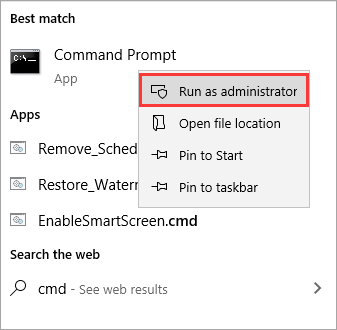
Step 2. In the command prompt, type diskpart and press "Enter".
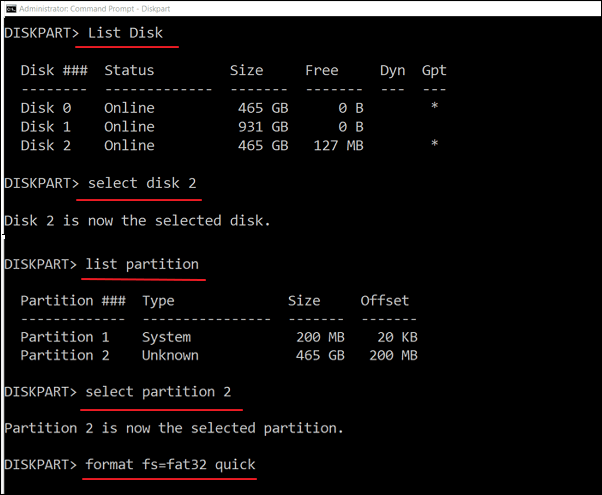
Step 3. Type the following command lines in order and press "Enter" after each.
list disk
select disk + disk number ( e.g. select disk 2)
list partition
select partition + volume number (e.g. select partition 2)
format fs=fat32
Another FAT32-When transferring a single file larger than 4GB to a FAT32 partition, you may encounter the issue of "File Is Too Large for Destination File System". This can be resolved by following an online tutorial that provides a step-by-step guide on how to transfer large files to FAT32 partitions.
Format a Drive Larger Than 32GB to FAT32 with PowerShell
You can format a USB or HDD larger than 32GB to FAT32 using Windows PowerShell.
Step 1. Click the Search button, and type PowerShell.
Step 2. Right-click Windows PowerShell from search results and choose "Run as administrator".
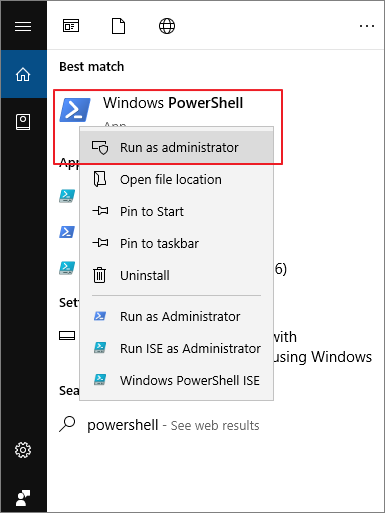
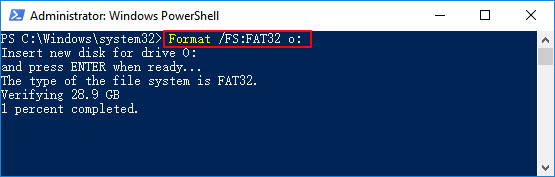
Step 3. The command to format a drive to FAT32 file system is "Format /FS:FAT32 O:" where "O" is the driver letter, which can be replaced with the actual drive letter. When you type this command and hit Enter, it will format the drive to the FAT32 file system.
Step 4. Wait for the process to finish. Type exit when it's done.
Format a Drive to FAT32 Without Limit by Using a Free FAT32 Format Tool
If the Command Prompt fails to format a large disk to FAT32 and shows the volume is too big for FAT32, a free FAT32 format tool can be used instead.
Qiling Partition Master Free is a powerful and reliable Windows 11/10 partitioning software that offers one-stop disk partition management solutions.
Download Qiling Partition Master Free to format a hard drive, USB flash drive, or an external hard drive to FAT32 without any size limitations.
Step 1. Launch Qiling Partition Master, right-click the partition you intend to format and choose "Format" to format the partition.
Step 2. Enter the Partition label, choose the file system, set the cluster size, and click "Proceed" in the new window.
Step 3. To format a partition to FAT32/EXT2/EXT3/EXT4, you will see a warning window, click "OK" in it to start the formatting process.
Fix The Volume Is Too Big for FAT32 by Converting NTFS to FAT32
You can directly convert a hard drive from NTFS or other file systems to FAT32 without formatting, preserving existing data.
Free Qiling partition management software offers various conversion options, including converting FAT32 to NTFS or NTFS to FAT32 without data loss, changing disk style from MBR to GPT or GPT to MBR, and converting dynamic disk to basic disk and vice versa.
To convert a USB drive larger than 32GB from NTFS to FAT32 without losing any data, follow these steps: First, ensure the USB drive is safely disconnected from your computer. Next, download and install a free partition manager software such as Qiling Partition Master or MiniTool Partition Wizard.
Step 1. To convert the target device partition to FAT, click on the target device partition, then click the "More..." button and select the option to "Convert to FAT".
Step 2. When the check process finishes, click "OK" to start the conversion from NTFS to FAT32.
Fix The Volume Is Too Big for FAT32 Error Easily
The "volume is too big for FAT32 or virtual disk service error" occurs when trying to format a large storage device, such as a 64GB flash drive or a 128GB, 500GB HDD, as FAT32 has a maximum volume size limit.
To format a large storage device to FAT32, you can use the following methods:
- Use Diskpart in Command Prompt
- Use Qiling FAT32 free format tool
- Convert NTFS to FAT32
If you're not comfortable using the CMD solution, we recommend using Qiling Partition Master Free to format a drive to FAT32 with a user-friendly interface. Alternatively, you can also use it to directly convert NTFS to FAT32 without losing any data.
Related Articles
- How to Repair and Restore Unallocated Space on a USB/SD Card
- Fix The File or Directory Is Corrupted and Unreadable in Windows 10/8/7
- Format SanDisk SD Card|How to Format SanDisk SD Card on Windows 10 and Mac
- How to Fix USB Shows Read Only Windows 11? [Solved]
- How to Wipe SSD for Reuse in Windows 11/10/8/7
How to wipe SSD for reuse? In This guide, you'll get the two best ways to wipe SSD for reuse. Hope they can be helpful to you. - How to Wipe Unallocated Space in Windows 10/8/7 [2 Efficient Ways]
This article discusses the importance of wiping unallocated space and provides two efficient methods to do so, including the use of a professional disk manager specifically designed for Windows.
Products
Articles & Tutorials
- Data Recovery
- Data Backup
- File Recovery
- File Backup
- System Backup and Restore
- Disk and Partition Clone
- Technical articles
- Mobile articles
- Disk Master Help
- Windows Data Recovery Tutorials
- Windows Secure Delete Tutorials
- Windows Partition Management Tutorials
- Windows File Backup and Restore Tutorials
- Windows System Backup and Restore Tutorials
- Windows Disk Backup and Restore Tutorials
- Windows Clone Tutorials