How to Open Command Prompt in Windows 11
| Workable Solutions | Step-by-step Troubleshooting |
|---|---|
| Option 1. Use Start Menu | First, we will show you how to open Command Prompt in Windows 11 from the Start Menu. You can activate this menu...Full steps |
| Option 2. Use Task Manager | Step 1. First, you need to run Task Manager. You can do this either through the Start Menu or by pressing the key...Full steps |
| Option 3. Launch Run Dialog Box | If you need an additional solution, here is how to open the Command Prompt in Windows 11 using the Run dialog box...Full steps |
| Option 4. Use File Explorer | First, open any window that has the File Explorer tab in it; Then, you can take one of two steps, depending on...Full steps |
| Option 5. Use Desktop Shortcut | First, you need to set up said Command prompt Windows 11 shortcut. You can do this by right-clicking anywhere ...Full steps |
| Extra Tips: Run Qiling Partition Master | One such alternative is the Run Qiling Partition Master, an excellent free software with an optional premium...Full steps |
Introduction
The Command Prompt is a pre-installed Windows software that has been present since the earliest versions of Windows. Its primary function is to execute scripts, run batch files, and run entered commands in a way that is helpful to the user.
While Command Prompt may require some technical knowledge to use effectively, it is frequently the most suitable method for resolving various Windows issues.
As a result, we have compiled a guide on how to start the said application and offer an alternative to it for those who have no luck using it.
After reading this guide, you will know where the Command Prompt in Windows 11 is located. You will also learn multiple ways to access it, depending on your needs and preferences.
Option 1. Use Start Menu to Open the Command Prompt
To open Command Prompt in Windows 11, activate the Start Menu by pressing the Windows key or clicking the "Start" button on the Taskbar.
To open the Command Prompt with administrator privileges, start by clicking the Start button and selecting the "All apps" option. This will open a list of your most commonly used apps, with the pinned ones on top of the screen. Then, right-click the Command Prompt app and select the "Run as Administrator" option.
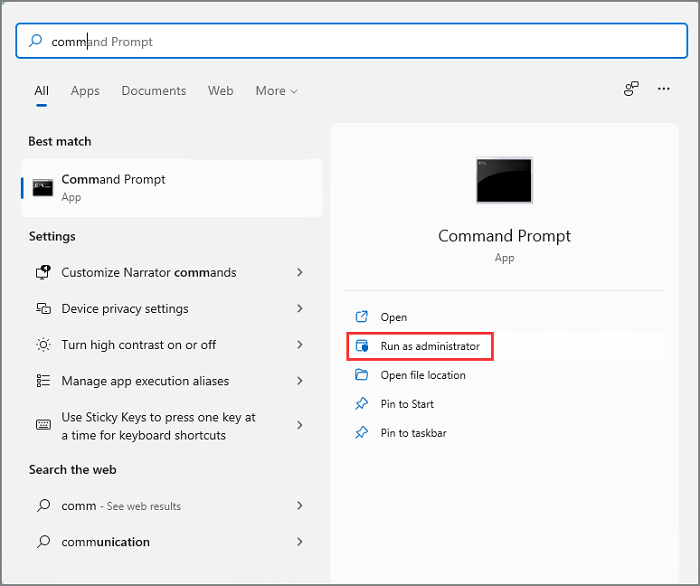
Once you have done this, the Command Prompt will open on your screen, and you can proceed using it from there.
Option 2. Open the Command Prompt by Task Manager
To open Command Prompt using Task Manager, follow these steps: Press the Ctrl + Shift + Esc keys to open the Task Manager, then click on the "File" menu and select "Run new task". Type "cmd" in the "Open" field and click "OK", which will open a new Command Prompt window.
Step 1. To run Task Manager, open the Start Menu or press the key combination Ctrl+Alt+Delete.
Step 2. To open the Task Manager, press the Ctrl + Shift + Esc keys on your keyboard. Then, in the Task Manager, go to File > Run new task.
Step 3. To start a command prompt, click on the Command Prompt option and type "cmd" in the text box, then press OK.
The Command Prompt will run without administrative privileges unless the box for giving administrative privileges is checked.
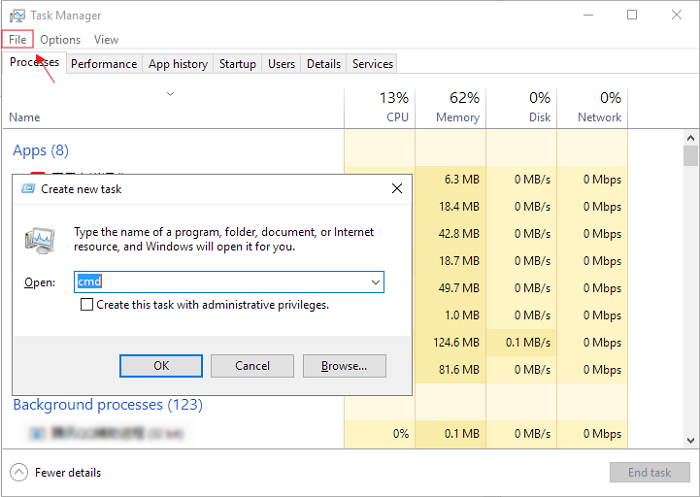
The box is underneath the 'cmd' letters, and checking it has the same effect as running as administrator.
Option 3. Launch Run Dialog Box
To open the Command Prompt in Windows 11, press the Windows shortcut WINDOWS + R to open the Run dialog box, then type "cmd" and press Enter.
Doing so will open a window that will look like this:
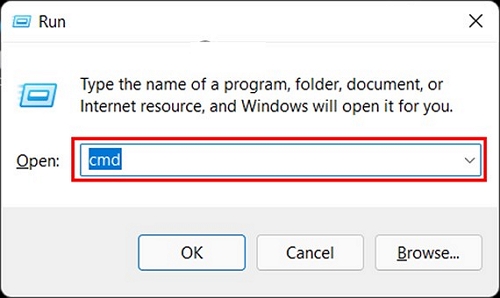
The Task Manager can be opened by typing "cmd" in the Run dialog box, which can be accessed by pressing the Windows key + R, and then clicking on the Task Manager icon. This will open a command prompt window that allows you to interact with the Task Manager.
Option 4. Run CMD via File Explorer
To open Command Prompt from File Explorer, navigate to the folder you want to access, right-click on it, and select "Open PowerShell Here" or "Open Command Prompt Here" depending on your preference. However, if you want to open Command Prompt directly without using the context menu, you can press Win + E to open File Explorer, navigate to the desired folder, and then press Ctrl + Shift + C to open the Command Prompt in that location.
To continue, open any window that has the File Explorer tab in it.
You have two options to consider. If you're more comfortable with a more hands-on approach, you can take the first step.
Run CMD via File Location
First, use the File Explorer textbox to navigate to the following path: C:\Windows\System32.
To open the Command Prompt, navigate to the Windows 32 system folder, double-click on the "cmd.exe" file, which will launch the Command Prompt.
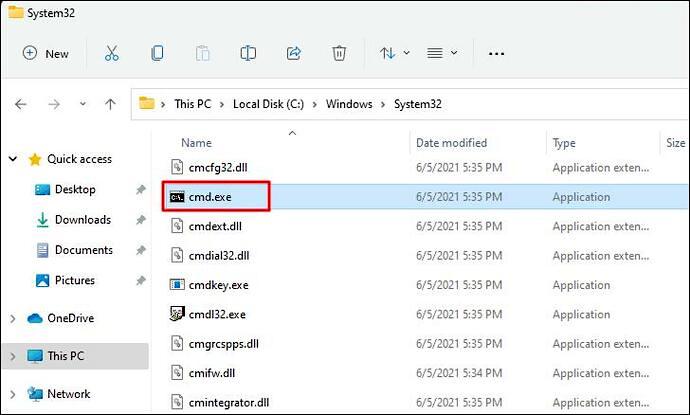
To access the app with administrative privileges, right-click on it and look for the "Show more options" button at the bottom, rather than simply double-clicking. This will provide the necessary permissions.
Left-To view legacy options, click on the link to expand the menu and display the legacy settings.
To run a command prompt with administrative privileges, click on the "Run as administrator" option. This will launch the command prompt with elevated permissions, allowing you to execute commands that require administrative access.
Run CMD via the Address Bar
To run CMD via File Explorer, simply type "cmd" in the address bar tab and press Enter. This will open the Command Prompt.
The image below visually shows the steps you need to take:
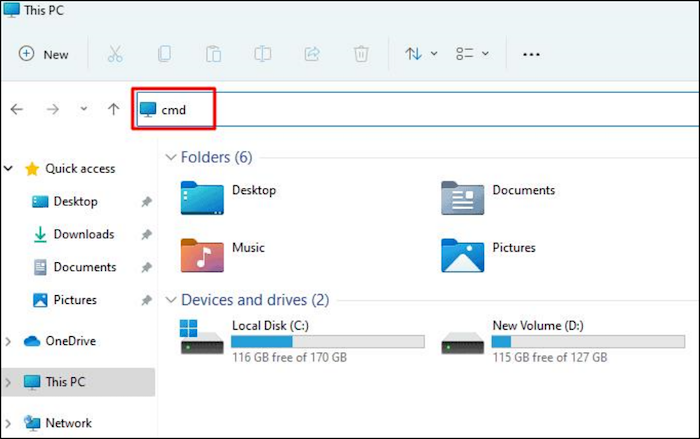
To run a command in Command Prompt, you should type it in, then press enter. For example, if you want to run the "ping" command, you would type "ping" and press enter.
Option 5. Use Desktop Shortcut to Open CMD
To open Command Prompt on Windows 11 with one click, simply create a desktop shortcut. You can do this by right-clicking on an empty area of your desktop, selecting "New" and then "Shortcut". Then, in the "Location" field, type "cmd" and click "Next".
First, you need to set up said Command prompt Windows 11 shortcut.
You can do this by right-To create a new shortcut, click anywhere on the desktop wallpaper, then select the "New Shortcut" option.
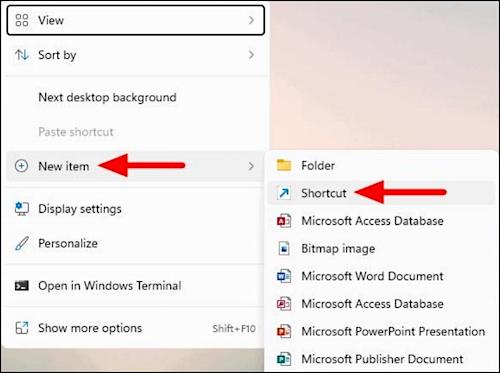
To create a shortcut to run Command Prompt, you will first need to create a new shortcut. This can be done by right-clicking on your desktop, selecting "New" and then "Shortcut". Once you have done so, you will need to choose just what your shortcut will run.
To create a shortcut, click the "New" button, then select "Shortcut" from the dropdown menu. In the "Create Shortcut" window, browse to the location of the shortcut you want to create, select the file, and click "Next". Then, type a name for the shortcut in the "Name" field and click "Finish".
To access the Command Prompt with administrator privileges, right-click on the shortcut and select "Run as Administrator".
Extra Tips: CMD Alternative! Run Qiling Partition Master
You don't need to use Command Prompt for all your hard drive and troubleshooting needs, as it can be difficult to use. Instead, software developers have created alternatives for more casual users.
One alternative to the Command Prompt for managing your hard drive is the free software Qiling Partition Master, which offers a simpler way to do everything the Command Prompt can do with an optional premium subscription.
The software enables the creation and resizing of partitions, supporting massive SSD capacities of up to 8TB, making it suitable for operating even a medium-sized server.
With a premium subscription, you can clone entire partitions, simplify data backup, and format partitions or entire disks without losing data.
Below is the partition cloning window:
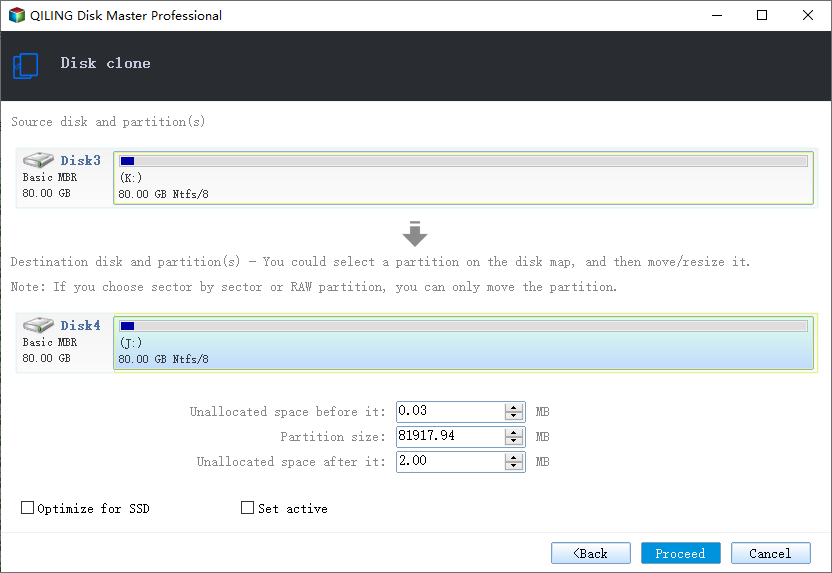
The premium version of the software allows for not only formatting partitions and hard drives but also completely wiping all data.
You can also use the feature to migrate your OS from one partition to another, or even to a different hard drive, without having to reinstall it.
Steps to migrate OS to HDD/SSD:
- Run Qiling Partition Master, select Migrate OS from the top menu.
- Select the SSD or HDD as the destination disk and click Next.
- The data and partitions on the target disk will be completely deleted. Before proceeding, ensure that you have backed up any important data to prevent loss. If you haven't backed up your data yet, please do so immediately.
- Then click Continue.
- Preview the layout of your target disk. Then click Proceed to start migrating your OS to a new disk
Note: When migrating an operating system to an SSD or HDD, be aware that the process will delete and remove existing partitions and data on the target disk if there is not enough unallocated space. To avoid losing important data, back up any saved files to an external hard drive beforehand.
In addition to creating a WinPE bootable disk, Qiling Partition Master also allows you to hide a drive in Windows 10. This software offers a range of features, including the ability to hide a drive, in addition to creating a WinPE bootable disk.
This app provides a simple and user-friendly interface that covers the majority of the Command Prompt's functions, making it a great option for average users who want a more streamlined experience.
Conclusion
The Command Prompt has been a crucial part of Windows since its inception, offering immense versatility. However, its complexity often hinders casual users from utilizing it to its full potential.
This guide provides a step-by-step approach to accessing the command prompt and offers a useful alternative for those who prefer it. By following these instructions, you can easily access the command prompt and take advantage of its features.
However, taking your time to learn the ins and outs of this Windows app can take you a long way towards becoming a tech-savvy person, and I recommend doing so.
Related Articles
- How to Recover Accidentally Deleted Operating System in Windows 11/10
- Format USB Drive to NTFS in Windows 10 (All 4 Ways)
- Toshiba USB Flash Drive Write Protected Removal/Format Solutions
- Delete or Format? How to Clear An SD Card on Windows
- Can Windows 10 Be Cloned [2024 Fullest Guide]
This article covers the theme Can Windows 10 Be Cloned and introduces a professional tool to clone Windows 10. - Can't Install Windows 7 on Dynamic Disk - 3 Fixes 🔥
To fix the error of installing Windows 7 on a dynamic disk, you can try the following methods. Firstly, you can convert the dynamic disk to a basic disk using the built-in Disk Management tool in Windows.
Products
Articles & Tutorials
- Data Recovery
- Data Backup
- File Recovery
- File Backup
- System Backup and Restore
- Disk and Partition Clone
- Technical articles
- Mobile articles
- Disk Master Help
- Windows Data Recovery Tutorials
- Windows Secure Delete Tutorials
- Windows Partition Management Tutorials
- Windows File Backup and Restore Tutorials
- Windows System Backup and Restore Tutorials
- Windows Disk Backup and Restore Tutorials
- Windows Clone Tutorials