Format USB Drive to NTFS in Windows 10 (All 4 Ways)
Formatting a USB drive to NTFS in Windows 10 can be a useful solution for users who need to copy large files, fix a RAW USB drive, or restore its full capacity, but it requires careful management to avoid losing data, especially for those with limited computer knowledge.
You can format a USB drive to NTFS using one of four simple methods, some of which allow you to keep your existing data. These solutions can also be applied to other removable storage devices, such as SD cards, external hard drives, and pen drives.
If there are a ton of files on the USB drive and you don't have the free space to move them around, you can directly convert the file system of the flash drive to NTFS without formatting or losing data. Here you can try to do this job in two ways:s:
| Workable Solutions | Step-by-step Troubleshooting |
|---|---|
| Two ways to convert USB to NTFS in Windows 10 without formatting |
Method 1. Convert to NTFS using cmd: press Windows + X keys to bring up the context menu...Full steps Method 2. Convert to NTFS with Qiling partition...Full steps |
| To format a USB drive to NTFS in Windows 10, you can use the built-in formatting tool. Open File Explorer, right-click on the USB drive, and select "Format. |
Method 1. Format USB drive to NTFS using Windows File Explorer...Full steps Method 2. Format USB drive to NTFS using Disk Management: Right-click on This PC and then...Full steps |
Two ways to convert USB to NTFS in Windows 10 without formatting
Method 1. Convert to NTFS using cmd
1. In Windows 10, press the Windows key + X keys simultaneously to bring up the context menu.
2. To open up an Administrator mode command, you can choose Command Prompt (Admin) from the Start menu, which will allow you to run commands with elevated privileges.
2. Type convert (drive letter): /FS:NTFS, for example, convert G: /FS:NTFS.
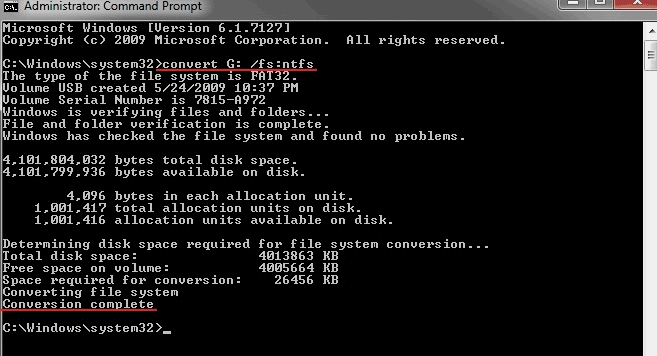
After several simple steps, Windows will immediately start the file system conversion job, which may take a while, especially for large drives.
Method 2. Convert to NTFS with Qiling free partition software
If you're not comfortable using the cmd method, you can try converting your USB drive to NTFS using a third-party free software. One option is Qiling Partition Master Free, a free and easy-to-use disk and partition management tool for Windows that can help you format or convert your USB drive to NTFS in just a few clicks.
Step 1. Install and launch Qiling Partition Master on your computer.
Step 2.To convert a FAT32 partition to NTFS, select the FAT32 partition, right-click on it, and choose "Convert to NTFS". This can also be done for storage devices like SD cards or USB flash drives, which should be inserted into the PC first.
Step 3. Click "OK" on the pop-up dialog box to continue.
Step 4. Now the converting process will start automatically. Wait until the operation process is finished.
If there's no important data on your USB flash drive or other devices, you can choose to format the partition directly, which will erase all data and allow you to format the drive to FAT32 or NTFS in Windows 10/8/7. Alternatively, you can use Windows' built-in disk formatting tools to achieve the same result.
Format USB drive to NTFS in Windows 10 with Windows formatting tool
To format a disk, first copy important files to a safe location to avoid data loss. Then, you can proceed with the formatting process. If you need to recover data from a formatted USB drive, consider using a data recovery tool like Deep Data Recovery, which can help recover lost files with success.
Method 1. Format USB drive to NTFS using Windows File Explorer
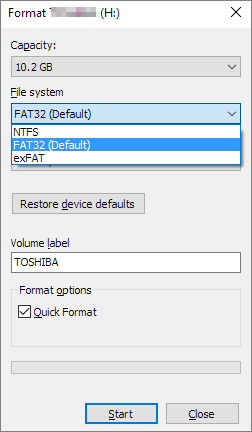
1. To format a USB drive on Windows 10, open File Explorer, locate the USB drive, right-click on it, and select the "Format" option.
To format the drive, select the drive you want to format and set NTFS as the target file system. Then, check the box next to "Quick Format" and click the "Start" button to begin the formatting process.
3. When the process is complete, click "OK" to confirm, and your USB drive will be formatted to NTFS.
Method 2. Format USB drive to NTFS using Disk Management
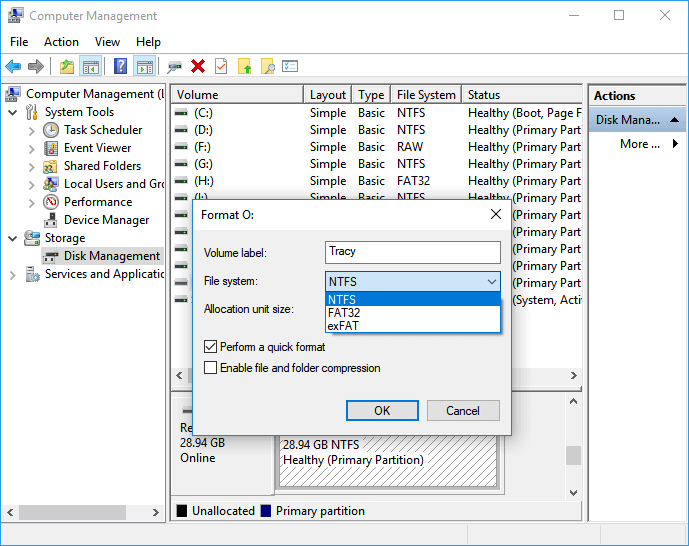
1. Right-click on "This PC" and then select "Manage", and from there, choose "Disk Management".
To format a USB flash drive or external hard drive, locate and right-click on the device, then select "Format" from the context menu.
3. Set the USB file system to NTFS, select "Quick Format" and click "OK" to confirm.
To Sum Up
Formatting a USB drive or stick to NTFS in Windows 10/8/7 can be done in four ways, requiring minimal time and effort. You can choose the method that suits your preference, but keep in mind that formatting via File Explorer and Disk Management will result in data loss, so it's essential to take data recovery and backup measures beforehand.
Users often search for the best way to format a USB drive in Windows 10, but they also have other questions related to this topic.
1. Why am I unable to format USB drive Windows 10?
If your USB drive is corrupted, it may fail to format when you right-click and format in Windows Explorer. In this case, you can try formatting it using the Command Prompt or a disk formatting tool.
2. How to format a flash drive on Mac?
To format a USB drive to FAT32, you can follow these simple steps. Firstly, insert the USB drive into your computer and open the File Explorer.
- Connect the USB flash drive to your Mac computer.
- To access Disk Utility, go to Applications > Utilities and double click to open it.
- Select your USB flash drive on the sidebar, choose Erase.
- To format the USB flash drive, rename it, select MS-DOS (FAT) as the format, Master Boot Record as the scheme, and then click Erase.
- Format USB flash drive to FAT32 on Mac
3. Should I format USB drive to FAT32 or NTFS?
FAT32 is compatible with all operating systems due to its simplicity and long history, whereas NTFS is more robust and effective, with advanced data structures that improve reliability, disk space utilization, and performance. Although NTFS has gained popularity, FAT32 remains more universal.
When formatting a USB drive, consider portability and file size limits to make your decision.
Related Articles
- [Fixed] Windows Cannot be Installed to This Disk. The Selected Disk is of the GPT Partition Style
- Fix 'The Specified Disk Is Not Convertible' Error in Windows
- Can I Install Windows 11 on Windows 10? Download Windows 11 Now
- Don't Miss Best FAT32 Formatter: How to Choose A Free FAT32 Format Tool
- 3 Methods: Fix MBR2GPT Validation Failed (Video Tutorial Attached)
The post discusses the MBR2GPT validation failed error, highlighting the reasons behind it and providing solutions to fix the issue in Windows 11, 10, 8, and 7. - Upgrade BIOS to UEFI Before You Want to Convert MBR to GPT
How to upgrade BIOS to UEFI before converting MBR to GPT? In this post, detailed steps will be given to help get it done easily.
Products
Articles & Tutorials
- Data Recovery
- Data Backup
- File Recovery
- File Backup
- System Backup and Restore
- Disk and Partition Clone
- Technical articles
- Mobile articles
- Disk Master Help
- Windows Data Recovery Tutorials
- Windows Secure Delete Tutorials
- Windows Partition Management Tutorials
- Windows File Backup and Restore Tutorials
- Windows System Backup and Restore Tutorials
- Windows Disk Backup and Restore Tutorials
- Windows Clone Tutorials