How to Format USB Flash Drive to FAT32 on Mac without Data Loss
If you're looking for a secure way to format a USB drive to FAT32 on a Mac, there are two methods to consider. You can follow the steps to format your storage device using the built-in Disk Utility app, which will erase all data on the drive. If you accidentally lose data during the formatting process, you can use reliable Mac file recovery software to recover your files.
| Workable Solutions | Step-by-step Troubleshooting |
|---|---|
| Method 1. Use Disk Utility | Connect USB to Mac > Go to Applications > Utilities > Disk Utility > Select USB and click "Erase"...Full steps |
| Method 2. Use Terminal Command | Connect USB to Mac > Hit cmd + space keys > Type terminal and hit Enter...Full steps |
| Bonus Tip. Recover Formatted Data | If you lost data due to formatting, run Qiling file recovery software > Scan and recover formatted data...Full steps |
How to Format a USB Flash Drive with Mac to FAT32
Computer users who use a USB might have the demand for formatting it to the FAT32 file system, which has a compatibility advantage across many operating systems, compared to NTFS on a flash drive.
The FAT32 file system is a universal format that is compatible with Mac OS X/macOS, Windows, Linux, and DOS systems, making it ideal for users who anticipate using their USB flash drive with multiple operating systems. To format a USB flash drive to FAT32 on a Mac, users can use either Disk Utility or the Terminal command line, with detailed steps available for both methods.
Method 1. Format FAT32 on Mac [Disk Utility]
To format a USB drive to FAT32 using Disk Utility, it's essential to note that this process will erase all data on the drive, so it's crucial to back up any important files to another secure device beforehand.
To format the USB drive to FAT32, follow the next steps:
Step 1. Connect the USB flash drive to your Mac computer.
Step 2. Open the Disk Utility app from the Utilities folder.
Step 3. Select your USB flash drive on the sidebar, choose Erase.
Step 4. Rename the USB flash drive (optional).
Step 5. To format the drive, select MS-DOS (FAT) as the format and Master Boot Record as the scheme. Then, click the "Erase" button.
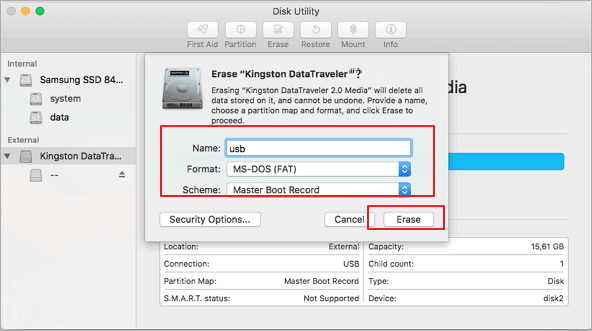
Wait for the process to complete, then you'll have an empty new USB flash drive with FAT32 as the file system, ready to save data again.
Method 2. Format FAT32 on Mac [Terminal Command Line]
The command-line method to format a USB drive to FAT32 on Mac uses the Terminal app. To erase and format data, you can use the `diskutil` command. Be sure to create a backup of your data before proceeding, as this action will permanently delete all data on the selected drive.
To format FAT32 on Mac with Terminal, follow the next steps:
Step 1. Connect the USB flash drive to your Mac computer.
Step 2. To open the Terminal app on a Mac, press the Command (⌘) and Space keys at the same time, then type "Terminal" and press Enter. Alternatively, you can use Spotlight by pressing ⌘ + Space, typing "Terminal", and pressing Enter.
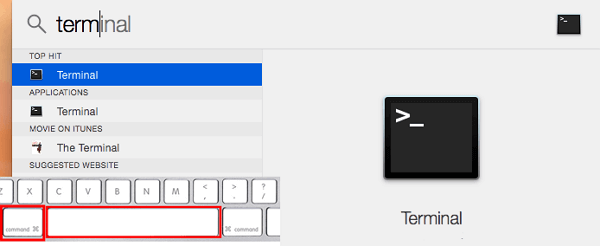
Step 3. Type: diskutil list and find out which disk is your USB drive.
Step 4. Type: sudo diskutil eraseDisk FAT32 MBRFormat /dev/disk2.
- sudo gives you user right.
- Diskutil calls disk utility program.
- eraseDisk commands to format.
- FAT32 sets the file system.
- MBRFormat tells disk utility to format with a Master Boot Record.
- /dev/disk2 is the location of the USB drive.
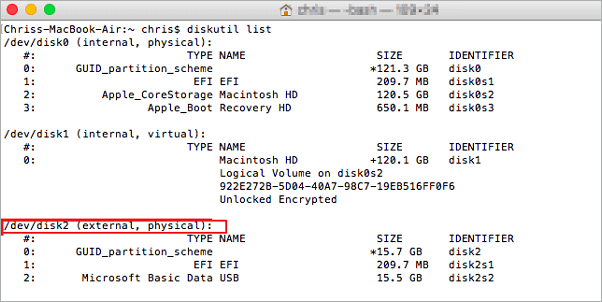
Wait for the process to complete. You can then run the command "diskutil list" again to verify if the formatting was successful.
Bonus Tip: How to Recover Data from Formatted USB
Formatting a USB drive will erase all data on it, so make sure you have a backup before proceeding. If you don't have a backup, data recovery software can help retrieve lost data.
Deep Data Recovery has both Windows and Mac versions, making it a good choice for data recovery, regardless of the operating system used. The Mac version is easy to use, requiring only a few clicks to scan and display formatted data. A free version is available for Mac users to try before committing to a purchase, allowing users to preview the recovered data before the final recovery.
To recover data from a formatted USB flash drive on Mac, you can use the Disk Utility tool to scan and recover deleted files. First, connect the USB drive to your Mac and open the Disk Utility app.
Step 1. To recover data from a USB flash drive on a Mac, start by connecting the drive to your computer. Then, launch the Deep Data Recovery for Mac software. Then, select the file types you want to recover and click the "Fast Scan" button to begin the recovery process.

Note: You can choose different search modes based on where and why the data was lost.
Step 2. Select the flash drive and click "Scan" to search for lost files on it.

Step 3. All files will be shown in the left panel after a quick scan and a deep scan in the scan results.

Step 4. Select the files you want to recover and click the "Recover" button, but avoid saving the recoverable files to the USB drive itself to prevent data overwriting.
Related Articles
- Accidentally Clicked Don't Save Word Mac? Recover Unsaved Word
- CF Card Recovery Mac: How to Recover CF Card Data on Mac
- Mac Won't Boot into Recovery Mode Fixes | Mac Command R Not Working Solutions
- How to Find External Hard Drive on Mac In Case It's Working but Not Showing Up
- How to Fix SSD Not Showing Up in Windows 11/10/8/7
If your SSD is not showing up, it's a common issue with various causes. Fortunately, there are solutions to this problem, and we've listed them in this article, tailored to help you resolve the issue on Windows 11, 10, 8, or 7. - 4 Ways to Fix the Parameter is Incorrect in External Hard Drive
Here are 4 ways to fix the problem of the parameter is incorrect in an external hard drive, solve the problem and recover data in external hard drive: Check the connection, update the drive's firmware, run a disk check and repair, and recover data using data recovery software.
Products
Articles & Tutorials
- Data Recovery
- Data Backup
- File Recovery
- File Backup
- System Backup and Restore
- Disk and Partition Clone
- Technical articles
- Mobile articles
- Disk Master Help
- Windows Data Recovery Tutorials
- Windows Secure Delete Tutorials
- Windows Partition Management Tutorials
- Windows File Backup and Restore Tutorials
- Windows System Backup and Restore Tutorials
- Windows Disk Backup and Restore Tutorials
- Windows Clone Tutorials