The Local Device Name Is Already in Use
What is the "The Local Device Name is already in Use" Error?
The "Local Device Name is Already in Use" error occurs when trying to access a network drive, typically due to an existing network drive mapping with the same name.
When a user tries to access a file in a shared folder or map certain drives on a network domain,
The error "The Local Device Name is already in use" typically indicates that the device name assigned to a device is already being used by another device in the system, preventing the current device from being recognized or accessed. This can occur in various contexts, such as when trying to connect a device to a computer, setting up a network, or configuring a device's settings.
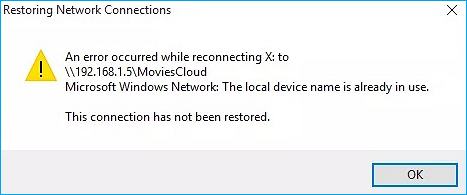
Some Solutions for "The Local Device Name is Already in Use" Error:
Here are a few solutions for the "The Local Device Name is Already in Use" error:
Solution 1. Remap the Drive Using Command Prompt
Microsoft recommends using Command Prompt to remap the Drive, which has been a successful solution for many users who have tried it, making it one of the most used methods for resolving this issue.
Check some steps you need to do:
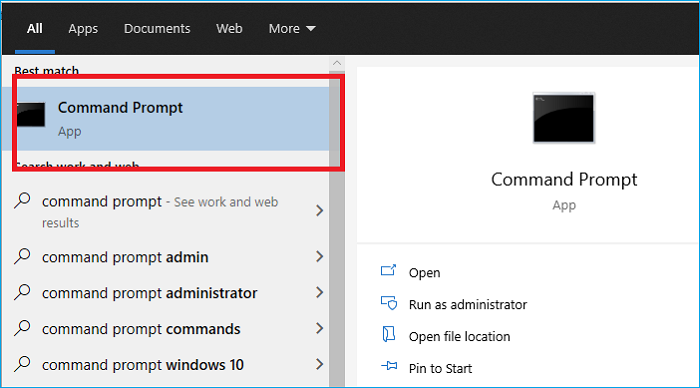
- To open the Command Prompt on your PC, tap the search button on your screen, type "Command Prompt" and select the result from the list that appears.
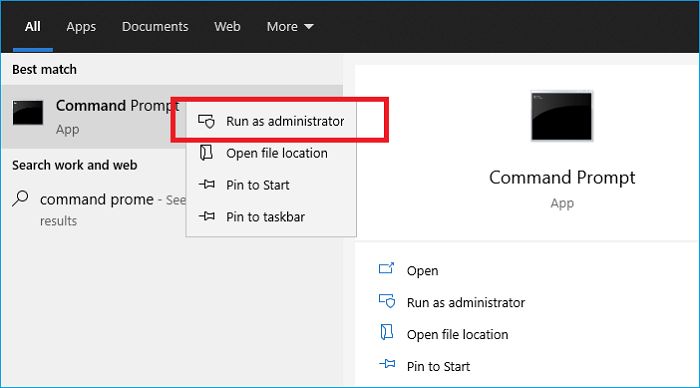
- Select the first result and the "Run as administrator" option.
- Copy this command and after pasting it in the command line, click Enter key.
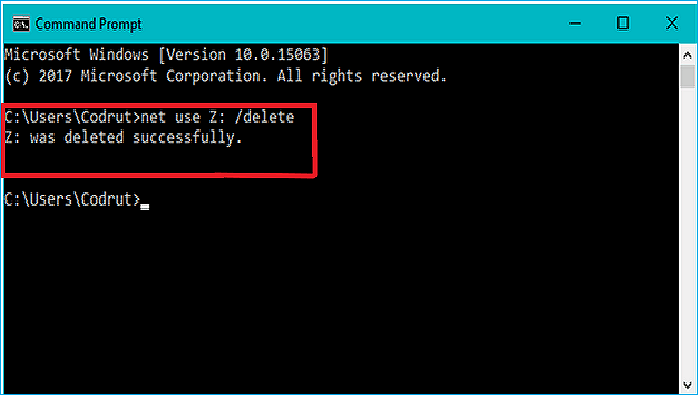
- After completing this operation, type and run this command described below:
net use Z: \\server\share /user:username password
- To resolve the issue, replace the username and password in the connection string with the correct credentials. Then, verify if the error "The Local Device Name is already in use" has been resolved. If the issue persists, proceed with further troubleshooting steps.
Solution 2. Reinitializing Computer Browser
In some cases, conflicts between the computer's browser and the operating system may occur. To resolve this, try closing the browser. This should resolve the issue.
To do that, some steps:
- To open the Run Prompt, press the "Windows + R" keys simultaneously, which will open the Run dialog box.
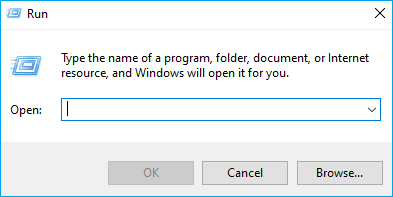
- To run the Command Prompt as an administrator, type "cmd" in the Run dialog box (Windows key + R), then press "Shift" + "Ctrl" + "Enter" to grant administrative privileges. This will allow you to execute commands with elevated permissions.
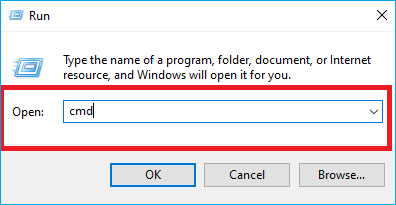
- A prompt is shown on the screen asking for permission to install an application, which will make changes to the computer. The user is asked to click "yes" to allow the installation.
- Put command and press "Enter".
- "net stop" Computer Browser".
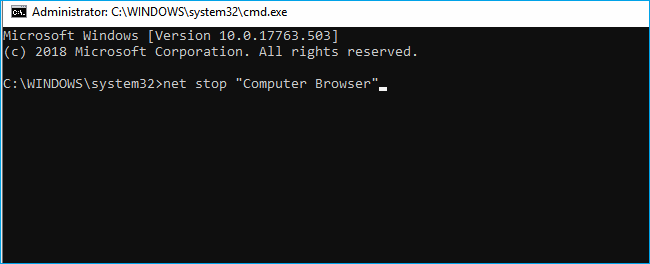
Execute this stop command
- Wait for the executing command, type in this command, and press "Enter".
- net start "Computer Browser".
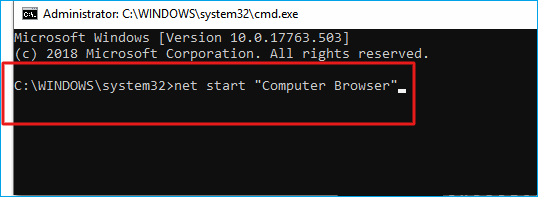
- Execute the "Start" command.
- Check if the issue is resolved.
Solution 3. Assign a New Drive Letter
To resolve the issue, you can use Qiling Partition Master, a tool that enables you to manage a USB HDD, pen drive, or flash drive, making it easy to manage disk space, even for non-professionals or first-time users.
To optimize your USB hard drive performance, the Qiling Partition Master manager is an excellent tool to use, eliminating the need for a separate hard drive. It offers several useful features.
- User-friendly interface
- You can resize, copy, merge and delete partitions
- Your data is fully secure
- Easy to use
- Manages disk space efficiently
- Splits the space into several partitions
Step 1.To change the drive letter of a partition in Qiling Partition Master, run the software, right-click the partition you want to modify, and select the option to change the drive letter. This will allow you to assign a new letter to the partition, effectively changing its drive letter.
Step 2. In the new window, select the drive letter for the partition from the dropdown menu.
Solution 4. Delete Problematic Registry Key
If all the above methods failed, delete a certain problematic registry key to resolve the issue. This method has been successful for users who struggled with CD/DVD and virtual drives.
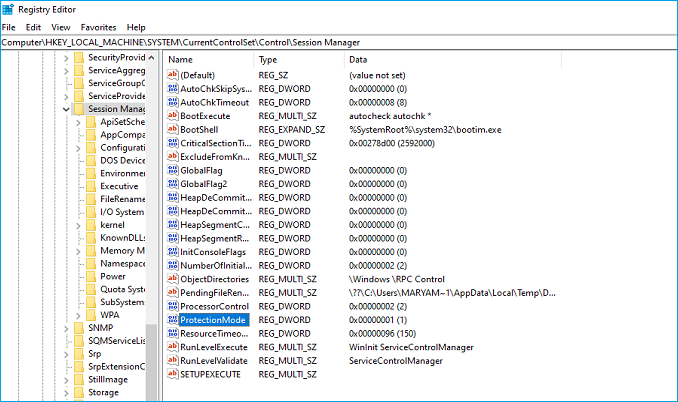
You can't change the value of 'Protection Mode' through the registry for Windows. The 'Protection Mode' setting is a system-wide setting that is controlled by the operating system and cannot be modified through the registry.
Microsoft acknowledges the Protection Mode workaround, which is a result of users upgrading from an earlier Windows version as non-administrative users.
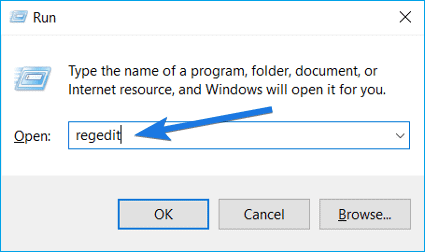
- 1. Press the Windows key + R at the same time to open the Run dialogue box. In the box, type "regedit" and press Enter to open the Registry Editor.
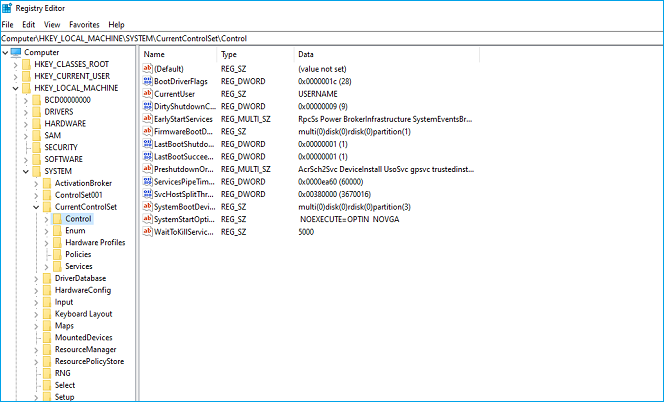
- 2. Navigate to the following path:
- 3. HKEY_LOCAL_MACHINE\System\CurrentControlSet\Control\SessionManager\
- 4. Search for the following key: Protection Mode
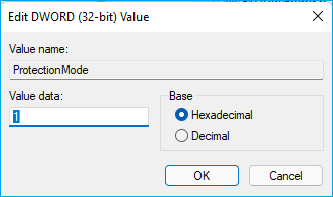
- 5. Make some changes; change the key from 0 to 1.
If you're experiencing issues with your computer, try restarting it and see if the problem is resolved. If not, you can try deleting mappings by using the command "netsh int ip delete" in the command line, followed by restarting your computer again. This should resolve the issue.
To delete all network drive mappings, use the command "net use * /del /y" and replace the "*" with the actual drive letter you want to delete. For example, if you want to delete a network drive mapped to drive Z, the command would be "net use z: /del /y".
Solution 5. Enable File and Printer Sharing in Firewall
If you disable the File and Printer Sharing in any firewall you use, you'll experience issues with shared drives.
If there are no other firewalls installed, Windows Defender Firewall will be turned on by default when you open your PC.
- To start the Control Panel, click on the search button located in the right corner of the screen.
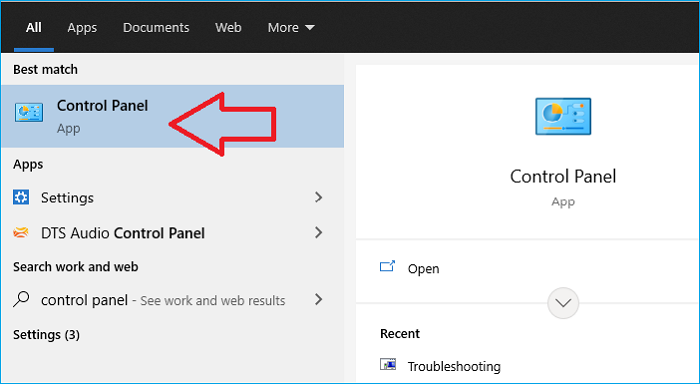
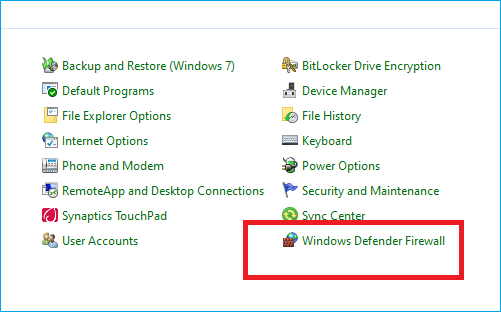
- After opening the Control Panel, navigate to the bottom to check the Window Defender Firewall and ensure it's open.
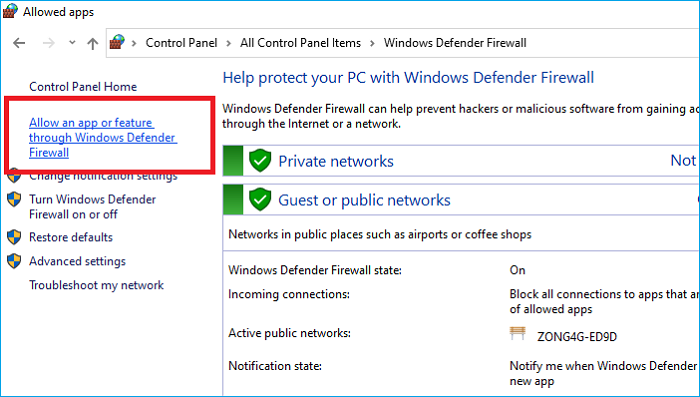
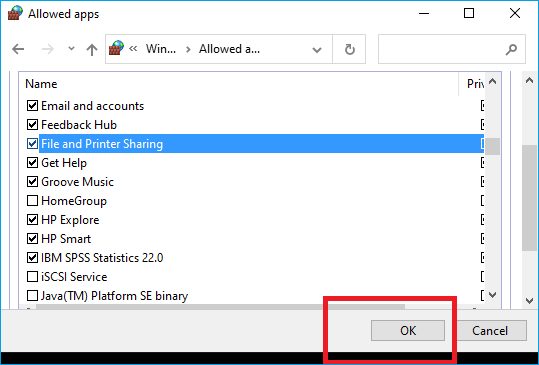
- To allow an app or feature through Windows Firewall, click on Windows Defender Firewall and select "Allow an app or feature through Windows Firewall". A list of installed apps will open, and you can make changes by clicking the "Change settings" button at the top right of the window. If prompted, provide administration permission to make the necessary changes.
- Next, please move to the File and Printer Sharing option and check the box next to it before clicking OK and applying the changes.
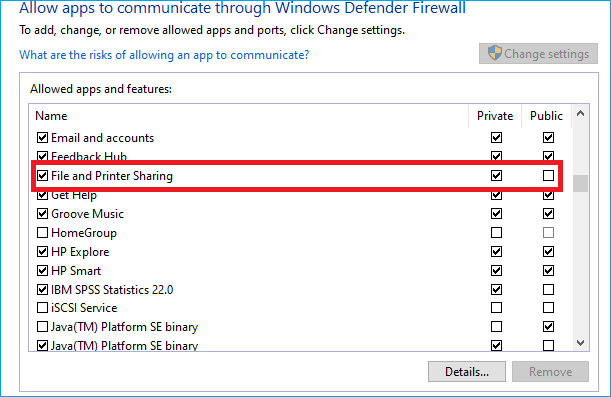
- To resolve the issue, click the "OK" button, then restart your computer. After restarting, check the status of the error to see if it has been resolved.
Solution 6. Check there is Enough Space on the Server
This error may occur if there's not enough space on the server computer. To fix it, ensure there's enough free space on the server's root drive by deleting unnecessary files.
There is no specific free space requirement, but having a couple of gigabytes available on your device can help you determine if the problem is resolved.
Causes of "The Local Device Name is already in Use" Error
When encountering the error "The local device name is already in use", it's essential to understand the underlying reasons for this issue, which will enable you to resolve the problem efficiently.
This article aims to help you understand the causes of the problem you're facing, saving you time and making your job easier once you grasp the underlying reasons for the error.
The following are some possible causes:
- Drive mapping went wrong
Sometimes network drive mapping process produces Problems like this Error.
- The file and Printer sharing option is disabled
In case of disabled File and Printer Sharing on your PC, you may face this problem which makes networking tasks difficult, as it prevents your PC from sharing files and printers with other devices on the network.
- Some drive letters are unassigned
In case drives may have incorrect or even missing drive letters, this Error occurs.
- Space deficiency in server
Users should have a couple of gigabytes of free space on the root drive of the network's server to resolve the issue.
Conclusion
To resolve the "Local Device Name is already in use" error, use Qiling Partition Master to allocate spaces, manage files, and provide user-friendly guidelines.
Related Articles
- 10 Ways to Open File Explorer: Fix 'Where is File Explorer on My Computer'
- How to Partition Hard Drive Disk without Formatting
- How to Set SSD as Boot Drive [2022 Updated]
- Resize Partition Under Windows 7 (32 Bit and 64 Bit)
- Tutorial: Check Disk Space on Windows 10 Using CMD 2024
Do you know how to check disk space on Windows via CMD? CMD is a disk utility built-in in Windows. This article provides a full tutorial to check disk space in Windows 10 CMD. Dive into learning. - How to Check Total Disk Space in Windows 11 [Best Solutions Here]
Want to learn how to check the total disk space in Windows 11? This guide will provide three ways to do so, using a professional disk space analyzer, Windows Settings, Disk Management, and CMD to check hard drive space.
Products
Articles & Tutorials
- Data Recovery
- Data Backup
- File Recovery
- File Backup
- System Backup and Restore
- Disk and Partition Clone
- Technical articles
- Mobile articles
- Disk Master Help
- Windows Data Recovery Tutorials
- Windows Secure Delete Tutorials
- Windows Partition Management Tutorials
- Windows File Backup and Restore Tutorials
- Windows System Backup and Restore Tutorials
- Windows Disk Backup and Restore Tutorials
- Windows Clone Tutorials