How to Use DiskPart to Delete All Partitions in Windows
In Windows 10, you can use the built-in DiskPart tool to delete all partitions on an SSD at once, effectively wiping the drive. This free tool allows for complete removal of all partitions and formatting of the drive.
This guide will help you clean up a drive for free using DiskPart, a utility that not only deletes volumes but also allows you to create, extend, and format volumes. Let's get started.
Delete All Partitions Using DiskPart - How-to Guide
To delete all partitions on a Windows computer, two DiskPart commands can be used: one for deleting all partitions and the other for deleting all partitions and then creating a new one. The first command, "clean", is used to delete all partitions, while the second command, "clean all", is used to delete all partitions and then create a new one. However, the "clean all" command is not recommended as it can cause data loss.
DiskPart Clean Command Deleting all partitions at once can quickly clean a drive of data, but the deleted partitions and data can still be recovered.
DiskPart Clean All Command - Delete all partitions and wipe hard drive at one time, erase and reset the hard drive. So deleted partitions and data are permanently erased, unrecoverable.
So how to use these two command lines? Let's start.
Before proceeding, open Disk Management and verify the number of your target disk where you want to remove all partitions.
Right-click Windows icon > Disk Management > Disk number.
Notice:
Before running the "clean" command in Diskpart, make sure to back up all essential data as it will delete all partitions and remove all saved data from your disk.
#1. Delete All Partitions Using DiskPart Clean Command - Clean Disk
Step 1. To open Command Prompt with administrator privileges, press the Windows key + R to open the search menu, type "cmd" and press Enter. Then, right-click on the Command Prompt icon that appears and select "Run as Administrator".
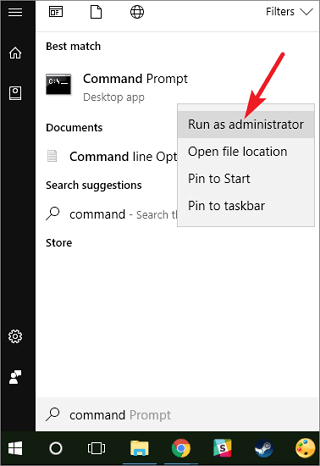
Step 2. Click Yes to let Windows run Command Prompt in Admin right.
Step 3. Type diskpart and hit Enter.
Step 4. Type the following command lines one by one and hit Enter each time:
- list disk
- To select a specific disk for the installation process, type "select disk #" in the command prompt, replacing "#" with the actual number of the target disk. For example, if you want to install the operating system on the second disk, you would type "select disk 2". This command will allow you to specify the disk where the installation will take place.
- clean
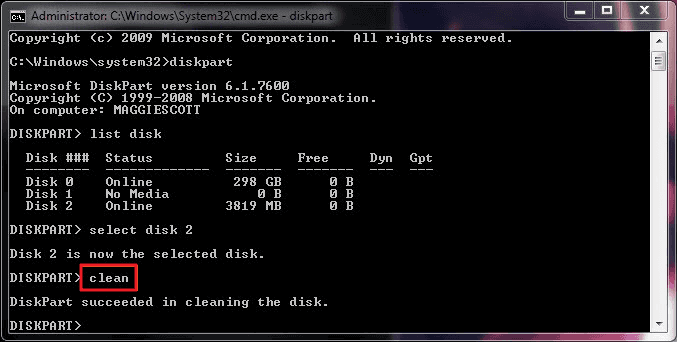
Step 5. Type exit to close the DiskPart command window when the cleaning process completes.
Now, you may see that your disk is showing unallocated in the disk management.
#2. Delete All Partitions Using Diskpart Clean All Command
To wipe a hard drive or reset it, you can use a software tool like DBAN (Darik's Boot and Nuke) or a built-in feature like Disk Cleanup in Windows or Disk Utility in macOS. These tools will erase all data on the hard drive, including operating systems, programs, and personal files.
Step 1. Open DiskPart by pressing Windows + R keys, type cmd, and right-click Command Prompt.
Click Run as Administrator > Type diskpart and hit Enter.
Step 2. Click Yes to allow DiskPart to run on Windows as Admin.
Step 3. Type the following command lines and hit Enter each time:
- list disk
- To erase the disk, type `select disk #` and replace `#` with the number you want to wipe. For example, if you want to wipe disk 1, you would type `select disk 1`.
- clean all
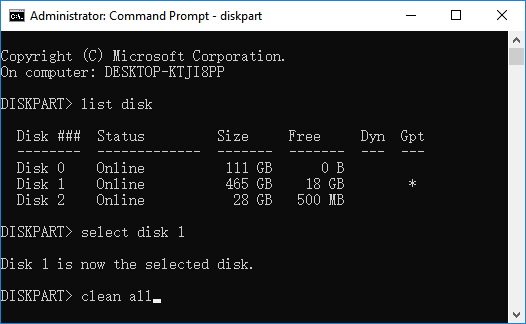
Step 4. When the process completes, type exit to close the DiskPart window.
Now your drive is reset as a new disk. All your data are gone.
Two DiskPart Alternatives to Delete All Partitions on a Hard Drive
For Windows beginners, using DiskPart command lines to manage hard drives can be overwhelming. Fortunately, there are alternative tools that are even easier and more efficient, allowing you to delete all partitions on your disks without the complexity of command lines.
#1. Using Third-party Partition Manager Software
When searching online for partition manager software, hundreds of disk managing tools and utilities appear in the search results. For many Windows users, the ideal scenario is to delete all partitions on a drive with just a few clicks.
Qiling's Partition Master software, which includes a Delete All feature, can assist with partition management.
Step 1. Launch Qiling Partition Master on your computer, select a partition to delete, and click "Delete" in the "Disk management" page.
Make sure that you've backed up the important data on the selected partition because this manner will compeletely erase data there.
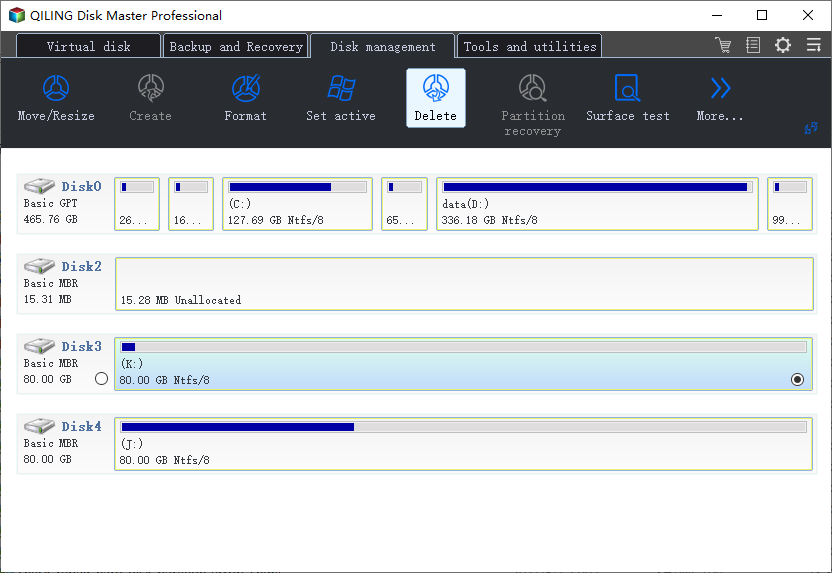
Step 2. Click "Proceed" to confirm the deletion.
#2. Using Disk Management
Windows Disk Management allows beginners to easily delete partitions, but it has a limitation of only being able to delete one partition at a time. It is a free tool.
To delete all partitions on your drive, you'll need to repeat the operating process several times. This involves booting from a live USB or CD, accessing the disk management tool, selecting the drive you want to delete partitions from, and then deleting each partition one by one. Be cautious, as deleting partitions will erase all data on the drive.
Step 1. Right-click the Windows icon and select Disk Management.
Step 2. On the target disk, right-click a partition and select Delete Volume.
Step 3. Select Yes to remove the selected volume.
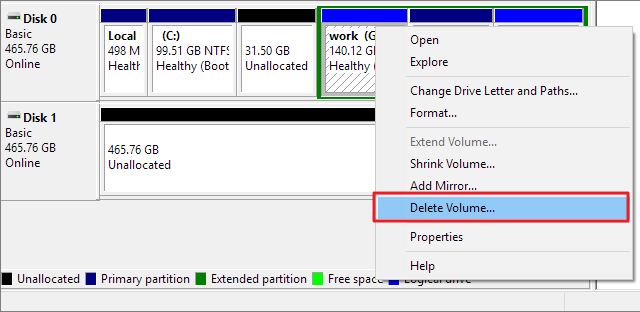
Step 4. Repeat the process to delete all partitions on the target disk.
What Is the Fastest Way to Remove All Partitions from a Drive
DiskPart is a command interpreter that enables Windows users to manage their computer's disk drives, offering functionality comparable to third-party partition manager software and Windows' built-in disk management tools. It allows users to perform various tasks related to hard drive management, such as managing disk drives.
- Create new volume
- Extend partition
- Format volumes
- A clean drive can be achieved by deleting one partition, deleting all partitions, or using a disk wiping tool to completely erase the drive. This process can be done using a computer's built-in disk management tool or through a third-party software.
We compared three methods for removing all partitions on a 2TB hard drive with 4 volumes. The results showed that the fastest method was not specified, but it's likely that a method that directly deletes all partitions without requiring user interaction or verification would be the quickest. The actual fastest method was not mentioned in the text, but it's implied that one of the three methods tested would be the fastest.
| Comparison | DiskPart: Clean Command | Disk Management: Delete Volume | Qiling Partition Master: Delete All |
|---|---|---|---|
| Steps to Delete All Partitions | At least 5 steps. | More than 5 steps. | 2 steps. |
| Duration | 45s | 40s | 15s |
| Pros |
|
|
|
| Suitable users | Experienced & professional users. | Beginners. | All levels of users. |
The table shows that all three tools can delete volumes on a computer, with Qiling Partition Master being the easiest solution to clean a disk, especially when using its Delete All feature. If you need to clean an OS drive, Qiling Partition Master is the best option.
DiskPart Delete Command FAQs
We provided a comprehensive guide on how to delete all partitions using DiskPart command lines on Windows hard drives, SSDs, and external storage disks. If you have any further questions, you can find the answers in the guide.
1. Can I Stop DiskPart Clean All?
The DiskPart clean all command cannot be stopped or paused once you hit the Enter key. It will continue to delete all data on the selected disk.
The operating system will continue to execute the command even after closing the DiskPart command window, resulting in the removal of all partitions.
Therefore, we suggest that you execute the operation with cautiousness as it will permanently remove all your partitions and data, making them unrecoverable in an unstoppable procedure.
2. How Do I Delete a Partition Using Diskpart?
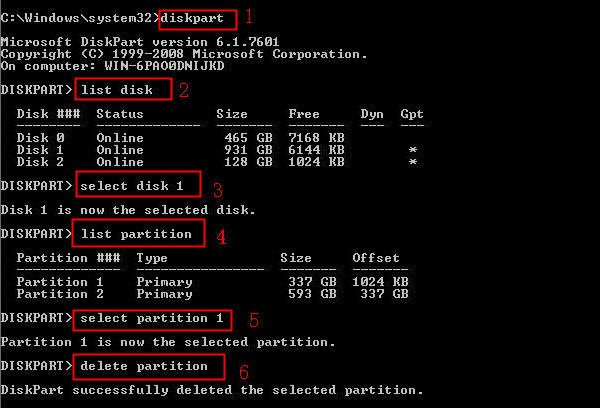
To delete a volume using DiskPart, you need to have backed up any important files to an external drive first. Here's how to do it: Open Command Prompt as an administrator, type "DiskPart" and press Enter.
Step 1. Press Windows + R keys, type cmd, right-click Command Prompt, and select Run as Administrator.
Step 2. Type the following command lines one by one and hit Enter each time:
- diskpart
- list disk
- selected disk #(Replace # with the disk number of your target disk.)
- list partition
- To select a partition, you can use the `select partition #(Replace # with the partition number of your target drive)` command. This command will allow you to select a specific partition on your drive, which can then be used for various operations such as formatting, copying files, or creating a new file system. For example, if you want to select the second partition on your drive, you would use the command `select partition #2`.
- delete partition
Step 3. Type exit to close DiskPart.
3. How to Delete All Primary Partitions on Windows 10 from Diskpart
Step 1. Right-click Windows icon > Select disk management > Check all primary partition numbers on your target disk.
Step 2. Open DiskPart and type the following command lines one by one and hit Enter each time:
- diskpart
- list disk
- selected disk #
- list partition
- select partition #
- delete partition
To delete all primary partitions on your PC, you can use the built-in Disk Management tool in Windows. Open the tool by pressing the Windows key + R, typing "diskmgmt.msc" and pressing Enter.
Step 3. Type exit to close DiskPart.
4. Hot Diskpart Commands
Here are the hot DiskPart commands to manage partitions on your hard drives:
Use DiskPart to Format Device:
- list disk
- selected disk #
- list volume
- select volume #
- format fs=ntfs quick or format fs=fat32 quick
Use DiskPart to Create Partition:
- list disk
- selected disk #
- create partition primary
- format fs=ntfs
- assign
Use DiskPart to Extend Partition:
- list disk
- selected disk #
- list volume
- select volume #
- extend size =number (Normally, the default size unit is MB.)
5. How Do I Delete All Partitions and Format My Hard Drive
Step 1. Open DiskPart.
Step 2. Type the following command lines and hit Enter each time:
- list disk
- selected disk #
- clean
- create partition primary
- format fs=ntfs
- assign
Step 3. Repeat the process to complete creating more partitions on a hard drive.
Step 4. Type exit to close DiskPart.
6. Use sfdisk to Delete All Partitions in Linux
Step 1. Open terminal on Linux computer.
Step 2. Type the following command lines one by one and press Enter each time:
- sudo su
- fdisk-l
- fdisk /dev /sdx (replace x with your target drive letter.)
- d
- 1 (replace 1 with the partition number.)
- d
Step 3. Repeat the process to delete more partitions in Linux.
Related Articles
- 4 Solutions To Fix Bootmgr Is Missing Windows 11
- Reformat PS4 Hard Drive for PC in Windows 10/8/7
- Best Free Hard Drive Erase Software
- Easy Ways to Clean a Disk and Improve Its Performance
- Backup Computer to USB Flash Drive in Windows 10/8/7
- How to protect your valuable data with continuous data backup software
- Download Qiling Backup Free 13.0 (Official)
Download Qiling Backup Free 13.0 with license code and serial key. You can both back up files for free and get official technical support. Get this backup and recovery software to protect your data now.
Products
Articles & Tutorials
- Data Recovery
- Data Backup
- File Recovery
- File Backup
- System Backup and Restore
- Disk and Partition Clone
- Technical articles
- Mobile articles
- Disk Master Help
- Windows Data Recovery Tutorials
- Windows Secure Delete Tutorials
- Windows Partition Management Tutorials
- Windows File Backup and Restore Tutorials
- Windows System Backup and Restore Tutorials
- Windows Disk Backup and Restore Tutorials
- Windows Clone Tutorials