What is New Simple Volume and How to Create New Simple Volume in 2 Reliable Ways
Table of Contents:
What is Simple Volume
Create New Simple Volume with Windows Disk Management
Use Qiling Partition Master to Create a Simple Volume
Conclusion
What is Simple Volume
Simple volumes on Windows are physical drives that operate independently, offering basic to advanced features, which is why they are widely used.
You can use simple volume partitions to run Windows on a basic disk, or manage simple volumes to store data on a dynamic disk.
Simple volumes are units of data storage that can be used on basic disks and dynamic disks, each with its own advantages and limitations, depending on the disk type and goals. They were first introduced with Windows 2000, initially used for dynamic disks.
The term "simple volume" has evolved over time, starting from Windows Vista. Initially, it referred to a partition on a basic disk. However, with the introduction of newer versions, its meaning expanded to include simple volumes on dynamic disks as well, encompassing partitions on basic disks and simple volumes on dynamic disks.
Get more details: click here.
Create New Simple Volume with Windows Disk Management
The Disk Management tool in Windows is used to create and manage disk partitions, enabling users to delete, format, and create simple volumes.
What Is Simple Volume in Disk Management?
A simple volume in Windows is a type of disk partition that combines one or more physical disks into a single volume, offering flexibility and scalability. Unlike partitions, simple volumes don't have size limitations and can be created using the built-in Disk Management tool, which features a wizard to guide users through the process. This allows users to easily manage and organize their disk space without the constraints of traditional partitions.
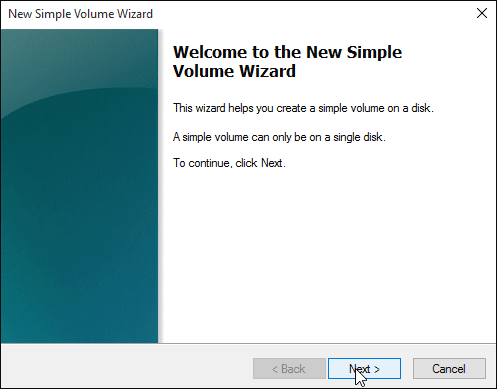
How to Create A New Volume in Disk Management
To create simple volumes on Windows 10, open Disk Management with administrative privileges, then follow the steps below.
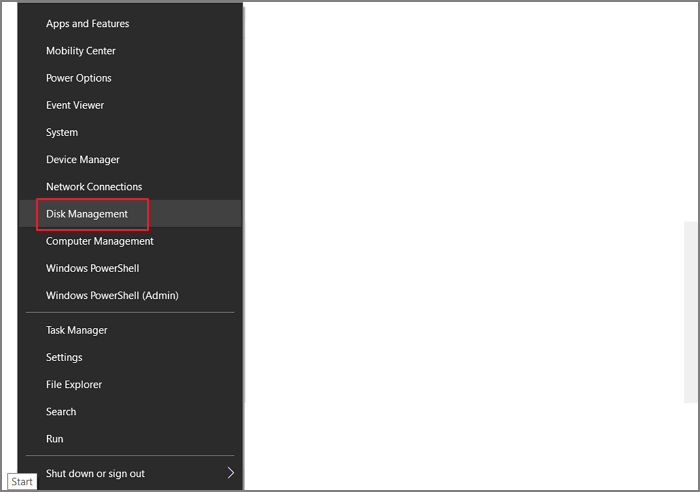
Step 1. To access Disk Management, right-click on the Start button and select Disk Management, or press the Windows key + R to open the Run box and type diskmgmt.msc.
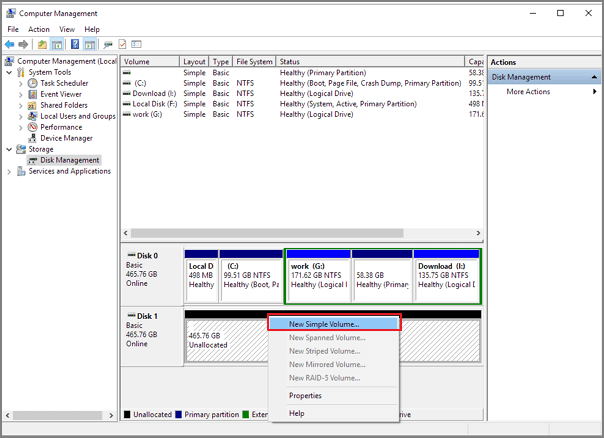
Step 2. To create a new simple volume on your hard disk, right-click the unallocated space and select "New Simple Volume". This will launch the New Simple Volume Wizard.
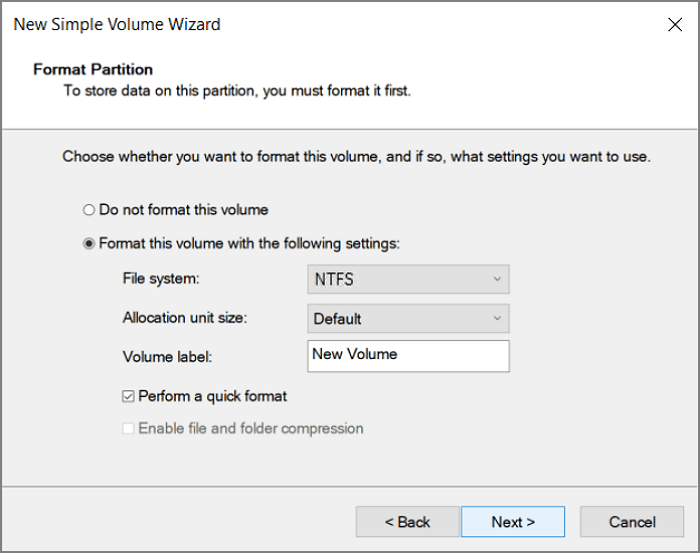
Step 3. Using the New Simple Volume Wizard, select NTFS as the file system and choose the desired volume size in MB, or accept the default maximum size. Assign a drive letter to the volume, or use the default one, and customize the file system, allocation unit size, and label for the volume.
Click Next. Then review your configurations and, if it's all alright as you desire, click Finish.
Related article:
To fix the "New Simple Volume Greyed Out" error in Windows Disk Management, try running the built-in Check Disk utility (chkdsk) to scan and repair any disk errors. If that doesn't work, try running the built-in Disk Cleanup tool to free up disk space.
If you're having trouble creating a new partition on your PC using Disk Management, ! There are practical solutions to resolve this issue on your computer's hard drive or external USB.
Use Qiling Partition Master to Create a Simple Volume
Are you frustrated every time you attempt to create a simple volume disk in Windows?
Qiling Partition Master creates simple volume disks with ease, offering a complete solution for managing hard disk space, including partitioning, resizing, moving, creating, merging, deleting, formatting, copying, wiping, hiding, and showing volumes, making it easy to handle both basic and dynamic disks.
You can resize partitions without restarting your PC or losing data, freeing up space for new simple volumes on the hard drive.
Step 1. Launch Qiling Partition Master. On the main window, right-click on the unallocated space on your hard drive or external storage device and select "Create" to create a new partition.
Step 2. Adjust the partition size, file system, label, and other settings for the new partition, then click "Proceed" to continue.
Bonus Tip: How Simple Volumes Work: Size, Flexibility, Booting
Simple volumes can be used on both basic and dynamic disks, and on basic disks, they are either primary partitions or logical partitions within an extended partition.
To use basic features like booting Windows, you should use simple volumes on basic disks. If you want to use more advanced features, you can use simple volumes on dynamic disks, which are called dynamic volumes. This allows you to take advantage of dynamic disks' capabilities while still using simple volumes.
You can store data with the flexibility you need by using volumes, which can be simple or dynamic. Simple volumes allow you to combine all your data into one easily accessible location, while dynamic volumes offer more flexibility than partitions. However, dynamic volumes cannot be used for multi-boot configurations.
Simple volumes on basic disks are not easy to extend, but if you're creating them on dynamic disks, it's easier to increase the size. There are two ways to increase the size of these simple volumes.
To extend a simple volume, you can either extend it to unallocated space on the same disk it was created on, or create a spanned volume. To extend it to unallocated space on the same disk, you need to format the volume with NTFS and then mirror the simple volume, which will remain a simple volume. Alternatively, you can create a spanned volume and extend it to include unallocated space from multiple dynamic disks.
You cannot delete parts of a spanned volume without deleting the whole volume, and boot volumes cannot be extended.
Simple volumes are not fault-It means you cannot interrupt any process related to simple volumes, otherwise it will cause the loss of data, so advanced users learn techniques like mirroring simple volumes to have two copies to share data between them.
Conclusion
Simple volumes offer flexibility for both basic and dynamic disks, but their suitability depends on specific goals. They can be used for basic and dynamic disks, each with its own advantages and limitations. The best choice ultimately depends on the intended use.
To easily manage large collections of data, simply create volumes on your basic or dynamic disk, which can be used to organize files into a single location, eliminating the need to search through multiple folders or copy and paste individual files.
Each type of disk usage has its own characteristics, which can make it necessary to convert a simple volume on a dynamic disk to a partition on a basic disk, or vice versa. This process can be time-consuming and may result in data loss, depending on the capabilities of your conversion tools.
With Qiling Partition Master, you can quickly and easily create simple volume disks without needing to reformat the disk, resize, move, or copy partitions, making it a good choice for users who need more space on their existing disk. This option is also helpful for users who struggle with resizing or moving partitions.
New Simple Volume FAQs
1. Does Creating A New Simple Volume Erase Data?
Yes, creating a new simple volume will erase data.
2. How Do You Choose New Simple Volume?
Choose new simple volume in disk management:
Run Disk Management and right-To create a new volume on the unallocated space, click on it and select "New Simple Volume" from the available options. This will launch the New Simple Volume Wizard, which will guide you through the process of creating a new volume. Follow the wizard's instructions to complete the volume creation process.
Related Articles
- Does formatting a Hard Drive Remove OS? Check Your Full Guide
- Full Guide to Fix Windows 11 Slow Startup Error
- Solved 2022: Unable to Recover Your PC. The System is Too Small
- 10 Ways to Resolve 100% Disk Usage on Windows 11/10
- How to Perform Xbox Series S Internal SSD Upgrade💡
Upgrading the internal SSD of the Xbox Series S is a process that can be completed with some guidance. - Yellow Screen of Death In Windows 10 [Detailed Info & Fixes]
The yellow screen of death is a common Windows 10 error that can be frustrating to deal with. Fortunately, resolving this issue is relatively straightforward, and there are several practical methods to try.
Products
Articles & Tutorials
- Data Recovery
- Data Backup
- File Recovery
- File Backup
- System Backup and Restore
- Disk and Partition Clone
- Technical articles
- Mobile articles
- Disk Master Help
- Windows Data Recovery Tutorials
- Windows Secure Delete Tutorials
- Windows Partition Management Tutorials
- Windows File Backup and Restore Tutorials
- Windows System Backup and Restore Tutorials
- Windows Disk Backup and Restore Tutorials
- Windows Clone Tutorials