Does formatting a Hard Drive Remove OS? Check Your Full Guide
Formatting a hard drive will erase all data, including the operating system, and reinstalling Windows 10 is necessary after a malware attack or to remove corrupted data.
If your system drive is formatted, you'll have to reinstall Windows and re-install programs, and restoring data from external drives formatted to NTFS is a time-consuming process. Formatting a drive erases original data, including that on bad sectors of the hard drive.
To keep your Windows intact while formatting the hard disk, follow these steps: First, create a system image of your Windows installation using the built-in tool or a third-party software. This will save a copy of your current Windows setup, including all installed programs and settings.
How to Wipe a Hard Drive Without Deleting Windows
Method 1. Reset PC (Delete all files and reinstall Windows)
Method 2. Refresh PC (Keep Personal Files and reinstall Windows)
Method 3. Format Hard Drive with Qiling Partition Master
How to Wipe a Hard Drive Without Deleting Windows
You can erase a hard drive without deleting Windows by using methods such as reinstalling Windows, using the built-in disk cleanup tool, or formatting the drive. This will remove all data and programs from the drive, but leave the Windows operating system intact.
Reset your PC: Resetting your PC will delete all data on the computer, but won't change personal settings. It won't affect SkyDrive files or preinstalled apps, and won't delete files on other partitions.
Refresh your PC: You can refresh your Windows laptop to reinstall Windows and keep your personal files and settings. This process will also retain your preinstalled apps, such as Mail, Calendar, Maps, Music, and Photos, as well as any apps you've downloaded from the Microsoft Store, giving your laptop a fresh new feel.
Manual File deletion: Manually deleting files and folders from Windows can be unsafe and affect system functionality, especially for novice users.
Using Third-Party Software: Qiling Partition Master for Windows is a comprehensive disk management package that offers a more advanced and well-organized interface compared to Windows' built-in Disk Management software, making it a valuable tool for both common users and IT engineers.
Method 1. Reset PC (Delete all files and reinstall Windows)
Resetting Windows can be a good option if you're looking to give your PC away, sell it, or return it to the manufacturer. It can also be helpful if you've set up your computer and want to start fresh with a clean copy of Windows.
Resetting your PC will completely remove everything you've added, changed, or customized, so make sure to back up your important files and folders before proceeding.
Step 1. To open the Settings app on a Windows computer, press the Windows button on your keyboard, and then click on the gear icon that appears. This will open the Settings app, where you can adjust various system settings and preferences.
Step 2. A new window pane will open. Scroll down and select Update & Security.
Step 3. Now click Recovery in the left panel.
Step 4. Under Reset this PC, click on Get started.
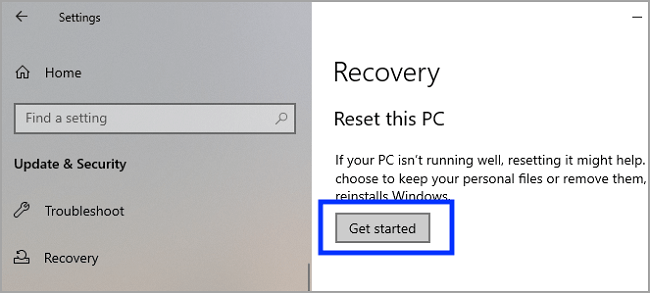
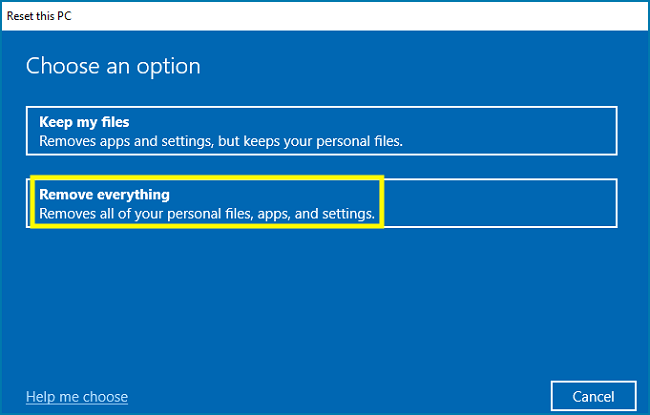
Step 5. To completely wipe a Windows device, go to the new Window pane, select Remove everything, and this will erase all files, apps, and settings.
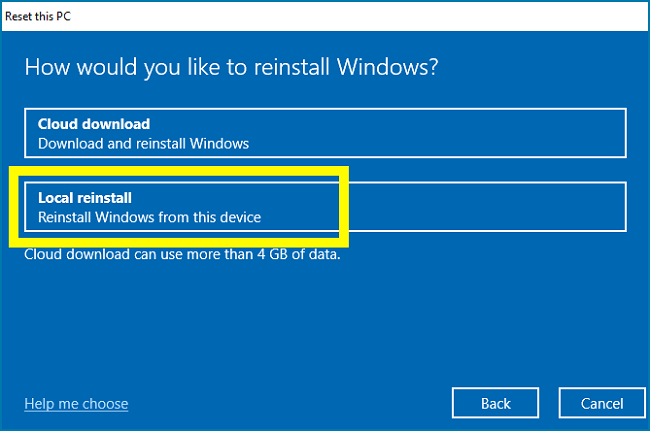
Step 6. When reinstalling Windows, you have two options: Local reinstall and Online reinstall. Choose Local reinstall for a faster installation process. This option allows Windows to reinstall itself using the installation media and the files already on your computer, making the process quicker compared to Online reinstall, which downloads the installation files from the internet.
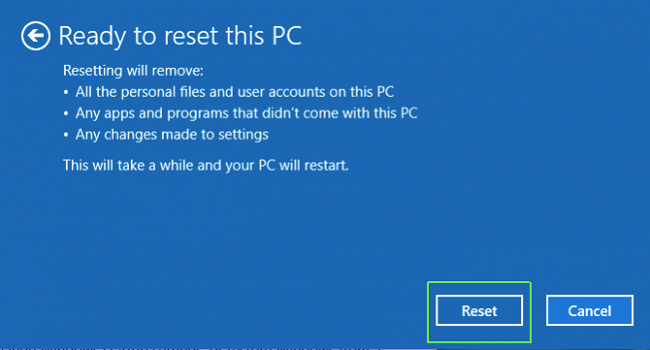
Step 7. Click Next and ignore the warning sign.
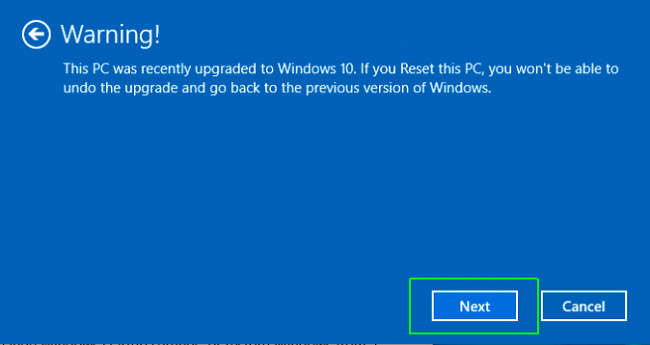
Step 8. Click next to start the resetting process. It may take several minutes to erase and reinstall windows again.
Method 2. Refresh PC (Keep Personal Files and reinstall Windows)
Note that a factory reset will completely remove all apps, settings, and data, but will leave your personal files intact.
Refreshing Windows is similar to resetting it, but with a few tweaks. To refresh Windows, follow the same steps as resetting, but with a minor adjustment.
Follow the first four steps, and then in the fifth step, choose the "keep my files" option to refresh Windows and keep your personal files.
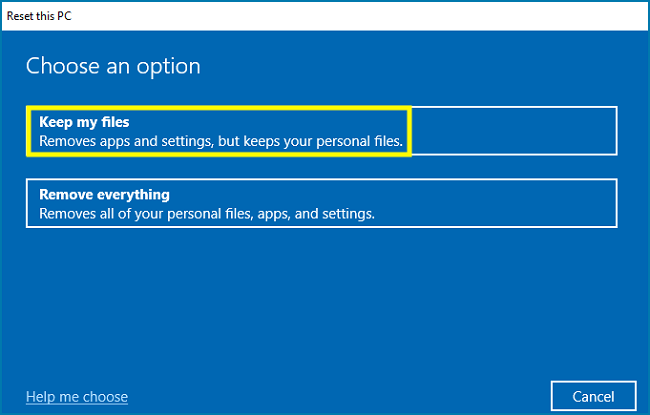
To complete the Windows refreshing process, follow these steps: restart your computer, select the Troubleshoot option, choose the Reset this PC option, select the option to Remove everything, and then select the option to Clean the drive. Every other step is the same and must be followed to complete the process.
Method 3. Format Hard Drive with Qiling Partition Master
Qiling Partition Master Free Edition allows users to easily resize, move, or copy disk partitions using a wizard-style user interface, making it straightforward to use without requiring technical skills or knowledge.
Some Qiling Partition Master features worth knowing:
It allows users to easily move and resize partitions for more effective management of hard drive space.
- You can divide a large hard disk space into multiple smaller partitions, or combine them to create a single larger partition, effectively freeing up more disk space.
- It can defragment and optimize your hard drive, preventing data loss and improving PC performance.
- It's a tool that lets you manage partitions on your hard drive, such as creating, resizing, moving, merging, and formatting them, all while keeping your data safe.
- The software converts primary partitions to logical ones and also supports converting logical partitions back to primary partitions.
- Partition operations are quick and easy, and do not require any background setting.
- Convert partition from GPT, FAT to NTFS
- A WinPE bootable disk allows you to troubleshoot and fix partition issues and system failures before Windows boots, providing a recovery environment to resolve problems and get your system up and running smoothly again.
1. Use Format Feature to format data partitions (Do Not Format Your System Drive.)
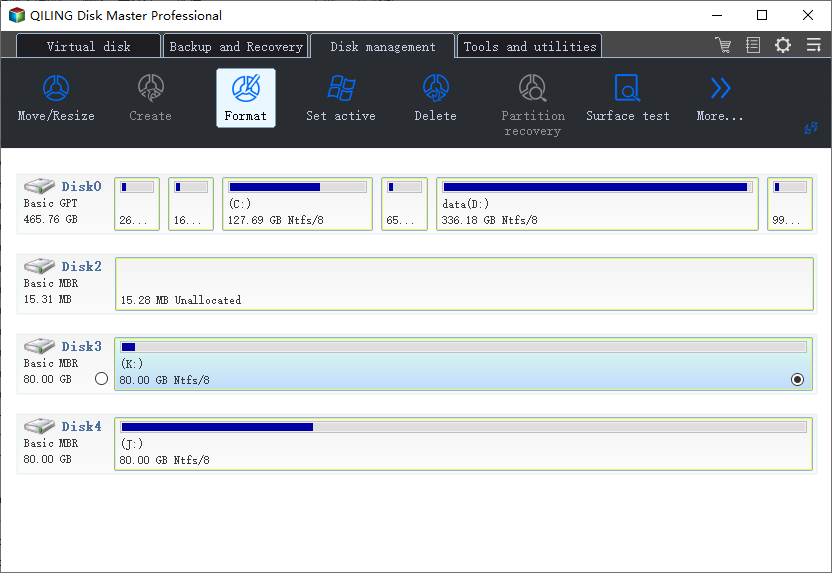
Step 1. Run Qiling Partition Master, right-click the hard drive partition you intend to format and choose "Format".
Step 2. Set the Partition label, File system, and Cluster size for the partition to be formatted, then click "Proceed" in the new window.
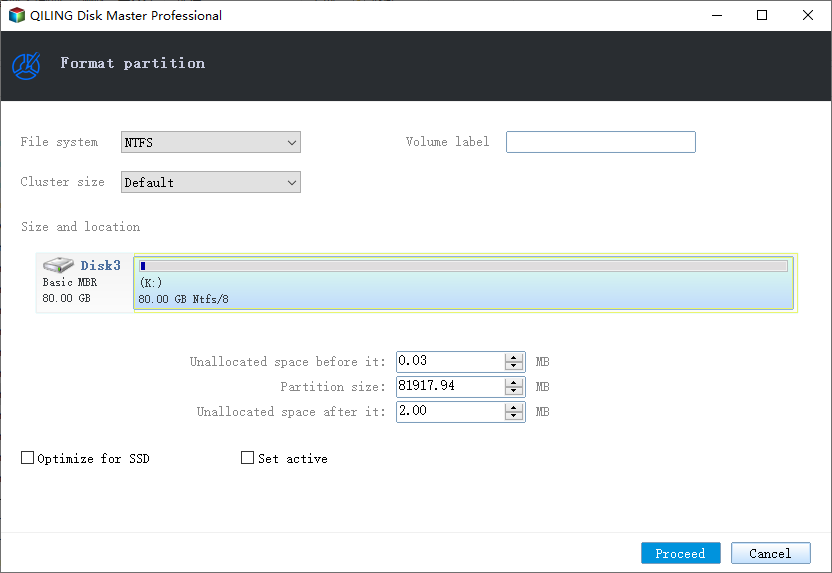
Step 3. To start formatting your hard drive, click the "Format" button in the "Disk Management" window. Then you will see a warning window, click "OK" in it to start formatting the partition on your hard drive.
2. Apply Reset Steps
Go back to Method 1 to reset system drive.
Conclusion
Hardware issues, such as hard drive failure, are the primary reasons why people often need to wipe their hard drives.
Wiping a hard drive without deleting Windows can be a complex process, requiring a thorough erasure of the entire disk and removal of any residual data to prevent recovery.
To completely wipe a hard drive, the easiest method is to use Windows' built-in format utility, which is a native tool that can delete all information on the drive. However, this utility lacks intelligent partition features and advanced formatting capabilities compared to specialized tools like Qiling Partition Master.
For those looking for more tools and flexibility, using Qiling Partition Master is the best way to wipe a hard drive without deleting Windows, ensuring a smooth process of erasing or formatting the hard drive.
The manual deletion of files from the Core System is not recommended as it can be time-consuming and potentially cause damage to the system files.
If your hard drive is not readable, formatting it is the most straightforward process. However, if you're experiencing issues with unreadable partitions, please contact support at support@idiskhome.com for assistance.
Related Articles
- How to Wipe a Hard Drive in Windows XP Without CD
- How to Fix New Simple Volume Greyed Out in Windows Server
- How Long Does Windows 11/10 Update Take? Windows 10 Update Taking Forever Fixes
- How to Merge or Combine Partitions in Windows 11
- Solved: HP Recovery Drive Full on Windows 10/8/7
The HP recovery drive can get full due to various reasons, including the presence of unnecessary system restore points, duplicate files, and other system data. Additionally, you can also try using the HP Recovery Drive Cleanup tool, which is specifically designed for HP devices. - Failed to Format the Device? How to Fix HP USB Format Tool Write Protected
If you're having trouble formatting a device using the HP USB format tool, you can try using Qiling Disk Master as an alternative. If you're still experiencing issues, you may want to check out some tips for resolving write-protected errors with the HP USB format tool.
Products
Articles & Tutorials
- Data Recovery
- Data Backup
- File Recovery
- File Backup
- System Backup and Restore
- Disk and Partition Clone
- Technical articles
- Mobile articles
- Disk Master Help
- Windows Data Recovery Tutorials
- Windows Secure Delete Tutorials
- Windows Partition Management Tutorials
- Windows File Backup and Restore Tutorials
- Windows System Backup and Restore Tutorials
- Windows Disk Backup and Restore Tutorials
- Windows Clone Tutorials