10 Ways to Open File Explorer: Fix 'Where is File Explorer on My Computer'
File Explorer, also known as Windows Explorer, is a file manager application that allows you to access your files and folders quickly. However, many PC guides start with the instruction to "Open File Explorer" without providing additional tips or acknowledging the various options available on your PC. If you're wondering where to find File Explorer or how to open it, - you can access it in 10 different ways, which will be outlined below.
10 Ways to Make File Explorer Open:
Method 1. Use Shortcut to Find File Explorer
Method 2. Locate File Explorer from Taskbar
To open File Explorer using the WinX menu (Power User Menu), follow these steps: Press the Windows key + X on your keyboard. This will open the WinX menu, which is a menu specifically designed for power users with quick access to various system tools and settings. From the WinX menu, click on File Explorer.
Method 4. Use Search Box
Method 5. Check Start Menu to Run File Explorer
Method 6. Apply the Run box
Method 7. Run Command Prompt
Method 8. Use PowerShell
Method 9. Access File Explorer from Task Manager
Method 10. Run This PC
Method 1. Use Shortcut to Find File Explorer
To open File Explorer, press the Windows icon and E on your keyboard at the same time. However, some users may encounter a "keyboard shortcuts not working" error, in which case you can try the fixed steps or move on to method 2.
Fix Keyboard Shortcuts Not Working via Re-enable Windows Key HotKeys
Step 1. To access the Run dialog box, right-click the Windows icon on your taskbar and select "Run" from the list.
Step 2. Type gpedit.msc on the box and click OK.
Step 3. To disable the Windows Key hotkeys, follow these steps: Navigate to User Configuration > Administrative Templates > Windows Components > File Explorer, then locate the policy "Turn off Windows Key hotkeys".
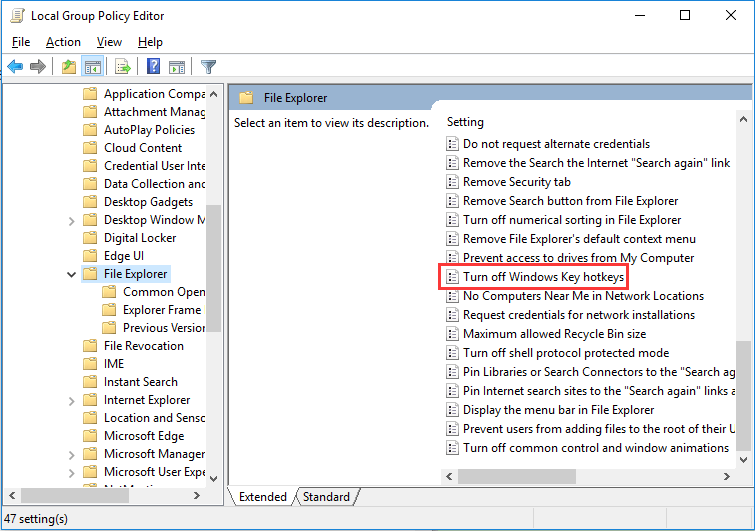
Step 4. To disable the Windows Key hotkeys, go to the Local Group Policy Editor, navigate to User Configuration > Administrative Templates > Windows Components > Windows Explorer, and double-click on "Turn off Windows Key hotkeys". Then, change the setting to "Disabled" or "Not Configured".
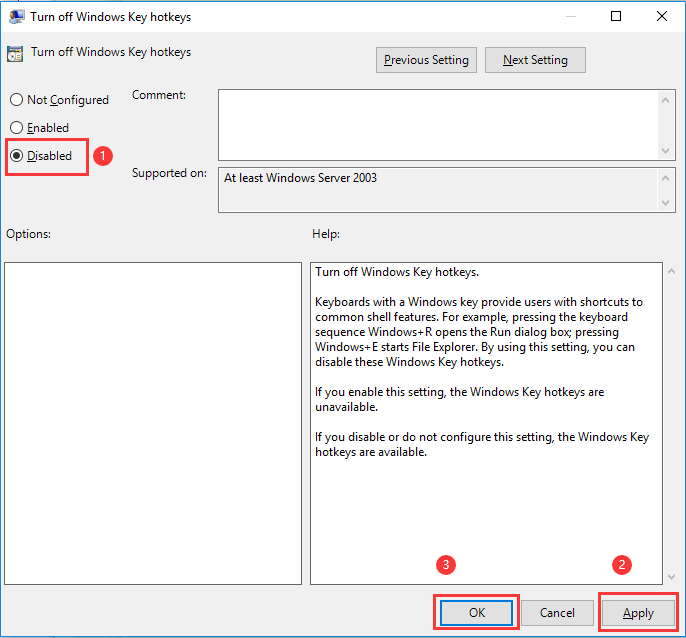
Step 5. Click Apply and OK.
Related articles:
Method 2. Locate File Explorer from Taskbar
Regardless of whether you're using Windows 10 or the latest Windows 11, the File Explorer icon, shaped like a folder, will be pinned to the taskbar by default. To access it, simply click on the icon.

Method 3. Open File Explorer by WinX Menu (Power User Menu)
Windows groups some of its main features in the menu, making it easy to access File Explorer, Device Manager, Task Manager, Disk Management, and other essential tools directly.
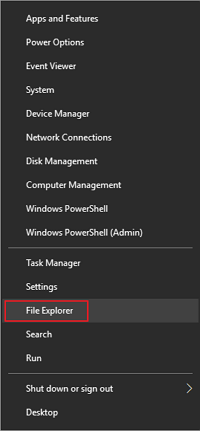
- For Desktop users, right-To open File Explorer, click the Start icon on the bottom-left side and choose File Explorer.
- For users with touchscreen devices, go to the desktop and hold the Start icon. This will open the Start menu, allowing you to access various settings and features.
Method 4. Use Search Box
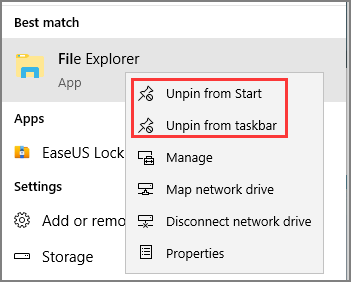
If you're unsure how to access File Explorer, simply type "File Explorer" in the search box, click on the result, and it will open for you.
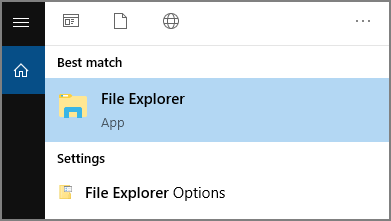
Note: To make it easier to access File Explorer, you can right-click on it and select the option to pin it to the taskbar or start menu. This way, you can directly access File Explorer from the taskbar or start menu, saving you time and effort.
Method 5. Check Start Menu to Run File Explorer
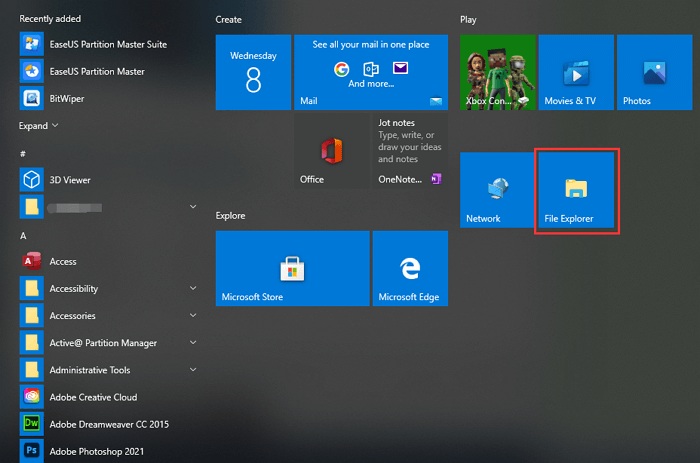
If you've pinned File Explorer to the Start menu, it's probably time to use it.
You can click the Windows icon from the taskbar and check the File Explorer on the right side.
Method 6. Apply the Run box
You can also apply the Run box to wake the target app.
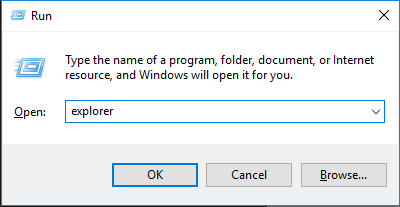
Step 1. Press Windows + R to launch the Run box.
Step 2. Type "Explorer" and click OK. Then File Explorer will open.
Method 7. Run Command Prompt
If you're familiar with the command line, launching any application on your devices is easier.
Step 1. To open the Command Prompt, you can simply type "cmd" in the search box and click on the result to open it.
Step 2. Input command line - explorer and press Enter.
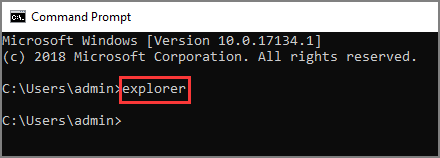
Then you can open File Explorer.
Method 8. Use PowerShell
You can access the app by typing the command line in Powershell.
Step 1. Type PowerShell on the Windows search box.
Step 2. When the PowerShell opens, type explorer and press Enter.
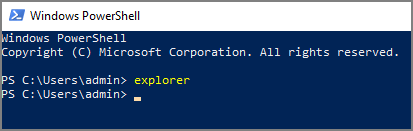
Step 3. Then File Explorer will open.
Method 9. Access File Explorer from Task Manager
Step 1. Right-click the Windows icon and select Task Manager.
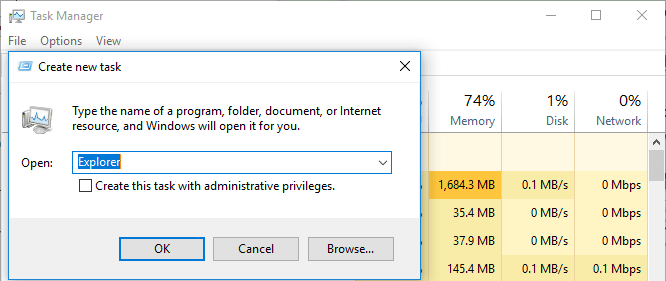
Step 2. Click the File tab on the top-left side, then select "Run new task".
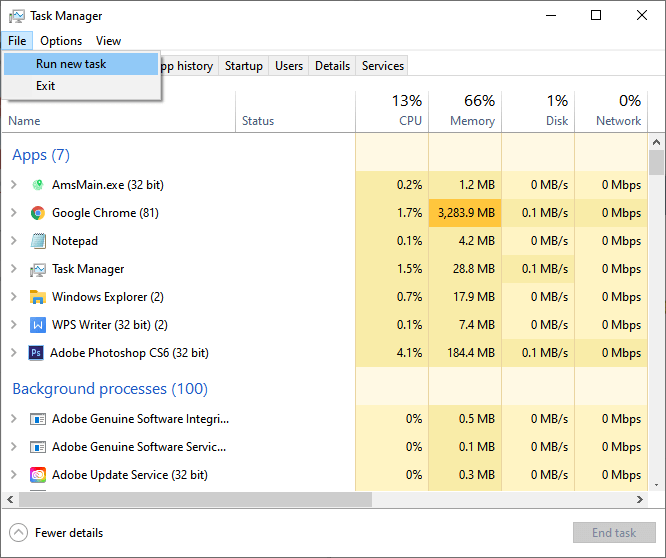
Step 3. To create a new task, open the Create new task window, type "Explorer" in the box, and click OK to proceed.
Method 10. Run This PC
This PC is a useful app that allows you to access all your files, folders, and apps stored on the computer, making it a common method to find and open File Explorer.
Step 1. Open This PC from Desktop.
Step 2. Click C drive and scroll down to find explorer.exe
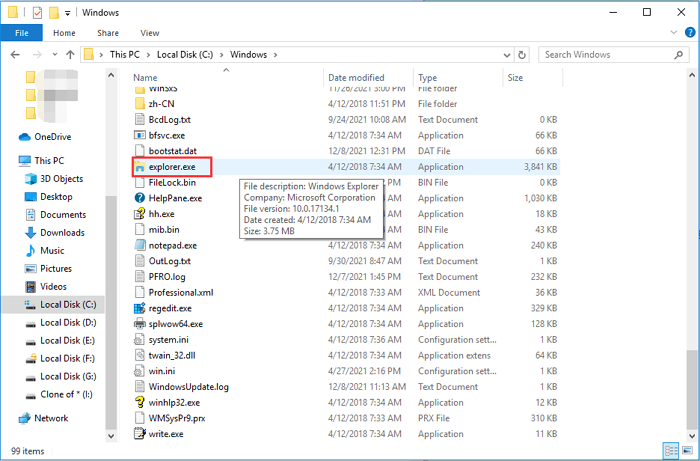
Step 3. Click explorer.exe and you can make File Explorer open.
Extra Tip - Smart Disk Manager
This part helps your PC achieve better performance using the reliable and professional tool Qiling Partition Master, which is an all-in-one disk manager that can manage disk space, clone data, and more. It's a good choice for freeing up C drive space, wiping data on disk, and formatting USB drives.
Related Articles
- Partition Magic VS Qiling Partition Master, Which Is Better & How to Select
- Can I Check and Optimize SSD Performance in Windows 11? Yes, Sure
- How to Fix "Windows 11 Can't Format Hard Drive" Error
- Delete Partition with Windows Partition Delete Tool & Free Partition Manager
- Solved: Samsung 850 EVO Not Detected on Windows 10
Do you want to know how to slove Samsung 850 EVO not detected on Windows 10? You can find solutionsCheck its solutions here. - Top Samsung SSD Factory Reset Tool for Windows 11, 10, 8, 7
Looking for a powerful Samsung SSD reset tool to factory reset your Samsung portable SSD? You can find it from this post.
Products
Articles & Tutorials
- Data Recovery
- Data Backup
- File Recovery
- File Backup
- System Backup and Restore
- Disk and Partition Clone
- Technical articles
- Mobile articles
- Disk Master Help
- Windows Data Recovery Tutorials
- Windows Secure Delete Tutorials
- Windows Partition Management Tutorials
- Windows File Backup and Restore Tutorials
- Windows System Backup and Restore Tutorials
- Windows Disk Backup and Restore Tutorials
- Windows Clone Tutorials