Rollback from Windows 11 to Windows 10 - 2 Methods
Microsoft has released the first Windows 11 Insider Preview build for Windows Insiders, but some users may want to roll back to Windows 10 due to potential bugs in the beta version.
Microsoft has a feature called "Go back" that allows users to revert to the previous version of Windows, specifically Windows 10, within 10 days of upgrading to Windows 11. This feature is only available for a short period after the upgrade.
How to Roll Back from Windows 11 to Windows 10
If you roll back to Windows 10, you won't lose any data, but the programs you've downloaded and installed on your desktop will be deleted. To avoid losing these programs, you can back them up in advance. Otherwise, you can follow the step-by-step guide to revert back to Windows 10.
Step 1. To access the recovery settings, right-click the Windows icon, choose Settings, and navigate to Update & Security > System > Recovery.
Step 2. Click Go back to the previous version of Windows 10.
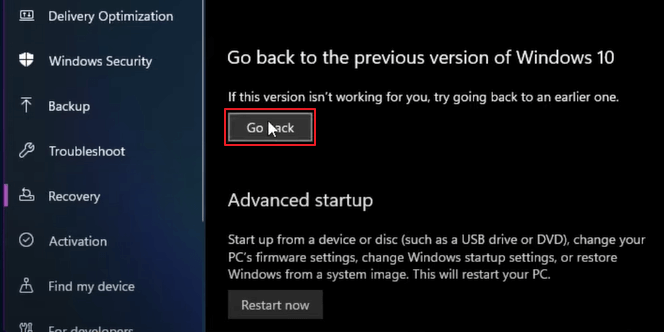
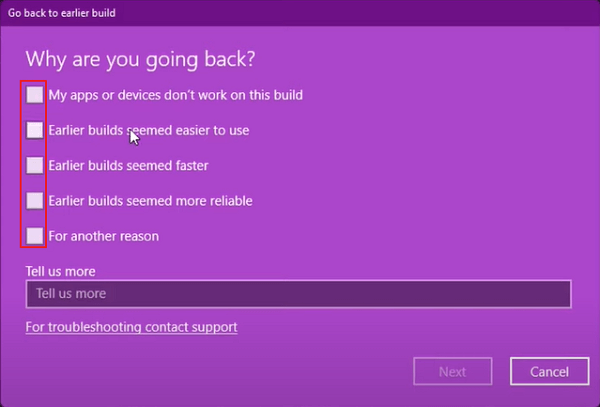
Step 3. Check off one or more reasons for your uninstall when prompted.
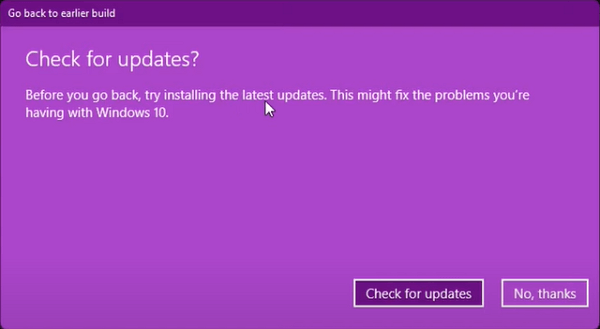
Step 4. To prevent Windows 10 from rolling back to an older version, click "No, thanks" when prompted to check for updates. This will prevent the operating system from reverting to a previous version.
Step 5. To start the process of returning to Windows 10, click on the "Go back to Windows 10" option in the Start menu. This will open a "Confirm your selection" window, which will ask you to confirm that you want to go back to Windows 10. Click on the "Next" button to proceed.
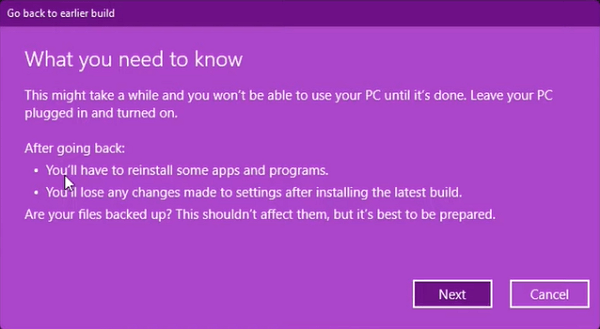
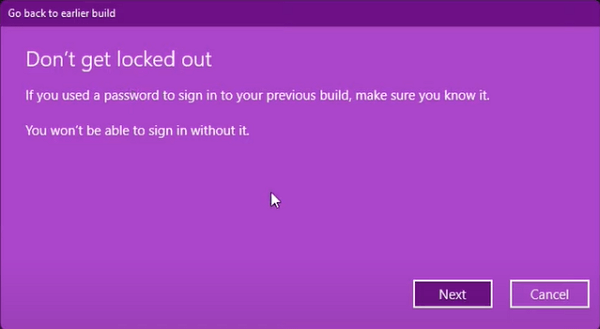
Step 6. You will be warned that you need to remember your password when prompted by Windows 10. Click Next again without hesitation, as this is a straightforward step. This should go without saying.
Step 7. Click "Go back to earlier build."
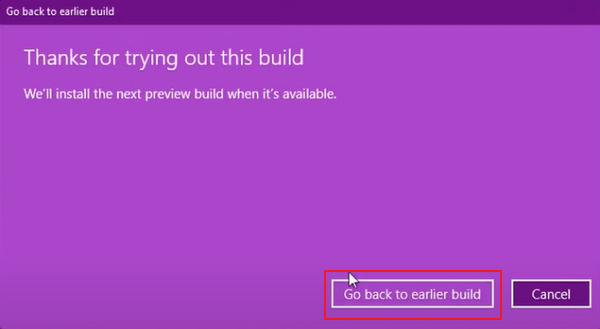
The system will now restart and go through a restoration process that should take a few minutes. When that completes, you're back on Windows 10.
Roll Back from Windows 11 to Windows 10 with Qiling Backup
You can't revert back to Windows 10 after the 10-day limit has expired. You'll have to stick with Windows 11.
You can bypass the Windows rollback limitation by using Qiling Backup, but you'll need to make a system backup before updating to Windows 11. This way, you can revert to Windows 10 at any time, even after upgrading to Windows 11.
Download Qiling Backup, and follow the guide to see how to make a system backup with it.
Step 1.Launch Qiling Backup and choose "System Backup" on the Backup and recovery page.

Step 2.The system partition will be automatically selected, you only need to choose the installation location.
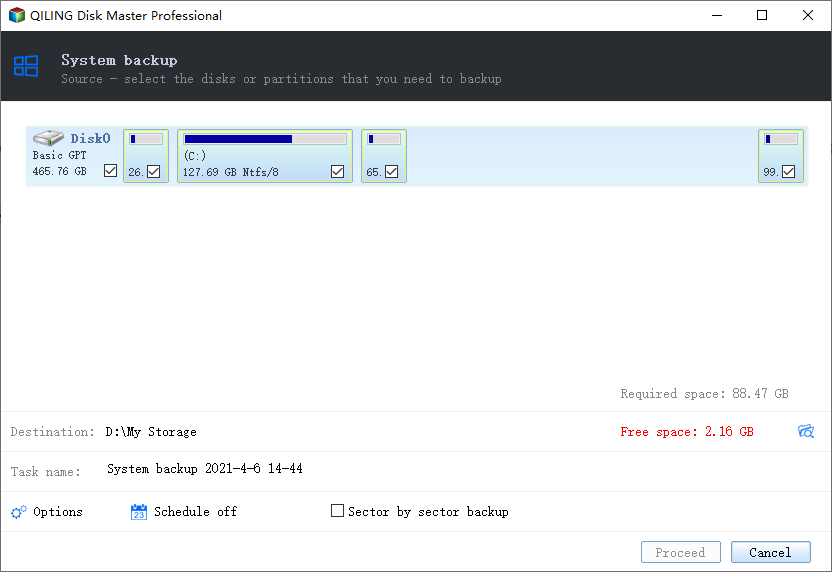
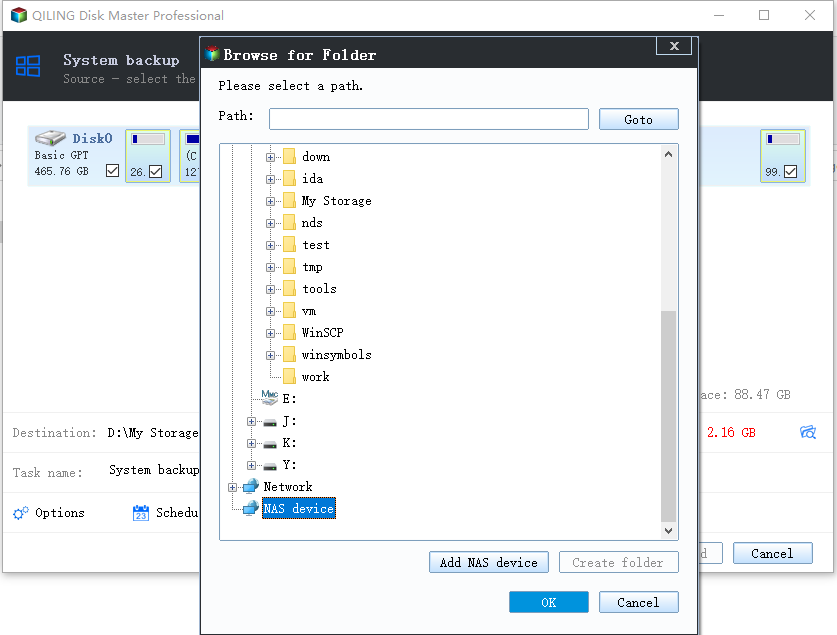
Step 3. You can save backup files on your local drive, cloud storage, or network-attached storage (NAS), or even connect an external hard drive to store system backup files.
Step 4.To start, you can customize the settings in the "Options" section at the bottom left of the screen. Once you've made your selections, click "Proceed" to initiate the process.
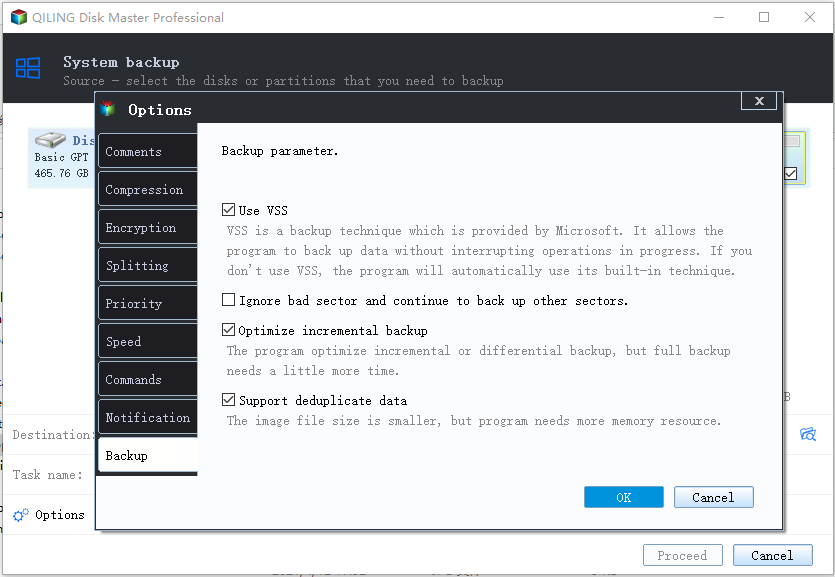
After completing the backup process, you can verify the backup status, restore, access, or remove the backup by right-clicking the backup task on the left.
The system backup file and image can be found by clicking the link at the interface after completing the backup process.
To downgrade Windows, launch Qiling Backup, choose Go Back, and select the system backup to restore the system, which will downgrade Windows 11 to Windows 10.
Extra Tip: Windows 11 New Features
Many users have downloaded and installed Windows 11, praising its new features, but you can check them out here if you're curious about the new version.
1. Brand New UI Interface
Windows 11 simplifies its UI design and user operation, giving it a Mac-like interface, but with a distinct taste.
Windows 11 introduces changes to snap layout, snap group, and virtual desktop functions, allowing for easier multitasking by customizing settings through the "Maximize" icon in the upper right corner.
2. Microsoft Teams Connection
Microsoft's Team Connection, a video-calling feature, was showcased at the conference, allowing users to have seamless connections among PC, phones, and TV.
3. Support Android Apps
Microsoft is integrating the Android app with Windows 11, allowing users to install it from the Microsoft Store or Amazon App store.
For more information on Windows 11 features and updates, you can visit this page.
All You Should Know about Windows 11 | 8 Questions
Windows 11 boasts a range of exciting new features, including a refreshed user interface, integration with Microsoft Teams, an updated Start menu, improved game performance, and enhanced details.
4. Download and Install Windows 11
Upgrading to Windows 11 is easier with Qiling Windows 11 Builder, a tool that simplifies the process. No need to search for the Windows 11 ISO file online or follow a lengthy guide - just prepare a USB drive with sufficient storage, and Qiling Windows 11 Builder will create a bootable USB and install Windows 11 on your computer.
Step 1. The Windows11 builder is integrated with the Qiling OS2Go software, allowing users to download and install it, followed by launching the program after installation.
Step 2.Switch WinToGo Creator to Windows Install Drive Creator. The obtained system information is available on the home screen, and it keeps updating all the time, also supporting downloads for Windows 10/8.1 apart from Windows 11.
Step 3. To start the process, simply connect your USB flash drive to the computer. The Win11 builder will automatically detect the USB device, and all you need to do is click the "Create" button.
Step 4. The software will erase the data on your used USB drive, so make sure to empty it first. Once you start the download, wait for it to finish or take a break while it completes.
Step 5. After successfully downloading the Windows 11 iso image file to a USB drive, you can proceed to install Windows 11 on your computer by booting from the USB drive and following the installation wizard step by step.
The Bottom Line
If you're not satisfied with Windows 11, you can revert back to Windows 10 using the built-in feature, but only within 10 days of upgrading. Alternatively, you can make a system backup before upgrading to Windows 11, allowing you to roll back to Windows 10 whenever you want, thanks to Qiling Backup.
Qiling Backup allows users to clone their OS to an SSD or HDD, schedule backups, and create a portable Windows USB drive, making it a convenient tool for backing up and restoring data.
Related Articles
- What is Windows Image Boot (WIMBoot)?
- What is the Thinking Behind 32GB Windows Format Limit on FAT32?
- How Do I Fix 'This PC Can't Run Windows 11' Error? Your Complete Guide Is Here
- What is a Computer Virus and How to Protect Your Computer from Viruses
- How to Fix Windows 11 Error 0xc0000005? Answer Is Here!
Have you encountered Windows 11 error 0xc0000005? Read on this article and get several great methods. - How to Format DVR Hard Drive for PC
You can easily format a DVR hard drive for use on a PC by formatting it to NTFS, FAT32, EXT2, or EXT3 file system. There are four effective solutions to do this, including using a hard drive formatter, Disk Management, Windows explorer, and CMD.
Products
Articles & Tutorials
- Data Recovery
- Data Backup
- File Recovery
- File Backup
- System Backup and Restore
- Disk and Partition Clone
- Technical articles
- Mobile articles
- Disk Master Help
- Windows Data Recovery Tutorials
- Windows Secure Delete Tutorials
- Windows Partition Management Tutorials
- Windows File Backup and Restore Tutorials
- Windows System Backup and Restore Tutorials
- Windows Disk Backup and Restore Tutorials
- Windows Clone Tutorials