Windows 11 Guide: Features, Upgrade Tips and What to Know
Microsoft has announced Windows 11, featuring significant changes. The new operating system includes new features, such as a redesigned Start menu, improved performance, and enhanced security. It is worth upgrading, and the upgrade is free for eligible Windows 10 users. To upgrade, users can check for updates in their Windows settings.
1 - Is Windows 11 Coming out?
2 - Windows 11 New Features
3 - Windows 11 System Requirements
4 - Windows 11 Download
5 - Will Windows 11 be Free Upgrade?
6 - How to Buy a New PC with Windows 11?
7 - How Much will Windows 11 PC Cost?
8 - What Is the Difference between Windows 10 and Windows 11?
1 - Is Windows 11 Coming out?
The Windows 11 beta version is now available to download via the Windows Insider Program, with the general version expected to be released later this year, possibly in October.
2 - Windows 11 New Features
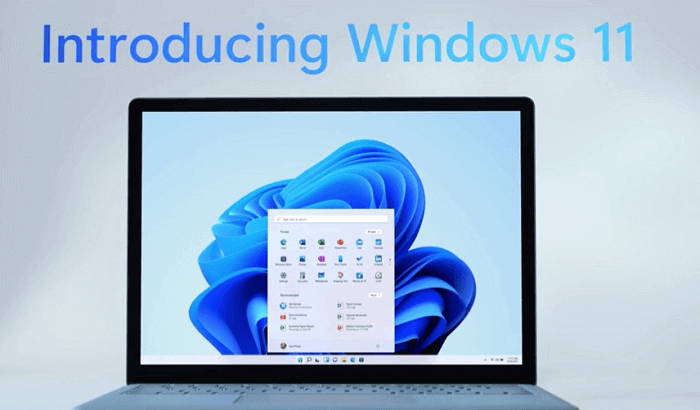
Brand New UI Interface
Windows 11 simplifies the UI design and user operation, featuring a centered Start Menu and taskbar, giving it a Mac-like interface but with a distinct taste. The Start Menu now displays recent files, regardless of the platform or device used to view Office or Cloud files.
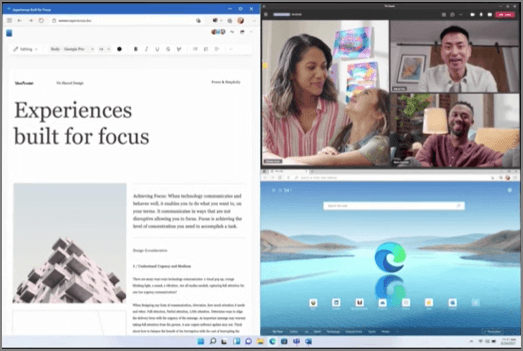
Windows 11 introduces changes to snap layout, snap group, and virtual desktop functions, allowing for seamless multitasking by customizing settings through a simple mouse hover on the "Maximize" icon in the top right corner.
Microsoft Teams Connection
Microsoft's Teams has been integrated with FaceTime, allowing for seamless video-calling functionality across devices, including PC, phones, and TV. This integration enables users to access Teams directly from their Taskbar, making it easier to stay connected with others.
Best Gaming Experience Ever
You can't be serious. Windows 11 is not the best OS for gaming. It has many bugs and issues that affect gaming performance.
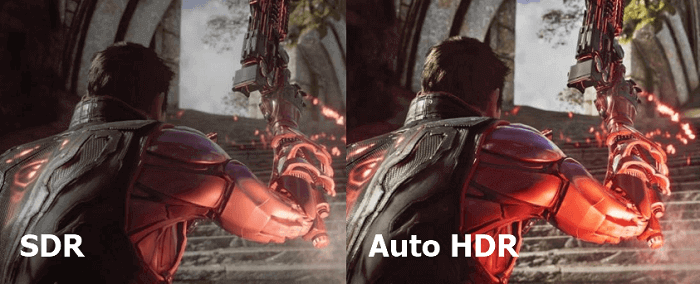
- Windows 11 adds Auto HDR, which enhances the gaming experience by displaying a wider range of colors and brightness values, making SDR-enabled games visually resemble HDR when played on an HDR-enabled display.
- DirectStorage technology is designed to improve game loading times by allowing the game to load assets directly to the GPU, bypassing the CPU, resulting in faster load times.
- The Quick Resume feature, powered by Xbox Series X|S, is also available on Windows 11, allowing users to resume game play shortly after restarting their PC or picking up where they left off.
Support Android Apps
Microsoft announced that the Android app will be integrated with Windows 11, allowing users to install apps from the Microsoft Store or Amazon Appstore.
Widgets
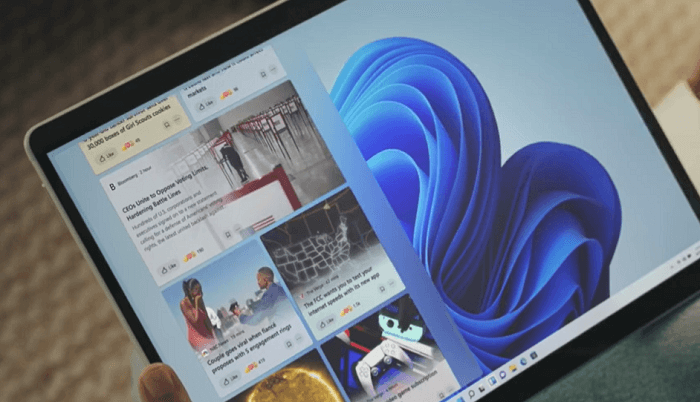
Easy to find at-Microsoft is introducing a new widget feature that allows users to access a to-do list, hot news, weather, and other information directly on their desktop. This feature can be activated by swiping on the desktop, which will open the widget, providing users with quick access to relevant information.
Tablet PC Mode
The taskbar will adjust its size based on whether the device is in tablet or PC mode. Additionally, if the device is detected to be rotated in any direction, the system will automatically switch to a different windows layout.
The new Microsoft store is now open to all apps and games, and developers will keep all the money earned from their programs.
3 - Windows 11 System Requirements
Here are the basic system requirements to install Windows 11 on your laptop/PC: 1) CPU: 64-bit processor or System on a Chip (SoC) 2) RAM: 4GB or more 3) Storage: 64GB or larger solid state drive (SSD) 4) TPM: Trusted Platform Module (TPM) 2.0 required 5) Display: 9-inch or larger screen 6) Graphics: DirectX 12 compatible graphics. If your PC cannot meet these requirements, you cannot install this stunning new OS. Microsoft has said Windows 10 users can upgrade to Windows 11 for free.
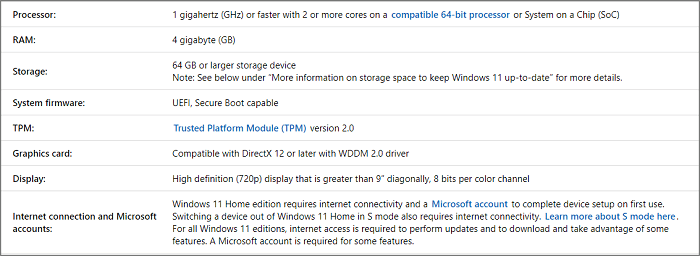
To check if your PC meets the Windows 11 upgrade requirements, you can visit the PC Health Check page, which is a tool provided by Microsoft to help you determine if your device is compatible with the upgrade.
You can use our Windows 11 Upgrade Checker to test whether your PC can run Windows 11.
Step 1. Download Qiling Windows 11 Upgrade Checker.
Step 2. Click the Check Now button to start.
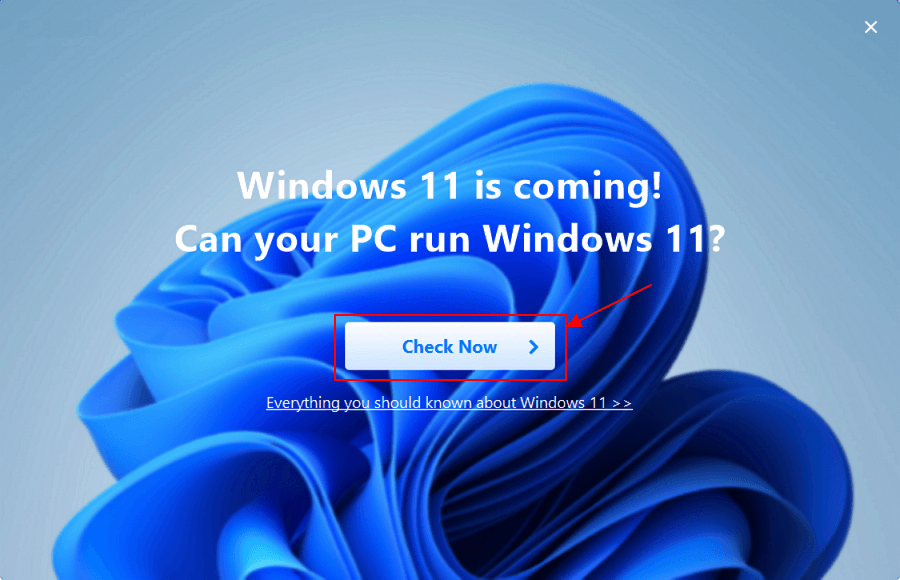
Step 3.The Windows 11 compatibility result window will soon appear, listing both incompatible and compatible configuration items.
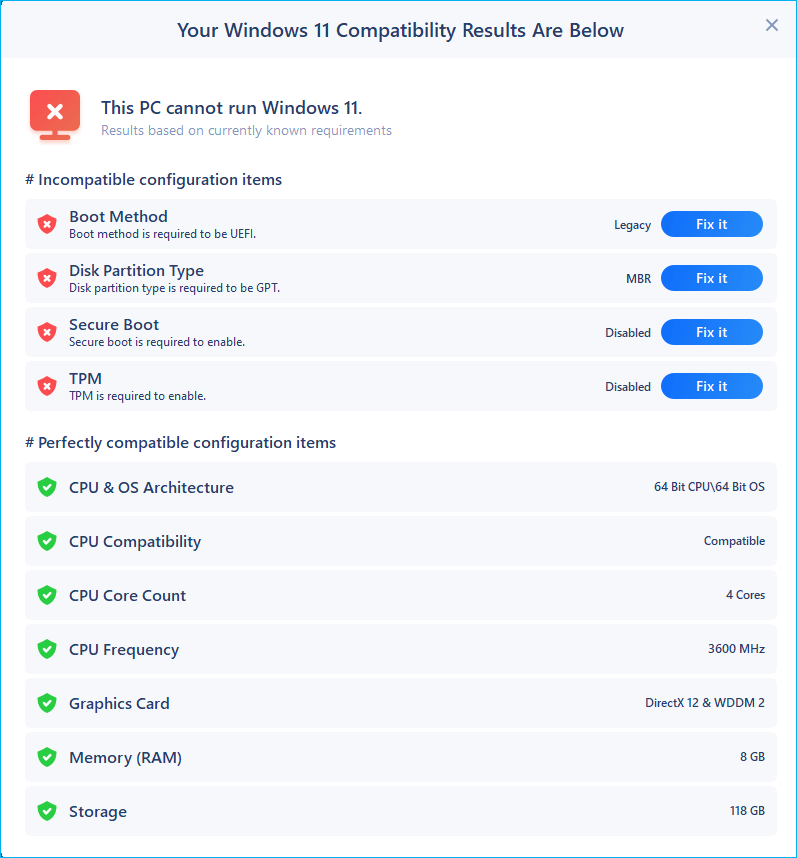
Migrate your PC data to Win 11:
If your device meets Windows 11 system requirements, you can migrate all PC data to Win 11 by clicking the "Migrate to Win 11" button and downloading the PC transfer software.
4 - Windows 11 Download and Install
Windows 11 is on its way, but you can try the beta version now if you're part of the Windows Insider Program or use Qiling Windows 11 Builder to quickly download and install the new OS.
Note: Be cautious and install the beta version on a test device first to ensure data security, then install the general version on your main device once it's deemed safe.
1 - How to Download Windows 11 via Qiling Windows 11 Builder
Step 1. The Win11 builder is integrated with the Qiling OS2Go software. After installing the program, click the download button to launch it.
Step 2.The tool was renamed from WinToGo Creator to Windows Install Drive Creator, and it provides system information on its home screen, which is updated in real-time. Additionally, it supports creating installation drives for Windows 11, 10, and 8.1.
Step 3. To create a Windows 11 installation media, connect your USB flash drive to the computer. The Win11 builder will automatically detect your USB device, and you can simply click the "Create" button.
Step 4. The software will wipe clean your USB drive if it's used, so be sure to download it only on an empty drive. Once you start the download, you can leave it to run in the background while you attend to other tasks.
Step 5. After downloading the Windows 11 iso image file to a USB drive, you can proceed to install Windows 11 on your computer by following the installation wizard step-by-step from the bootable USB drive.
2 - How to Download Windows 11 Insider Preview Build
Step 1. To start the Windows Insider program, you need to be the administrator of your device. Sign in to your Windows Insider account and click the "Start flighting" button.
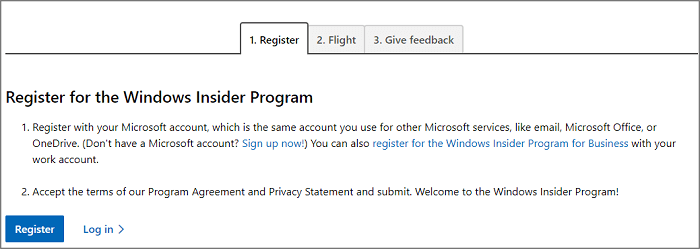
Step 2. To join the Windows Insider Program, go to Settings, then click on Update & Security, followed by Windows Insider Program, and finally click on Get Started.
Step 3. To get started, select the "+" button next to "Pick an account" and connect your Microsoft account that you previously registered. This will allow you to continue with the process.
Step 4. You should choose the Dev Channel as your experience and channel. This will allow you to receive the latest updates and features, which may include new and experimental functionality. By selecting the Dev Channel, you'll be able to experience the latest developments and provide feedback to the developers, helping shape the future of the software.
Step 5. Review and confirm the Privacy Statement and program terms, then choose to restart the process immediately or at a later time.
Step 6. To get preview builds, ensure your data settings are correct after restarting your device.
To check for Windows updates, go to Settings, then click on Update & Security, followed by Windows Update, and finally click on Check for Updates.
How to Install Windows 11 If Available
Step 1. To check for Windows updates, go to Settings, then select Update & Security, followed by Windows Update, and finally click Check for Updates.
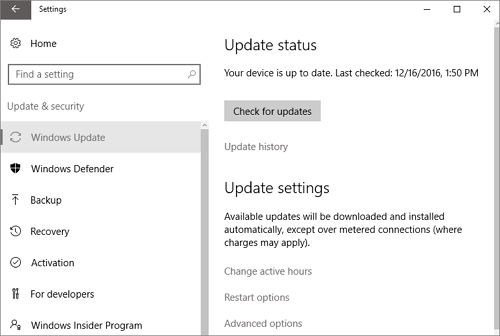
Step 2. If Windows 11 is available to your device, you'll see a "Feature update to Windows 11" in your Windows Update settings.
Step 3. Click Download and install.
5 - Will Windows 11 be Free Upgrade?
Windows 11 is free to upgrade for Windows 10 users, but they need to check system requirements and ensure their PC is running the most current version of Windows 10.
If your system configuration is outdated, upgrading to Windows 11 might not work, you may need to upgrade your hardware first or consider buying a new Windows 11-compatible PC/laptop.
6 - How to Buy a New PC with Windows 11?
Later this year, new PCs with preinstalled Windows 11 will be released, featuring brands like HP, Dell, Lenovo, and others. These computers are expected to arrive shortly after the redesigned Windows operating system is launched.
7 - How Much will Windows 11 PC Cost?
There is no exact price data available yet, and different PC manufacturers offer a variety of models.
8 - What Is the Difference between Windows 10 and Windows 11?
Windows 10 has been revamped with a fresh look and new features, maintaining its power and security while offering an exciting visual makeover and innovative functionalities.
- The screen and the start menu are simplified.
- The new design uses rounded corners between sections, giving a softer appearance that contrasts with the sharper look of the previous version.
- Voice input will be improved.
- The main difference between the two systems is the TPM chip, which affects their operation.
- Windows 11 requires a Trusted Platform Module (TPM) chip to be installed in the system, which is not supported by all systems. Therefore, systems without a TPM chip cannot be upgraded to Windows 11.
Related Articles
- Windows 11 Installation Has Failed? Your Fixes Are Here
- Windows 11 Download: How to Download and Install Windows 11 [3 Ways]
- Go Back to Previous Version of Windows in Windows 11 Even After 10 Days
- How to Stop Windows 11 Update (Block It Forever)
- Best Free SSD Repair Tool: Fix Corrupted SSD Easily
Need an SSD repair tool to fix some SSD issues? Here, we collect some SSD repair methods and bring a great solid-state-drive repair program. It can help fix some damaged SSD drives. - How to Use Unallocated Space After Cloning to A Larger HDD/SSD?
If you've cloned your hard drive to a larger HDD or SSD, you might notice unallocated space left behind. this space can still be utilized, and this post will guide you through the process of making full use of it in Windows 11/10/8/7.
Products
Articles & Tutorials
- Data Recovery
- Data Backup
- File Recovery
- File Backup
- System Backup and Restore
- Disk and Partition Clone
- Technical articles
- Mobile articles
- Disk Master Help
- Windows Data Recovery Tutorials
- Windows Secure Delete Tutorials
- Windows Partition Management Tutorials
- Windows File Backup and Restore Tutorials
- Windows System Backup and Restore Tutorials
- Windows Disk Backup and Restore Tutorials
- Windows Clone Tutorials