How to Format Write Protected USB/USB Flash Drive [7 Ways]
Error: "The Disk Is Write-Protected" While Formatting USB Pen Drive
When you encounter the "disk is write protected" error while formatting a write-protected USB pen drive, SD card, or flash drive, it means that the device's write protection mechanism is engaged, preventing any changes or formatting from being made to the device. This could be due to a physical switch on the device, a setting on the device itself, or a software setting that has inadvertently locked the device. To resolve this issue, you'll need to disable the write protection on the device, which may involve flipping a physical switch, checking and adjusting settings on the device or in your computer, or using a software tool to reset the device.
The Windows operating system has set administrator limitations, the registry entry is damaged, a virus infection, or third-party encryption software has locked your USB pen drive, preventing formatting and resulting in a "The disk is write-protected" error message.
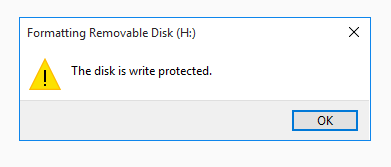
If you're wondering how to remove write protection from a USB drive, start by following the solutions in Part 1 to see if that resolves the issue.
After the process, you can format the device with a reliable disk formatting tool like Qiling Partition Master in Part 2 to make it work perfectly again with ease.
Part 1. Remove Protection from USB/Pen Drive, etc., Devices
Here are six ways to remove write protection from USB storage devices, followed by tips to format them in Part 2.
#1. Unlock Write Protected USB/Pen Drive by Switching Its Lock
To unlock the write-protected USB flash drive, you can simply switch the Lock to OFF. This will remove the write protection and allow you to format the device or make changes to it.
Step 1. Find the physical switch on your USB or pen drive.
Step 2. Move the switch from ON to OFF.
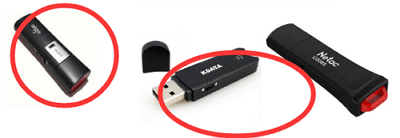
Now, you can connect the USB to your PC and re-access or format the device again.
#2. Cleanup Virus that Cause Write Protected USB or Pen Drive
A virus infection can sometimes cause a USB flash drive to become write-protected or locked. To resolve this, running professional virus cleaner software to fully remove the virus and unlock the device is the best approach.
Here is a list of recommended virus removal programs for you to try:
- Avast Antivirus
- Norton AntiVirus
- McAfee
- BitDefender
- AVG
To resolve the issue, install a recommended virus cleaner, connect the problematic device to your PC, and run the tool to scan and remove the write-protection virus from the USB or pen drive.
#3. Remove Write Protection from Device Using CMD
Step 1. To run the Command Prompt as Administrator, type "cmd" in the search box, right-click on "Command Prompt" and select "Run as Administrator".
Step 2. Type the following command lines and hit Enter after each command line.
diskpart
list disk
select disk #
attributes disk clear readonly
Replace # with the number of your write-protected flash drive or memory card.
Let CMD command to remove the write protection from your device.
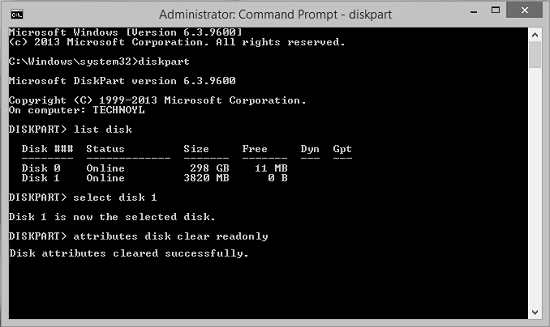
Step 3. Type exit when the process finishes.
#4. Fix Write Protected USB/Pen Drive with CMD Alternative
If you're not tech-savvy, ! There are graphical-based solutions to help you remove write-protection from your hard drives, USB drives, and even SD cards, making it easy to access and use them.
Qiling CleanGenius is a tool that helps fix issues on computer drives without requiring knowledge of command-line commands.
Here's an easy-Here's a one-paragraph guide on how to use this tool to get your issues sorted:
Step 1: DOWNLOAD and install Qiling CleanGenius (free) on your computer.
Step 2: Run Qiling CleanGenius on your PC, select Optimization and choose the Write Protection mode.
Step 3: Select the device that is write-protected and click Disable to remove the protection.
#5. Remove Write Protection on USB Flash Drive/Pen Drive using Regedit.exe
When a device is locked or a disk is write-protected, you can use the Registry Editor to unlock it by changing the corresponding key from 1 to 0.
- Warning
- Be cautious when using Registry Editor (Regedit.exe) to remove write protection on a device, as incorrect operations or typos can lead to serious issues.
- If you are a beginner, try the former solutions.
Step 1. Type: Regedit in the search box, click "Regedit.exe" to open the Registry editor.
Step 2. Navigate to: Computer\HKEY_LOCAL_MACHINE\SYSTEM\CurrentControlSet\Control\StorageDevicePolicies
Step 3. Double-click on the "WriteProtect" value in the right-hand pane of Regedit.exe.
Step 4. Change the "Value" data from "1" to "0" and click "OK" to save the change.
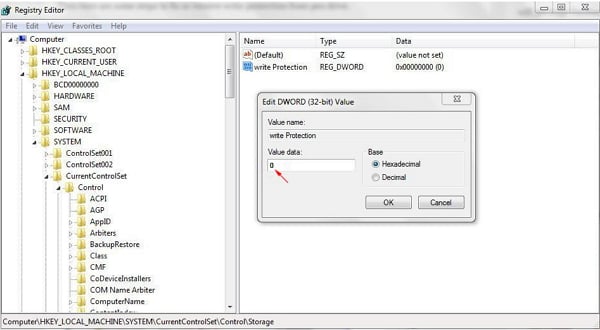
Step 5. Close Regedit and restart your computer.
To remove the write protection from a USB flash drive or pen drive, you can simply unplug it from your PC, then press and hold the write-protect button (if it has one) for a few seconds. If your device doesn't have a write-protect button, you can try plugging it into a different USB port on your PC or using a different USB cable.
#6. Change Read-Only or Write-Protected USB/Pen Drive to Normal
If your drive becomes locked or write-protected, it may be due to being set as read-only, which can be easily resolved by changing the read-only state to remove the device write protection.
This method can also be applied to remove the read-only state on your files.
Step 1. Connect your USB or pen drive to PC.
Step 2. Open Windows File Explorer, locate and right-click on the USB which is write-protected, and select "Property".
Step 3. Go to the General tab, uncheck "Read Only", click "Apply" and "OK" to finish.
After removing write protection from your USB or pen drive, you can access it directly. However, if the device still contains errors, you may need to format it to make it recognizable again.
Part 2. How to Format USB Pen Drive after Removing Write Protected
If a storage device is in a normal state, Disk Management or Windows File Explorer can usually format it. However, if the device is in a special state, such as displaying an I/O device error, Windows was unable to complete the format, or the USB cannot be formatted, a professional all-in-one formatting tool is needed.
Qiling Partition Master can format USB or pen drives, and other devices, without encountering logical errors. It can also format a write-protected SD card, removing the write protection error in the process.
Here is the detailed guide:
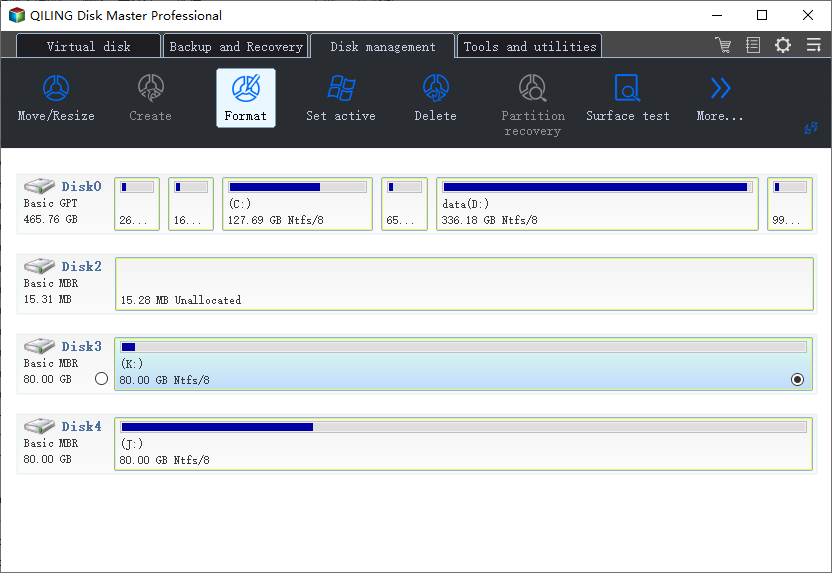
Step 1. Launch Qiling Partition Master, right-click the partition on your external hard drive/USB/SD card which you want to format and choose the "Format" option.
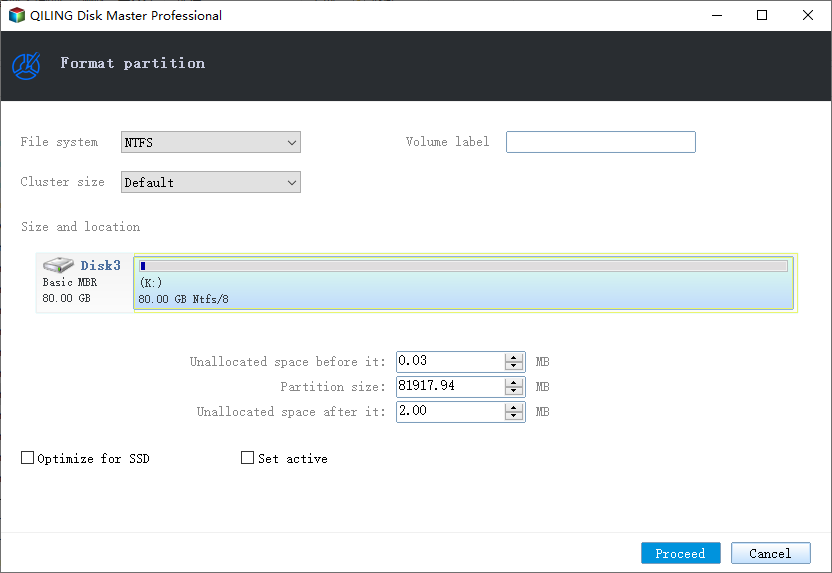
Step 2. Assign a new partition label, file system (NTFS, FAT32, EXT2, EXT3, EXT4, exFAT), and cluster size to the selected partition, then click "Proceed".
Step 3. To start formatting your external hard drive, USB, or SD card, click "OK" in the Warning window. This will initiate the formatting process, erasing all data on the device.
When you've finished formatting a write-protected USB/pen drive, the formatting process is complete, and your device is ready to store data again. This means you can save and store files on it once more.
FAQs about USB, Pen Drive, SD Write Protection
This page addresses two common issues: removing write protection from a USB drive and formatting a write-protected pen drive. The provided solutions in Part 1 and Part 2 offer a straightforward way to resolve the "The disk is write-protected" error and successfully format your USB flash drive, pen drive, SD card, external hard drive, and even internal hard drive after removing the write protection.
However, some of you may have more concerns that are related to the write protection issue. Here, we have found some top FAQs asked in Google searching result and left a brief answer below each question. If you have the same doubts, check and find your answers here immediately.
1. How do I format write-protected USB in Windows 10?
To format a write-protected USB drive in Windows 10, you need to first remove the write protection by following the methods in Part 1, and then follow the steps in Part 2 to format the drive.
You can format a USB drive in Windows 10 using either Qiling Partition Master or the built-in formatting tools. Specifically, you can use Disk Management, Windows File Explorer, or CMD to format the USB drive.
2. What is the best write-protected USB format tool?
There is no free, professional write-protected USB format tool available for download, as the issue is complex and most formatting tips are ineffective.
To resolve the issue of a USB drive not being writable, you should first disable the write protection and then use a reliable USB formatting tool to format the drive. This should resolve the problem.
3. How to format read-only USB?
When a USB displays as read-To format a USB drive on your computer, you first need to remove or resolve the "Read Only" error on the USB. Once that's done, you can use Windows Disk Management, File Explorer, or a formatting software like Qiling Partition Master to format the USB to FAT32, making it usable again.
4. Can you recover data after formatting a write-protected SD card?
When you removed the write protection and formatted your SD card, it's safe to save data on it again. You can recover lost data using a data recovery software, such as Deep Data Recovery.
Related Articles
- How Do I Clone SSD to External Hard Drive in Windows 11/10/8? 2 Ways Available
- How to Install Windows 11/10 on GPT Partition in 2022
- 3 Ways to Combine or Merge Partitions in Windows Server 2022/2019/2016
- Convert FAT32 to NTFS Without Losing Data
- How to Permanently Assign Drive Letter with Ease?
A permanent drive letter prevents us from being confused with multiple USB drives. Then, how to permanently assign drive letter with ease? This post offers three effective ways to make it. - Fix Guide of Recovery Blue Screen on Windows 10
Here's a fix guide of recovery blue screen on Windows 10 to provide suitable solutions for users to repair different blue screen errors.
Products
Articles & Tutorials
- Data Recovery
- Data Backup
- File Recovery
- File Backup
- System Backup and Restore
- Disk and Partition Clone
- Technical articles
- Mobile articles
- Disk Master Help
- Windows Data Recovery Tutorials
- Windows Secure Delete Tutorials
- Windows Partition Management Tutorials
- Windows File Backup and Restore Tutorials
- Windows System Backup and Restore Tutorials
- Windows Disk Backup and Restore Tutorials
- Windows Clone Tutorials