How to Delete EFI (System) Partition in Windows 11/10/8/7 [2 Ways]
Can I delete the EFI system partition?
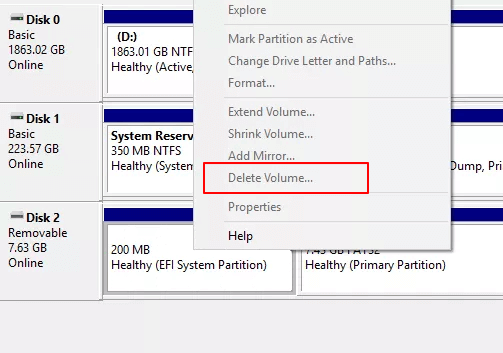
The EFI system partition in Windows cannot be deleted using the "Delete Volume" feature in Disk Management because it is grayed out. This is a limitation of the operating system.
The "Delete Volume" option may gray out when trying to delete the OEM partition, recovery, or system reserved partition. This page discusses how to delete the EFI system partition on Windows, providing information on what EFI is and what happens when the partition is deleted, as well as other must-know details about the EFI system partition.
To efficiently remove EFI partition from your computer, you can fully trust Qiling partition manager software as shown in Part 3. Keep reading and learn more details.
- Part 1. What is the EFI System Partition (ESP)
- Part 2. What Will Happen if You Delete an EFI Partition
- Part 3. 2 Methods to Delete EFI System Partition
Part 1. What Is EFI System Partition (ESP)
EFI partition, The EFI system partition, also known as the ESP, is automatically created when you successfully install Windows OS on a GPT disk in your computer. It takes up a small amount of space, typically around 100M or 200MB, and has no drive letter. In Windows 10, you may see multiple EFI system partitions.
According to Wikipedia, "The EFI system partition (ESP) is a partition on a data storage device used by computers that follow UEFI (Unified Extensible Firmware Interface) standards. It serves as a repository for bootloaders and other essential files that facilitate the booting process when a computer is started.UEFI "The firmware loads files stored on the ESP(EFI system partition) to start the installed operating system and various utilities."
It includes 4 main components:
- Boot loaders
- Device drivers
- System utilities
- Data files

Part 2. What Happens If You Delete EFI System Partition (ESP)
The EFI partition serves as an interface for the computer to boot Windows, and it's a necessary pre-step before running the Windows partition, allowing the computer to boot into Windows without it.
The EFI system partition is a critical component of a Windows operating system, and deleting it can render the system unbootable. To prevent accidental deletion, Windows typically protects and locks the EFI partition, making it invisible in File Explorer and unable to be deleted through Disk Management. This ensures the system remains functional and secure.
- Important
- 1. To keep your Windows OS running smoothly, refrain from making any changes to the EFI system partition.
- 2. If your hard drive is getting full, you can identify what's taking up space by checking the disk usage on your computer. Once you know what's occupying the space, you can use methods such as deleting unnecessary files, uninstalling unused programs, and using disk cleanup tools to free up disk space. This will help keep your hard drive organized and running smoothly.
- 3. If you have two Windows systems installed on your PC and want to delete the ESP (EFI System Partition) to free up disk space and only keep one OS, you can refer to the methods in Part 3 for assistance.
- 4. If you want to delete the EFI partition and install a new Windows OS, you can simply reinstall the OS, which will automatically remove the ESP.
Part 3. How to Delete EFI (System) Partition in Windows 11/10/8/7 [2 Methods]
Users can delete the EFI system using either the Windows built-in tool Diskpart or the third-party tool Qiling Partition Master. Before proceeding, it's recommended to back up the ESP files to prevent data loss.
Method 1. Delete EFI Partition Using Qiling Partition Manager
Besides DiskPart, third-Party partition manager software offers a more flexible and reliable solution for dealing with issues related to deleting EFI partitions in Windows. Professional partition manager software, such as Qiling Partition Master, simplifies this process, making it as easy as 1-2-3.
Now download Qiling Partition Master and learn the detailed guide.
- Qiling Partition Master -
Your Smart Windows 11 Update Disk Manager
- MBR to GPT Converter, Make Disk Ready for Windows 11.
- Migrate Windows 11 to New SSD in 1-Click.
- Handy to Extend or Combine Partitions in Windows 11.
- Clone and Upgrade Disks without Data Loss.
Step 1. To delete a system involved partition like the EFI system partition, you'll be asked to operate in a WinPE environment, which can be created using the WinPE Creator feature in Qiling Partition Master. This will allow you to boot from a USB drive and access the necessary tools to delete the partition.
Step 2. Open Qiling Partition Master WinPE edition. Delete the EFI system partition.
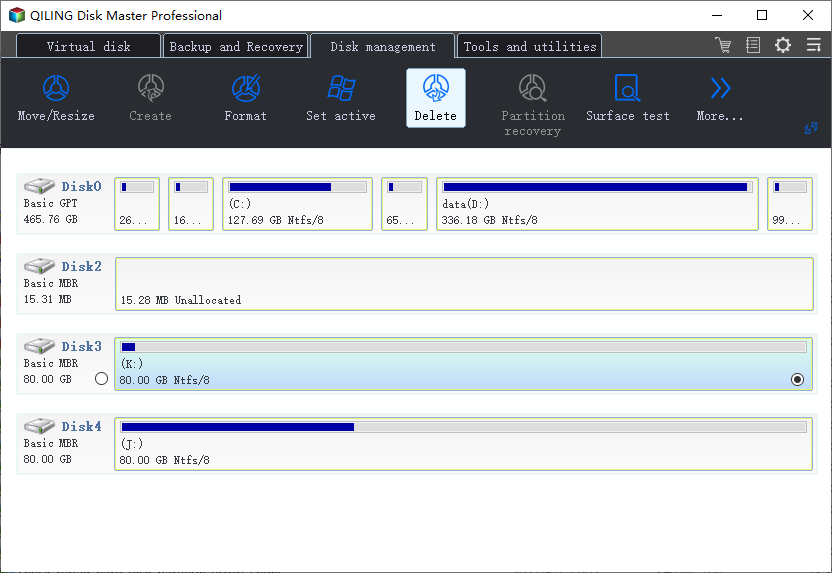
Step 3. Click "OK" to confirm the message "Are you sure you want to delete the selected partition?"
Method 2. Delete EFI System Partition with Diskpart
As a command-line utility, DiskPart is sort of complex for average users to apply. Please be very careful while following the below command lines to delete EFI partition:
Step 1. Open DiskPart on your PC.
- 1. To open the Run dialogue box in Windows, press the Windows key + R. This will open a small window where you can type commands or access various system tools and applications.
- 2. Enter diskpart and click OK to open a command prompt window.
Step 2. You want to change the ID of the EFI system partition to a data partition ID. This means you want to modify the partition table to treat the EFI system partition as a data partition, rather than the traditional use case of storing the EFI firmware and boot loader.
Type the below command lines and hit Enter each time:
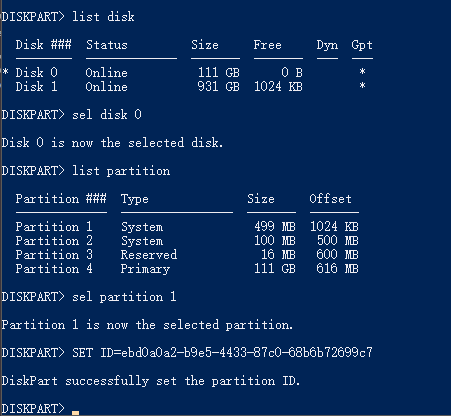
- The command "list disk" is used to display all the disks of a computer, including internal and external drives, as well as network drives. It provides a detailed list of each disk, including its disk number, file system, total size, used size, free size, and serial number. This information can be useful for managing disk space, troubleshooting disk-related issues, and identifying potential problems with disk partitions or file systems.
- The command "sel disk 0" identifies which disk you need to work with, where 0 represents the disk letter.
- The command "list partition" displays all partitions and EFI system partitions on the selected disk.
- To delete the EFI partition, select the one with the volume number 1.
- "SET ID=ebd0a0a2-b9e5-4433-87c0-68b6b72699c7"
To make the EFI system partition deletable, you can use a tool like GParted or a live Linux distribution. This will allow you to delete the partition from your hard drive. You can then use the freed space to create a new partition or format the entire drive.
Step 3. Delete the EFI partition with the command line.
Type the below command lines and hit Enter each time:
- The list partition (also known as a volume list) displays all the volumes on the hard drive, allowing users to view and manage the various storage partitions on their system.
- To remove a partition, you need to specify which partition you want to delete. This is done by typing "sel partition 1" in the terminal, where "1" represents the volume letter of the partition you want to remove. This command will allow you to select and delete the specified partition.
- To delete the EFI partition from a Windows disk, you can use the command "delete partition override" to remove the EFI partition. This command is used to delete a partition and override any warnings that would normally prevent the deletion of an essential system partition. When prompted, confirm that you want to delete the partition to proceed with the removal of the EFI partition.
Step 4. Complete EFI deleting process.
To close the windows, type "exit" when you receive the message that says, 'DiskPart successfully deleted the selected partition'.
Final Word
When you've successfully deleted the EFI partition on your PC, you can create a new partition with the unallocated space to use as a data partition or add the free space to other existing partitions.
This tutorial demonstrates how to partition a hard drive using Qiling Partition Master, covering essential tasks such as resizing a partition, creating a new partition, and deleting an existing one.
If you have further questions about EFI partitions, you can find helpful information by checking out the links provided.
Related Articles
- [Fixed] There Is No exFAT Format Option in Windows 11/10/8.1/8/7
- 3 Best Disk Repair Tools for Windows Server Free Download 2022
- How to Expand RAID 5 Array Partitions in 2022 [New]
- 7 Top Best Free Disk Partition Software For Windows in 2022
- Troubleshoot and Bypass SMART Failure in Windows 2024 [Full Guide]
This tutorial will guide you through step-by-step solutions to troubleshoot and bypass SMART failure issues in Windows, ensuring optimal performance of your disk. - Can Windows 10 Be Cloned [2024 Fullest Guide]
This article covers the theme Can Windows 10 Be Cloned and introduces a professional tool to clone Windows 10.
Products
Articles & Tutorials
- Data Recovery
- Data Backup
- File Recovery
- File Backup
- System Backup and Restore
- Disk and Partition Clone
- Technical articles
- Mobile articles
- Disk Master Help
- Windows Data Recovery Tutorials
- Windows Secure Delete Tutorials
- Windows Partition Management Tutorials
- Windows File Backup and Restore Tutorials
- Windows System Backup and Restore Tutorials
- Windows Disk Backup and Restore Tutorials
- Windows Clone Tutorials