How to Delete OEM Partition in Windows 11/10/8/7
| Workable Solutions | Step-by-step Troubleshooting |
|---|---|
| Method 1. Qiling Partition Master [Easiest] | Step 1. Launch Qiling Partition Master on your computer; Step 2. Select to delete partition or delete all partitions...Full steps |
| Method 2. Diskpart [Free] | Step 2. Press "Windows + R" keys to open the run dialogue box, enter: diskpart, and click "OK" to open...Full steps |
The OEM partition is a pre-installed partition on new computers, usually around 100-500 MB in size, created by the manufacturer to store their software and settings. It's not a system partition and doesn't contain any user data. Deleting the OEM partition is generally safe, but it's recommended to check with the manufacturer or a professional to ensure it doesn't interfere with any warranty or software requirements.
If you're looking to delete the OEM partition on your Windows 11/10/8/7 computer, there's a secure method to do so. You can follow the steps outlined on this page to successfully remove the OEM partition from your computer.
What Is Healthy OEM Partition in Windows 11/10
You'll learn about OEM partitions, including what they are, whether it's safe to delete them, and what happens if you do. This will cover the basics of OEM partitions, including their purpose, potential risks, and consequences of removal.
OEM partition This partition is designed for system recovery or factory restore, allowing users to easily and quickly restore the system to its original state in case of system failure or crash. It typically comes pre-installed with Dell, Lenovo, or HP computers.
The OEM partition, also known as a recovery partition, is used to restore a laptop or desktop to its original factory settings.
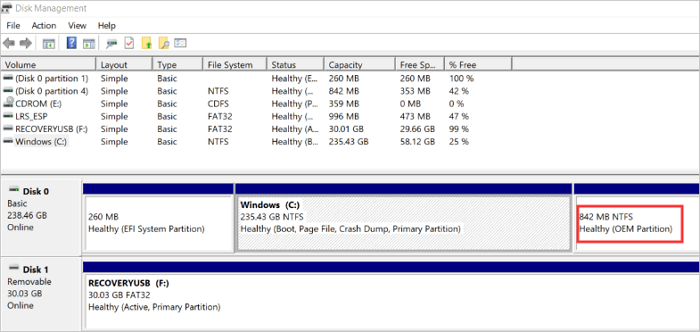
Is It Safe to Delete Healthy OEM Partition?
Deleting the Healthy (OEM Partition) is generally safe, as it is created by computer suppliers for their software or factory restore settings and takes up a lot of disk space, making it not very useful.
What Happens If I Delete OEM Partition
The OEM partition is used to restore Windows to its original factory settings, and deleting it would prevent users from doing so.
If you have the Windows installation CD or creation media, you can access recovery features by booting from it, which can also help with booting issues.
The OEM reserved partition should not be deleted, especially if it's damaged, as it can lead to further problems.
How Do I Delete a Healthy OEM Partition
The Healthy (OEM Partition) on your Dell laptop is likely a pre-installed partition created by the manufacturer to store the system recovery image, drivers, and other system files. It's not essential for your daily use and can be safely deleted to free up space. You can delete this partition using the Disk Management tool in Windows. Be cautious when deleting partitions, as it's a permanent action. Make sure to back up any important data before proceeding. If you're unsure, consider seeking advice from a tech expert or the manufacturer's support. Would you like me to guide you through the process of deleting the partition?
You can't delete the OEM partition using the built-in Disk Management tool, as it's a system partition and deleting it would cause system instability. However, you can disable it by right-clicking on it in Disk Management, selecting "Change Drive Letter and Paths", and then clicking "Remove" to remove the drive letter. This will effectively disable the OEM partition without deleting it. Alternatively, you can use a third-party partition manager tool to delete the OEM partition, but be cautious as this can cause system instability if not done correctly.
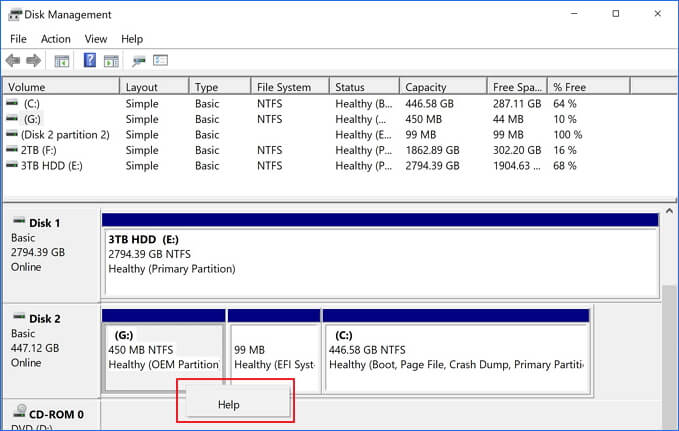
To delete the Healthy (OEM Partition) using Windows Disk Management tool is not possible, as it's not supported. However, you can use a third-party partition manager or command-line tools like DiskPart to achieve this. Alternatively, you can boot from a Linux live USB and use tools like GParted to delete the OEM partition. These methods will allow you to remove the partition, but be cautious as deleting partitions can lead to data loss.
Delete OEM Partition in Windows 11/10/8/7 in Two Ways:
To delete the OEM partition in Windows 11/10/8/7, there are two methods. Firstly, you can use the built-in Disk Management tool to delete the OEM partition.
- #1. Use a third-party partition manager software - Qiling Partition Master
- #2. Use Diskpart
If you're a Windows beginner, you can use Qiling Partition Master for assistance. Alternatively, if you're experienced with Diskpart, you can follow the steps outlined in Method 2. For a detailed explanation, let's discuss the process further.
Method 1. Delete OEM Partition with Qiling Partition Master [Easiest]
Best for: All levels of Windows users, specially designed for beginners.
For an easy and effective solution, try Qiling Partition Master, an ultimate partition manager that makes it effortless to organize your disk space. You can use it to delete, format, hide, and even wipe partitions quickly, and it also offers advanced features like cloning/copying partition and merging partitions to fulfill more needs.
To delete the OEM partition in Windows 11/10/8/7, download and use a user-friendly partition manager to easily accomplish this task.
Step 1. Launch Qiling Partition Master on your computer.
Step 2. To delete a partition on a hard drive, you can choose to delete the entire partition or delete all partitions on the drive. This process is often referred to as low-level formatting.
- Delete single partition: To delete a partition, right-click on it and select "Delete..." from the context menu.
- Delete all partitions: To delete all partitions on a hard drive, right-click the drive you want to delete all partitions from and select "Delete All...".
Make sure to back up important data on the selected partition before proceeding, as this method will completely remove data.
Step 3. Click "OK" to confirm the deletion.
Method 2. Delete OEM Partition with Diskpart [Free]
Best for: Experienced and professional Windows users.
As a command-The DiskPart utility can be difficult for average users to understand and use due to its non-graphical interface, making it a potentially risky option for deleting OEM partitions, even though it's free.
If you're not comfortable with Windows command lines, don't attempt this method. Instead, revert to the easier solution of Method 1. However, if you're still interested in trying this method, be sure to follow each step carefully.
Step 1. To open the Diskpart command prompt, press the Windows key + R to open the run dialogue box, type "diskpart" and click "OK" to open a black command prompt window.
Step 2. To display all the disks of your computer, you can simply type `list disk` in your command prompt or terminal. This will show you a list of all the available disks, including internal hard drives, external drives, and any other storage devices connected to your computer.
Step 3. Type select disk n to identify which disk you need to work with. Here "n" stands for the disk number.
Step 4. The command to display all the volumes on the hard drive is list partition.
Step 5. To identify which partition you want to remove, type "select partition n" in the command line, where n represents the volume number.
Step 6. Type delete partition override to remove the OEM partition.
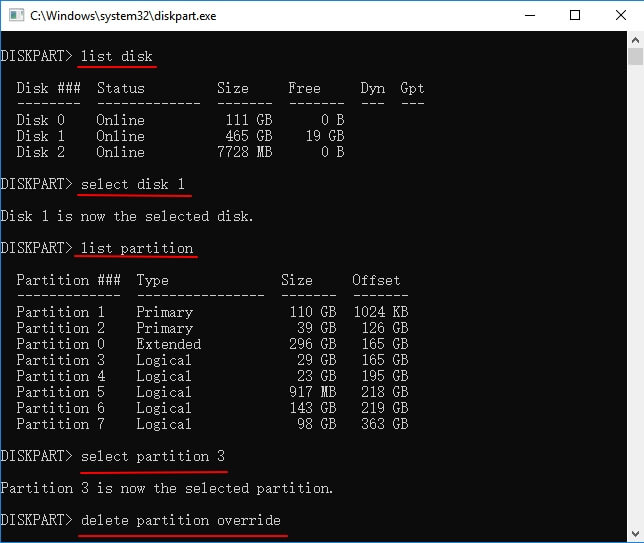
Step 7. To close the windows when you receive the message says, "DiskPart successfully deleted the selected partition", simply type "exit" in the command prompt window. This will close the DiskPart window and return you to the Command Prompt.
After deleting the OEM partition, you should be able to use the free space on your disk.
Conclusion
The OEM partition, also known as the System Reserved partition, is a hidden partition on a Windows computer that contains system files and boot information. While it's not necessary to delete it, you can safely remove it if you're running low on disk space or want to free up space for other files.
While the OEM partition can be deleted, it's not recommended to do so if you still want to use it for factory resetting your computer. If you have questions about the OEM partition, you can check the provided Q&A section for more information.
People Also Ask About OEM Partition
Except for deleting OEM Healthy Partition, you may still have some other concerns about this partition. Check out the answers below, you may get your problem resolved.
1. Do I need the recovery partition?
You may also have a recovery partition on your computer created by Windows, which can be checked in Disk Management.
The recovery partition is a 500 MB partition on the system hard drive that allows for system restoration to factory settings in case of issues. It can be safely deleted to free up space without any negative consequences.
2. Can I recover deleted OEM partition?
When you delete an OEM partition, you can still recover it, but you can't use Windows' built-in free tools to do so.
To recover an OEM partition, use a third-party partition manager software like Qiling Partition Master, which has a partition recovery feature that can undelete the partition and restore saved data at once.
3. How do I extend OEM partition?
If the OEM partition gets full, you can use the Resize/move feature in Qiling Partition Master to extend the partition with ease. For a step-by-step guide, refer to this link for help: 6 Ways to Extend Partition.
If you have unallocated space next to the OEM partition, you can also extend the OEM partition using Disk Management, making it possible to add more space to the existing partition.
Related Articles
- How to Merge Unallocated Space Windows 11/10/7
- Windows 11 End of Support Date Confirmed and What to Do With That [2022 Guide]
- 3 Best Free Partition Manager For Windows 7/8/XP 32 Bit and 64 Bit
- How to Create Bootable Usb Windows 10
- How Can I Check M.2 SSD Temperature Like an Expert in Windows 11/10
If you're concerned about your M.2 SSD's health, you can check its temperature in Windows 11/10. To do this, you'll need to follow essential techniques to monitor your SSD's temperature like a pro, which are outlined in this comprehensive article. - CHKDSK Cannot Run Because the Volume Is in Use by Another Process
If you're getting the CHKDSK Cannot Run Because the Volume Is in Use by Another Process message when trying to run the CHKDSK program from the terminal. This guid can help to resolve it.
Products
Articles & Tutorials
- Data Recovery
- Data Backup
- File Recovery
- File Backup
- System Backup and Restore
- Disk and Partition Clone
- Technical articles
- Mobile articles
- Disk Master Help
- Windows Data Recovery Tutorials
- Windows Secure Delete Tutorials
- Windows Partition Management Tutorials
- Windows File Backup and Restore Tutorials
- Windows System Backup and Restore Tutorials
- Windows Disk Backup and Restore Tutorials
- Windows Clone Tutorials