Complete Guide - How to Combine Two SSD Drives
SSD drives are rapidly replacing HDD drives due to their superior performance, increasing PC efficiency by speeding up boot times, file opening, and program running. They also consume less power and are more durable, but their high cost is a major drawback. However, you can overcome this by combining two cheaper SSD drives into one, saving money while still achieving the desired result. Our guide provides detailed explanations on how to combine two SSDs, along with important tips and tricks to help you do this.
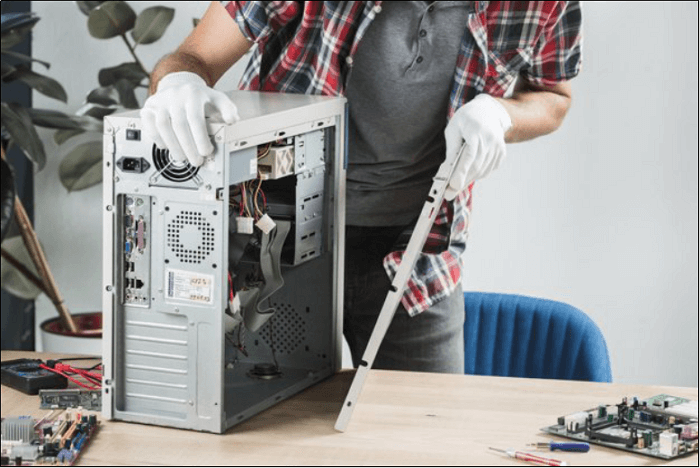
Requirements to SSDs Combination
There are some important prerequisites that you must know before combing your SSD's regardless of which method you use to combine the drives. We have mentioned all of them down below.
- Combining external disks and devices is undoable.
- You can only merge your internal drives and disks.
- To merge disks, you need to have some unallocated space available. This is because the process of merging disks involves combining the free space from multiple disks into a single, larger volume.
- Unfortunately, it's not possible to combine multiple drives to increase the C drive space, as they are separate physical storage devices. Each drive has its own capacity, and merging them wouldn't change the overall storage capacity.
- Before merging the two SSD drives, they should both be converted from basic to dynamic, which is a necessary step to ensure a smooth merging process.
How to Combine Two SSD Drives with Qiling Partition Master
Qiling Partition Master allows users to resize, clone, create, merge, and format partitions and drives, all without deleting data, making it a convenient tool for combining disks or making changes.
Qiling Partition Master can resize, merge, and move partitions, and its premium version allows combining two disks. It can also transfer free space, check system errors, clone partitions, and convert basic disks to dynamic ones.
To combine two disks with Qiling Partition Master, follow these steps: First, open Qiling Partition Master and select the two disks you want to combine. Then, click on the "Merge" or "Combine" button to initiate the merging process.
Step 1. Convert Basic into Dynamic
- Click one of the disks (disk 0, disk 1 or disk 2) that you want to merge, choose "Convert to Dynamic Disk".
- Confirm the disk conversion from the Basic to Dynamic.
- To convert the second disk to a dynamic disk, select it in Disk Management, right-click it, and choose "Convert to Dynamic Disk". This process will delete all existing partitions on the disk, so make sure you have backed up any important data.
- When both disks have been converted into dynamic disks, you can merge free space from one disk to another by following the steps to extend the volume of the disk with the free space. This process allows you to utilize the unused space on one disk to expand the volume of the other disk, effectively increasing the storage capacity of the system.
Step 2. Merge Two Disks into One Disk
Note: To convert a basic disk to a dynamic disk, you need to ensure that the disk has unallocated space and that you cannot merge a system partition, even if you have converted it to dynamic. If the disk has unallocated space, you can proceed with the conversion. However, if it doesn't, you'll need to delete all partitions on the disk using Qiling Partition Master. Additionally, you cannot merge a system partition, even if it has been converted to dynamic.
- Select the full disk, click on it and choose "Resize/Move".
- To resize a partition, use your mouse to drag the partition panel rightward or leftward to extend the partition size.
If the unallocated space is on the left of the partition you want to extend, you can move the unallocated space to the desired size by dragging the left partition handle leftwards.
- You can merge space from one disk to the other by clicking "Proceed".
How to Combine Two SSDs with Disk Management
Windows built-in tool, Disk Management, can create partitions and delete or merge them. It can also combine two SSD drives into a single volume. This volume can be of two types; Spanned and Stripped. The former is used to combine files that are of different sizes, and it uses the drives sequentially by filling up the first SSD before utilizing the second one. The latter, Stripped Volume, is used when your SSD drives have the same size, and it uses both of them simultaneously to increase read and write performances. You can choose between either of them based on which ones meet your requirements; opt for a new spanned volume if you want to combine two drives that have different volumes but use a new striped volume if you want faster performance.
Follow the steps given below to combine your SSD drives into one using Disk Management.
Step 1. Press the Windows key + R on your keyboard, then type "diskmgmt.msc" and press Enter to open Disk Management.
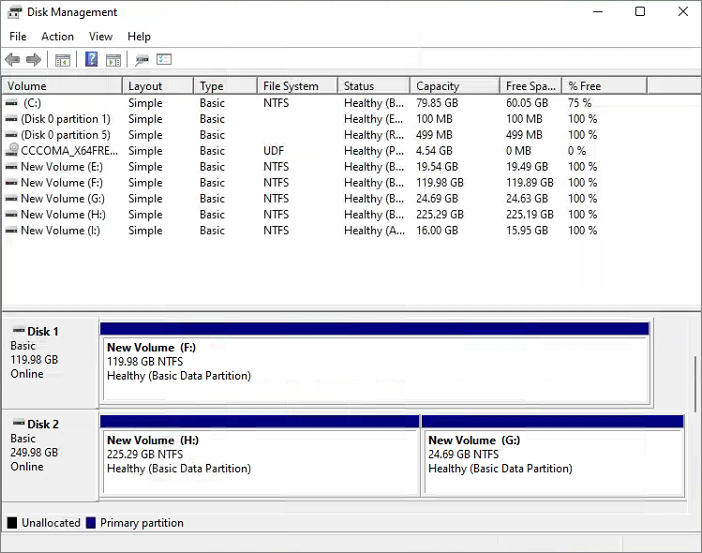
Step 2. Right-click the disk and select "Convert to Dynamic Disk".
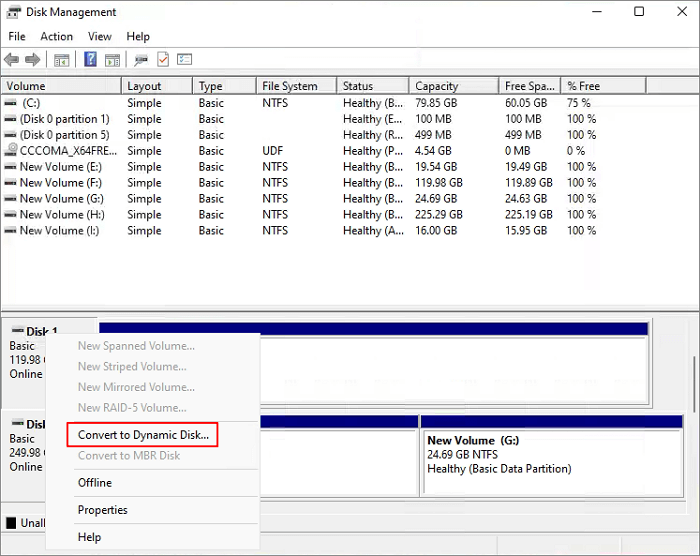
Step 3. To convert multiple disks to dynamic disks simultaneously, you can use the `convert` command with the `/MIRRORED` option. This command will convert the specified disks to dynamic disks while preserving their original partition layout.
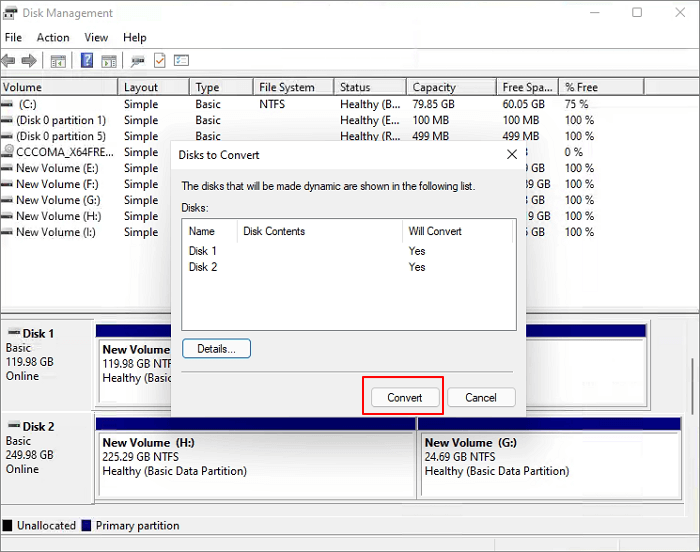
Step 4. A warning box could pop up telling you that you are going to convert the basic disks to dynamic disks. Click "Yes".
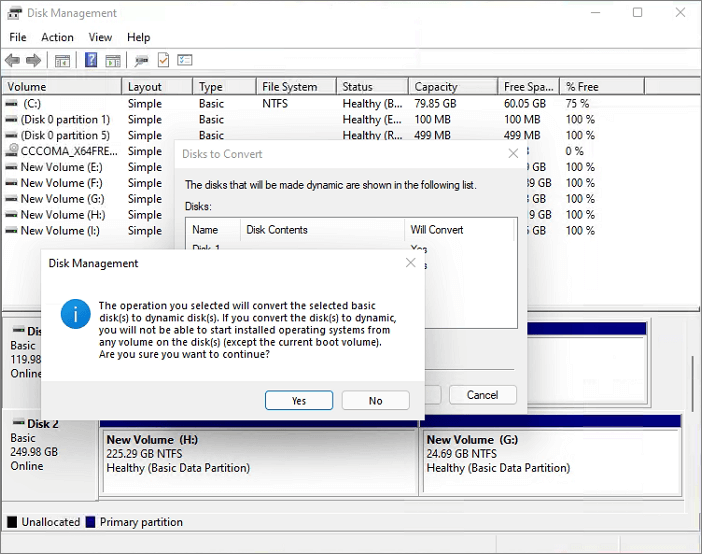
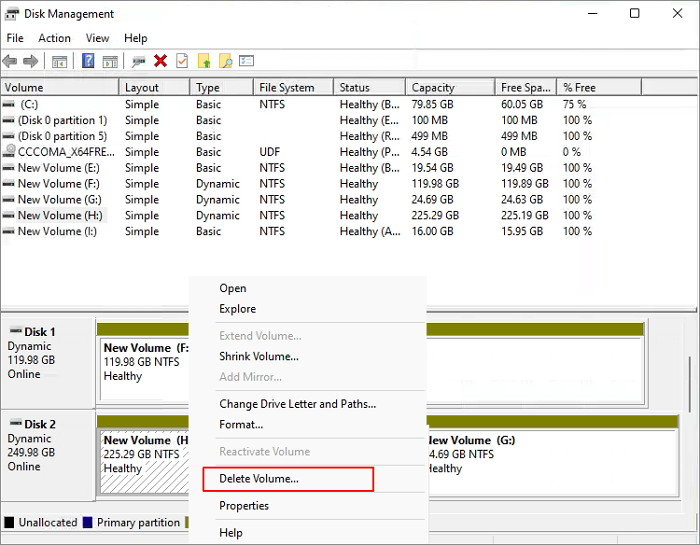
Step 5. Select a disk, for example, Disk 2, then right-click it and choose "Delete Volume" to create unallocated space.
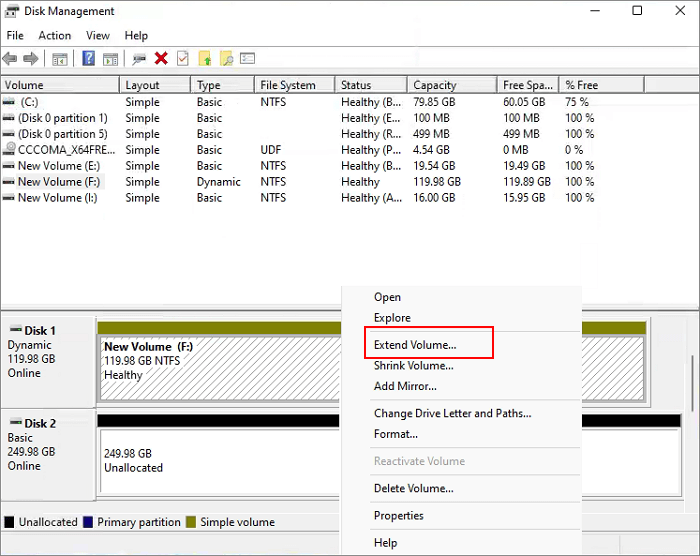
Step 6. When you delete all the partitions on Disk 2, right-click Disk 1 and select "Extend Volume".
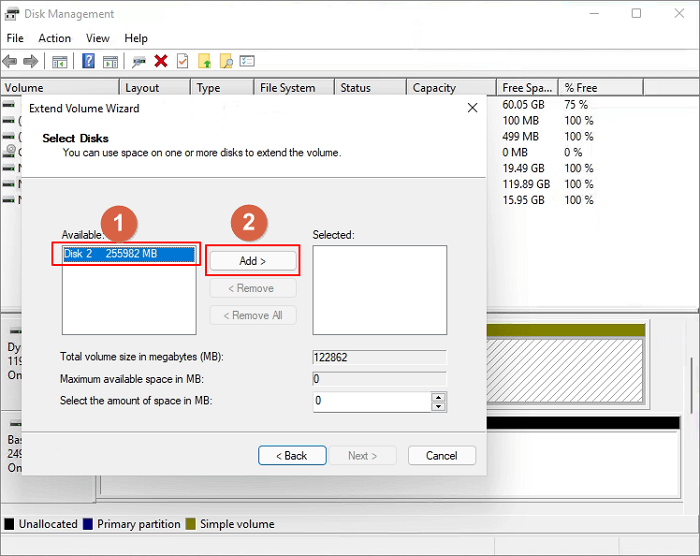
Step 7. In the next window, choose the available space and click "Add".
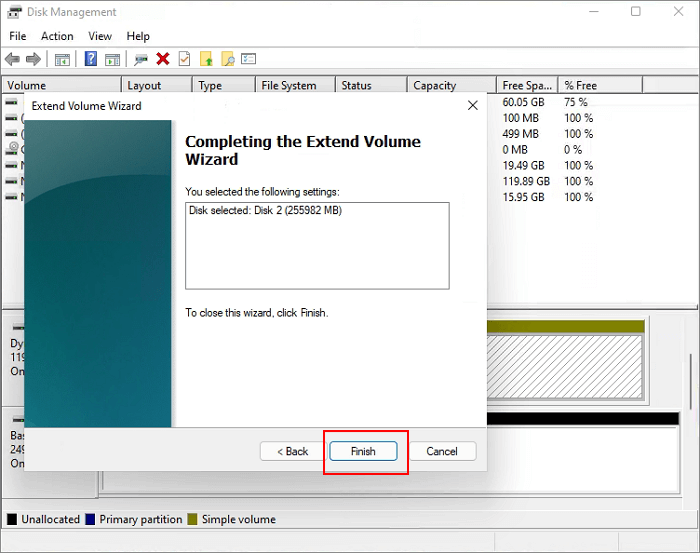
Step 8. Then, click "Finish" to make sure that you want to combine two disks.
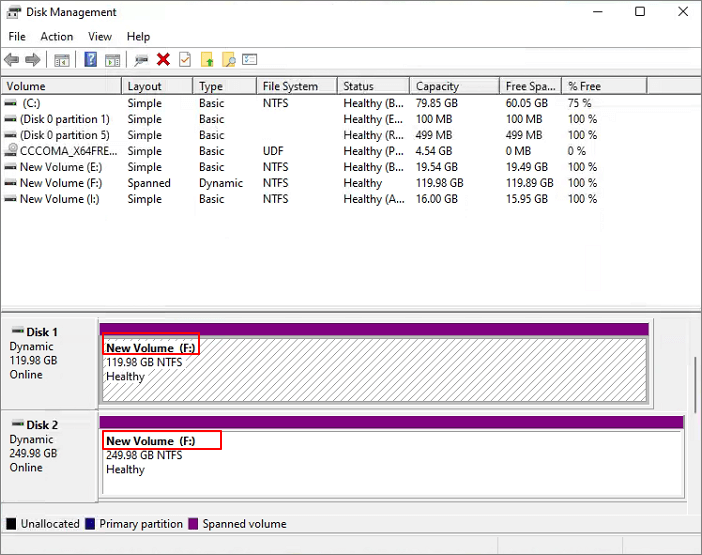
Step 9. The two disks were merged as one disk using Disk Management.
Conclusion
By combining two SSD drives, you can overcome the high cost of large storage capacity SSDs. You can use either the premium version of Qiling partition master or the free Disk Management method to achieve this, making the process easier and quicker.
Related Articles
- What Is A Typical Symptom That Might Indicate the MBR Record Is Damaged? Fix MBR in Windows 10/11
- What is Dynamic Foreign Disk, How to Import Foreign Disk Without Data Loss
- Top 5 Reliable Software to Check Hard Disk Health for Free
- How to Format DVR Hard Drive for PC
- How to Format Read Only Disk to Normal Windows 11
This article will explore how to format a read-only disk to normal in Windows 11, providing a step-by-step guide to achieve this. Let's get started. - How to Format SD Card to FAT32 on Windows 11/10
Qiling Partition Master allows you to format SD cards to FAT32 in Windows 11/10, regardless of their size, including 32GB, 64GB, 128GB, or 256GB.
Products
Articles & Tutorials
- Data Recovery
- Data Backup
- File Recovery
- File Backup
- System Backup and Restore
- Disk and Partition Clone
- Technical articles
- Mobile articles
- Disk Master Help
- Windows Data Recovery Tutorials
- Windows Secure Delete Tutorials
- Windows Partition Management Tutorials
- Windows File Backup and Restore Tutorials
- Windows System Backup and Restore Tutorials
- Windows Disk Backup and Restore Tutorials
- Windows Clone Tutorials