[Fixed] The File Is Corrupted and Cannot Be Opened in Excel/Word
Here are four effective ways to fix the issue of a corrupted file that cannot be opened in Microsoft. You can quickly view the options and jump to the one that interests you most. Firstly, try to repair the file by using the built-in repair tool in Microsoft.
| Workable Solutions | Step-by-step Troubleshooting |
|---|---|
| Fix 1. Repair Excel/Word File | Download and install Qiling file repair software. From the software's main screen, select...Full steps |
| Fix 2. Disable Protected View Options | Open Word or Excel > go to Trust Center > Trust Center settings > go to Protected View...Full steps |
| Fix 3. Unlock the File | Right-click the file you have difficulty in opening and choose Properties...Full steps |
| Fix 4. Adjust Component Services Settings | Click "Start" and enter dcom, right-click Component Services and choose Run as administrator...Full steps |
About "The file is corrupt and cannot be opened" in Microsoft Excel or Word
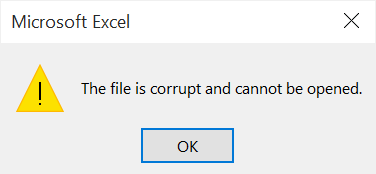
The error message "the file is corrupted and cannot be opened" typically occurs when trying to open a file created in an older version of Microsoft Office in a newer version, such as opening an Excel 2013 file in Excel 2016. This issue can also arise after reinstalling Microsoft Office. The main causes include compatibility issues between different Office versions, corrupted file structures, or problems with the Office installation itself.
- When you upgrade or reinstall Microsoft Office, you may notice changes in the settings. Some settings may have been reset to their default values, while others may have been updated to the latest version.
- Protection of your computer against files coming from another computer can be achieved through various means, including installing antivirus software, using a firewall, keeping your operating system and software up-to-date, being cautious when opening email attachments or clicking on links, and regularly backing up your data. This can help prevent the spread of malware, viruses, and other types of cyber threats that can compromise your computer's security.
- The Excel or Word file is corrupted
4 Fixes for "The file is corrupt and cannot be opened" in Excel/Word
The error message 'the file is corrupted and cannot be opened' doesn't necessarily mean the file is damaged, but rather that the Microsoft Office application settings are incorrect, leading to the file becoming inaccessible. There are effective fixes for this issue in Microsoft Office.
Method 1. Repair Excel/Word File with Third-Party Software
When a file is corrupt, changing computer settings won't fix the error "the file is corrupt and cannot be opened." To access the file successfully, you can try repairing the corrupted Excel files or Word documents with third-party file repair software, such as Qiling repair for Word, which can repair corrupted .doc and .docx files and recover complete file data.
Step 1. Launch Deep Data Recovery, and then select documents file types and click "Fast Scan" to proceed.

Note: You can choose different search modes based on where and why the data was lost.
Step 2. This software allows you to repair damaged Word, Excel, PPT, and PDF files in a single process, followed by a disk scan to identify corrupted documents.

Step 3. Qiling data recovery and repair tool scans for all lost and corrupted files, allowing you to find target files by type or search for them by name.

Step 4. Deep Data Recovery can automatically repair damaged documents, allowing you to preview and recover Word, Excel, and PDF files to a safe location.
Method 2. Disable Protected View Options
Many users have reported that disabling "Protected View" fixes the error, but this method carries potential security risks. To mitigate this, save the file as a new one after accessing it and then re-enable "Protected View".
Step 1. Open Microsoft Excel/Word and go to File > Options.
Step 2. Go to "Trust Center" > "Trust Center Settings...".
Step 3. To access the file, go to the "Protected View" section and uncheck all the boxes, then click "OK".
Step 4. Restart Microsoft Excel/Word.
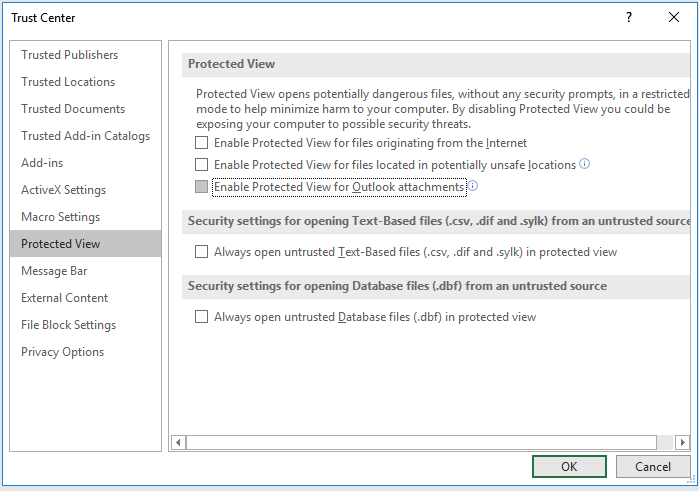
Now you can try to open your file again and see if the error message "the file is corrupt and cannot be opened" still exists.
Method 3. Unlock the File
If you're getting the "the file is corrupt and cannot be opened" prompt when trying to open some Excel or Word files on your computer, a quick fix is to try this solution.
Step 1. Find and right-click the file you have difficulty in opening.
Step 2. Choose "Properties".
Step 3. Under the General tab, check the box next to "Unlock".
Step 4. Click "Apply" > "OK".
Method 4. Adjust Component Services Settings
Be cautious when modifying component services in Windows, as it can alter the registry, which is a critical system file. Proceed with care and consider the potential consequences.
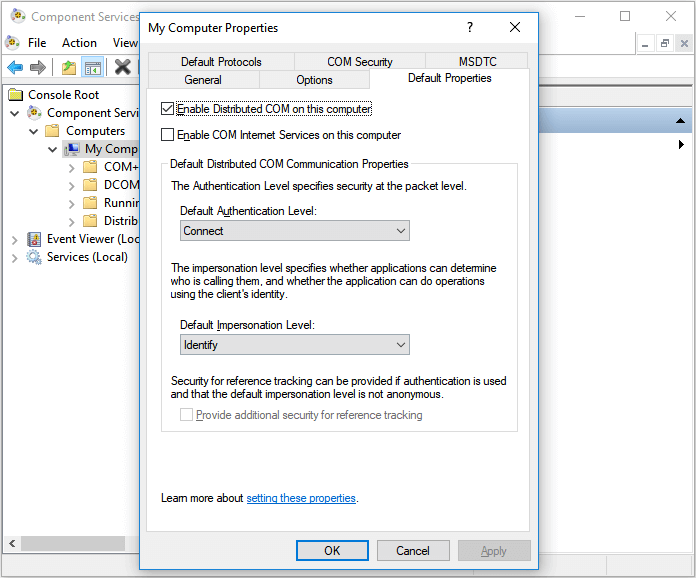
Step 1. Click "Start" and enter dcom.
Step 2. Right-click "Component Services" and choose "Run as administrator".
Step 3. Expand "Component Services" > "Computers" > "My Computer".
Step 4. Right-click "My Computer" and choose "Properties".
Step 5. In the "Default Properties" tab, set the Default Authentication Level to "Connect" and the Default Impersonation Level to "Identity".
Step 6. Click "Apply" > "OK".
FAQs
1. How to Recover Lost Excel/Word Files
If you've lost important Microsoft Office files like Excel, Word, or PowerPoint due to accidental deletion, formatting, or other reasons, Deep Data Recovery software can help you recover them. Although it can't restore corrupted Excel files, it can retrieve lost files with just a few clicks, making it a useful tool for retrieving lost Office files.
Note: To increase the chances of successful data recovery, install the Qiling data recovery software on a different disk from the one where the files were lost. This helps prevent overwriting of the original data, thereby preserving the integrity of the lost files.
Step 1.To recover data, launch Deep Data Recovery on your Windows computer, select the desired file types, and click "Fast Scan" to proceed.
Note: You can choose different search modes based on where and why the data was lost.
Step 2. Select the disk partition or storage location where you lost data and click "Scan".
Step 3. After running the recovery software, it will begin scanning the disk to locate all lost and deleted files. Once the scan is complete, users can click "Filter" > "Type" to narrow down the search and specify the types of lost files they are looking for.
Step 4.To recover lost Windows files, you can preview the scanned files by double-clicking on them. Then, select the target data you want to recover and click the "Recover" button to save them to a safe spot, such as another location on your PC or an external storage device.
2. How can I open a corrupted file?
To open a document after a file corruption error:
Step 1. Open a file by going to File > Open > Browse, and then navigate to the location where the document, workbook, or presentation is stored.
Step 2, Click the file you want, and then click the arrow next to Open, and click Open and Repair.
3. How do I fix a corrupted Excel file?
Step 1. Follow the temp file folder location on your PC and find the Excel temp files with TMP extension.
For Windows 8/10 users:
C:\Users\\AppData\Local\Microsoft\Office\UnsavedFiles
For Windows 7 users:
C:\Users\name\AppData\Roaming\Microsoft\Excel\
Step 2. Locate and find the temporary excel files begin with "$" or "~" and end with ".TMP".
Step 3. Copy these files and save them to another safe spot by changing the extension from.TMP to .XLS/.XLSX.
The Bottom Line
To fix the error "the file is corrupt and cannot be opened" in Excel or Word, you can simply change your computer settings if the files aren't severely corrupted. However, if the files are truly damaged and you have no backup, your only hope is to use professional repair software to try and recover the data. This highlights the importance of regular data backup, whether you prefer manual copying or use free backup software, to prevent total data loss.
Related Articles
- How to Upload Files to Google Drive Automatically
- How to Fix IRQL_NOT_LESS_OR_EQUAL Error in Windows 10/8/7
- Best Free SyncToy Alternative Software for Windows 10/8/7
- External Hard Drive Takes Forever to Load
- Top 3 Best Download Free Backup Tools Work with A Restore Tool
Backup tools work with a restore tool is a term that Windows users search a lot. Check the backup tools list and examples in the article and select a suitable backup and restore tool according to your needs. - The Best Way to Backup Windows Server 2008 to NAS [2022 Tips]
if you will back up Windows Server 2008 to NAS. Qiling Backup makes it easy to back up Windows Server 2022/2019/SBS 2008/11.10,8,7. Read this guide and back up Windows Server to NAS drive with a complete guide.
Products
Articles & Tutorials
- Data Recovery
- Data Backup
- File Recovery
- File Backup
- System Backup and Restore
- Disk and Partition Clone
- Technical articles
- Mobile articles
- Disk Master Help
- Windows Data Recovery Tutorials
- Windows Secure Delete Tutorials
- Windows Partition Management Tutorials
- Windows File Backup and Restore Tutorials
- Windows System Backup and Restore Tutorials
- Windows Disk Backup and Restore Tutorials
- Windows Clone Tutorials