Fix Computer Slow after Windows 10 Update | Speed Up PC in 6 Ways
It's been over 5 years since Windows 10 was released, and despite being used by around 57% of the global population, many users still experience slow computers after upgrading to the operating system.
If your computer slows down after installing Windows 10, don't worry, as this page will provide you with the necessary information to address the issue.
Practical fixes with detailed tutorials will be presented here to help you successfully speed up your PC and optimize its performance with ease.
Issue - Computer Slow after Windows 10 Upgrade
"Hello, does upgrading to Windows 10 slow down my computer? You recently installed a Windows 10 update on your computer and it went smoothly without any issues, making you feel fortunate.
Somehow, some apps and basic programs cannot respond soon when I click to use them. Instead of faster and improved performance, it seems that my computer slows down after Windows 10 update. Will Windows upgrade slow down the computer? How do I fix this issue?"
- Windows 10 20H2 October Update Rolls Out:
- Microsoft is releasing the Windows 10 October Update, with its new features, starting October 20, for mainstream users to install.
- If you haven't received it yet, you can manually download it from a variety of channels.
- To install the latest Windows 10 20H2 update, click on the "Download Latest Windows 10 Update" link from the Microsoft official website.
It's a common issue that PCs and computers may slow down after updating to the latest Windows 10, with many users experiencing this problem on Microsoft community and Windows forums. The issue occurs due to various reasons, and resolving it requires understanding the causes and taking corrective measures.
Continue reading and all your concerns will be addressed in the next two parts.
Causes - Why Is PC Slow after Windows 10 Update
If your computer is running slow after installing Windows 10, it's normal for it to take time to boot up and adjust to the new operating system, so just let it be.
The computer takes a long time to start up and remains slow, suggesting a possible lag or bug issue.
If Windows 10 updates are slowing down your PC, it's essential to understand the underlying causes. Common culprits include outdated drivers, corrupted system files, and resource-intensive updates, which can hog your computer's processing power, leading to a sluggish performance. Knowing the reasons behind the slowdown will help you take corrective action to resolve the issue.
- The system C drive running out of space is often caused by a large amount of temporary files, system logs, and other data being stored on the drive, leading to a shortage of available space. This can happen when the drive is not regularly cleaned up or maintained, allowing files to accumulate and consume valuable storage space.
- The system disk is with low disk
- The current bugs in Windows 10 updates cause significant slowdowns in computer performance, which can be frustrating for users.
- Computer is too old to install new Windows 10 updates
Upgrading to the latest Windows 10 can slow down your computer, but there are solutions to speed it up. Follow the offered solutions and you'll successfully speed up your PC with ease.
Solutions - Fix Windows 10 Update Slow Computer Issue, Speed Up PC
To resolve the Windows 10 slow down computer performance issue, consider applying the following resolutions: updating the operating system, disabling startup programs, closing unnecessary background applications, running the built-in Disk Cleanup tool, running the System File Checker tool, checking for malware and viruses, disabling Windows Search, disabling Windows Update, and updating device drivers. Additionally, consider upgrading the RAM, using a solid-state drive (SSD), and disabling animations to improve performance.
- #1. Extend System C Drive
- #2. Clear Windows Update Cache
- #3. Disk Cleanup
- #4. Optimize Disk Performance
- #5. Install the Latest Windows Update- New PCs after 2010
- If you're experiencing issues with your old PC (pre-2010), try performing a System Restore to revert to a previous version. This can help resolve problems caused by software updates or other system changes. To do this, follow these steps: 1) Click on the Start menu and select 'All Programs' or 'Programs' (depending on your Windows version).
Before proceeding, note that certain methods, such as Fix 2, 3, and 6, may result in data loss, so it's essential to back up your data on the C drive beforehand. With that in mind, let's move forward with optimizing your computer's performance.
Method 1. Extend System C Drive to Speed Up Windows 10 PC
Windows updates often consume storage space on the system C drive, which can lead to a slow computer if the drive runs out of space after an update, such as Windows 10.
To fix the issue of running out of space on the C drive, it can be resolved by extending the system C drive. This can be achieved using professional partition manager software, such as Qiling Partition Master, which is a user-friendly tool that can help increase the C drive space.
This software allows you to easily enlarge the C drive with minimal effort, completing the process in just a few clicks. It also ensures that no data is lost during the process, and can even be used even if there is no unallocated space available on the system disk.
To extend the C drive on Windows 10, follow these steps:
Option 1. Extend System C drive with unallocated space
- 1. Click on the System C: drive and select "Resize/Move".
- 2. Drag the system partition end into the unallocated space so to add it to the C: drive. To extend the C drive, click "Proceed" to execute the operations. This will allow you to extend the C drive.
Option 2. Extend System C drive without unallocated space
- 1. Click a big partition with enough free space on the system disk, select "Resize/Move".
- 2. Drag the big partition end into the itself so to decrease it. Click "Proceed" to execute the operations and shrink the big partition. This will finalize the process.
- 3. Click on the System C: drive and select "Resize/Move".
- 4. Drag the system partition end into the unallocated space so to add it to the C: drive. To extend the C drive, click on the "Extend" button, then select the unallocated space and click "Proceed" to execute the operations and extend the C drive.


If you perform this operation before updating to Windows 10, it will work even better and avoid the computer slowing down issue.
Method 2. Delete Windows.old, Clear Windows Update Cache
When you install a new Windows update, a Windows.old folder is created as a backup of the old Windows OS, taking up space on the C drive. Additionally, the Windows update cache also occupies space on the C drive.
To delete the Windows.old folder and clear the Windows update cache, follow these steps:
Delete Windows.old Folder
Step 1. Open Settings, go to System, and click "Storage"
Step 2. Click "Change how we free up space automatically" under Storage Sense.
Step 3.Check "Delete previous version of Windows" and click "Clean now".
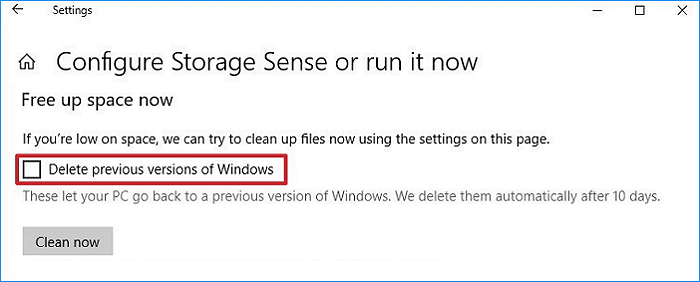
Clear Windows Update Cache
Step 1. Type services in Windows search, click "Services" to open it.
Step 2. Right-click on Windows Update, and select "Stop".
Step 3. Close the service window, press Windows + R keys to open the Run dialog. In the Run dialog, type "services.
Step 4. Type c:\windows\SoftwareDestribution and click "OK".
Step 5. Open the Download folder, then select and delete all existing files within it.
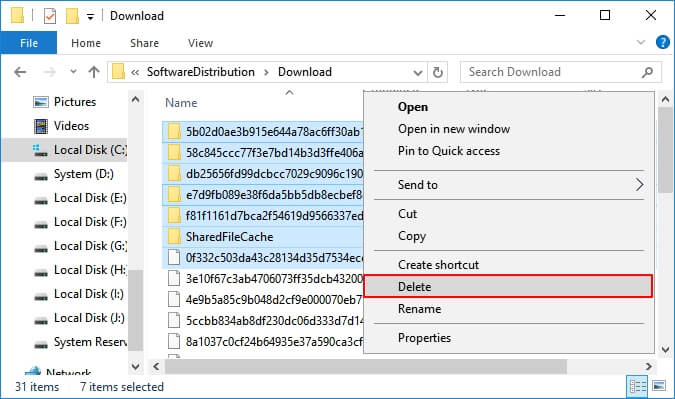
To fix the issue of your PC running slowly, try restarting it. This will clear out any temporary files and processes that may be consuming resources and slowing down your computer. Additionally, you can also try running a disk cleanup and disk defragmentation to remove any unnecessary files and organize your hard drive.
Method 3. Run Disk Cleanup to Speed Up PC
Step 1. Open Windows File Explorer, right-click on the C drive.
Step 2. Click "Properties" and go to the General tab.
Step 3. To free up space on your C drive, go to "Disk Cleanup", select the items that are consuming a large amount of space, and then proceed with the cleanup process.
Step 4. Click "Clean up system files", and "OK" to complete.
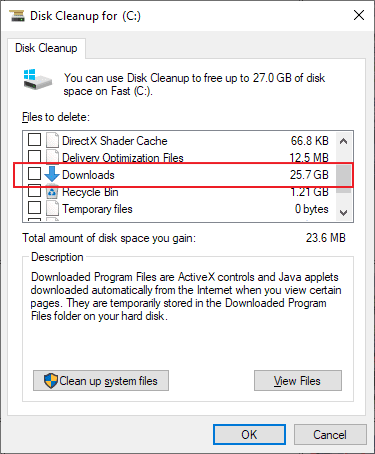
To clean up existing partitions on your computer, repeat the process of deleting unnecessary files and folders, and then emptying the recycle bin, on each partition. This will help free up space on your computer and make it run more smoothly.
Method 4. Optimize Disk Performance
Using the Windows built-Optimizing disk performance can also help improve computer speed to a certain extent. To optimize your disk, you can use various tools to help improve its performance. These tools can help identify and fix issues that may be slowing down your disk, such as disk fragmentation, disk errors, and disk usage.
Step 1. Open Windows Device Manager, expand Disk drives.
Step 2. Right-click on the system disk and select "Properties".
Step 3. To optimize and defragment your drive, go to the Toos tab, click on "Optimize" under the Optimize and defragment drive option.
Step 4. Select the System C drive and click "Optimize".
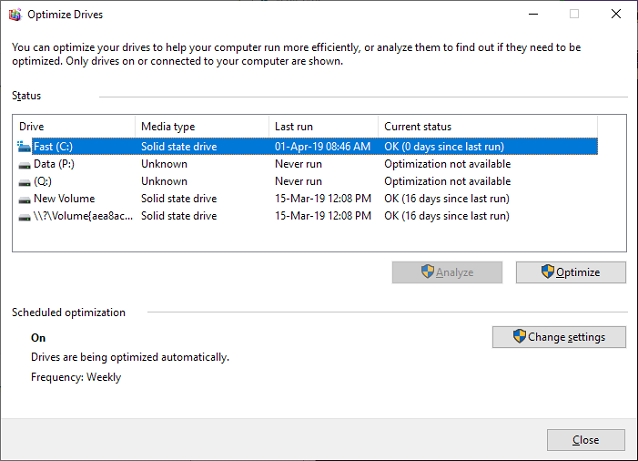
To optimize computer performance, repeat the steps to optimize all partitions. If the computer has an SSD disk, follow the specific optimization steps for SSDs, which can be found in the "Optimize SSD Performance" guide. This will help speed up the computer's performance by ensuring that all partitions are running efficiently.
Method 5. Install the Latest Windows Update - New PCs after 2010
Applies to: Computers and laptops that were produced after 2010.
The new Windows 10 update may slow down or freeze computers if it contains bugs, but Microsoft typically releases new updates to fix the issues once they are identified.
To install the latest Windows 10 update, you can follow these steps:
Step 1. Go to Settings, click "Update & Security".
Step 2. Click "Windows Update", select "Check for Updates".
Step 3. Click "Update Now" if a new update is available.
Wait for the computer to download and install a new Windows 10 update.
Method 6. Perform System Restore, Revert to the Previous Version - Old Pcs before 2010
This applies to old computers produced before 2010, especially those running Windows XP, Vista, or 7.
The new Windows 10 update may cause your computer to slow down due to its age. It's normal for the latest operating system to struggle on older computers, particularly those running Windows 7, Vista, or XP.
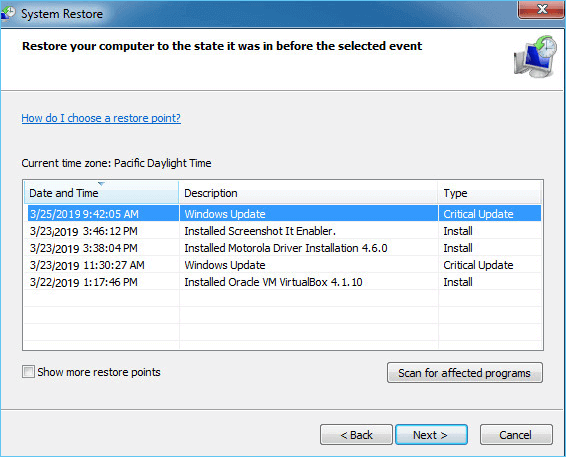
To fix a slow computer on an old PC, you can try performing a system restore to revert the OS to a previous version, which may resolve the issue.
Step 1. To bring up the Run dialog on your Windows computer, press the Windows key and the R key simultaneously. This will open a small window where you can type a command or program name to run it directly.
Step 2. Type rstrui.exe and hit Enter to open up System Restore.
Step 3. Select "Choose a different restore point" and click "Next".
Step 4. Select a previous created Windows restore point, click "Next".
Follow the on-screen instructions to complete the system restore process.
Conclusion
The computer may slow down after a Windows 10 update, but there are ways to fix the issue. Six powerful methods can help improve computer performance:
Low disk space on the C drive and outdated Windows update caches are the main culprits behind a slow computer. When your PC becomes sluggish after installing a new Windows 10 update, simply extending the C drive and clearing the Windows update cache can often resolve the issue.
If you still have some questions on Windows 10 computer slow down, check the answers below. You may get a clue.
People Also Ask About PC Slow after Windows 10 Update
1. Why is my Windows 10 upgrade taking so long?
Windows 10 updates typically take around 30 minutes to 1 hour or longer to complete, with larger updates requiring more time due to the addition of larger files and features to the system.
To optimize Windows performance and fix bugs, the larger system file will be downloaded and installed, which may take a while.
2. Why is my laptop so slow?
There are many reasons why your laptop may be running slow, including outdated software, a cluttered hard drive, overheating, malware or viruses, a faulty RAM or hard drive, and a slow processor. Other possible causes include a large number of background programs running simultaneously, a full disk, or a corrupted operating system. Regularly cleaning up temporary files, uninstalling unused programs, and running disk cleanup and disk defragmentation tools can help improve your laptop's performance.
- The dust inside your laptop
- Malware or virus infection
- Very slow startup
- Low disk space
- Outdated or failing hardware
- Windows update problems
To fix the issue of Lenovo laptop running slow, refer to the Lenovo Laptop Running Slow guide for assistance.
3. Windows 10 suddenly slow, how to fix?
If your Windows 10 computer suddenly slows down, don't worry - there are practical fixes you can try to speed it up. You can try various troubleshooting steps such as clearing temporary files, disabling startup programs, running a disk cleanup, and updating drivers. Additionally, you can also try running a System File Checker (SFC) scan, checking for malware, and disabling any unnecessary background programs.
- Reboot computer
- Scan for malware and virus
- Close background programs
- Install Windows update
- Delete temp files
- Free up Windows disk
- Increase C drive
- ...
For a step-Here's a one-paragraph, step-by-step guide to help with Windows 10 slowing down suddenly:
Related Articles
- Clean C Drive without Formatting in Windows 10/8/7 [Tested & Worked]
- How to Recover Unsaved/Lost/Corrupted Adobe Acrobat Files on Windows PC
- How to Upload Files to Google Drive Automatically
- Automatically Copy Files When USB Drive Connected
- How to Restore Onekey Recovery Function After Changing Partition Size?
Many people have asked online that can't restore one key recovery function after changing partition size. Here are the solutions to cope with it. - How to Run Samsung Laptop Recovery from Boot Efficiently?
Find your Samsung laptop in trouble and want to recover it by factory reset? Learn how to run Samsung laptop recovery from boot efficiently in this article.
Products
Articles & Tutorials
- Data Recovery
- Data Backup
- File Recovery
- File Backup
- System Backup and Restore
- Disk and Partition Clone
- Technical articles
- Mobile articles
- Disk Master Help
- Windows Data Recovery Tutorials
- Windows Secure Delete Tutorials
- Windows Partition Management Tutorials
- Windows File Backup and Restore Tutorials
- Windows System Backup and Restore Tutorials
- Windows Disk Backup and Restore Tutorials
- Windows Clone Tutorials