Clean C Drive without Formatting in Windows 10/8/7 [Tested & Worked]
This page offers reliable solutions to help you clean and even delete your system C drive in Windows 10/8/7. Follow the instructions to learn how to clean or delete your system C drive on your own.
- Notice:
- To avoid data loss from cleaning your C drive, create a backup of important files beforehand using a professional backup software like Qiling Backup.
How to Clean C Drive without Formatting Windows 10/8/7
As a computer or Windows system runs for a long time, it accumulates many useless junk files on the C drive, slowing it down over time.
The issue can be resolved by cleaning the C drive, which is the most straightforward solution. However, formatting the C drive is not a viable option as it is the system drive and Windows does not allow it, which could result in huge file loss or system errors.
Here are two methods to clean and apply C drive without formatting in Windows 10, 8, and 7:
Method 1. Run Disk Cleanup utility to clean C drive
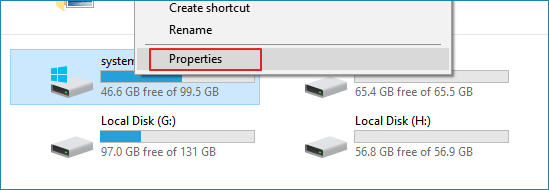
1. To access the properties of the C drive, simply open the "This PC" or "My Computer" window, right-click on the C drive icon, and select the "Properties" option from the context menu that appears. This will display the properties of the C drive, allowing you to view and manage its details.
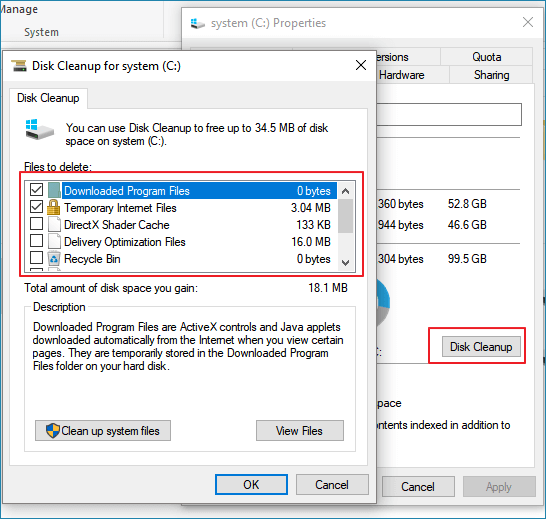
2. To free up space on your C drive, click on Disk Cleanup, and then select the files you want to delete from your computer.
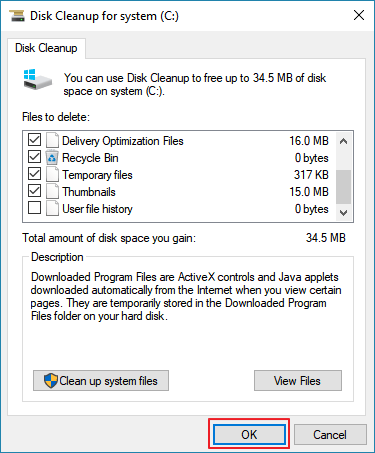
3. Click OK to confirm the operation.
Method 2. Clean up C drive without formatting
The Disk Cleanup utility can only remove some temp files and Recycle Bin files, but for more thorough cleaning, a partition manager software is needed to remove Windows built-in application junk files and large files.
To declutter your C drive, consider using Qiling CleanGenius software to remove unnecessary files and even large files.
It's 100% free and risk-To optimize your computer's performance without formatting your C drive, you can use the Cleanup feature. You can directly download and install it on your PC, following these guidelines to clean up your C drive without any hassle.
Step 1. Download and install Qiling Partition Master Suite.
Step 2. Download and install Qiling CleanGinus, then click "Cleanup" and "Scan" to start cleaning up your system and making your PC as good as new.
Step 3. The software scans your entire computer to identify large data files that are taking up unnecessary disk space. You can then select and delete useless large files, system junk files, and Windows invalid entries, and click "Clean" to initiate the system cleanup process.
Step 4.When the scan is complete, click "Done" to finish cleaning system junk files.
Upgrading your computer's RAM provides you a faster-running speed on your computer, making it more efficient and responsive to your needs.
Delete system C drive without formatting? (Delete OS on HDD/SSD)
Some Windows users consider deleting their system C drive without formatting, but this is not recommended as it can cause system instability and data loss. To delete the system C drive, users can use the built-in Disk Management tool, but it's essential to back up important files and data first. This process is irreversible and should be approached with caution.
Windows users often want to delete a system drive from their computer, but don't worry, there's a solution. The reasons for wanting to do so include the need to free up space, upgrade to a newer version of Windows, or simply because the drive is failing. Whatever the reason, deleting a system drive can be a complex process, but with the right guidance, it's possible to do so without losing any important files or data.
- 1. To perform a clean install of Windows 10/8/7, you need to wipe all data on the system disk, which typically involves deleting the system drive.
- 2. To delete system drive on old HDD after system cloning to a new HDD/SSD.
- 3. When the OS migration process fails or halts, deleting the system C drive on the target disk can be a necessary step to resolve the issue. This typically involves booting the system in safe mode or using a recovery environment, then accessing the disk management tool to delete the target C drive.
- ...
How to delete system C drive without formatting? To resize the system partition, we can use a professional partition manager software like Qiling Partition Master Pro to help with the process.
This software can delete system C drive and partitions on a Windows disk using a created WinPE bootable disk, a task that other built-in tools or third-party software may not be able to accomplish.
You can directly activate it into a full version and apply it to below guidelines to delete the system C drive with ease now.
2. Delete the system C drive
Step 1. Launch Qiling Partition Master on your computer.
Step 2. You can either delete a specific partition or delete all partitions on the hard drive, depending on your needs.
- Delete single partition: To delete a partition, click on the partition you want to delete and select the "Delete" option.
- Delete all partitions: To delete all partitions from a hard drive, click on the drive you want to delete all partitions from, and select "Delete All" from the options.
Make sure that you've backed up the important data on the selected partition because this manner will compeletely remove data.
Step 3. Click "Proceed" to confirm the deletion.
Note: If you've deleted the system C drive on your current running computer, you won't be able to run or boot up Windows system anymore. You can refer to a clean install Windows 10, 8, or 7 tutorial for help.
Related Articles
- Windows 10 Keeps Restarting or Continuously Reboots? Fix It Now!
- Fix IE Browser Shuts Down Suddenly in Windows 10/8/7 Error
- [3 Solutions] Fix Word Not Opening on Mac
- Solved: CMD.exe/CMD Keeps Popping up in Windows 10
- What Is Acer Restore Key to Recover Operating System?
You will learn what is Acer restore key and how to use it for factory reset. Besides, you still can use Acer eRecovery Management. - How to Create ASUS Recovery Disk in Windows 10 Efficiently
ASUS recovery disk is very useful when you're having problems with your computer. Learn how to create one in Windows 10 efficiently from this page.
Products
Articles & Tutorials
- Data Recovery
- Data Backup
- File Recovery
- File Backup
- System Backup and Restore
- Disk and Partition Clone
- Technical articles
- Mobile articles
- Disk Master Help
- Windows Data Recovery Tutorials
- Windows Secure Delete Tutorials
- Windows Partition Management Tutorials
- Windows File Backup and Restore Tutorials
- Windows System Backup and Restore Tutorials
- Windows Disk Backup and Restore Tutorials
- Windows Clone Tutorials