How to Recover Unsaved/Lost/Corrupted Adobe Acrobat Files on Windows PC
Adobe Acrobat is an application that allows users to view, create, and edit PDF files, which are widely used for documents like resumes, brochures, and specifications.
Can Adobe Acrobat Files Be Recovered?
If you've closed Adobe Acrobat without saving or experienced a software crash while editing a PDF, it's possible to recover the unsaved file. The Adobe Autosave feature can help, and if you've saved the file before but lost it due to misoperation or a virus, you can try recovering it through Adobe apps or data recovery software.
1. How to Recover Unsaved Adobe Acrobat Files
Adobe Acrobat's Autosave feature automatically saves changes to a temporary file every few minutes, typically every five minutes, to prevent data loss. This feature is enabled by default and can be checked and modified in the Edit > Preferences > Documents > Save settings section. By adjusting the save time, users can customize how often Autosave saves their document changes. If Adobe Acrobat crashes, Autosave ensures that the auto-saved PDF file is automatically opened when the software is relaunched, minimizing the risk of data loss.
If your PDF files do not appear, you can try to restore them manually. To do this, you'll need to find the location where Adobe Acrobat stores its temporary files on your computer. This can be done by following a series of steps.
Step 1. Go to the following path on your computer, that's where the Acrobat temporary files are:
C:\Users\username\AppData\Roaming\Adobe\Acrobat\DC
If you are using the Adobe Reader, then go to:
C:\Users\username\AppData\Local\Temp\Adobe\Reader\11.0
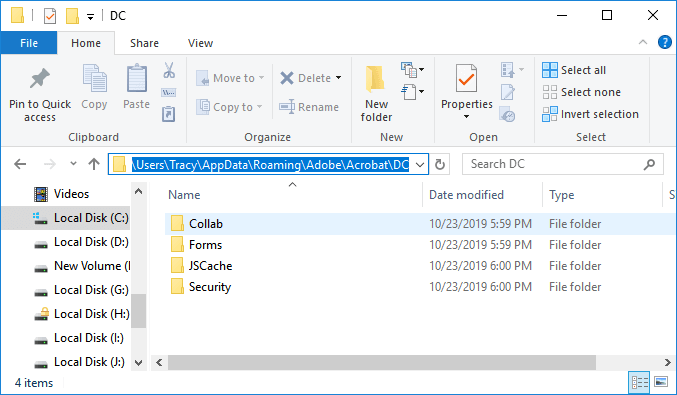
Step 2. Find the temporary files in the above location, copy and paste these files to another location.
- Notice:
- The temporary files created by the software may have different extensions, such as *.dat or *.tmp, which can differ from the original file extensions.
Step 3. Change the extension of the copied temporary files as *.pdf.
Step 4. Try to open the temporary files with Adobe Acrobat.
Adobe Acrobat's temporary files are deleted when you close the application, unless a software or computer crash occurs, in which case they can be used to recover unsaved files. However, if you closed the application normally without encountering any issues, the temporary files are likely to be deleted and cannot be used to recover unsaved work.
2. How to Recover Lost/Corrupted PDF Files
In addition to losing unsaved PDF files, users often face data loss after system updates or virus attacks, which can also result in file corruption. If your PDF files are damaged, unsaved, or corrupted, they may be beyond recovery.
- PDF file not readable
- The root object is invalid or missing
- Error opening document
- File damage or corrupt
- Can't be opened by the viewer
- Error processing page
If you're stuck in this situation, don't delete or overwrite any files. Check your Recycle Bin to see if your lost files are there. If not, consider using a data recovery software to recover the files.
Deep Data Recovery is a versatile tool that can handle various data loss scenarios, including recovering files deleted by antivirus software, restoring files from formatted hard drives, and retrieving deleted files from the recycle bin. With Qiling Data Recovery software, users can easily recover lost or corrupted PDF files in just three simple steps.
Now download this software on your computer and have a try.
Step 1. Select the file types and click "Fast Scan".

Note: You can choose different search modes based on where and why the data was lost.
Step 2. To recover lost data, select the drive where the data was lost and click the "Scan" button.

Step 3. When the scan is finished, use the "Filter" or "Search" feature to locate the missing files. This will help you quickly find the lost files among the scanned results.

Step 4. Select all the files you want and click "Recover". Then, browse another secure location to save them.
3. How to Repair PDF Application in Adobe
If you're unable to open or manage a PDF file, it might not be due to file corruption, but rather a damaged Adobe Acrobat app. In this case, repairing the PDF application can resolve the issue. There are two common ways to fix a damaged PDF application.
Method 1. Download Up-to-Date Application
Uninstall the current version of Adobe Acrobat, then download and install the latest version of Adobe Acrobat/Reader on your computer.
Method 2. Check for Updates
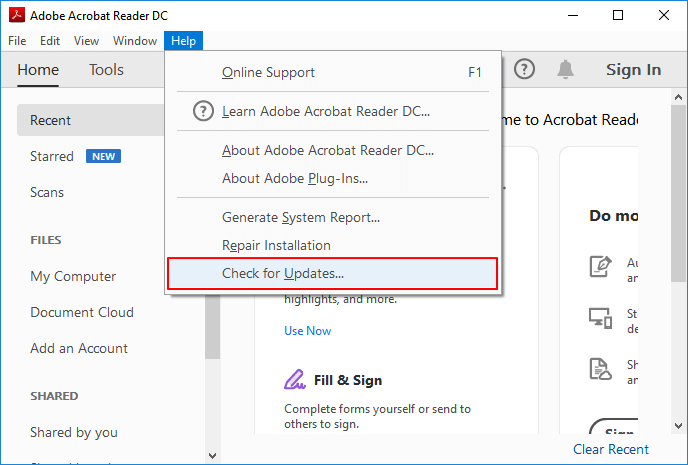
To check for Adobe Acrobat updates, launch the Adobe application, click on "Help", and select "Check for Updates".
Method 3. How to Repair Corrupted PDF Files
Deep Data Recovery is a tool that can repair corrupt PDF documents stored on external storage media and also extract various elements like text, comments, labels, and graphics from the PDF file.
Step 1. To recover documents, launch Deep Data Recovery, select the file types you want to recover, and click "Fast Scan" to proceed.
Note: You can choose different search modes based on where and why the data was lost.
Step 2. Click the "Scan" button to scan your disk for corrupted documents, and this software will allow you to fix damaged Word, Excel, PPT, and PDF files in a single, straightforward process.
Step 3. Qiling data recovery and repair tool will scan for all lost and corrupted files. You can find the target files by file type or search for them by typing the file name in the search box.
Step 4. Deep Data Recovery can automatically repair damaged documents, and after previewing the file, you can click "Recover" to save the repaired Word, Excel, and PDF files to a safe location.
What is the Difference between Adobe Acrobat and Adobe Reader
This article explains how to recover unsaved Adobe Acrobat files and also compares Adobe Acrobat with Adobe Reader. Both can open PDF files, but they serve different purposes and offer different editing, viewing, and management features.
Adobe Reader: PDF readers allow users to read PDF files and perform basic tasks, such as filling out form fields and adding highlights.
Adobe Acrobat: PDF creation and editing software allows users to convert various file formats into PDFs, as well as edit existing PDFs, add form fields, and apply security settings.
Adobe Acrobat has all the features of Adobe Reader, plus the ability to create and edit texts and images in PDF documents, making it the more advanced version with added functionalities.
The Bottom Line
If you're experiencing issues with your PDF files on a Windows PC, don't worry - Adobe Acrobat autosaves edited files, so they're generally safe. However, if you've encountered a data loss or file corruption scenario, a data recovery tool like Deep Data Recovery can help you recover your PDF files. If you're interested in trying this tool, download it and give it a try.
Related Articles
- Fix Internet Explorer Keeps Crashing/Freezing/Not Responding Error
- Full Guide to Fix Windows 10 Slow Boot After Update
- Fix Windows 10 Hangs or Stuck on Shut Down Error
- How to Fix "Mac Documents Folder is Empty" Error
- 2 Ways | Backup Windows 10 PC to Synology NAS Safely
2 solutions provides in this post to backup Windows 10 PC to Synology NAS? Try the best free Synology NAS backup software to create Synology PC backup. - Fix: Boot Configuration Data file is Missing in Windows 10
This article introduces how to fix Boot Configuration Data file is missing in Windows 10, and solutions to protect computer from system files damage or loss.
Products
Articles & Tutorials
- Data Recovery
- Data Backup
- File Recovery
- File Backup
- System Backup and Restore
- Disk and Partition Clone
- Technical articles
- Mobile articles
- Disk Master Help
- Windows Data Recovery Tutorials
- Windows Secure Delete Tutorials
- Windows Partition Management Tutorials
- Windows File Backup and Restore Tutorials
- Windows System Backup and Restore Tutorials
- Windows Disk Backup and Restore Tutorials
- Windows Clone Tutorials