Fake Windows Update Virus Removal and Prevention Tips in 2022
In this post, we'll cover:
- 1. What Is Fake Windows Update Virus?
- 2. How Can I Tell if I Have a Fake Windows Update Virus?
- 3. How to Remove Fake Windows Update Virus
- 4. Qiling Security Zone: Fully Protect Virus from Encrypting or Damaging Files
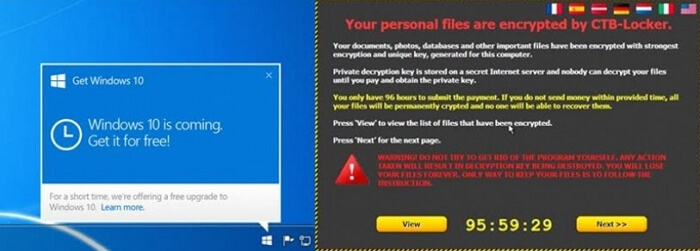
With the rise of computer viruses, it's crucial to be aware of different types of malware and how to remove them. The fake Windows update virus is a particularly insidious type of malware that tricks users into installing it by displaying a fake Windows update message. Once installed, it can encrypt files and demand a ransom for decryption, or even steal personal info and cryptocurrency. To protect yourself, it's essential to spot and remove this virus from your PC.
Important: We'll also introduce the new "Security Zone" feature of Qiling backup and recovery software The Qiling Security Zone is a highly secure storage area that has been widely adopted by thousands of users worldwide since its release. This exclusive zone is designed to protect backed-up data from being detected, found, or destroyed by malicious software such as viruses, ransomware, and trojans. It's never too late to safeguard important backups by saving them to this secure zone.
What Is a Fake Windows Update Virus?
Related searchings can be:
- Fake Windows update (hidden ransomware)
- Fantom ransomware
- Fake Windows 11 update delivering malware
- Fake Windows 11 upgrade installs malware and steals information
The fake Windows update virus is a type of Fantom ransomware that mimics a real Windows update screen, prompting users to download a fake update. Once downloaded, the virus saves the installation as a 1.5MB ZIP file containing "Windows11InstallationAssistant.exe", which actually encrypts files and disables Windows Defender and other security software, making it difficult to detect and remove.
How Can I Tell if I Have a Fake Windows Update Virus?
There are a few tell-Be cautious of fake Windows update viruses on your PC by looking out for obvious signs. One of the most telltale indicators is the presence of fake messages or pop-ups from Microsoft (System Tray) or other software companies (web pages), which can be a clear red flag that something is amiss.
If your files have been encrypted or corrupted, or if your computer has been infected with a fake Windows update virus that changes your files/folders extension to something like .fantom, you may have a fake Windows update virus. This is often done to extort a ransom from the user.
Related Post:Have you noticed Windows Defender Security Warning?
How to Remove Fake Windows Update Virus
If you encounter a suspicious Windows update, do not click on it. Instead, verify its authenticity by checking the official Windows website or contacting Microsoft support.
Step 1. Run a full virus scan for removal
To avoid falling victim to a fake Windows update scam, simply ignore any pop-ups or messages that claim to be from Microsoft, and don't click on any suspicious links. If you've already clicked on a fake update, run a virus scan on your computer as soon as possible to remove any malware that may have been installed. This will help protect your computer and personal data from potential harm.
There are many excellent anti-Malware programs like Malwarebytes, Spybot Search & Destroy, and AdwCleaner can detect and remove fake Windows update viruses. If you don't have an anti-malware program, download one and run a scan.
The top 5 best antivirus software for Windows 11 include Norton, Kaspersky, Bitdefender, McAfee, and Avast, which offer robust protection against malware, viruses, and other online threats. These antivirus software also provide additional features such as password management, firewall protection, and secure backup options to ensure comprehensive security for Windows 11 users.
With the rise of online activity and new threats emerging frequently, installing a reliable antivirus program is now more crucial than ever to safeguard your digital security.
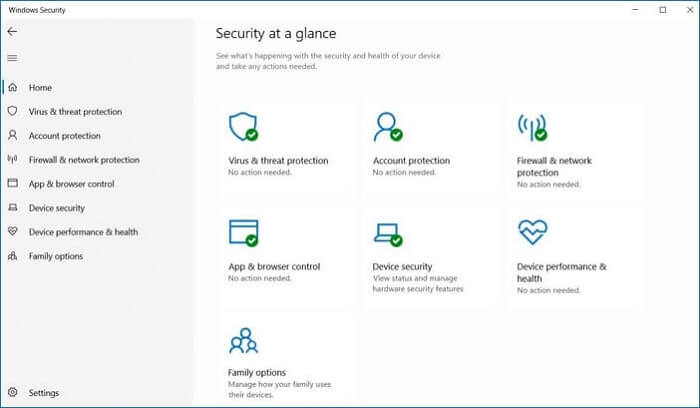
Once the scan is complete, you should see a list of any malware that was detected. Be sure to remove all of the fake Windows update virus files from your system by selecting the "Delete" or "Quarantine" option.
Step 2. Reset your browser settings
If you've detected a fake Windows update virus infection, it's crucial to reset your browser settings to prevent future attacks by fake updates and other types of malware.
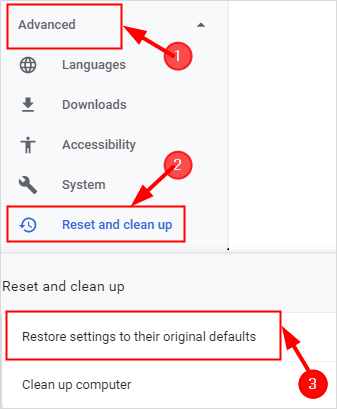
In Google Chrome, go to Settings > Advanced > Reset and clean up, then select "Restore settings to their original defaults".
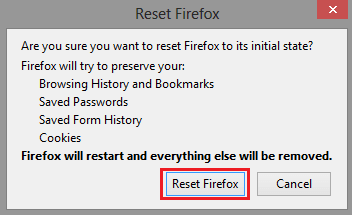
In Mozilla Firefox: Open Settings > Home > Reset Firefox.
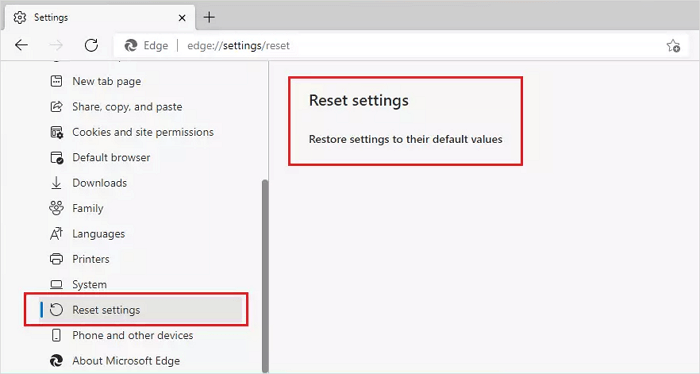
To reset Microsoft Edge settings to their default values, go to Settings, then click on "Reset settings" and select "Restore settings to their default values".
Step 3. Format your computer to remove the virus
Unfortunately, there are currently no proven methods to decrypt files locked by the fake Windows update virus, leaving users with no choice but to format their computer, perform a clean install, and recover files from backup.
If you're unable to remove the fake update virus or recover your files on your own, take your computer to a repair center. Be prepared for a potentially high cost of a manual recovery service to fix the damage caused by the virus.
Qiling Security Zone: Fully Protect Virus from Encrypting or Damaging Files
To protect your computer from potential harm, it's crucial to be able to identify fake Windows updates. However, a top priority is having available backups that have been kept safe from the virus event, allowing you to quickly recover in case of a destructive infection.
Qiling Backup allows users to create backups of important OS, files, and emails in a secure zone, safeguarding data from virus/malware attacks.
How to backups system os to image file for full protection:
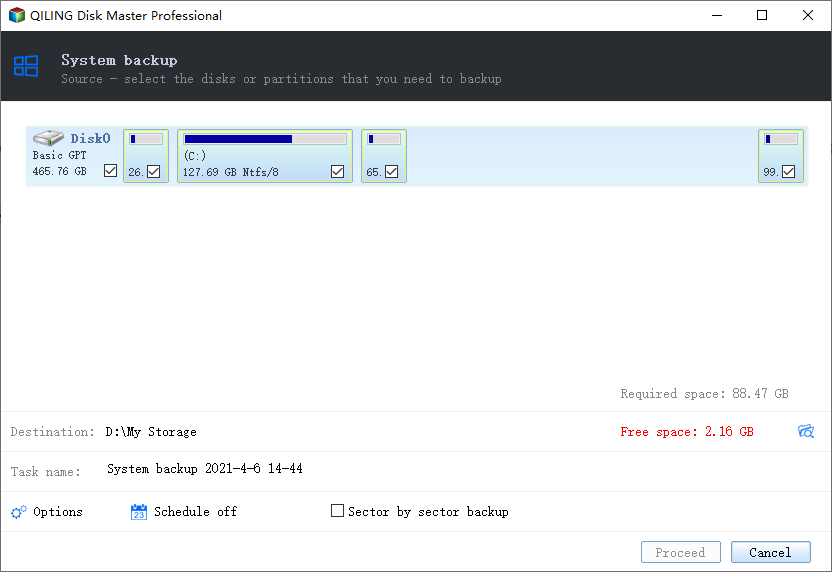
Step 1. Select Backup Contents
On the main window, click the System backup button to select backup contents.

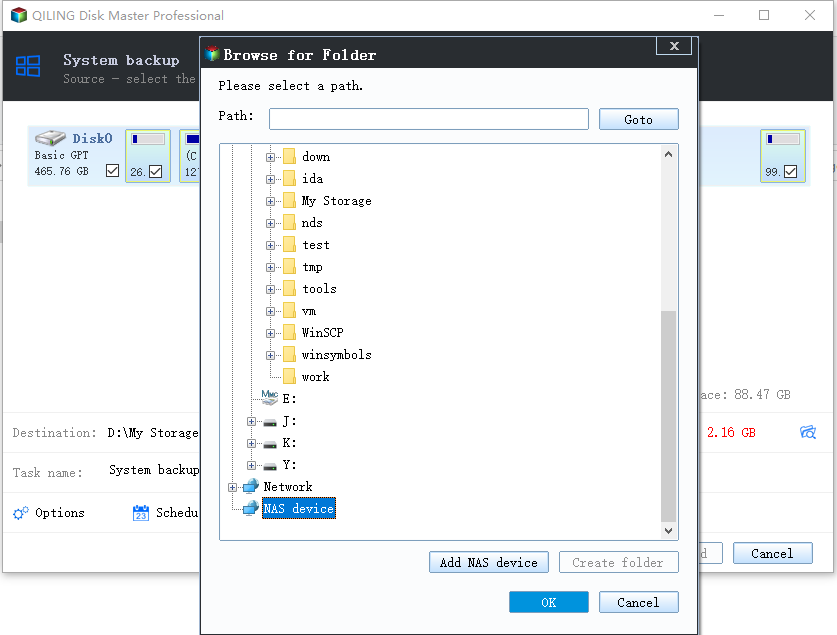
Step 2. Select location as Backup Destination
When choosing a backup destination, you can opt for either a specific location on your computer or an external drive.
Step 3. Execute the backup task
Click "Proceed" to start the backup process. Your backups of OS, files, drives and mails will be fully protected from being seen or destroyed by virus, ransomeware and trojan.
Related Articles
- How to Backup Your Computer - Cloud Storage or Backup Software?
- How to React to Windows 11/10/8/7 Defender Security Warning
- [Solved] This Application Was Unable to Start Correctly (Error Code: 0xc000007b)
- How To Backup Files on Computer/Laptop? Here Is The Guide
- How to Backup Game Data on PS5 in Every Possible Way
Do you know how to backup game data on ps5? If you do not know yet, you are on the right page. This article will offer three ways to help you back up PS5 game data. After reading this post, you can use any method to back up PS5 game data on your own. - How to Backup Office 365 Emails - Top 2 Methods of 2024
You can easily back up your Office 365 emails using two simple methods. This article will guide you through the process, allowing you to securely store your emails in a safe location. By following the steps outlined here, you'll be able to backup your Office 365 emails with ease.
Products
Articles & Tutorials
- Data Recovery
- Data Backup
- File Recovery
- File Backup
- System Backup and Restore
- Disk and Partition Clone
- Technical articles
- Mobile articles
- Disk Master Help
- Windows Data Recovery Tutorials
- Windows Secure Delete Tutorials
- Windows Partition Management Tutorials
- Windows File Backup and Restore Tutorials
- Windows System Backup and Restore Tutorials
- Windows Disk Backup and Restore Tutorials
- Windows Clone Tutorials