How To Backup Files on Computer/Laptop? Here Is The Guide
Backing up files on your computer, whether it's Windows 10, 8, or 7, is a crucial task to ensure your important data is safe. The best way to backup files on a computer or laptop involves selecting the most suitable method for your needs, and this guide will walk you through the process to help you choose the best approach.
Where to Back Up Files - Choose the Backup Destination
To start, you need to select the destination where you want to backup your files from your computer. This is because the methods for backing up files to different locations vary, so it's essential to determine where you want to store your backups first.
So, now, you need to select the backup destination:
PAGE CONTENT:
- 1. Back Up Files to A Local Computer Drive
- 2. Back Up Files to External Hard Drive
- 3. Back Up Files to Cloud Drive
#1. How to Back Up Files to A Local Computer Drive - 2 Ways
2 ways to back up computer files on the local drive are: using an external hard drive or cloud storage services. Both methods have their pros and cons, such as the external hard drive being more secure but taking up physical space, while cloud storage is convenient but may have data storage limits. To back up files, simply connect the external hard drive to your computer, navigate to the backup location, and select the files to be backed up.
| File Backup Software | File History Backup |
|---|---|
Pros:
|
Pros:
|
Cons:
|
Cons:
|
To determine which file backup software is better, consider the guide provided to back up files on your computer, which can be found here.
Method 1. Back Up Files on Computer with File Backup Software
Qiling file backup software - Qiling Backup provides a comprehensive backup solution for file backup.
What Can Qiling Backup Do For You?
- Support schedule backup - set an automatic backup plan.
- Support incremental backup, differential backup, etc.
- The software supports backup files to be saved on a local drive, an external hard drive, or even a cloud drive, providing users with flexibility and convenience in managing their data.
Let's see how to back up your computer files now:
Step 1. Open Qiling Disk Master and select "File backup" as the backup mode in the "Backup and recovery" page.
With an increasing amount of valuable data, such as documents, pictures, music, and videos, it's essential to have a regular backup routine to prevent unexpected data loss. File Backup is a reliable option to safeguard your vital information.

Step 2. Select the files that you want to back up.
You can also enter "Plan name" and "Description" for specifying your file backup.

Step 3. Select a destination to save your backup of the selected files.
To avoid potential risks, create a backup file in a different storage media or drive. This will ensure the backup file remains safe and intact.

Advanced backup settings allow users to create a customized backup plan that can be tailored to their specific needs, providing flexibility and automation in the backup process.
The schedule is to create an automatic backup plan.

The Image-The strategy is to reserve the limited image as per the image retention rule, ensuring that the limited image is not used excessively and is preserved for its rarity and value.
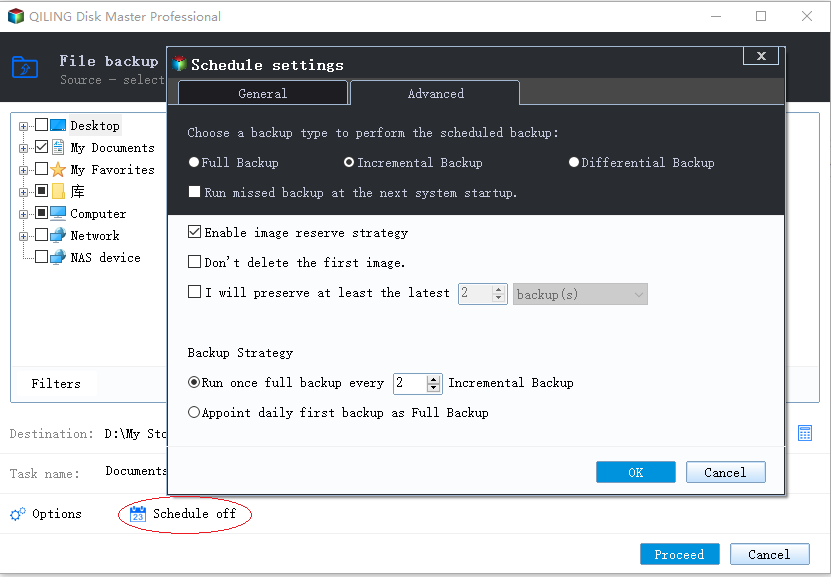
Backup options are to edit the advanced parameters.

Step 4. Click "Proceed" to execute your operation.
Method 2. Back Up Files on Computer with File History
Step 1. Click Windows start icon > "Settings" > "Update & Security".
Step 2. Click "Backup" > "Add a drive".
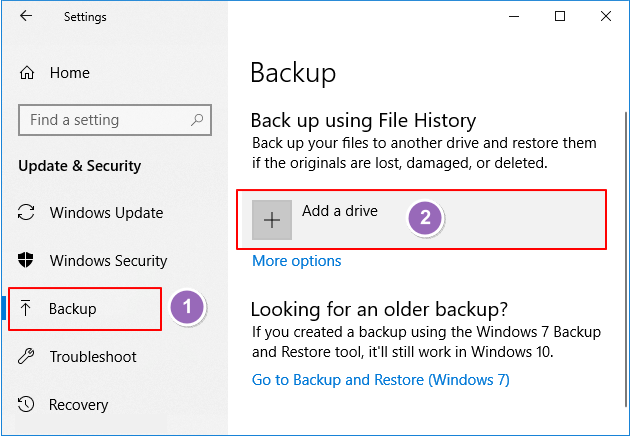
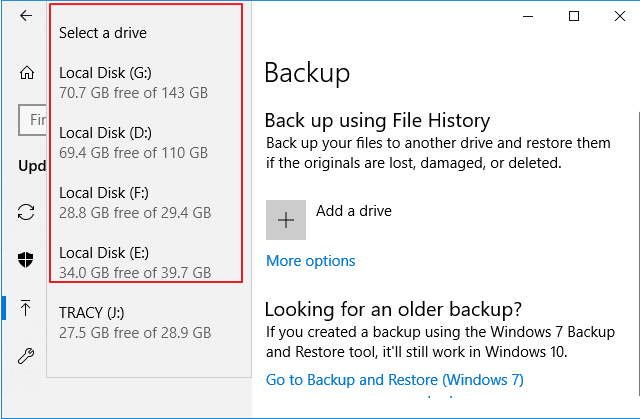
Step 3. Select an empty drive on your computer to save the file backups.
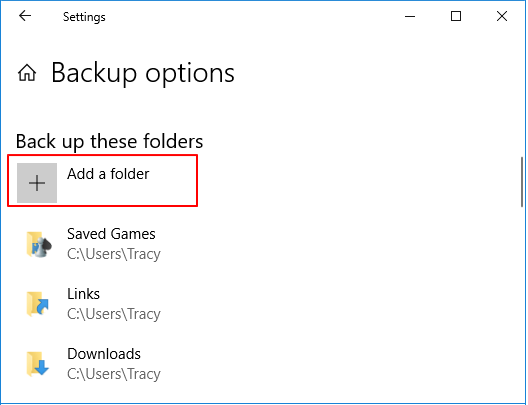
Step 4. Click "More Options" > Under the Back up these folders to check what will be backed up on your computer.
You can also click "Add a folder" to select files on your computer to be backed up.
Step 5. Click "Back up now" to start backing up files.
#2. How to Back Up Files to External Hard Drive
Here are three ways to back up files to your drive:
| File Backup Software | File History | Manual Copy & Paste |
|---|---|---|
Pros:
|
Pros:
|
Pros:
|
Cons:
|
Cons:
|
Cons:
|
For beginners, Qiling Backup is a recommended secure and efficient way to back up files to an external hard drive.
Follow the desired method to start backing up files now:
Method 1. Back Up Files to External Hard Drive with Backup Software
Qiling Backup allows you to create an automatic file backup plan that triggers when an external hard drive is connected to a PC.
Preparations:
- Connect your external hard drive to your computer.
- Download Qiling Backup
Step 1. Launch Qiling backup software and choose the File backup option on the "Backup and recovery" page.
Step 2. Select the files or folders you want to backup. Then click "Destination" to select the external hard drive as the backup storage location.
You can also enter "Plan name" and "Description" for specifying your file backup.
Click "Filer" to specify certain types of files to backup, where you can select from various file types such as documents, emails, financial files, music, pictures, and videos.
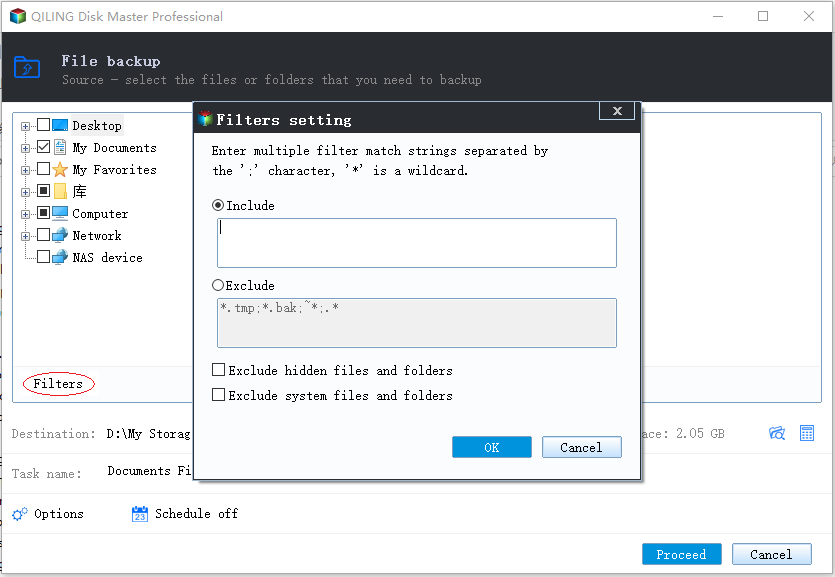
Step 3. Select a destination to save your backup of the selected files.
Step 4. To schedule a backup, click the "Schedule" option to open the Backup Scheme window, where you can create a plan to automatically backup files at a later time, such as daily, weekly, monthly, or on specific events.
The schedule for creating an automatic backup plan is not a prerequisite, but rather a separate step that can be taken to ensure regular backups are made without manual intervention.
Step 4. Click "Proceed" to back up folders or files to the external hard drive.
Method 2. Back Up Files to External Hard Drive via File History
To use File History to back up files to an external hard drive on a computer, the drive must be kept connected to the PC at all times.
Step 1. Click Windows start icon > "Settings" > "Update & Security".
Step 2. Click "Backup" > "Add a drive".
Step 3. Select your external hard drive marked as "Removable disk" and click "OK".
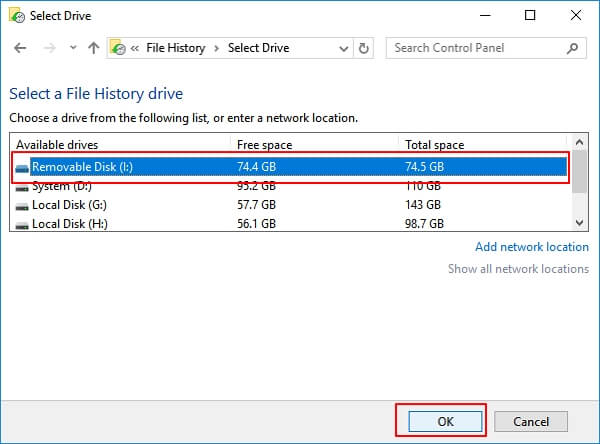
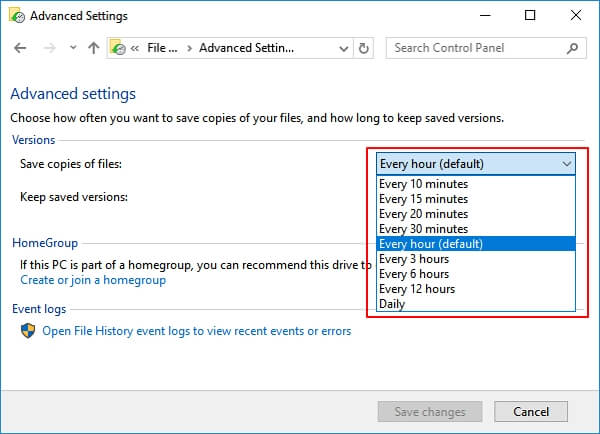
Step 4. Click "Advanced Settings", set the frequency to back up files to the external hard drive. Click "Run now".
Method 3. Manually Copy and Past Files to Back Up to External Disk
Step 1. Connect the external hard drive to your computer.
Step 2. Double-click This PC, open the external hard drive, and create a folder named "Backup".
Step 3. To back up files and folders, open the folders or hard drive volumes containing the files you want to back up, select all the files and folders you need, and then copy them. Finally, navigate to the external disk and paste the copied files and folders into it.
Wait patiently and the process could take longer if you have too many files to backup.
#3. How to Back Up Files to Cloud Drive
Many people prefer to save their file backups in cloud storage because it allows them to share and access backups at any time. To back up files to cloud, there are two primary ways to do so.
| File Backup Software | Cloud Drive |
|---|---|
Pros:
|
Pros:
|
Cons:
|
Cons:
|
For a complete solution to back up a computer to the cloud, file backup software - Qiling Backup is more recommended.
Method 1. Back Up Computer Files to Cloud using Backup Software
Step 1. Launch Qiling cloud backup software and choose the File backup option in the "Backup and recovery" page.
Step 2. Choose the target files you want to backup by either "User Defined" mode or "File Type" mode.
"User Defined" allows you to choose files according to their file directory, whereas "File Type" is simpler and only backs up files with specific formats, such as pictures, documents, videos, etc.
Step 3. To backup files to the Cloud storage, click the "Browse" button in the "Destination" area, which opens a new mini window.
Step 4. Click "Proceed" to start backing up files to your Cloud drive at once.
Method 2. Upload and Back Up Computer Files to Cloud
Using OneDrive:
Step 1. Click OneDrive icon on your PC, select "Help & Settings" > "Settings".
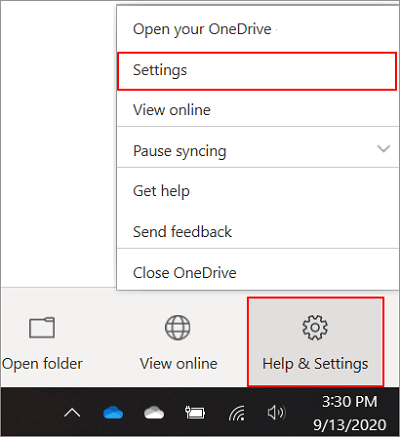
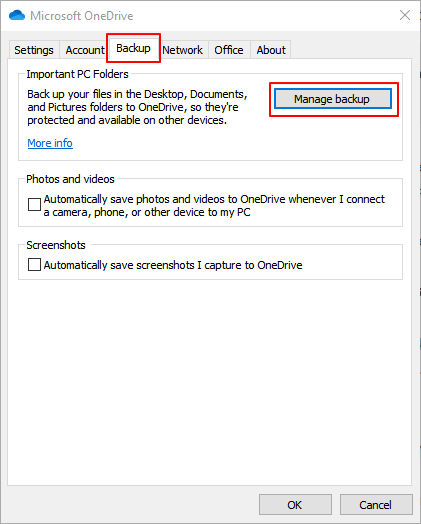
Step 2. At the Backup tab and click "Manage backup".
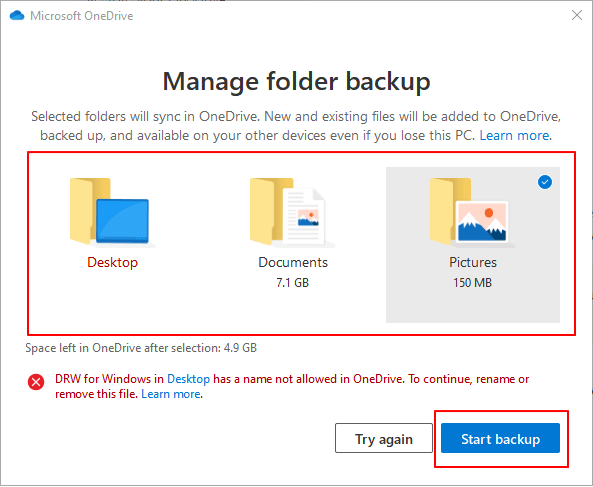
Step 3. On the Manage folder backup window, select folders to backup to OneDrive. And click "Start backup".
Using Google Drive:
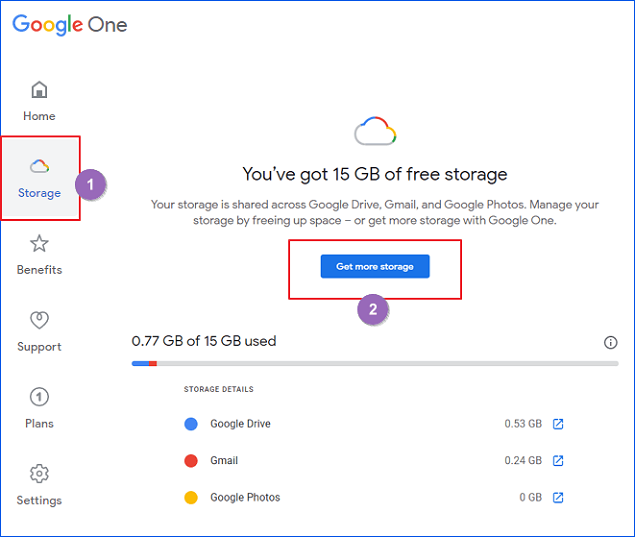
Step 1. Open Google Drive > Log in with your account > Click "Storage" to check the available space.
If your storage is not sufficient, you can upgrade your plan by clicking "Get more storage".
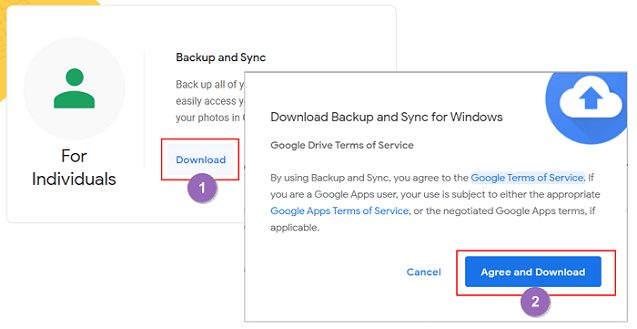
Step 2. Download and install the Backup and Sync app.
To download Google Drive, visit the Google Drive website at https://www.google.com/drive/download/, click on the "Download" button, and then click on "Agree and Download" in the popup window that appears.
Step 3. Choose files and folders to backup from the computer to Google Drive. Click "Next" to continue.
- Launch Backup and Sync > Sign in with your account.
- At the My Computer section, the Desktop, Documents, and Pictures folders are automatically selected by default.
- To select more folders, click "CHOOSE FOLDER" and add them to the backup list by clicking "Select Folder".
- If you need to backup photos and videos from the computer to Google Drive, check "High quality" in the settings.
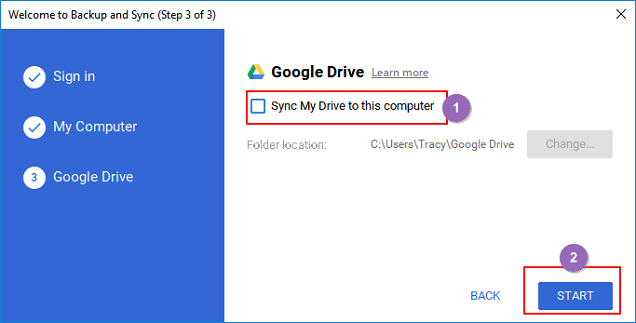
Step 4. Uncheck "Sync My Drive to this computer" > click "Start" to back up selected folders from computer to Google Drive.
Using Dropbox:
Step 1. Download and install the Dropbox desktop app.
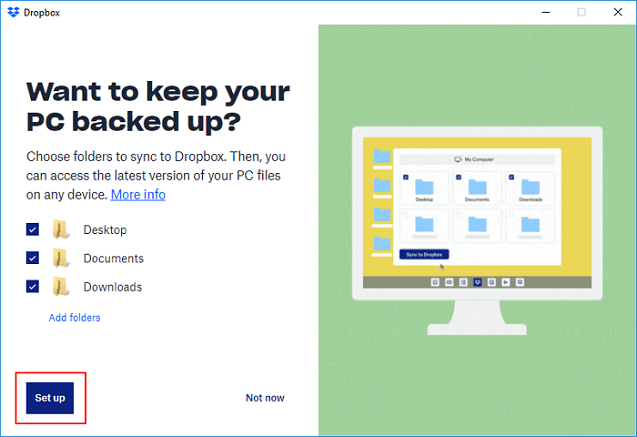
Step 2. Launch Dropbox, click "Backups" > "Set up".
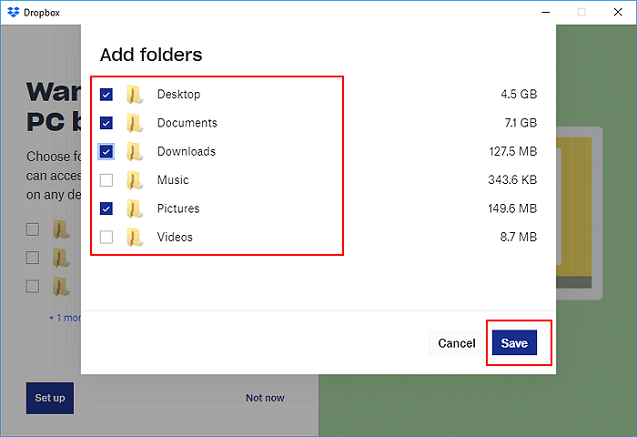
Step 3. Click "Add folders" to select folders and files to backup and click "Save" to confirm.
The Desktop, Documents, Downloads folders are selected by default.
Step 4. Click "Set up" to start back up files from the computer to Dropbox.
What Is The Best Way to Back Up Files? File Backup Software + External Disk
This page offers various solutions for backing up files on a computer, including backing up files on the computer's drive, saving the backup files to an external hard drive, or even storing them in a cloud drive.
The best way to back up files is to use a combination of cloud storage and an external hard drive, such as a portable SSD or a traditional external hard drive. This approach provides a redundant backup of your files, ensuring that you have a copy of your data in multiple locations, making it more difficult to lose everything in case of a disaster or data corruption. Cloud storage services like Google Drive, Dropbox, or Microsoft OneDrive can be used to automatically sync and back up files, while an external hard drive provides an additional, physical copy of your data that can be stored off-site or taken with you on the go.
- Select File Backup Software as the backup tool.
- Choose an external hard drive as the backup destination.
You can back up all your computer files to an external hard drive at once, freeing up space on your disk, by compressing them into a single archive file. This way, you can store all your files in one place without taking up too much storage space on your disk.
Related Articles
- What is Disk Imaging
- How to Use System Restore in Windows 10
- [New] How to Install and Run 64 Bit Programs on 32 Bit Windows 10/8/7
- Learn How to Make Full Backups with 3 Windows 10 Backup Options
- How to Clone Laptop Hard Drive
- Top 2 Ways to Create System Image Windows 11 on USB🔥
To create a system image of Windows 11 on a USB drive, you can use Qiling Disk Master and Backup and Restore (Windows 7). This process allows you to backup your entire Windows 11 system onto a USB drive, providing a complete image of your operating system.
Products
Articles & Tutorials
- Data Recovery
- Data Backup
- File Recovery
- File Backup
- System Backup and Restore
- Disk and Partition Clone
- Technical articles
- Mobile articles
- Disk Master Help
- Windows Data Recovery Tutorials
- Windows Secure Delete Tutorials
- Windows Partition Management Tutorials
- Windows File Backup and Restore Tutorials
- Windows System Backup and Restore Tutorials
- Windows Disk Backup and Restore Tutorials
- Windows Clone Tutorials