Fixed: USB Flash Drive Not Showing Up in Windows 10/11
USB Drive Not Showing Up in Windows
Try plugging the USB drive into a different USB port on your computer, as sometimes the issue is with the specific port, not the drive itself. If that doesn't work, try using a USB hub or a different computer to rule out any issues with your PC. If you're still having trouble, you may want to try using a different USB drive to see if the issue is with the drive itself. If none of these steps work, you may want to consider using a cloud storage service or an external hard drive to access your files.
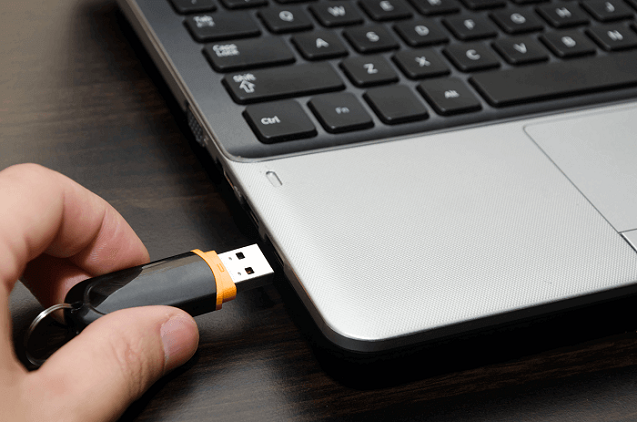
Preliminary Checks on Your USB Drive
Many users have encountered the frustrating issue where their USB flash drive suddenly stops showing up on their computer, only to be visible in the Disk Management tool, leaving them wondering why the drive is disappearing from File Explorer.
To confirm whether your USB drive is visible in the Disk Management window, go to "This PC" > "Manage" > "Disk Management" and check if your USB drive appears in the list. If it does not show up, proceed to the relevant section below to troubleshoot the issue.
Here, we offer multiple solutions as there are two possible scenarios where your USB is not detected by your PC. These methods should help you fix your issue without making you lose any data. If you have this issue on a Mac, check out our flash drive not showing up on the Mac guide to resolve your issue.
Fixes for USB Drive Not Showing Up in Windows 10/11 File Explorer Only
If your USB drive is detected in Disk Management but not in File Explorer, it's likely due to an issue with Windows' ability to read the drive, possibly caused by a corrupted file system or a problem with the drive itself. This can be resolved by checking the drive's file system and formatting it if necessary, or by using a different USB port or computer to rule out hardware issues. Additionally, running a disk check or disk cleanup on the drive may also resolve the issue. If the problem persists, it may be worth trying to recover data from the drive using specialized software.
- USB drive issues
- Drive letter conflicts
- File system errors
The solutions to the issue vary depending on the underlying cause, but overall, following these steps should resolve the problem. Each step is detailed below, and by following them, the issue should be resolved.
| Workable Solutions | Step-by-step Troubleshooting |
|---|---|
| Fix 1. Seek for Repair Services | The most reliable way to fix this error is to ask experts for help...Full steps |
| Fix 2. Update USB drive | Connect USB flash drive to your PC, right-click "This PC", choose "Properties", select "Device Manager"...Full steps |
| Fix 3. Reinstall Disk Driver | Right-click "This PC" > click "Properties" > "Devices Manager". Click disk drives...Full steps |
| Fix 4. Create New Partitions | If your USB shows up as unallocated space in Disk Management, you can create a new partition...Full steps |
| Other Solutions | Assign a New Drive Letter to the USB > Fix File System Errors...Full steps |
Method 1. Seek for Repair Services (Recommended)
If your computer can't read or recognize a USB flash drive, the most reliable way to fix this issue is to seek help from experts. Our manual disk repair service can help you repair flash drive errors with just a few clicks. Contact us to get assistance as soon as possible.
Consult with SalvageData's experts to retrieve data from inaccessible or corrupted digital media, regardless of brand or format, and restore it to its original form.
- Certified ISO–5 class 100 cleanroom recovery
- Free diagnostic, no data, no charge
- Support all operating systems and devices
- Offer a range of turnaround times for fast recovery
Method 2. Update USB Drive Driver
If your USB drive doesn't show up in File Explorer but appears as unallocated space in Disk Management, this method can help. Follow these steps to make your USB drive usable again:
Step 1. Connect the USB flash drive to your PC, then right-click on This PC and select Properties.
Step 2. To resolve the issue, open Device Manager, expand the Disk drives section, and locate the problematic USB drive. Right-click on it and select the "Update driver" option. This should initiate the driver update process, potentially resolving any issues with the USB drive.
Step 3. Click on "Automatically search for driver software online" on the following screen.
Step 4. Wait for the driver to be updated, then reboot your computer, and try reconnecting your USB drive to see if it shows up.
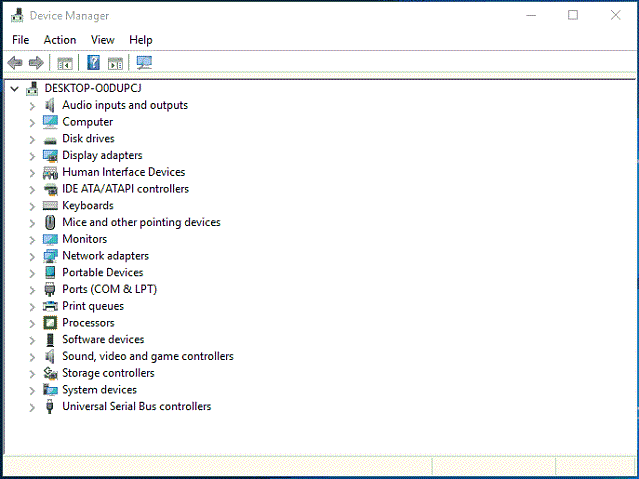
This method can also be helpful in solving disk-related issues like "The system cannot find the file specified" by checking the disk for errors, running a disk cleanup, and ensuring that the disk is not full or corrupted.
Method 3. Reinstall Disk Driver for USB Drive
Step 1. Right-click This PC and choose Properties > Device Manager.
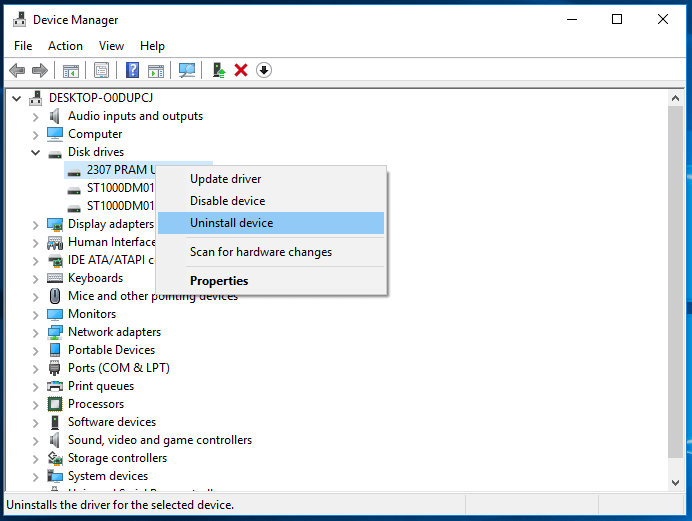
Step 2. To fix a USB drive not showing up in File Explorer, right-click on the drive in Disk drives, then choose Uninstall device.
Step 3. To confirm the removal of the USB flash drive, click OK in the prompt that appears. Wait patiently for the process to finish, and if it takes too long, you can safely remove the USB flash drive from your PC.
Step 4. To resolve the issue, simply restart your computer, and then reconnect the USB flash drive or external hard drive to the PC. This should trigger the automatic installation of the necessary driver, allowing you to access the device again.
Also Read: Top 10 Best Data Recovery Software on Windows and Mac
Method 4. Create New Partitions
If your USB drive shows up as unallocated space in Disk Management after updating or reinstalling the driver, create a new partition to make it ready for data storage.
To create new partitions on the USB drive:
Step 1. Right-click This PC and choose Manage > Disk Management.
Step 2. Right-click the unallocated space and choose New Simple Volume.
Step 3. Follow the wizard to finish the remaining process.
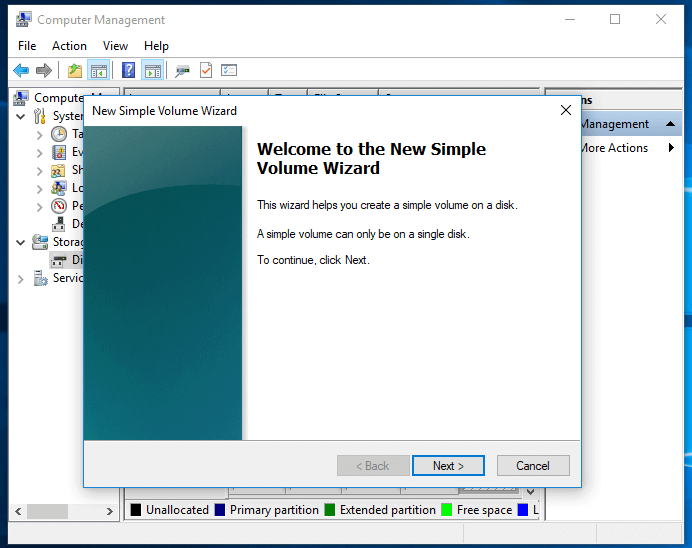
Your USB drive should now show up in Windows as usual. You can copy the files you recovered back to your USB if you want.
Method 5. Assign a New Drive Letter to the USB
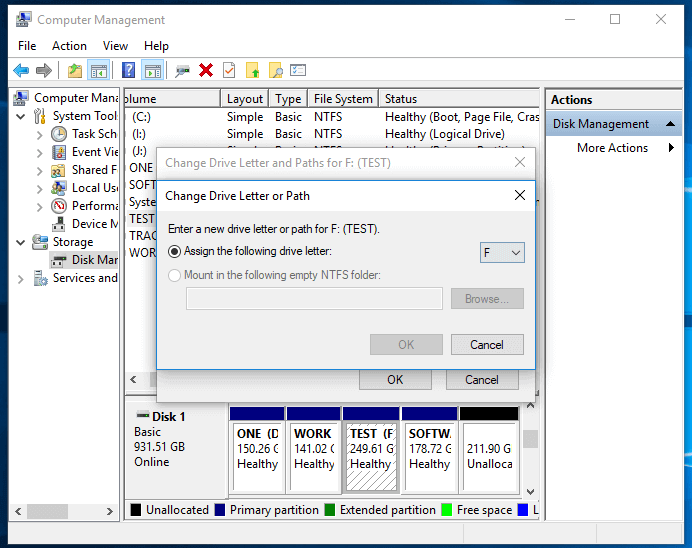
If your USB drive has the same drive letter as one of your computer's hard disk partitions, it won't appear in Windows File Explorer, and you'll need to assign a new drive letter to the USB drive.
Step 1. Right-click This PC and choose Manage > Disk Management.
Step 2. Right-click the volume on your USB flash drive and select Change Drive Letter and Paths.
Step 3. In the window that opens, click Change.
Step 4. Assign a new drive letter to your USB drive and click OK.
Method 6. Fix File System Errors
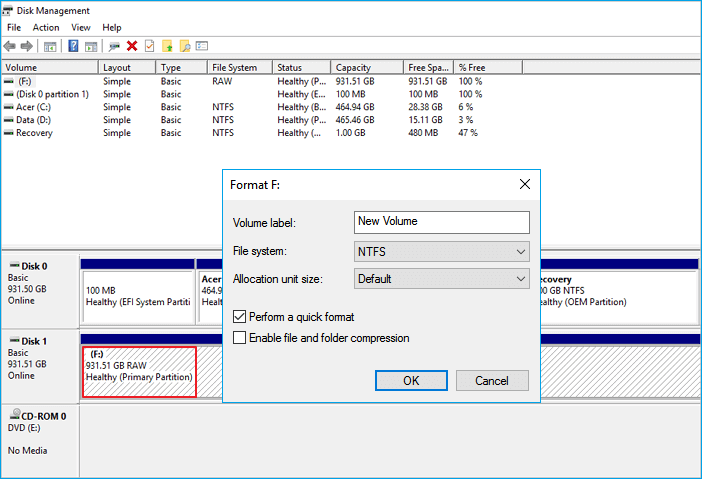
If your USB flash drive has file system errors, it will show up as RAW and become inaccessible, which can be caused by an unsupported file system or a damaged file system due to misoperations or improper formatting. To resolve this issue, you need to format the drive to convert RAW to a supported file system like NTFS or FAT32.
When formatting a USB drive, all data will be deleted, so it's essential to first back up your data by copying it. Use a file recovery tool like Deep Data Recovery to recover files from the USB drive, even if it's not accessible. This ensures your data is protected before you format the drive.
Qiling Data Recovery Software
- Losing data can be frustrating, but there are ways to restore it. If your hard drive has been damaged or corrupted, you can try using data recovery software to scan for and retrieve lost files.
- Recover deleted or lost files such as photos, Excel and PPT documents, PDFs, videos, audio and music files, and even emails with a tool that specializes in data recovery.
- Data recovery software can be used to retrieve lost data due to various reasons such as accidental deletion, formatting, hard drive corruption, virus attack, system crash, etc. This software can scan the affected device, identify the lost data, and recover it in its original format. It can also recover data from various storage devices such as hard drives, solid-state drives, USB drives, and memory cards.
Download it now and follow the guide below to restore data from your USB flash drive easily.
Step 1. Choose the file type to scan
Launch Deep Data Recovery and choose file types. Click "USB/SD Scan" to start the process.

Note: You can choose different search modes based on where and why the data was lost.
Step 2. Choose the USB drive to scan
Connect your USB drive to your computer and run the software. The software will scan your USB drive for lost files and display them in a list. You can select the files you want to recover and click "Recover" to restore them to their original location.

Step 3. Check and preview USB drive data
After scanning is complete, you can quickly find a specific type of file using the Filter feature and the Search option, making it easy to locate what you need.

Step 4. Restore flash drive data
After finding lost files on the USB drive, click "Recover" to restore them, and save the recovered files to a safe location on your PC, not the USB drive itself.
To convert the file system of a USB drive back to NTFS or other Windows-compatible file systems, you should format the drive after storing your data in a safe place. This process will erase all data on the drive, so be sure to back up any important files before proceeding.
Step 1. To access Computer Management, open the Start menu, search for "Computer Management", and click on the result in the search results.
Step 2. To access the Disk Management window, click on the "Disk Management" option in the left-hand menu, and then locate the device you're interested in within the drive viewer. This will allow you to view and manage the device's storage.
Step 3. To format a USB flash drive, right-click on it and select the "Format" option, which will erase any existing data and make the drive usable.
If you have similar issues with your hard drive, check out the fixes below.
How to Fix Hard Drive Not Showing Up in Windows
If your hard drives, whether new or old, internal or external, are not showing up in File Explorer or Disk Management, follow these steps to troubleshoot the issue without losing data. First, ensure the drive is properly connected and powered on. If the issue persists, check the drive's power cord and cable connections.
Fixes for a Hard Drive Not Showing Up in Windows File Explorer and Disk Management
If your hard drive is not showing up in both Windows File Explorer and Disk Management, the possible causes include a faulty drive, a corrupted drive, or a drive that is not properly connected to the system. In such cases, checking the drive's power cord and ensuring it is securely connected to the system is recommended.
- USB drive issues
- USB port/cable error
- Physical corruptions of USB
Follow these simple tips to fix your issue.
Method 1. Fix Driver Issues
If your USB drive doesn't appear in Disk Management, you can try updating or reinstalling your USB drivers to potentially fix the issue. To do this, follow the first two methods in the guide, which provide step-by-step instructions on how to update or reinstall your USB drivers. This may resolve the problem and allow your USB drive to appear in Disk Management.
Method 2. Change USB Connection
Connection failure is a possible cause that can be identified by checking the USB connection on your computer, and can often be resolved by trying a different USB port, switching from the front to the rear port, or connecting the device to another computer and checking if the problem persists, or by changing the USB cable if using an external hard drive.
Method 3. Fix Physical Corruptions
If the above tips don't work, it's likely that your USB drive has physical damage or corruption, making it difficult to fix. In this case, it's best to have it professionally repaired.
The Bottom Line
If a USB flash drive doesn't show up on your Windows PC, it's likely because the computer can't read the drive, making it unreadable. To resolve this issue, you need to make the USB drive readable again.
To make an unrecognized USB drive show up on a PC, you can try updating the USB flash driver, changing the drive letter, or using the Windows Disk Management tool to detect the USB. This should resolve the issue with your USB drive.
Related Articles
- How to Fix Windows 10 Error Code 0xc00000e Without Data Loss
- Get 6 Fixes for Excel File Keeps Closing Automatically | Excel File Recovery Tips Behind
- Error: Google Docs Didn't Save My Work _ How to Recover Unsaved Changes to Google Docs
- USB Flash Drive & External Hard Drive - Everything You Should Know
- How to Fix 'Can't View Pictures on SD card in Camera or Computer'
If you can't view pictures on your SD card or photos aren't showing up on your camera or computer, you can try the solutions provided. Additionally, a reliable photo recovery tool called Deep Data Recovery can help you recover any missing photos from the SD card with ease. - Full and Free Solutions for CHK File Recovery
This page provides a full, free, and easy solution for recovering CHK file data. You can use Qiling data recovery software to recover deleted CHK files, or follow simple steps to restore data from CHK files for free.
Products
Articles & Tutorials
- Data Recovery
- Data Backup
- File Recovery
- File Backup
- System Backup and Restore
- Disk and Partition Clone
- Technical articles
- Mobile articles
- Disk Master Help
- Windows Data Recovery Tutorials
- Windows Secure Delete Tutorials
- Windows Partition Management Tutorials
- Windows File Backup and Restore Tutorials
- Windows System Backup and Restore Tutorials
- Windows Disk Backup and Restore Tutorials
- Windows Clone Tutorials