How to Repair and Fix USB Flash Drive Not Recognized/Detected
Overview of USB Device Is Not Recognized Error
If your SanDisk USB flash drive isn't being recognized by your laptop, try plugging it into a different USB port to rule out any port issues. If that doesn't work, try using a different computer to see if the issue is with your laptop or the drive itself. You can also try formatting the drive in a safe mode or using a data recovery software to retrieve your data. If the drive is physically damaged, you might need to contact SanDisk support for further assistance.">If your SanDisk USB flash drive isn't being recognized by your laptop, try plugging it into a different USB port to rule out any port issues.
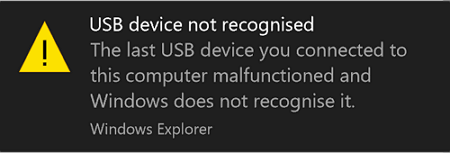
Many people have encountered the frustrating problem of a USB flash drive not being recognized or detected by their computer, a common issue that can be caused by a variety of factors.
The reasons causing this problem are varied, including:
- USB connection issue
- Drive letter issues
- USB drive error
- Hardware damage
- File system errors on a USB drive can cause it to format as RAW, leading to data loss and rendering the drive unusable. This can occur due to various reasons such as power failures, improper shutdown, or software crashes while writing data to the drive.
To determine which fault has occurred and the current state of the drive, you'll need to use the Disk Management utility in Windows, which can examine the drive and provide further details of the solution required.
Check The Causes of USB Flash Drive Not Recognized
To check the status of your USB flash drive using the Disk Management tool, follow these steps: Open Disk Management by searching for it in the Start menu, or by typing "diskmgmt.msc" in the Run dialog box.
Step 1. Right-click "This PC" and choose "Manage".
Step 2. Go to "Disk Management".
Step 3. You should now see your USB drive in one of the following states: it's been successfully mounted, it's being formatted, or it's being used as a boot device. If you're unsure, you can check the device manager or the disk management tool for more information.
- The drive shows as RAW
- The drive shows as unallocated space
- The drive shows without a drive letter
- A USB drive not showing up in the Disk Management utility can be caused by various factors, such as a faulty drive, incorrect drive letter assignment, or a corrupted drive. To troubleshoot, try plugging the drive into a different USB port, checking the drive's power source, and ensuring the drive is properly formatted.
If you've identified that your drive is in a specific state, such as being unallocated, corrupted, or failing, you can apply the following solutions to fix the issue. If the drive is unallocated, you can try to recover it using a data recovery software.
Top 9 Best Data Recovery Software on Windows and Mac
Data recovery software is a useful tool for Windows and Mac users to quickly retrieve deleted or lost data, and here are some of the best options available.
Fixes for USB Flash Drive Not Recognized/Detected
Here are a few different ways to fix problems with drives that can't be recognized by a PC, even if your drive isn't displaying one of the statuses listed above, it's well worth trying these tips to see if it will get your data back. These include checking the drive's power connection, checking the drive's physical connection, running a disk check, running a disk cleanup, and using a data recovery software. Additionally, if the drive is an external drive, try using it on a different computer or with a different USB port to rule out any issues with the original computer or USB port.
Fix 1. Recover Files from RAW USB Drive Before Formatting
Applies to: Fix USB becomes RAW.
A USB drive that's become RAW due to file system errors can't be read by a computer. To fix it, you need to recover the files first, then convert the RAW format to NTFS or FAT32, making it usable again.
To recover data from an inaccessible device, you can use Deep Data Recovery software, which supports deleted file recovery, formatted data recovery, RAW partition recovery, and other data loss situations.
To recover data from the RAW USB drive:
Step 1. Run USB Data Recovery Software
Connect your USB drive or pen drive to your computer, then launch Qiling USB data recovery software on your PC. Select the desired file types, click "USB/SD Scan", and the software will begin the recovery process.

Note: You can choose different search modes based on where and why the data was lost.
Step 2. Choose the USB drive to scan
Select the external drive, then click on the "Scan" button to initiate the file recovery process.

Step 3. Scan and Search Lost Files on a USB Drive
Deep Data Recovery will thoroughly scan your USB flash drive/pen drive and find all your lost data on it, then use the Filter feature to find wanted files after the scan process completes.

Step 4. Restore All Lost Files from USB
A double-click will allow you to preview the files. Select the target files to restore and click "Recover" to save them to a secure location on your PC or other external storage devices.
If you're not skilled in DIY USB data recovery or repair, you can seek help from Qiling's technical support team, which offers one-on-one remote assistance services to fix various storage issues.
Consult with Qiling data recovery experts for one-on-one manual recovery service, which includes a FREE diagnosis and the following services thereafter.
- A data recovery tool can fix errors on various storage devices, including HDD, SSD, external hard drives, and USB flash drives. It can also restore data from different RAID levels, such as RAID 0, RAID 1, RAID 5, and RAID 6.
- Recovering lost partitions that cannot be restored by data recovery software requires a more advanced and manual approach. This typically involves using specialized tools, such as disk editors or partition recovery software, to scan the disk for any remaining partition information.
- Bad sectors on a disk can prevent it from being read or accessed, leading to data loss and system crashes. To fix disks with bad sectors, you can use built-in tools like Check Disk (chkdsk) in Windows or Disk Utility in macOS.
- Fix disks that become GPT protected partitions
- Wipe data, unformat hard drive, Install/uninstall software or driver, etc.
To make the USB flash drive usable again, you can format it and assign a new file system to the device. This will allow you to use the drive for storing files.
Fix 2. Update Unallocated USB drive and Create New Partition
Applies to: Fix USB drive shows as unallocated space.
If your USB drive is showing as 'unallocated space' in the Disk Management utility, it may be due to an outdated or corrupted driver. To resolve this, you'll need to install a new driver for the USB drive.
Step 1. Connect the USB flash drive to the PC
Step 2. Navigate to "Control Panel" > "System" > "Device Manager" > "Disk drivers".
Step 3. Uninstall your USB device by right-clicking on it, selecting "Uninstall", and then scanning for hardware changes to refresh the drivers.
Step 4. Restart your computer.
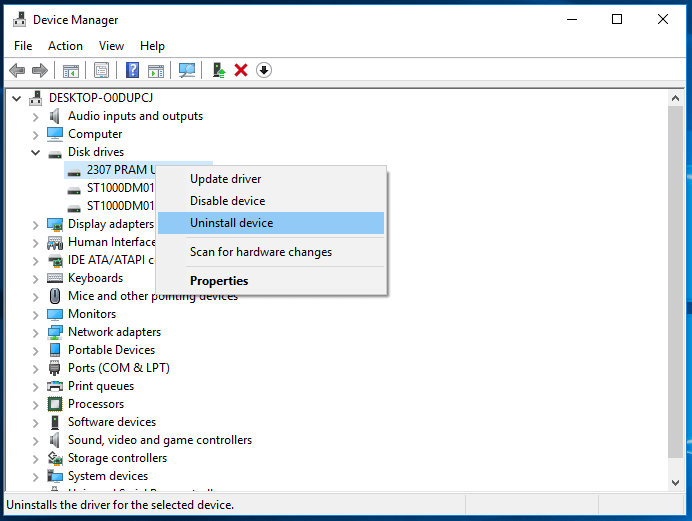
If reinstalling the USB drive doesn't help, you can recover your data from the unallocated space using Deep Data Recovery. Once your data is safe, you can create a new volume on the drive, making it ready for data storage again. The unallocated space will appear as a "lost partition" in Qiling data recovery software, allowing you to choose the correct partition to scan and recover your data.
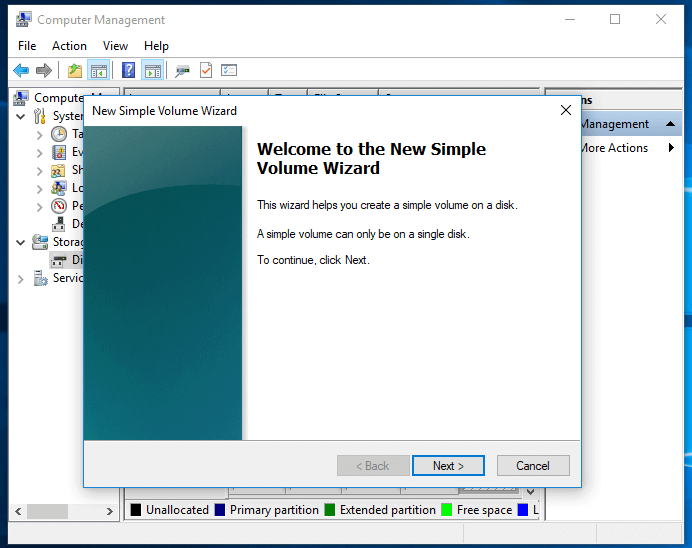
To create a new volume on a drive showing unallocated space, follow these steps:
Step 1. Go to "This PC", right-click it and choose "Manage" > "Disk Management".
Step 2. Right-click the unallocated space and choose "New Simple Volume".
Step 3. Follow the wizard to finish the process.
Fix 3. Change USB Drive Letter to Make It Detectable
Applies to fix: USB drive shows without Drive Letter.
If the drive letter assigned to the USB drive is already occupied by another drive on the computer, it can cause the 'drive not detected' issue. To resolve this, you can use free partition software like Qiling to assign an unused drive letter to the USB drive, which should clear the issue and allow you to recover all the inaccessible data with ease.
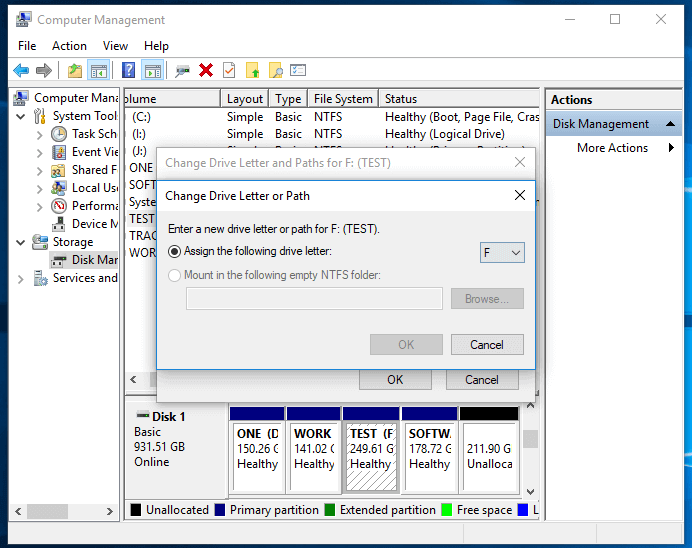
You can assign a drive letter to your USB drive by using the Disk Management utility in Windows.
Step 1. Keep your USB connected. Right-click "This PC" and choose "Manage" > "Disk Management".
Step 2. Right-click the volume on your USB flash drive and select "Change Drive Letter and Paths".
Step 3. In the new window, click "Change".
Step 4. Assign a new drive letter to your USB drive and click "OK".
Fix 4. Check USB Port and Change Connection to Make USB Recognizable
Applies to: Fix USB isn't showing up in Disk Management
If your USB flash drive is not detected by the Disk Management utility at all, it's likely that the drive is not recognized by the system, possibly due to a faulty drive or a malfunctioning USB port, or the drive might be damaged or corrupted, or the drive might be set to read-only mode, or the drive might be connected to a USB port that is not functioning properly, or the drive might be malfunctioning due to a software issue, or the drive might be set to be hidden or excluded from the system, or the drive might be damaged by static electricity or other physical damage.
- The USB drive is not connected properly
- There are driver issues
- Your USB device is physically damaged
To fix the problem, try the following methods:
- Change the USB port/cable
- Connect your external hard drive or other storage devices to another computer, and check if the problem persists. If it does, it's likely a hardware issue with the drive itself, while if it doesn't, it could be a problem with the original computer.
- To ensure stable power supply for your USB drive, plug it into the rear ports of your desktop PC, which typically provide more stable power compared to the front ports.
If the tips above don't work, you might need to take the USB flash drive to a specialist for repair.
The Bottom Line
If a USB drive is rendered unusable, there are several ways to recover your files. However, to avoid this situation altogether, it's essential to make regular backups of your data and properly eject drives from your PC each time you're finished with them. This simple habit can save you from the hassle of trying to recover your files.
FAQs About USB Flash Drive Not Recognized or Detected
Users who experience issues with their USB flash drive, such as it not being recognized, can take steps to resolve the problem and recover lost files. The causes of a USB flash drive not showing up can include physical damage, corrupted files systems, or outdated drivers.
If you are interested in these questions, follow on and you will find a satisfying answer below:
1. Why is my USB flash drive not showing up?
If your USB drive isn't showing up on your Windows PC, it's likely due to a missing, outdated, or corrupted driver, or other issues like drive letter conflicts and file system errors. This prevents your computer from loading the USB drive.
To resolve the issue of a USB drive not showing up in Windows 10/8/7, you can try updating the USB drive, reinstalling the disk driver, recovering data from the USB, changing the USB drive letter, or formatting the USB to reset its file system. For more detailed guidance, you can refer to the article "USB Not Showing Up" for assistance.
2. How can I repair my USB flash drive?
USB flash drives can become corrupt or damaged due to various reasons, but fortunately, there are free solutions to fix them.
Windows chkdsk and Windows disk error checking can repair disk errors from the command line, and with Qiling data recovery software, you can recover data from a failed pen drive without losing files.
For a detailed guide on how to repair a USB flash drive, you can refer to the USB Flash Drive Repair Tool, which provides step-by-step instructions and assistance.
3. How can I recover my USB flash drive that is not recognized?
If your USB flash drive, pen drive, or external hard drive becomes unrecognized, you can resolve the issue by following these steps.
Step 1. Check USB status in Disk Management:
- The USB shows as RAW
- The USB shows as unallocated space
- The USB shows without a drive letter
- The USB is not showing up in Disk Management
Step 2. Fix related error on the USB drive and make it recognized:
- 1. Recover files and format RAW USB.
- 2. Update unallocated USB drivers and create a new volume.
- 3. Change the USB drive letter.
- 4. Check USB port, change USB connection
- 5. If the solutions in this guide don't work, take the USB drive to a local repair center for manual repair.
Once Windows detects the flash drive at a stable capacity, check the USB data-recovery steps if its files are still missing.
Related Articles
- How to Get, View, Remove Windows 10 Update? [2022 Latest Guide]
- How to Format SD Cards in All Devices
- How to Copy Linux Directory and Contents
- Halo Infinite Won't Download? Download Halo Infinite Free
- How to Fix Buffalo External Hard Drive Not Working/Recognized
If your Buffalo external hard drive is not working or recognized on your computer, you can follow the guide in this article to fix the issue on Windows and Mac computers. Additionally, Deep Data Recovery can be used to recover essential data from the external hard drive, even if it's not showing up. - Buffalo Nas Data Recovery Software | Recover NAS Data Quickly
Qiling's NAS data recovery software is a powerful tool designed to help you recover lost data from Buffalo NAS devices. Whether you accidentally deleted important files or lost data due to other reasons, this software can easily retrieve it for you.
Products
Articles & Tutorials
- Data Recovery
- Data Backup
- File Recovery
- File Backup
- System Backup and Restore
- Disk and Partition Clone
- Technical articles
- Mobile articles
- Disk Master Help
- Windows Data Recovery Tutorials
- Windows Secure Delete Tutorials
- Windows Partition Management Tutorials
- Windows File Backup and Restore Tutorials
- Windows System Backup and Restore Tutorials
- Windows Disk Backup and Restore Tutorials
- Windows Clone Tutorials