How to Repair Corrupted External Hard Drive Without Losing Any Data
Storage devices can break down due to various reasons, including physical damage, overheating, power surges, and software issues. Technical solutions for hard drive corruption issues include running disk check and repair tools, such as chkdsk and fsck, updating firmware, and using data recovery software. Additionally, users can use techniques like disk imaging, cloning, and mirroring to prevent data loss and ensure data integrity.
| Workable Solutions | Step-by-step Troubleshooting |
|---|---|
| Recover Data from External Drive | 1. Change USB Cable, Change Drive Letter...Full steps 2. Recover Data with Hard Drive Recovery...Full steps |
| Restore Corrupted File System | Open Command Prompt > Type chkdsk g:/f...Full steps |
| Repair Corrupted External Drive |
|
| Repair External Drive Without Formatting | 1. Repair Corrupted Drive via Windows Tools...Full steps 2. Update External Hard Drive Driver...Full steps 3. Run CMD to Repair External Hard Drive...Full steps |
The best way to repair an external hard drive is to use the appropriate solution based on the associated symptoms. This approach is efficient for troubleshooting internal or external HDDs with unusual signs such as clicking noises, overheating, not opening, not responding, or not showing up. To prevent data loss, use Deep Data Recovery to rescue data as soon as possible.
What Causes a Corrupted External Hard Drive
Hard drive issues can arise due to various reasons, including mechanical failure, physical damage, software glitches, power surges, overheating, and wear and tear over time.
- The improper operation of unplugging a connected device from a PC without safely ejecting it can cause data corruption, file system damage, or even physical damage to the device. This is because the device's file system may not have been properly closed, and the sudden removal of power can cause the file system to become inconsistent, leading to data loss or corruption.
- Damage or malware infection
- An excessive number of hard disk bad sectors
- File system errors
- Outdated/corrupted driver
- A variety of error messages imply a hard drive problem
Tech-savvy individuals typically maintain their storage devices in good condition by using them properly, updating drivers regularly, and running regular virus checks with anti-virus software.
If the error has already occurred, the first step is to identify the root cause of the issue. This can be done by analyzing the error message, checking for any recent changes or updates, and reviewing system logs. Once the root cause is identified, the next step is to implement a solution, which may involve updating software, reconfiguring settings, or taking other corrective actions.
Here’s how to repair a corrupted external hard drive without losing data: Run a virus scan, check for physical damage, and try a data recovery software. If these steps don’t work, try a hard drive repair tool, and if all else fails, consider seeking professional help from a data recovery service. You can also try to repair the corrupted external hard drive by using the built-in disk utility or a third-party disk repair tool.
How to Recover Data from the Corrupted External Hard Drive
When a storage device suddenly stops working, the first priority is often to recover data or files from it. Fortunately, there are two methods that can help fix this issue and ensure that your important files are not lost forever.
Method 1. Recover Data with Another USB Cable or a Different PC
If you're unsure if your external hard drive has a problem, try plugging it into a different USB port or even a different computer to see if it gets recognized. If it works on another device, you can still use the data on the drive.
If the external hard drive isn't showing up on another computer, check its status in Windows Disk Management, then try changing its drive letter and path to make it appear.
Step 1. Right-click on This PC and select Manage. Under the Storage section, click Disk Management.
To open Disk Management in Windows 10/8.1/8/7, you can press the Windows + R keys, type "diskmgmt.msc" in the Run box, and then press Enter. This alternative method allows you to access Disk Management without having to navigate through the Control Panel.
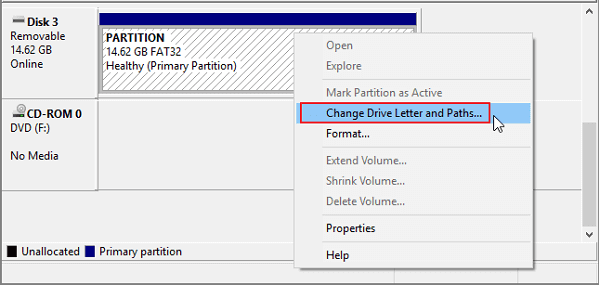
Step 2. Right-click on the SSD partition and select "Change Drive Letter and Paths…".
Step 3. To change the drive letter of a problematic hard drive, click the "Change" button among the Add, Change, and Remove options, and then select a new drive letter from the list. Click "OK" to assign the new letter.
You May Also Like Best Data Recovery Software for Windows 10.
Method 2. Recover Data with Hard Drive Recovery Software
If your hard drive is detectable by Windows Disk Management, even if it's RAW, inaccessible, or has strange characters, powerful hard drive recovery software can help you recover data with ease.
Here, we recommend trying Qiling hard disk recovery software to restore lost data on all storage devices under Windows 10/8/7. Download, install, activate, and follow the steps to recover data from your connected external hard drive.
Step-by-Step Guide:
Step 1. Run Deep Data Recovery. Select file types and click "Fast Scan" to start.

Note: You can choose different search modes based on where and why the data was lost.
Step 2.Connect your external hard drive to your computer using a correct USB cable. Run Deep Data Recovery and you will see your external disk listed under External drives. This software supports all popular external disk brands, including WD, Seagate, Toshiba, LaCie, SanDisk, Samsung, and more.
Select the external hard drive and then click the "Scan" button.

Step 3. As soon as the scan process begins, the software will identify and display lost and deleted data in the scan results, which will be organized for easy viewing. The recovered data can be quickly located by file type or by searching for a specific file name in the search box.

Step 4. After scanning, you can preview the files found by Deep Data Recovery's algorithms, select the desired files, and click "Recover". To prevent data overwriting, it's recommended to save the recovered files to a different drive than the original Seagate drive.
Unfortunately, it's not possible to repair a corrupted external hard drive. Once data is corrupted, it's usually unrecoverable. However, you can try to recover data from the drive using data recovery software or by sending it to a professional data recovery service.
How to Restore Corrupted System Files from the External Hard Drive
If your hard drive appears to be damaged and you can't access it, it's possible that corrupted system files are the cause. This often happens when there's an issue during the file saving process. In this case, you may need to repair the crashed system files before trying to access your hard drive.
- To launch a Command Prompt Window, open Start, type "cmd" and hit Enter.
- To run a check on the external hard drive, type `chkdsk g:/f` (if the external hard drive is drive g) and press Enter. This will run a thorough check on the drive and attempt to fix any errors that are found.
- Type sfc /scannow and hit Enter.
When the repair process is complete, you'll see a message saying "Windows Resource Protection did not find any integrity violations" if no corruption was found. If corruption was detected, it will be fixed automatically.
How to Repair Corrupted External Hard Drive
Formatting a corrupted external hard drive can be done using two methods to restore it to a normal condition. Before attempting, it's essential to understand the type of hard drive problems that can be resolved using disk formatting. This approach can be helpful for issues such as file system corruption, partition table damage, or other logical problems.
Disk formatting is a crucial process that should be done with caution, as it erases data and removes installed programs. However, it's extremely useful for solving common hard drive issues, such as the "Disk is not formatted" error, or when a hard drive is not showing up and displaying as RAW. Additionally, disk formatting can scan and repair bad sectors, and even remove sophisticated viruses.
Method 1. Repair Corrupted External Hard Drive with Manual Repair
Data storage devices such as HDDs, memory cards, or USB sticks may not be recognized by the operating system, making it impossible to access important data. Qiling offers a 100% working solution - a manual disk repair service - that allows experts to repair external hard drives, providing access to professional or personal data once again.
Consult with Qiling data recovery experts for a one-on-one manual recovery service. We offer the following services after a FREE diagnosis:
- To repair a corrupted RAID structure, unbootable Windows OS, and corrupted virtual disk file, you can try the following steps: Run a disk check and repair any errors using the built-in Check Disk (chkdsk) utility in Windows. If the issue persists, try running a System File Checker (SFC) scan to replace any corrupted system files.
- Recover/repair lost partition and re-partitioned drive
- Unformat hard drive and repair raw drive(Bitlocker encrypted drive)
- Fix disks that become GPT protected partitions
Method 2. Quickly Fix Corrupted External Hard Drive by Formatting It
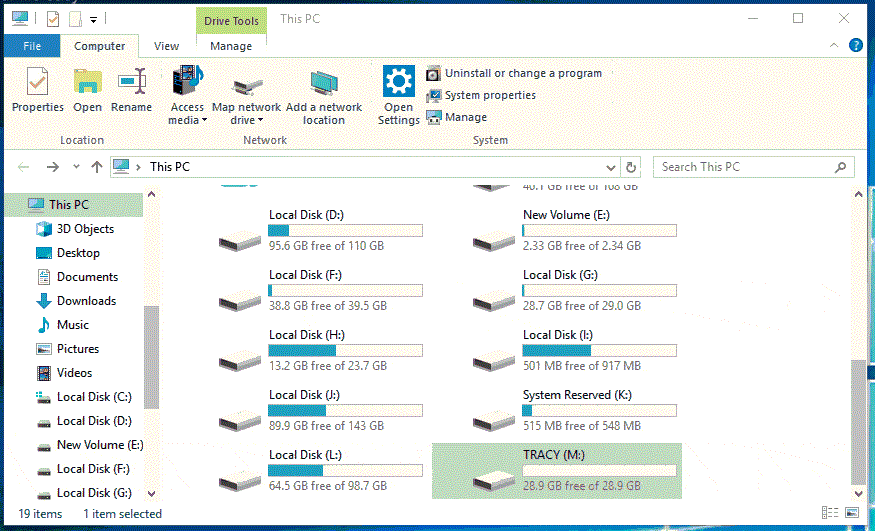
Step 1. Connect the problematic external hard drive to the PC.
Step 2. Right-click the device and select Format.
Step 3. Set a new file system, NTFS or FAT, for the drive and click OK to finish the process.
Method 3. Repair Corrupted External Hard Drive with Partition Manager Software
Another applicable disk formatting tool is Qiling Partition Master Free, a third-party software that can format a hard drive even when its drive letter is not visible in Windows File Explorer. This tool can be downloaded and used as an alternative to the built-in formatting feature when the hard drive is not accessible.
- Right-click the external drive or USB you intend to format and choose "Format".
- Set the Partition label, File system (NTFS/FAT32/EXT2/EXT3/EXT4/exFAT), and Cluster size.
- Click the "Proceed" button to format the hard drive partition.
- Click "Yes" to continue.
How to Repair Corrupted External Hard Drive Without Formatting
If your external hard drive is corrupted, you can try to repair it without formatting it by using data recovery software to scan the drive and recover any recoverable data. Alternatively, you can try to repair the drive's file system using a tool like chkdsk. However, if the drive is severely damaged, it may not be possible to recover all of the data, and formatting the drive may be the only option.
Method 1. Repair Corrupted External Hard Drive with Windows Tools (No Formatting)
There are Windows tools available that are supposed to get a problematic hard drive back to normal, making each tool worth a try.
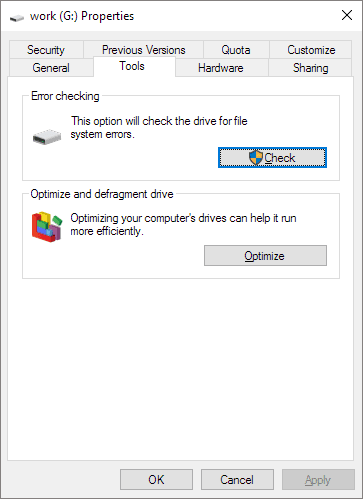
- Open "This PC", right-click the drive that has bad sectors, and choose "Properties".
- Go to the "Tools" tab.
- Click "Check" to check and repair the bad sectors on your hard disk.
To permanently remove bad sectors, use administrator privileges to run the chkdsk command in the Command Prompt. This process functions similarly to the Windows tool, allowing you to remove bad sectors and potentially resolve issues with your hard drive.
Be aware that running CHKDSK will erase all data on the device, so it's crucial to recover your data using file recovery software before proceeding with the CHKDSK command.
- Press the Windows key + R keys simultaneously, type "cmd", and press the Enter key. This will open the Command Prompt.
- To check the E drive for errors and fix them, run the command `chkdsk E: /f /r /x` in the Command Prompt, replacing E with your own drive letter.
If you're not tech-savvy or want to minimize data risks, using third-party software might be a better option. The Command Line is more suitable for computer professionals, as incorrect commands can lead to severe issues, so we recommend trying an automatic command line alternative.
Qiling CleanGenius is a user-Introducing a user-friendly computer fixing tool that's both safe and lightweight, making it the perfect alternative to the CHKDSK command. With just one click, you can easily fix damaged file systems and get your computer back up and running smoothly. This hassle-free tool is designed to provide a quick and efficient solution to common file system issues, saving you time and frustration.
Step 1. DOWNLOAD Qiling CleanGenius on your computer and complete the installation.
Step 2. Run the software. Click "Optimization", and then choose "File Showing".
Step 3. Select the drive with a corrupted file system. Tick the "Check and fix file system error" option and click "Execute".
Step 4. Wait the tool performs the repairing task. After that, click the "here" button to check the drive.
Method 2. Update Corrupted/Outdated Driver in Device Manager
To force an external hard drive to show up, try reinstalling the driver. This can resolve driver issues that may be causing the hard drive problem.
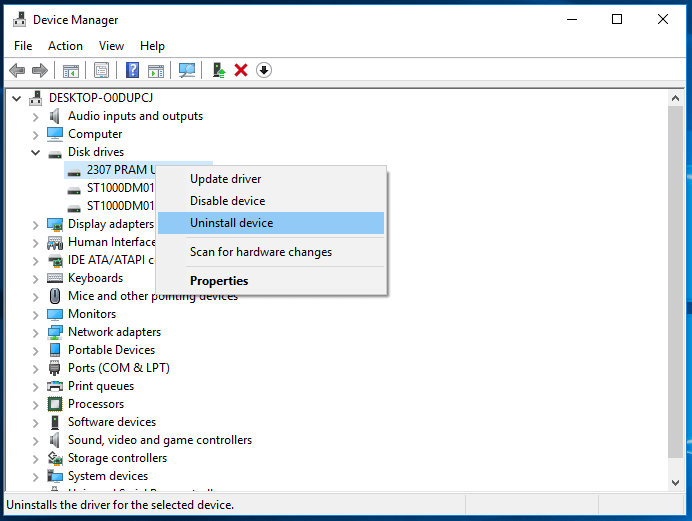
- Right-click "This PC" and choose "Properties" > "Devices Manager".
- Click on "Disk drives", right-To fix a USB drive not showing up in Windows, click on the start menu, type "Device Manager", and click on the result. In the Device Manager window, click on the "Disk drives" section, then click on the USB drive that is not showing up, right-click on it, and select "Uninstall device". Make sure to select the correct USB device to avoid any issues.
- In the prompt asking you to confirm the removal, click "OK".
- Restart your computer and reconnect the drive to the PC. After the computer restarts, the driver will be automatically installed.
Method 3. Run CMD to Repair Corrupted External Hard Drive Without Formatting
To fix a corrupted external hard drive, recover any important data first, then use the Diskpart command in the Command Prompt to clean and repair the drive. This will erase all data on the device.
- Press Win+R, type: cmd and click Enter;
- Type: diskpart and hit Enter;
- Type: list disk and hit Enter;
- Type: select disk 0 and hit Enter; (0 stands for the drive letter of your corrupted external hard drive.)
- This command will completely erase all data on the drive, making it unrecoverable. It's a permanent deletion, and there's no going back once it's done. Are you sure you want to proceed?
- Type: create partition primary and hit Enter;
- Type: exit and hit Enter to finish the process.
How to Maintain a Healthy Hard Drive
Computers rely on hard drives to store the operating system, software, and user data, making them essential for the device to function. To maintain a hard drive's health and prolong its lifespan, it's crucial to have some basic knowledge of how to work with it, especially when using external drives. This know-how enables users to keep their storage devices running smoothly and efficiently.
To live a more fulfilling life, we recommend adopting three key habits. Firstly, you should prioritize self-care and make time for activities that nourish your mind, body, and spirit.
1. Everyday Data Backup
You can back up a whole hard drive, a partition, user archives, or even an operating system to prevent data loss. This is the most guaranteed way to attempt hard drive recovery without worrying about data loss. Windows has native backup tools like Backup and Restore for Windows 7, 8.1, and 10, and File History for Windows 8, but many users prefer third-party free backup software that is more intuitive, user-friendly, and feature-packed, such as Qiling Backup Free, which allows backing up a hard drive, partition, files, folders, etc.
2. Periodic Disk Cleanup and System Optimization
Remove junk files, useless and extremely large files, and system/browser cache files to free up disk space and prevent computer slowness, using a simple disk cleanup to boost hard drive performance.
The machine's hard drive can overheat and malfunction if it's used in a settled location for an extended period, due to accumulated dust and debris in the air. To clean it, you can use a small piece of cotton rag dipped in alcohol or a cotton bud for the inner areas.
3. Take Advantage of Power Save and Sleep Modes
While some major brands may offer longer-lasting drives, it's undeniable that the less time your drive is in use, the longer its lifespan will be.
To minimize wear and tear on your hard drive, turn it off when not in use and utilize Power Save and Sleep Modes to reduce unnecessary maintenance tasks during idle time.
Related Articles
- How to Recover Files from Dead Laptop Hard Drive in Windows 10/8/7
- Recover Data from WD My Passport Hard Drive
- Fix Hard Drive Not Detected/Recognized in BIOS Without Losing Data
- Recover Data from Encrypted SD Card
- How to Fix USB Drive Not Formatted Error [2023]
The 'USB drive not formatted' error can be frustrating, but there are solutions available. Fortunately, there are ways to resolve this issue, and one can try three methods to fix the problem. - How to Fix Xbox One Only Shows Green Screen
If you're experiencing issues with your Xbox One, getting stuck on a green screen can be frustrating. Fortunately, this article provides solutions to help resolve the problem, allowing you to get back to gaming without any further issues.
Products
Articles & Tutorials
- Data Recovery
- Data Backup
- File Recovery
- File Backup
- System Backup and Restore
- Disk and Partition Clone
- Technical articles
- Mobile articles
- Disk Master Help
- Windows Data Recovery Tutorials
- Windows Secure Delete Tutorials
- Windows Partition Management Tutorials
- Windows File Backup and Restore Tutorials
- Windows System Backup and Restore Tutorials
- Windows Disk Backup and Restore Tutorials
- Windows Clone Tutorials