How to Recover Data from Corrupted or Scratched CD/DVD
How to Recover Data from Corrupted or Scratched CD/DVD Disc
As storage technology improves, the use of CD and DVD discs is declining, but some people still rely on them to store music, videos, recordings, and other audio files.
The physical nature of CDs and DVDs makes them prone to damage, such as scratching or corruption, which can ultimately render the saved data inaccessible.
If your CD or DVD is scratched or corrupted, it may still be possible to recover data from it. Fortunately, there are reliable CD recovery solutions available that can help repair damaged discs and recover files.
Manually Check Corrupted or Scratched CD/DVD
Before attempting to repair a non-working DVD or CD disc, follow a manual check process to identify the exact problem. This process may also help recover data from the disc. By doing so, you'll be able to determine the root cause of the issue and potentially retrieve your data.
- Step 1: Use a soft, dry jewelry cloth to gently wipe away any dust or debris from the CD or DVD disc, covering the entire surface. This will help ensure a clean and smooth playback experience.
-
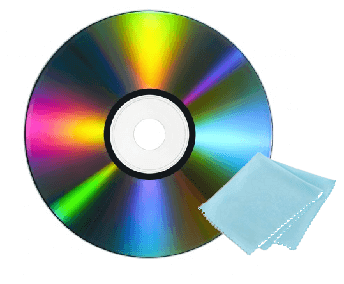
- Step 2:If the disc is not accessible, check if the disc is dirty or scratched. If it is, clean it gently with a soft cloth.
- If you have successfully extracted the saved data from the CD/DVD, congratulations. We suggest you create a folder on your PC and copy the saved data from CD/DVD to the folder.
- If not, move on the next step.
- Step 3: If the surface of a CD or DVD is scratched or unreadable, the repair method will depend on the severity of the damage. If the scratch is minor, a gentle cleaning with a soft cloth and a gentle cleaning solution may be enough to restore the disc's readability.
-
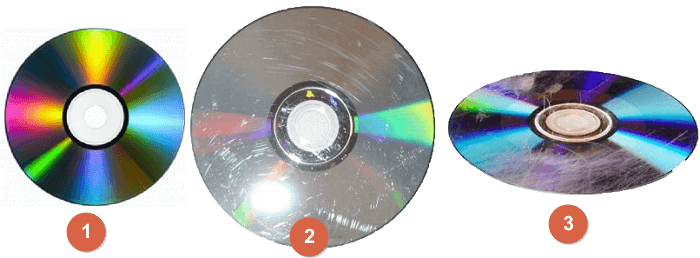
- If the surface of your CD or DVD is as smooth as the first image, you can turn to professional CD recovery software for help.
- If your CD or DVD disc has scratches, you'll need to manually repair them and then restore the data.
- If your disc is fully covered by deep scratches, it's likely that the saved data will be unrecoverable.
Solution 1. Apply Best CD/DVD Data Recovery Software for Help
A CD/DVD that is only slightly scratched or corrupted may be detectable by a PC but still inaccessible. This is because the damage is not severe enough to prevent the computer from recognizing the disc, but it's enough to cause errors or prevent data from being read.
When CDs or DVDs become inaccessible or unreadable, professional data recovery software can scan and restore the disk data with ease.
To recover inaccessible CD/DVD data, you can apply various CD/DVD recovery software. These tools can help restore lost or corrupted files from CDs and DVDs, making them accessible again.
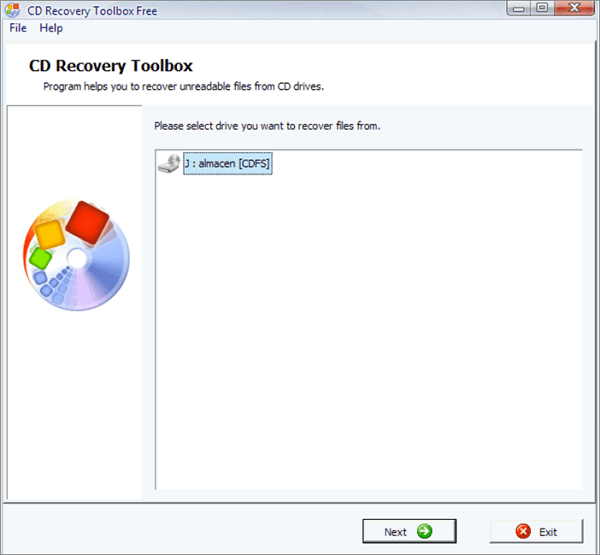
1. CD Recovery Toolbox
This software has a free version that allows you to scan CDs or DVDs to find and restore data and files, and can be downloaded from the internet for assistance.
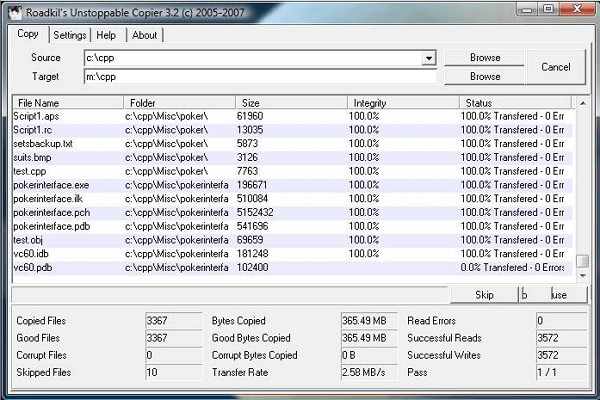
2. Roadkil's Unstoppable Copier
This software is similar to CD Recovery Toolbox and can scan and restore data from corrupted or scratched discs, making it a useful tool for recovering lost data.
If you're having trouble recovering data from a CD or DVD, you can also search online for specialized recovery software that may be able to help. This could potentially provide a better solution than the methods you've already tried.
Solution 2. Manually Repair Scratched CD or DVD
You can try using a CD or DVD repair kit, which contains a special liquid that helps to repair minor scratches and scuffs on the surface of the disc. However, if the damage is more severe or the disc is heavily scratched or covered in deep grooves, it may be more difficult to repair and the disc may need to be replaced.
To repair scratches on CD or DVD discs, a common manual method is to use wax or polish. This process involves applying the wax or polish to the scratched area, allowing it to dry, and then buffing it with a soft cloth to remove any remaining scratches. This method can be effective in restoring the disc's original condition, but it may not work for deeper or more severe scratches.
- Step 1: Prepare a tube of toothpaste, Vaseline or liquid car wax or Scratch Out.
-
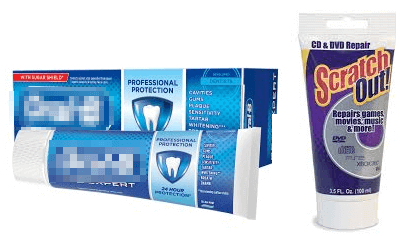
- Step 2: Apply a thin layer of toothpaste, Vaseline, or Scratch Out to the scratched CD/DVD.
-
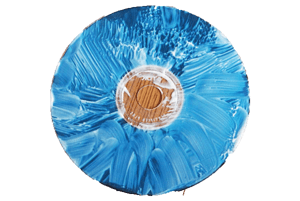
- Step 3: Wipe the disc in a radial motion from the inside to the outside using a clean and soft lint-free cloth.
-
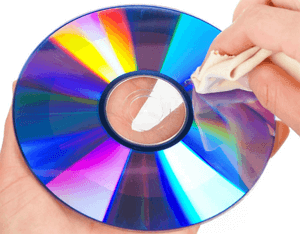
- Step 4: To troubleshoot a CD or DVD that's not readable, try inserting it back into your computer to see if it's accessible. This simple step can often resolve the issue.
- If you have successfully backed up your data, congratulations. To safeguard your valuable data, we recommend creating a new folder on your computer and transferring the data to that folder as soon as possible.
- If the above steps don't work, go back to Solution 1 and apply the recommended software to recover data from the CD or DVD.
Extra Tip: 3-Step Recovery of Saved CD/DVD Videos, Images
If you've saved CD or DVD videos and images on a PC but lost them due to careless operation, your last chance to recover your data is to use professional data recovery software and scan the same drive where you saved the CD or DVD copies. To do this, download Qiling data recovery software, which can help you recover files in just 3 steps.
- Warning
- The software can only be used to recover files from a drive that was used to save CD or DVD copies or folders, and does not directly support recovery from CD/DVD itself.
Step 1. Launch Deep Data Recovery, select file types, and click "Fast Scan" to begin the recovery process.

Note: You can choose different search modes based on where and why the data was lost.
Step 2. To recover lost data, select the drive where the data was lost and click "Scan" to start the scanning process.

Step 3. Once the scan is complete, you can use the "Filter" or "Search" feature to quickly locate the lost files. This feature allows you to narrow down the search results based on various criteria, such as file type, date created, or size, to find the specific files you're looking for.

Step 4. Select the files you want to recover and click "Recover". Then, browse another secure location to save them.
Related Articles
- Fix the Error that Memory Card Not Show Up or Detected in Mobile/PC
- Fixed: USB/External Hard Drive Shows in Device Manager Not This PC
- 3+ Solutions: Cannot Format Raw Drive Error in 2022
- Fix 'Card Cannot Be Accessed' Error in Canon Without Losing Data
- Recover Video File When Power Off Before Stopping Recording
If you're looking for ways to recover video files that were recording when the power went off, this article is for you. You can try using Qiling video recovery software or recover videos from their autosave location to potentially restore them. For more information, read on. - Dashcam Video Recovery: How to Recover Video Files from Dashcam
Qiling dashcam video recovery software is the best way to recover deleted or corrupted video MOV AVI files from in-car dash cam memory card. Download this easy-to-use software and get back lost videos as soon as possible.
Products
Articles & Tutorials
- Data Recovery
- Data Backup
- File Recovery
- File Backup
- System Backup and Restore
- Disk and Partition Clone
- Technical articles
- Mobile articles
- Disk Master Help
- Windows Data Recovery Tutorials
- Windows Secure Delete Tutorials
- Windows Partition Management Tutorials
- Windows File Backup and Restore Tutorials
- Windows System Backup and Restore Tutorials
- Windows Disk Backup and Restore Tutorials
- Windows Clone Tutorials